
Overview
For the Microsoft Remote Desktop Session (RDS), we construct an RDS file that contains the target server, resource information, and authentication information, then we execute MSTSC.exe to launch it and monitor the resulting process.
Configuring the Microsoft RDS Connector
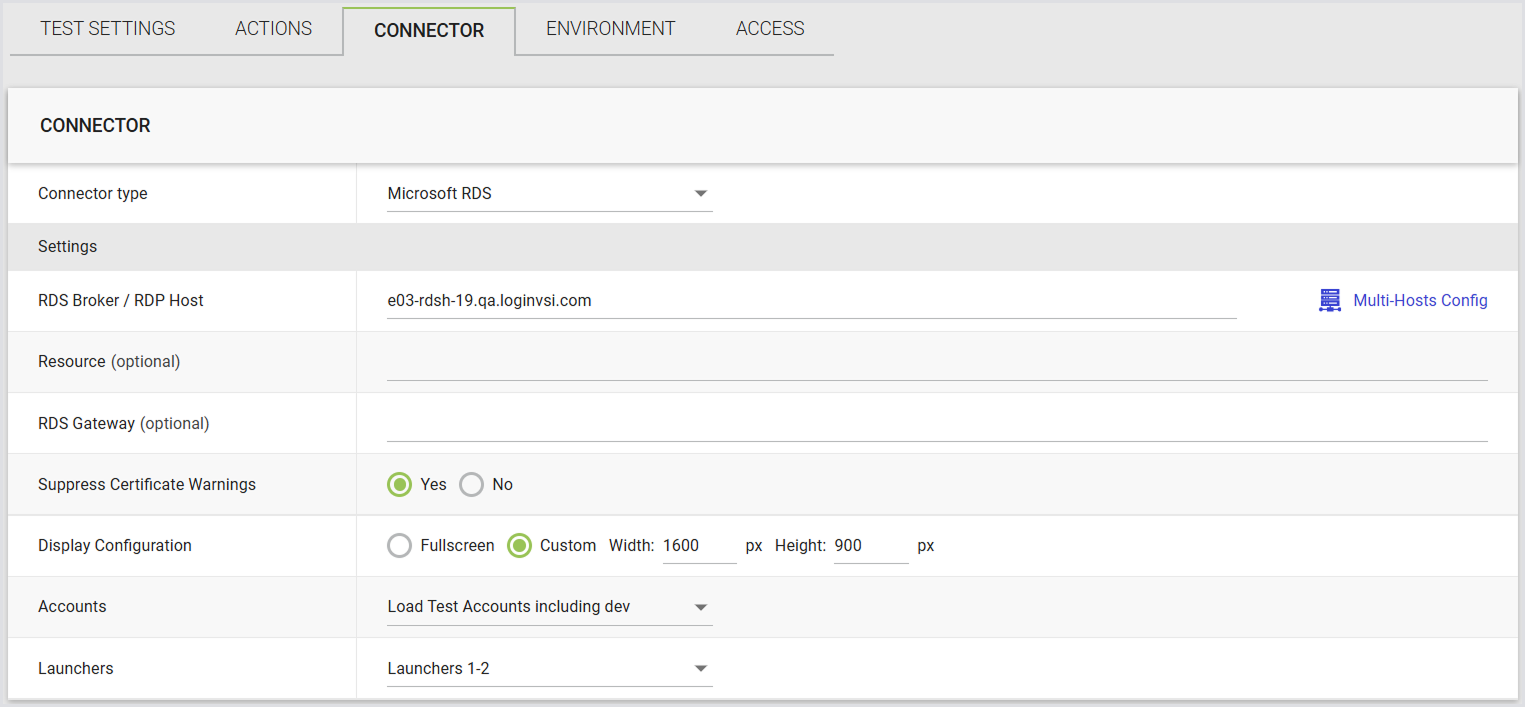
In Login Enterprise, the Microsoft RDS connector supports the following parameters:
|
Field |
Description |
|
RDS Broker / RDP Host |
Allows connection to an RDS farm or a single desktop. For adding mult-host configurations, see Multi-Host Configurations. |
|
Resource (optional) |
Specify the name of the desktop pool when the RDS broker is configured. |
|
RDS Gateway (optional) |
Optionally configures RDS Gateway information if applicable. |
|
Suppress Certificate Warnings |
Enables ignoring certificate warnings for untrusted hosts. |
|
Display Configuration |
Select between full-screen or custom resolution settings. |
|
Accounts |
Choose from previously configured Account Groups or all Accounts. |
|
Launchers |
Select from previously configured Launcher Groups or all Launchers. |
Multi-Host Configurations
Multi-host configurations in the Microsoft RDS are crucial for achieving various objectives such as high availability, load balancing, scalability, and fault tolerance. Unlike using the RDS Broker for load balancing, the multi-host configuration allows organizations to specify hosts or IP addresses directly, bypassing load balancing. This means that virtual users can be directed to specific hosts, such as host1, host2, and so on, without going through the Broker's load-balancing mechanism. When multiple hosts are configured, the Test will direct connections to them in a round-robin sequence, cycling through the entire list in order.
This approach offers flexibility, as you can choose to test only a subset of servers within the RDS Farm. For instance, if you want to test only a few servers (e.g., host1 to host5) instead of all servers on the farm, you can utilize the Multi-host option. By doing so, you can ensure that virtual users are directed only to the specified hosts, without undergoing load balancing by the Broker. This strategy helps optimize testing scenarios and ensures efficient resource utilization.
Adding Multi-Host Configurations
-
When creating or modifying your Microsoft RDS environment, click Multi-Host Configs on the right (The Multiple-server hosts window will open).
-
In the Multiple server hosts table, provide the details of the RDS servers you wish to have tested. You can also copy and paste a list of machines here for easy entry. Please note that we will connect to your machines in a round-robin style. That is, we will connect to machine 1 first, then proceed to machine 2, and so on in a sequential fashion.
-
Click Save to apply the changes.