
Overview
For the Storefront Connector, we interact with the web interface to identify and select the desired resource from the supplied URL. That will result in an ICA file, which we then pass to Citrix\ICA Client\wfcrun32.exe to initiate the actual remote session.
Configuring the Citrix Storefront Connector
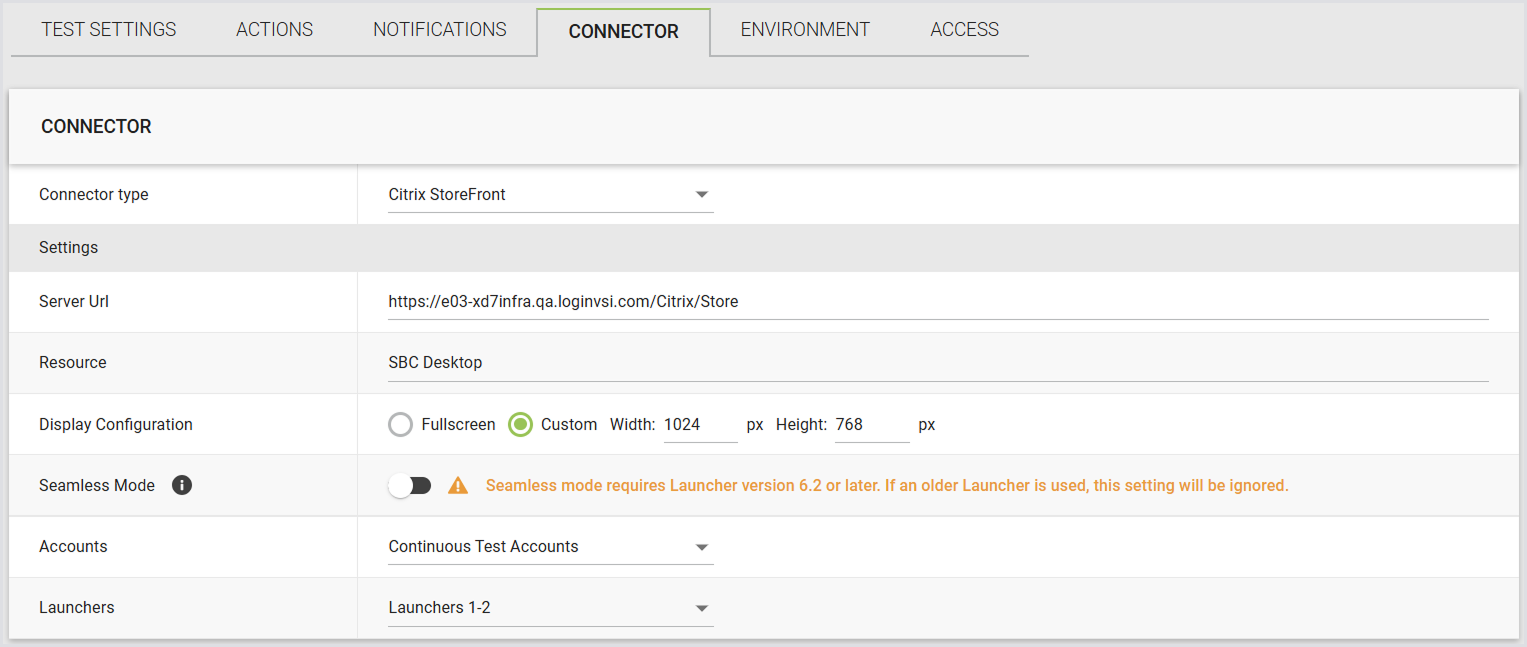
In Login Enterprise, the Citrix Storefront connector supports the following parameters:
|
Field |
Description |
|
Server URL |
The Store URL (not the StoreWeb URL). |
|
Resource |
The resource name visible to end users when they log in to StoreFront. |
|
Display Configuration |
Full-screen display or custom resolution settings. |
|
Seamless Mode |
When enabled, Citrix published apps open as seamless windows instead of in a remote desktop window. For details, see Seamless Mode for Citrix Published Apps. |
|
Accounts |
Select from previously configured Account Groups or all Accounts. |
|
Launchers |
Choose from previously configured Launcher Groups or all Launchers. |
Seamless Mode for Citrix Published Apps
Seamless Mode supports published applications delivered through Citrix virtualization platforms. This mode allows for more accurate performance testing that aligns with Citrix’s best practices. When enabled, it launches apps in seamless mode instead of the Login Enterprise default windowed mode (TWIMode=Off).
This configuration is especially useful for organizations running newer Citrix LTSR versions where ShellBridge or other seamless mode mechanisms affect application behavior and performance. Running in windowed mode may no longer reflect the typical user experience in these environments.
Important: Seamless Mode is only available when using Launcher version 6.2 or later. Ensure your Launcher is up to date before enabling this setting.
If the Launcher version is not supported, this option will be ignored, and the Test will run in windowed mode.
Benefits of Seamless Mode
-
Reflects Citrix’s recommended configuration for published apps.
-
Improves the accuracy of performance metrics.
-
Enhances the realism of Test scenarios for end-user experience.
How to Enable Seamless Mode
-
Open the connector configuration for StoreFront and/or NetScaler.
-
Locate the Seamless Mode toggle.
-
Enable Seamless Mode to allow published apps to launch outside a fixed window.
-
Save the configuration.
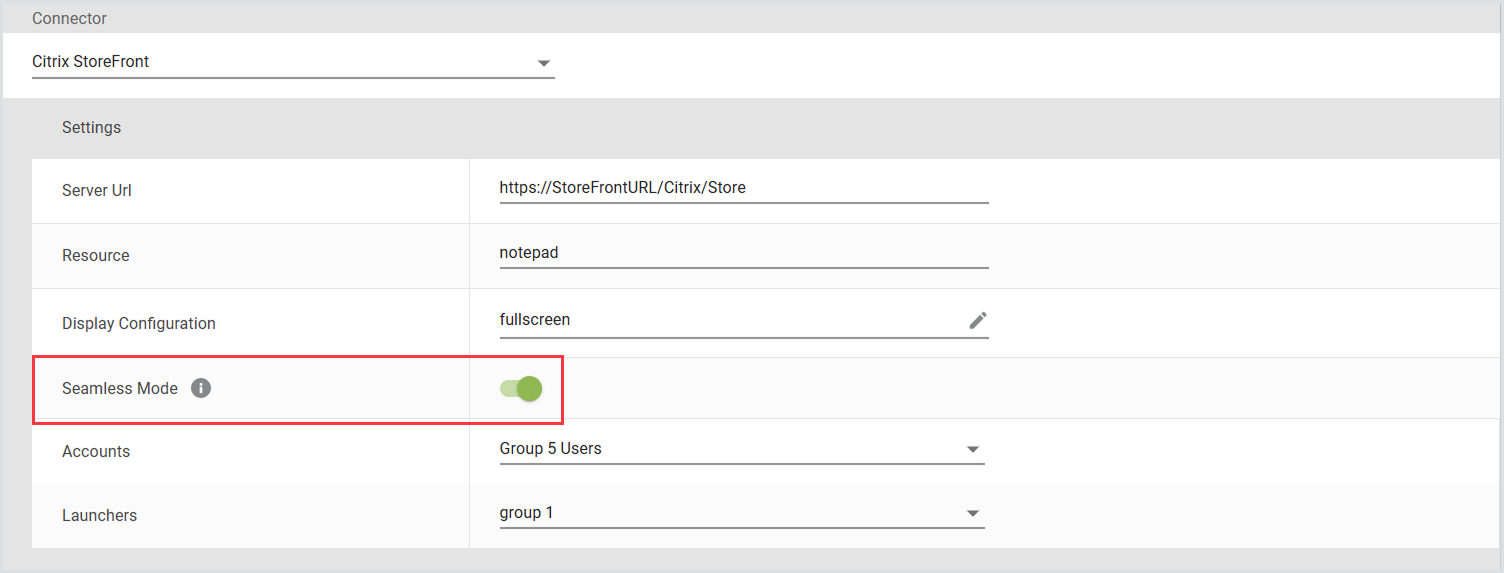
Note: If Seamless Mode is not enabled, Login Enterprise defaults to windowed mode (TWIMode=Off) for compatibility.
Behavior and Compatibility
-
Enabling Seamless Mode allows multiple published app sessions to be tracked reliably using ProcessId (instead of relying on window titles).
-
Session lifecycle behavior (start, monitor, terminate) is consistent in both seamless and windowed modes.
-
If Seamless Mode is disabled, apps will behave as they did in previous versions.
-
Upgrading to this version does not change existing connector behavior unless Seamless Mode is explicitly enabled.
-
Enabling Seamless Mode may affect testing results, such as changes in the EUX score.
-
Seamless Mode requires the app window to stay in focus. When multiple published app sessions are running simultaneously, they may compete for focus. In some cases, this can cause interference between sessions, and some applications may fail, depending on the application itself and how the script is written. You may need to restrict your test to have only one Seamless Mode session per Launcher.
Best Practices
-
Use Seamless Mode when testing Citrix-published apps.
-
Refer to in-product tooltips for guidance on when to enable Seamless Mode.
-
Always confirm that your Launcher version supports this feature before use.