
Overview
Data Providers is a way to collect information via an API for active user counts within existing Azure Virtual Desktop Environments.
Creating a Provider
-
In the Login Enterprise sidebar menu, navigate to Configuration > Providers.
.png?cb=5b4b56424dde8f5711f18c968b7773d8)
-
In Providers, click the green "+" on the top right to add a new Azure provider.

-
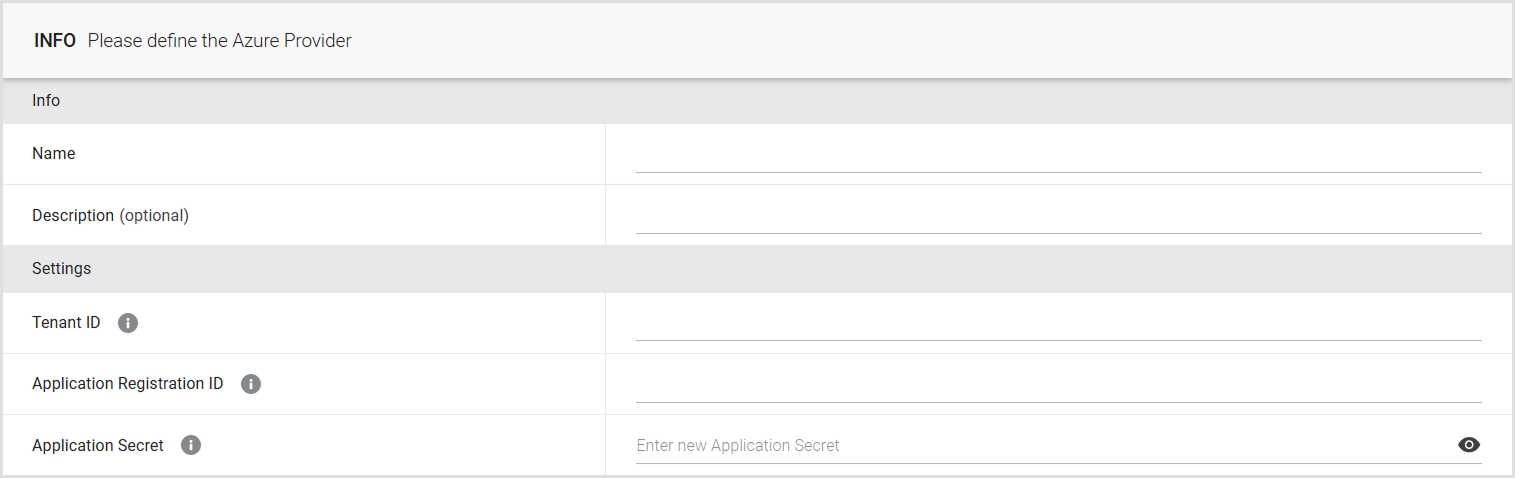
Define your Provider settings:
|
Info |
|
|---|---|
|
Name |
A designated name for the Provider. |
|
Description (optional) |
A summary outlining the purpose of the Provider. |
-
Create a managed application identity within your organization's Azure Active Directory. For details, see the Microsoft Documentation.
-
In Settings, provide the following:
|
Settings |
|
|---|---|
|
Tenant ID |
The unique identifier for your organization's Azure Active Directory instance. |
|
Application Registration ID |
The distinct identifier for your managed application identity within Azure, accessible through the App Registrations service in the Azure Portal. |
|
Application Secret |
During the creation of your application identity (step #4 above), you'll assign a secret. This secret is crucial for authenticating the Login Enterprise application identity with your Azure Active Directory. |
-
Click Save to create your Azure provider object.
Connecting the Provider with an Environment
Once you've created a Provider, it can be attached to an Environment to generate accurate active user data to populate the Operations Dashboard.
To proceed, gather the following details from your organization's Azure Portal:
-
Resource Group: The name of the Azure resource group housing your AVD Host Pool.
-
Host Pool: The name of the AVD Host Pool from which data should be retrieved.
Additional Resources
-
For information on configuring Environments, see Configuring Environments.
-
For details on how to use the Operations Dashboard, see Operations Dashboard.