
Overview
Application Tests verify that your user software functions correctly and remains within established operational parameters. Similar to Load Tests, these are one-time, on-demand tests that return data and events specific to the current test. They are not scheduled to run periodically.
How It Works
An Application Test launches a single session. It only requires one session because it does not gather long-term tracking data, unlike Continuous Tests, and it does not measure aggregate performance, unlike load tests. Its sole purpose is to select a single virtual desktop infrastructure (VDI) and run a set of Application scripts to verify that your software is functional. EUX testing cannot be enabled for these tests.
Application scripts for Application Tests focus on functional areas rather than metrics. While a Continuous Test might benefit from timing every operation with measurable durations, an Application Test aims to verify that each part of the program functions correctly. The scripts should check various aspects of the program, aborting if any errors occur. If timers are used, they are intended to identify significant issues, such as tasks that never complete, rather than small speed changes.
Unlike Load Tests, Application Tests can trigger alert emails for threshold violations.
Note: EUX and VSImax, designed as aggregate statistical measures, are unavailable in Application Tests. However, as Application Tests utilize only one session, the Desktop Connector remains accessible. For more information, see the Desktop Connector.
Creating an Application Test
-
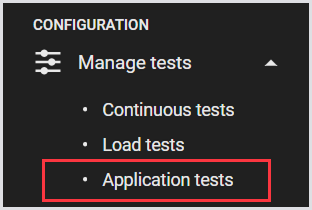
In the Login Enterprise sidebar menu, navigate to Configuration > Manage Tests, and select Application Tests.
-
In Application Tests, click “+“ on the top right to create a test.

-
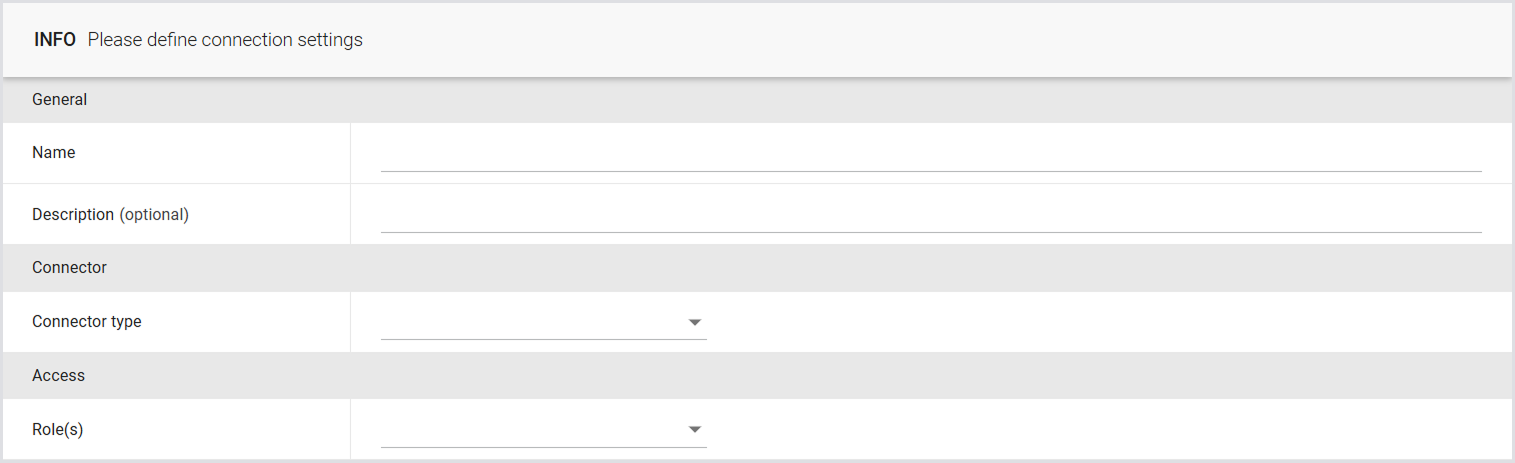
Define the connection settings:
|
Field |
Description |
|---|---|
|
Name |
The display name for the Application Test. |
|
Description (optional) |
An informative description of the Application Test. |
|
Connector |
The type of Connector to be utilized by the Launcher. Note: Each Connector has its own settings. Once you define your Connector, you need to specify the necessary information in the Settings section. For details, see Connectors. |
|
Access |
Select roles to control access to Test configurations and results. For more information, see Role-Based Access Control (RBAC). |
-
Click Save to apply the changes.
Configuring Application Test Settings
Once you’ve created an Application Test, you need to configure the Test settings, such as:
|
Setting |
Description |
|
Verbose logging |
Display the command line number that triggered an error during Application execution failures. Note: This may affect test results as the line number is returned during execution. |
|
Logon time tracking process |
|

Report Settings
You can configure the Test Report settings, such as:
|
Setting |
Description |
|
Include successful applications |
|
|
Email notification |
|
You can also configure the system to send an email once the Application Test is complete. If the email notification switch is enabled but no email address is specified, the default email address from the email configuration will be used. You can enter multiple email addresses in the Email Notification field, separated by commas. For more information, see Managing Notifications.
Tip: You can personalize the report by adding your company logo.
Note: There is no strict limit on the number of screenshots in a generated PDF report. However, note that including a large number of screenshots (for example, up to 1,000 screenshots) may cause browser downtime and increase the PDF file size.
For optimal performance and compatibility, we recommend keeping the number of screenshots below 250. At around 250 screenshots, the PDF size is typically under 20 MB, which aligns with email systems that limit attachments to 20 MB.

Actions
You can add the preferred Applications for the Virtual User to test. You can also add Application Groups, and “Waits.” For details, see Configuring Applications for Testing.
Thresholds
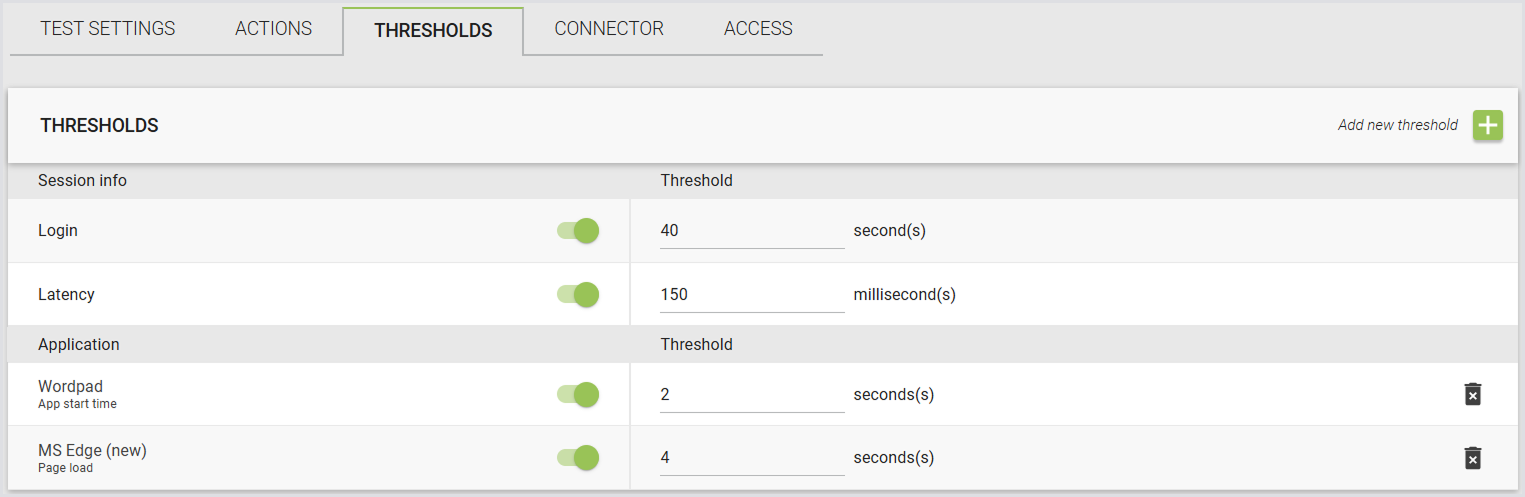
You can also define thresholds for all Actions. These thresholds ensure that the Application not only functions correctly but also maintains its performance across different configurations. If performance thresholds are not met, you will be notified in the Application Testing report.
Access
You can assign roles to Tests to control access to the Test configuration and results. By assigning roles, only users with the designated roles will be able to view or modify the Test configuration and results, depending on their permissions. For detailed instructions on creating and managing roles, permissions, and dependencies, see the Role-Based Access Control (RBAC).

Adjusting the Engine Start Timeout
This setting works in the same way for all Test types. For details, see Adjusting the Engine start timeout.
Starting an Application Test
-
In the Application Tests, click the Play button next to the test you’d like to start.

Note: Even if you configured a user group that contains multiple users, the Application Test scenario only uses one user.
-
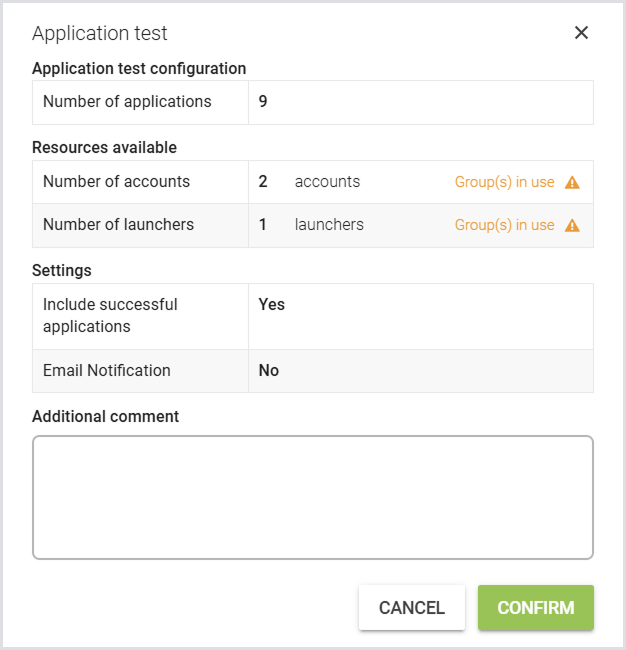
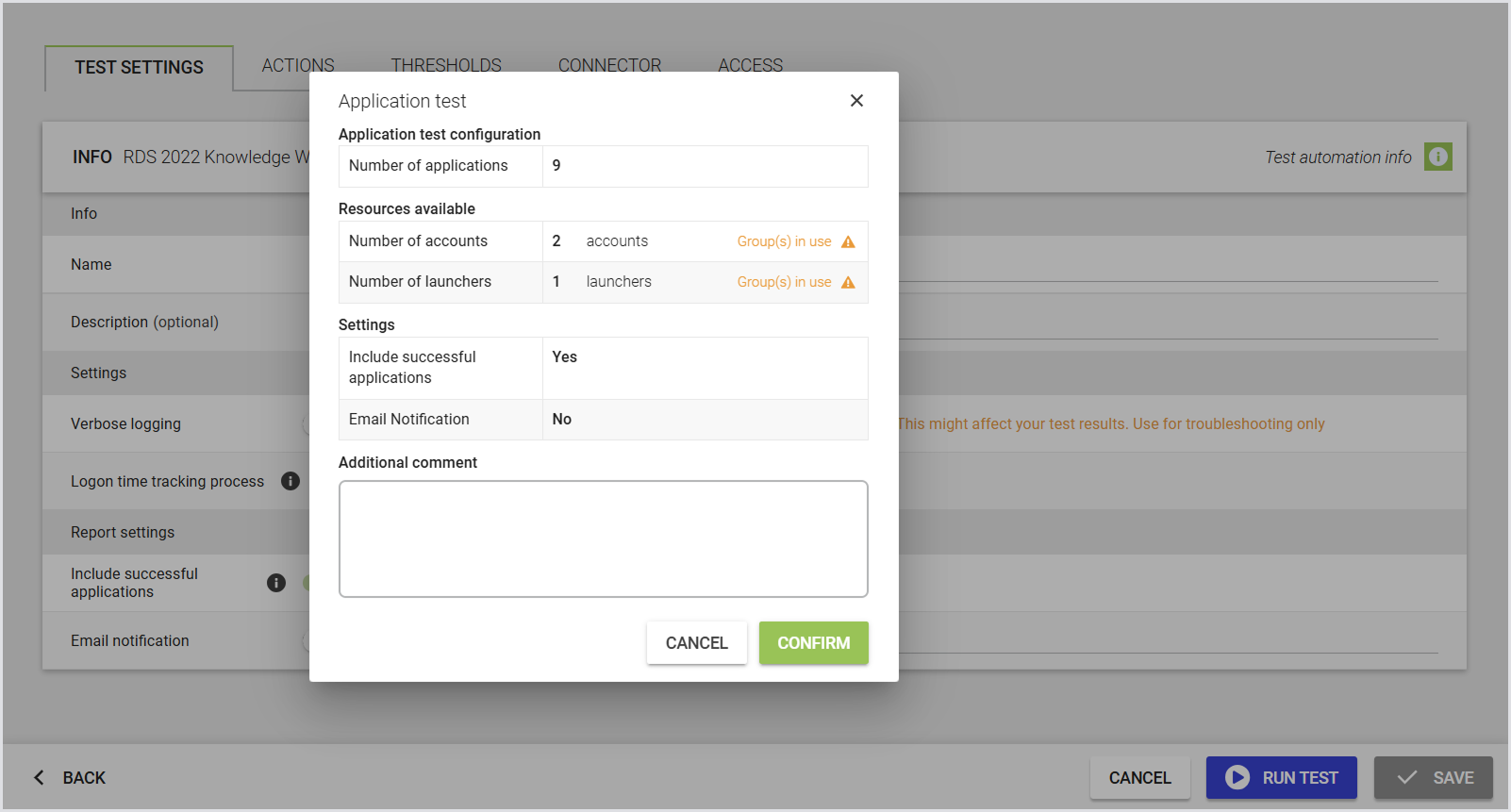
After you click Play, a confirmation dialog window will appear, displaying the current Application configuration. If the configuration is correct, click Confirm to begin the test.
-
Once you click Confirm, you will be redirected to the Test Dashboard. Here, you can view the current status of your recently started Application Test. The dashboard displays how many Applications have started and if any have failed. Performance measurements are also shown. For more information, see the Test Dashboard.
Starting the Application Test from Test Config
You can run an Application Test directly from the Test configuration page. This allows you to run the Test immediately after reviewing or editing its settings, without returning to the Overview page.
Unlike Load Tests, multiple Application Tests can run at the same time. The Run Test button remains available even if other Application Tests are currently running. If there are unsaved changes, clicking Run Test will trigger a confirmation pop-up:
Tip: Click Save and Run to save your changes and start the Test. Click Cancel to return to the page without starting the Test or saving your changes.
For Desktop Connector Tests, clicking Run Test opens the same pop-up used on the Overview page.
Best Practices: Handling Partial Failures in Scripts
Script failures are treated as an all-or-nothing outcome. If any function fails, the entire script is marked as failed. This can make it difficult to evaluate multiple functions within a single test.
If you need more granular results and want the script to continue running even after a subtask fails, consider the following approaches.
Log Subtask Failures with Events
Use CreateEvent in your script to log when a specific subtask fails.
This allows the script to:
-
Record the failure in the Login Enterprise events for the Test Run.
-
Continue executing the remaining subtasks.
This approach is useful when you want to capture multiple issues in a single Test Run instead of stopping at the first failure.
Use Timers to Represent Functional Results
Timers can also be used to report success or failure conditions.
Instead of measuring a duration with StartTimer and StopTimer, use SetTimer to report a predefined value.
Example approach:
-
Success value:
1000(represents 1 second) -
Failure value:
2000
Configure an alert threshold (for example, 1500) so that:
-
Values below the threshold indicate success
-
Values above the threshold indicate failure
Using clearly distinguishable values (such as 1000 and 2000) makes the script easier to read and maintain compared to smaller values like 1 and 2.
Application Test Results and Comparison
For information on the Application Test results and comparison, see Viewing Application Testing Results.