
Overview
This section discusses the optional email notification features within Login Enterprise, divided into two main categories: Global Email Notifications and Continuous Test Notifications.
|
Notification Type |
Description |
|---|---|
|
Global Email Notifications |
Covers the configuration of global email settings, which are essential for sending alerts regarding system status. You will learn how to set up notifications for events such as when the appliance’s external database is offline or if a Launcher is unavailable. This global configuration must be successfully established for the Continuous Test alert emails to function. |
|
Continuous Test Notifications |
Focuses on configuring email alerts specific to Continuous Tests. You will learn how to set notifications that alert you when measurement thresholds are exceeded, including the option to include recent measurement data. Additionally, you can manage the frequency of these notifications to ensure you stay informed without being overwhelmed by alerts. |
By understanding both types of email notifications, you can effectively monitor the health of your Virtual Appliance and receive timely updates on Test performance.
Global Email Notifications
Default Notifications
When configuring Continuous Testing, you can define notifications for the conducted measurements. These notifications alert you if actions or measurements deviate from expected behavior. There are 4 default notifications:
-
Login Failure: Triggers when a Virtual User is unable to log in to the configured environment (not applicable to the "desktop" connector).
-
Login: Checks if the login time exceeds the configured threshold. If this occurs, an event is generated, and depending on the configuration, an email may be sent.
-
Latency: Checks if the measured latency exceeds the configured threshold. If so, an event is generated, and based on configurations, an email may be dispatched.
-
Application Failure: Triggers an event whenever an application fails to start.
.png?cb=f6519836c4b6a905c9fb6751857e3f57)
Note: Every timer defined in any Application script you have included in this Test is available for Notification. You must add the Application script first before adding the Notification.
Application Notifications
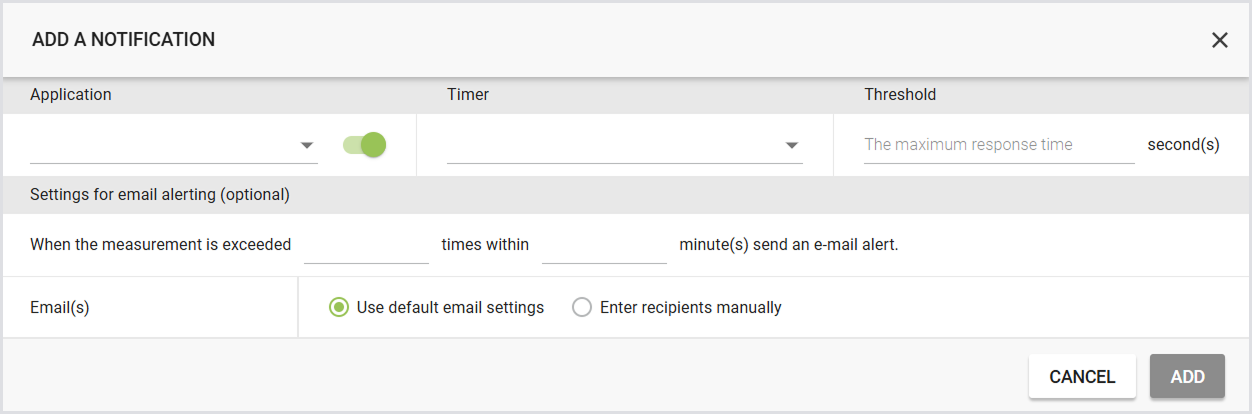
You can manually add application notifications and select the specific applications or measurements to monitor. You can then define the threshold manually. Whenever a measurement exceeds the defined threshold, an event is generated. As illustrated in the screenshot, you can configure email notifications to be sent when a measurement exceeds a specific number of occurrences within a specified time frame.
To add a new Notification:
-
Click the green “+” on the right to add a notification.

-
In the Add a Notification, specify the following:
Unique Email Notifications for Each Threshold
Configuring unique email notifications for different thresholds allows you to specify distinct email recipients based on which threshold is breached. This is particularly useful for alerting specific stakeholders relevant to particular thresholds, providing more granular control over notifications compared to the previous global email notification settings.
To configure a unique email notification for each threshold:
-
Identify the threshold for which alerts should be sent to a specific subset of stakeholders.
-
In Settings for Email Alerting (Optional), use the radio buttons to select the desired email options.
-
Use default email settings: The threshold will inherit email settings from the Global Email Notifications settings.
-
Enter recipients manually: Input semi-colon-separated email addresses for those who should be notified when the conditions for alerting are met. This option overrides the global settings on a threshold-by-threshold basis.
-

-
Click Add to enable the threshold.
After saving your settings, the new threshold configuration will be active, and email notifications will be sent according to the specified criteria. Ensure you review the alerting setup periodically to confirm it aligns with your stakeholders' needs and threshold requirements.
Email Notifications
Email notifications for Continuous Tests include the last 5 measurements when thresholds are exceeded. If there are fewer than 5 measurements available, the email will indicate the actual number present. If there are no previous measurements (for example, because the Test run has only started), this section will not be displayed.
To configure email notifications, you need to enable the email option for the measurements you want to stay up-to-date with. You can add email notifications to each measurement individually by selecting the 'letter' icon.

This will present you with two text fields and a switch.
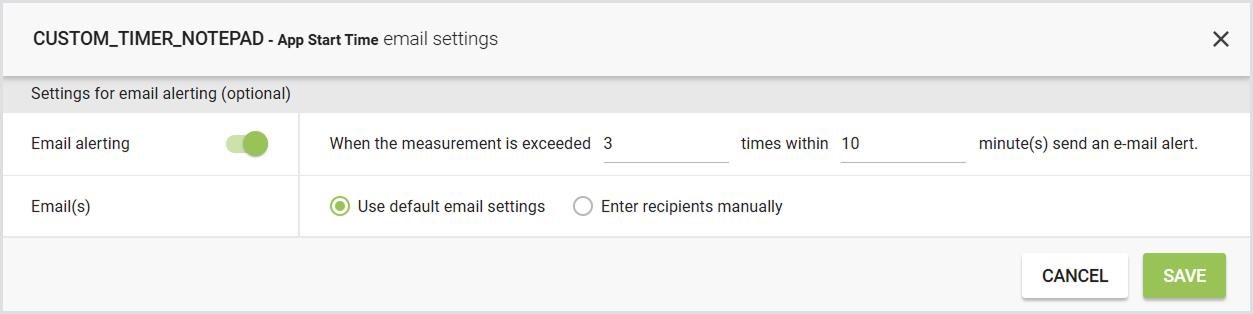
You can define when you want to receive emails. This feature is designed to prevent you from being spammed whenever a spike occurs, giving you the ability to decide whether the behavior is a fluke or a consistent issue. The example below states that when the measurement crosses the defined thresholds more than five times in one hour, it will send you an email. An email typically looks like this:
In the title, it states which environment and which measurement or application went over the threshold. In the email, you can find details about the threshold it exceeded (as configured). It also includes information about the environment, the threshold time measured, and the last five measurements, along with a remark indicating the percentage over the threshold.
Global Notifications
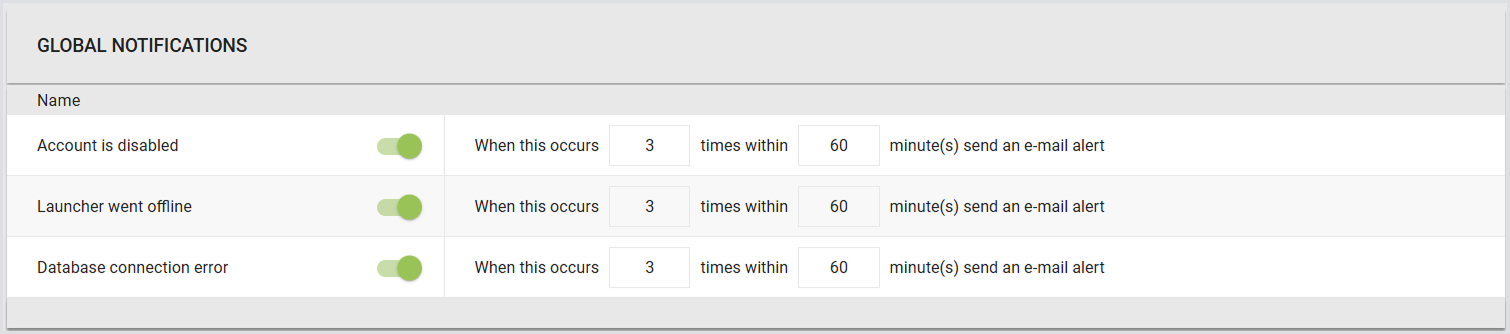
Global notifications can notify you of such scenarios as disabled accounts or launchers going offline. To configure global notifications:
-
In the Login Enterprise sidebar menu, navigate to Other > External notifications.
.png?cb=066001ccfa761f659a4e25a493ae8f4d)
-
In External notifications, look for Global notifications.
In Global notifications, you can configure the following settings:
|
Setting |
Description |
|---|---|
|
Account is disabled |
Triggers when a user account is used but fails to become active. If this occurs a specified number of times within a specified timeframe, an email notification will be sent containing the name(s) of the affected user account(s). |
|
Launcher went offline |
Activates when a launcher fails to report and is marked as offline. If this happens more than a specified number of times within a specified timeframe, an email notification will be sent containing the name(s) of the affected launcher(s). |
|
Database connection error |
Activates when the database connection fails a specified number of times within a specified timeframe. In this case, an email notification will be sent. |
Email Cool-Down
After sending each email, there is a cool-down period in place to prevent excessive email notifications. The cool-down period is identical to the timeframe configured, as demonstrated by the 60-minute example in the screenshot above.
Continuous Test Notifications
Configuring Email Notifications
-
In the Login Enterprise sidebar menu, navigate to Other > External notifications.
-
In Email altering, provide your mail server details.
Tip: To send email notifications to multiple recipients, enter multiple email addresses separated by commas.
-
Click Send test email to make sure your configuration is working.
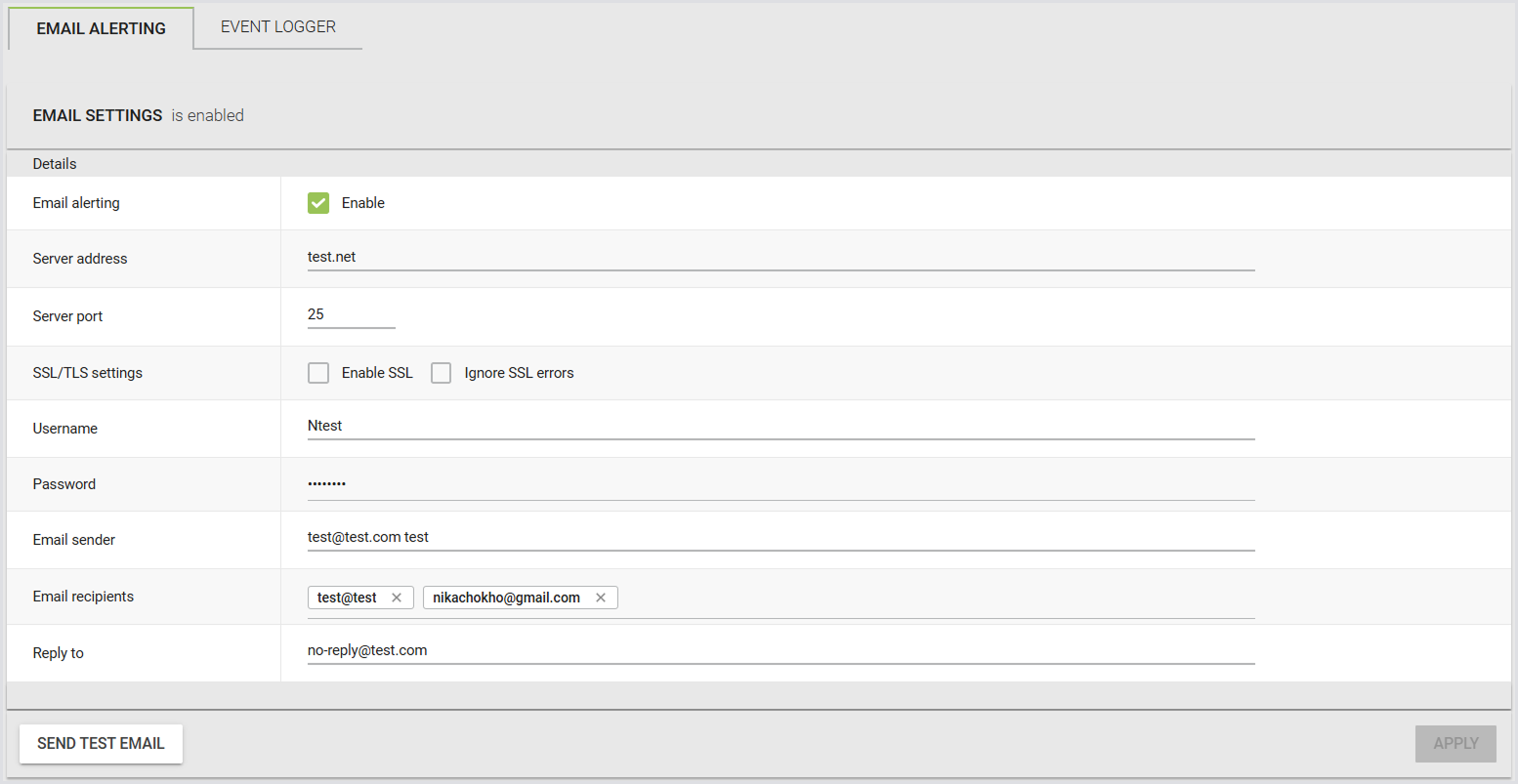
When you have verified that your mail notifications are working, enable the email alerting and click Done.
You can now configure email alerts in Continuous Tests > Test instance > Notifications. For more information, see Configuring Continuous Testing.
Additional Resources
For information on configuring Login Enterprise to send SLA Reports via email, see SLA Reports.