
Overview
The Login Enterprise Event Logger records events generated by the Virtual Appliance on a Windows host with the Event Logger service installed. By establishing a connection between the Virtual Appliance and the Windows host's Event Logger service, relevant events are seamlessly integrated into the Windows Event Logs.
This integration offers several benefits:
|
Benefit |
Description |
|---|---|
|
ITSM Integration |
Your ITSM tool can scrape the Windows Event Logs to automatically create tickets or trigger configured external automation. |
|
Enhanced Analytics |
The Event Logger on the Windows host can be used for further event analysis and data analytics, providing deeper insights into system performance and activities. |
For information on installing and configuring the Login Enterprise Event logger, see Integrating Login Enterprise with the Windows Event Log Service.
You can find the logs in the Event Viewer of the system you have configured. Check the Applications and Services Logs folder for the LoginPI Events log.
Note: The log may be empty if your environment is running without events.
Possible Events
-
accountCapacityExceeded -
accountDisabled -
appExecutionAbandoned -
applicationFailure -
applicationThresholdExceeded -
connectionInitializationTimeout -
customUserSessionEvent -
dataRetentionFailed -
dataRetentionFinished -
dataRetentionStarted -
databaseFailure -
emailFailure -
emailRequest -
emailSent -
engineLogs -
enginePaused -
engineResumed -
euxExecutionFailure -
euxInitializationFailure -
latencyMeasurementFailed -
latencyThresholdExceeded -
launcherCapacityExceeded -
launcherLogs -
launcherOffline -
licenseSessionLimit -
loginFailure -
loginTimeMeasurementFailed -
loginTimeThresholdExceeded -
remoteSessionDisconnected -
screenshotFailure -
scriptEvent -
scriptScreenshot -
sessionDiscoveryError -
sessionFailure -
sessionRequestEndedBeforeEngineBecameOnline -
testRunCancelled -
testRunFailed -
testRunFinished -
testRunStarted
Integrating Login Enterprise with the Windows Event Log Service
With Login Enterprise, you can utilize the Windows Event Log Service to enhance your monitoring capabilities. This integration actively sends all events generated in Login Enterprise to a Windows machine's Event Viewer, allowing you to leverage this information in other monitoring tools like Microsoft SCOM.
The Login Enterprise Event Logger is a service connected to the Login Enterprise Appliance. Each event is pushed from the appliance to the Event Logger machine in real-time, ensuring there is no delay in event logging.
Benefits of Using the Login Enterprise Event Logging
|
Benefit |
Description |
|---|---|
|
Real-time event logging |
Events generated in Login Enterprise are immediately sent to the Event Logger machine, ensuring timely updates. |
|
Enhanced monitoring |
By integrating with the Windows Event Log Service, you can utilize the Event Viewer and other tools like Microsoft SCOM for comprehensive monitoring. |
|
Seamless integration |
The pushing mechanism is built into the event process, providing seamless and efficient event logging. |
This integration streamlines event management and monitoring, offering a robust solution for maintaining system health and performance.
Steps for Integration
-
In the Login Enterprise sidebar menu, navigate to Other > External notifications.
.png?cb=066001ccfa761f659a4e25a493ae8f4d)
-
In External notifications, select Event Logger from the tab menu.
-
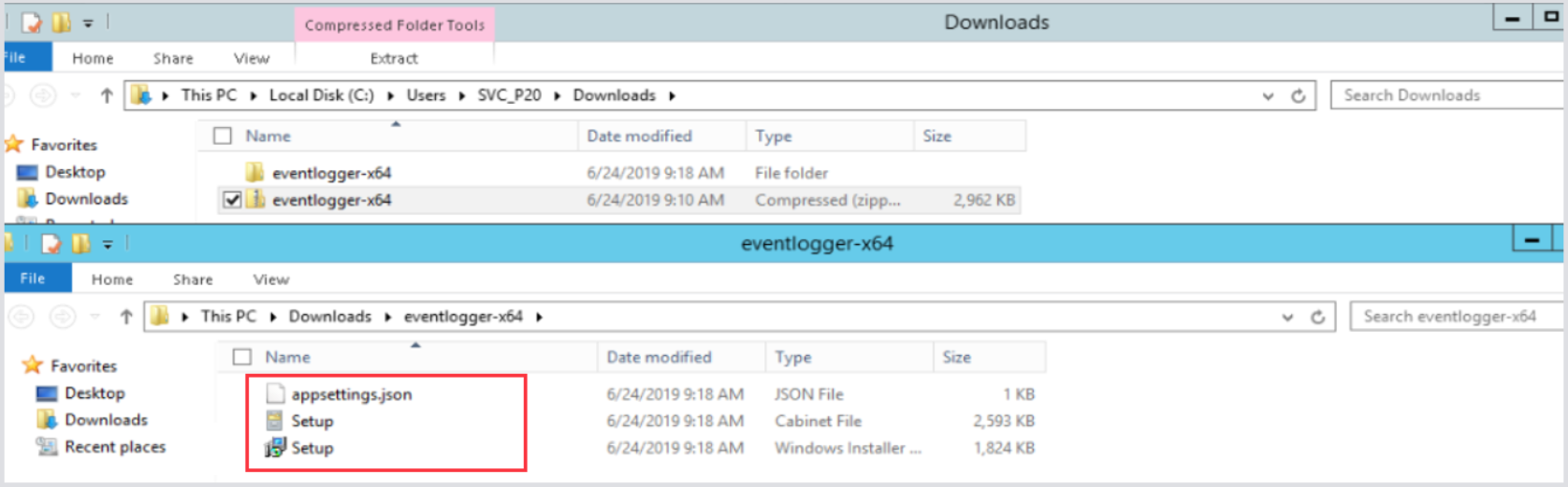
Download the EventLogger-x64.zip, and then extract the contents.
.png?cb=fc8af00c43fa969f7ffeb7d89ab6344b)
-
You should see 3 files inside the folder.
-
Execute the Setup.MSI and follow the setup wizard to install the application. Once completed, the service will be installed. To verify this, open the Services window on your Windows machine and check that it is running.
-
You can also open the Event Viewer and check the Applications and Services Logs folder to see if the LoginPI Events log is present and if there are any entries.
Note: The log may be empty if your environment is running without events.