
Overview
The Desktop Connector lets you trigger a Test run without needing a remote-access system. Instead of using a Launcher that triggers a login for a properly configured account, you, as a user, run the appropriate program by hand. When you select a Desktop Connector, there are no configuration parameters. The Test definition lets you simply copy a command (LoginPI.Login.exe <URL> <TestID>) and paste it into your existing session to download and execute the Test.
The Desktop connection method is highly beneficial for initial testing and can also prove invaluable in unique situations where creating a remote session is not feasible. Instead, you can use existing machines with active interactive sessions to trigger the Tests. To set the Connector in the environment (Continuous, Load, or Application Testing), you need 3 values:
|
Name |
Connector |
Description |
|---|---|---|
|
The designated title or identifier for the environment. |
Desktop |
A summary that outlines the purpose and key characteristics of the environment. |

Note: Once configured, you might notice the lack of other configurations as seen in the different connectors. This is expected behavior as we start the process from the machine; there is no remote connection required. You can now configure the environment as usual.
Continuous Testing Scenario
There are other differences in the connection setup of the Desktop Connection with other remoting configurations. With Continuous Testing, enabling the schedule will allow the Desktop Connector to start. If it is disabled, no sessions can be initiated.

The Actions list is almost the same as the Continuous Testing that uses a remote connection. There is a single difference. Instead of Logging off at the end, there’s Restart on complete. Restart on complete automatically restarts the machine. Depending on the configuration, the machine will auto-start / login and repeat the same process.
Tip: If you do not want the machine to reboot after each run, you can decide if you want to run the process once or repeat it x number of times. We have seen situations where customers want to repeat the process 9999 times using Repeat all steps above.
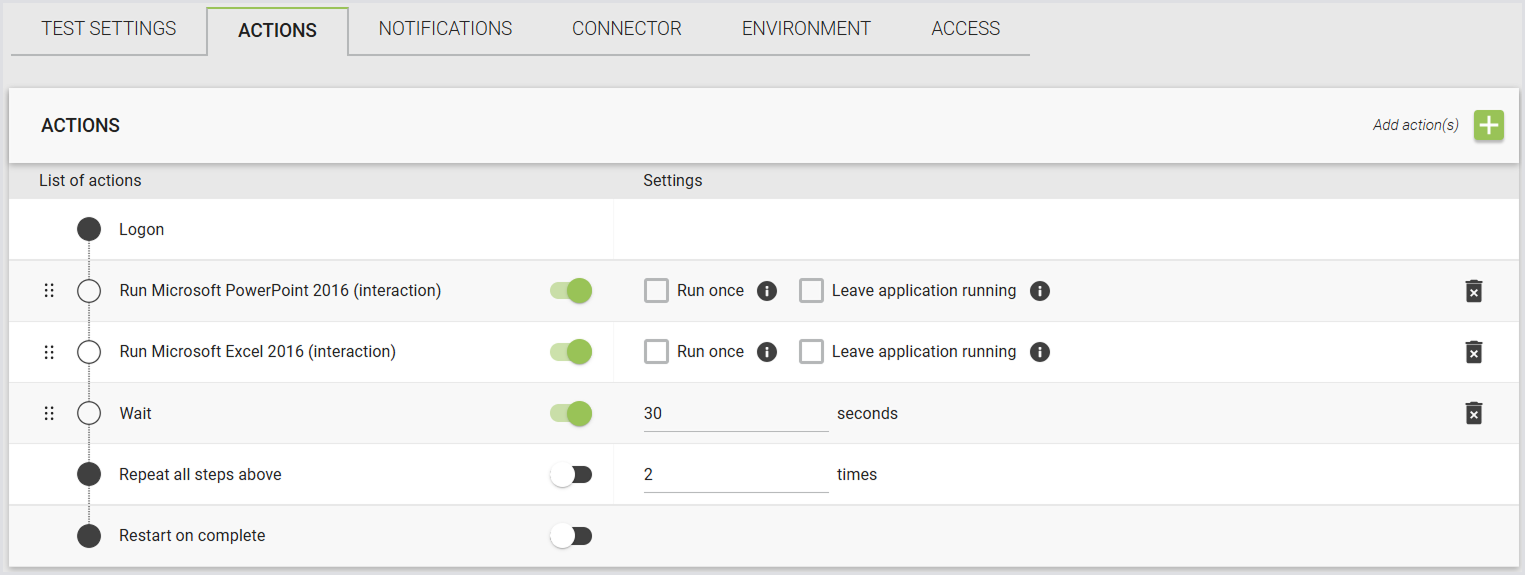
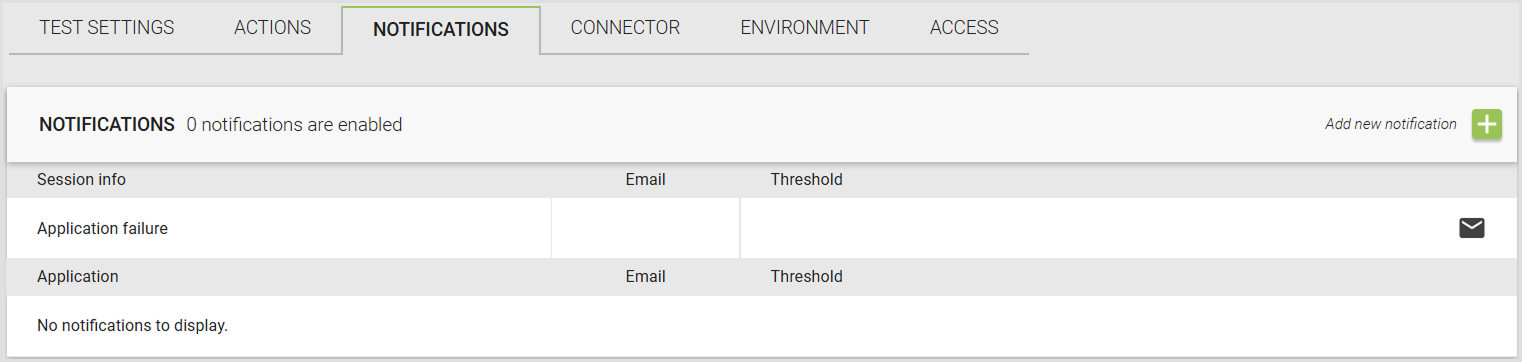
Notifications are also different, as you can see, there are no results concerning the remote connection to the environment. There are no Logon Failures, Logon Measurements, and Latency measurements done. Only application failures are measured by default.
Tip: You have the option, similar to other situations, to add specific thresholds you wish to be notified of when they are crossed.
For more information on configuring Continuous Testing, see Configuring Continuous Testing.
Load Testing Scenario
You can run a Load Test by using a Desktop Connector. When you create a new Load Test, the Connector dropdown includes Desktop as an additional option. Selecting a Desktop Connector gives you access to capabilities that aren’t available in Continuous Testing or Application Testing, such as:
-
Session metrics
-
EUX calculation
-
PDF reporting
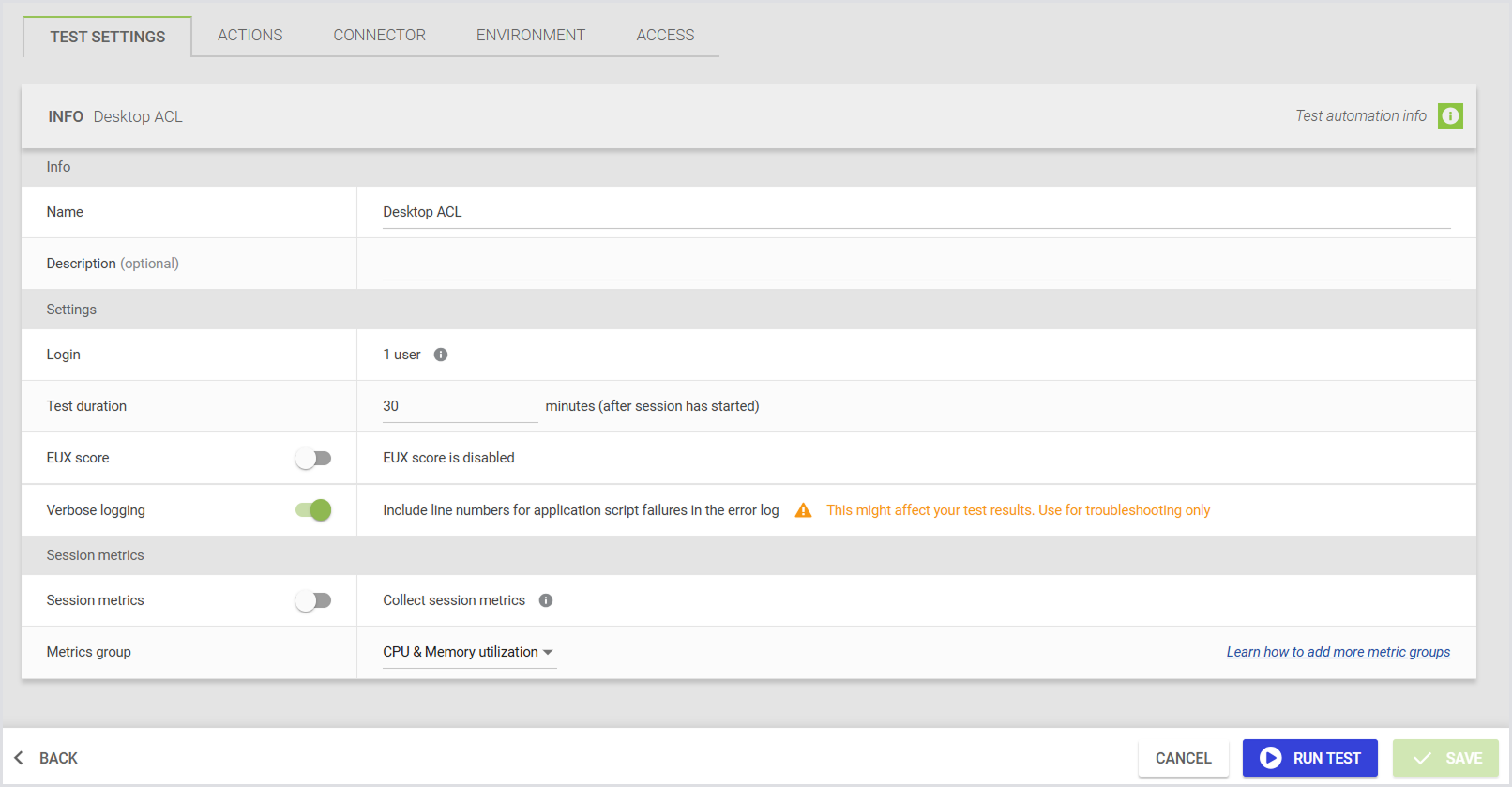
Desktop Connectors behave differently from other connectors:
-
Desktop Tests don't include a login process.
-
Tests always run with one user.
-
The VSImax users setting is hidden.
-
Even though this is a one-user Test, the limitation that only one Load Test can run at a time still applies.
-
The “Schedule (in which sessions)” row in the Session metrics configuration is not shown. Session metrics are collected for the single session by default.
Here’s how the Load Test settings appear when you select a Desktop connector:
For details on configuring Load Testing, see Configuring Load Testing.
Application Testing Scenario
Application testing configuration differs from Continuous Testing and Application Testing done with a remoting protocol. Again, Restart on complete is added to the Actions list. You can decide to reboot the machine when it is done.
.png?cb=0fa674f0a68b1718dfc9bf9bb060a20d)
The thresholds are configurable as normal, but without the Login and Latency measurements.

For more information on configuring Application Testing, see Configuring Application Testing.
Logon App
To configure the Logon App for Desktop situations, see Configuring Logon Components.