
Overview
After applying the April 14, 2026, cumulative updates (including KB5083769), automated RDP sessions initiated via the Launcher fail to establish.
While manual RDP connections (typing the IP into the Remote Desktop app) work correctly, Automated/Scripted Launches that utilize .rdp files result in a timeout and connection failure.
These instructions explain what these failures mean and how to respond to them safely.at these
Symptoms
-
Automated RDP tests fail immediately or time out after a few seconds.
-
Manual RDP connections via the MSTSC client succeed.
-
Launcher logs show a
ConnectionFailedevent coinciding with a security warning about.rdpfiles.
Log Entry Example
2026-04-17T07:45:03.637+00:00 [WRN] Connector connection failed. User session Id: '2676e2ec-24db-4164-ae1b-d723b8c87eee', extra information: 'You are opening an RDP file which will establish a connection to another computer. Connecting to any remote system can expose your PC and data to security risks. Learn more.' LAUNCHER-01
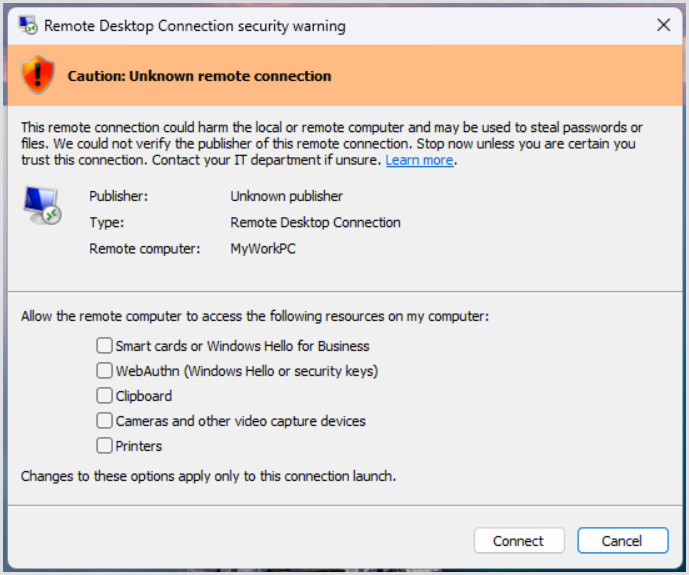
You might also be prompted an additional pop-up:
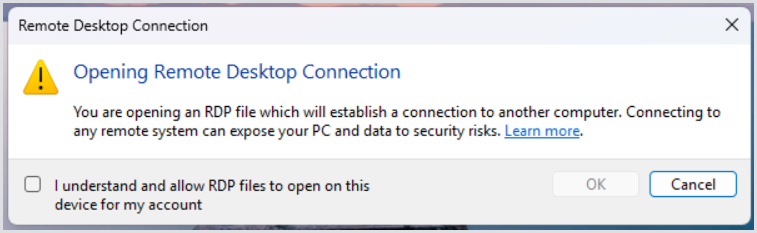
Error Interpretation
This failure is caused by a new security feature in KB5083769, designed to protect against RDP-based phishing.
-
Mandatory Security Dialog: When an
.rdpfile is opened, Windows now intercepts the launch with a mandatory security dialog. -
Resource Redirection: All local resource redirections (drives, clipboard) are now disabled by default in this dialog.
-
Automation Block: Because this is a system-level UI prompt, the Automated/Scripted Launch cannot interact with or acknowledge the warning. The session hangs waiting for user input and eventually times out on the Appliance side.
Troubleshooting and Workarounds
1. Suppress the Redirection Warning Dialog
To restore the previous behavior where .rdp files can launch without an interactive security prompt, apply the following registry key to all affected Launcher machines:
-
Path:
HKLM\Software\Policies\Microsoft\Windows NT\Terminal Services\Client -
Name:
RedirectionWarningDialogVersion -
Type:
REG_DWORD -
Data:
1
2. Suppress the One-Time Educational Prompt
This key acknowledges the risk for the current user, preventing the "first-run" educational dialog.
-
Path:
HKCU\Software\Microsoft\Terminal Server Client -
Name:
RdpLaunchConsentAccepted -
Type:
REG_DWORD -
Data:
1
3. Group Policy (GPO) Configuration
If the registry key is being overwritten by domain policies, ensure your IT department configures the following GPO settings under Administrative Templates > Windows Components > Remote Desktop Services > Remote Desktop Connection Client:
-
Do not prompt for client certificate selection: Set to Enabled.
-
Turn off warning about server authentication: Set to Enabled.
4. Verification
To verify the fix, log in to the Launcher machine as the service user and manually double-click the .rdp file used for the test. If the connection initiates without the "security risks" pop-up appearing, the automation will function correctly.
Additional Resources
-
For more informaiton on the RDP changes, see MS Release Notes.
-
For the Registry-Based Suppression workaround, consult this scenario.
-
For further understanding, view this help article.