
Overview
The Citrix ICA client supports Single Sign-On (SSO). If you turn it on, your Launcher can start only one session. Any subsequent sessions are redirected to the existing session instead of opening a new one. From the point of view of the Launcher, these new sessions never start, and Login Enterprise times out waiting for them.
Identifying the Issue
You may see this manifest with various errors in the Launcher logs:
[INFORMATION] [Handler @4:27:11 PM]: UserSession ... Connection Event Received
    Event Type ConnectionFailed.
[WARNING] Connector connection failed. User session Id: '...', extra information:
    'Timeout. Process was not able to establish connection'
And:
[INF] [StoreFrontConnector 7de10188-a61e-451f-82d6-9ff5adf7fb36]: 'Getting citrix process status'.
[INF] [StoreFrontConnector 7de10188-a61e-451f-82d6-9ff5adf7fb36]: 'Waiting for the connection window to appear'.
[INF] [Handler @5:37:49 PM]: UserSession 7de10188-a61e-451f-82d6-9ff5adf7fb36 Connection Event Received, Event Type ConnectionFailed.
[WRN] Connector connection failed. User session Id: '7de10188-a61e-451f-82d6-9ff5adf7fb36', extra information: 'wfica32.exe encountered an unknown error and is unable to start'
When no other client windows are running, a session that runs through wfica32.exe, the default Citrix ICA handler, works as expected. Any other sessions that try to run at the same time end quickly and silently, and Citrix doesn’t show any clear error message. When the first session ends normally, the next session works.
The Launcher downloads the ICA file and starts wfica32.exe without problems. However, wfica32.exe detects the existing session window, brings it to the front, and then exits. When it exits, it also deletes the ICA file. The Launcher doesn’t know why wfica32.exe exited, so Login Enterprise returns the “is unable to start” error.
Note: It is normal for wfica32.exe to delete the ICA file when it finishes. This is a security measure. As a result, you can’t see the ICA file for the session that failed. However, the Launcher log shows that the Launcher downloaded the ICA file and tried to start it.
Understanding the Root Cause
This issue occurs because single sign-on (SSO) is turned on in the Citrix client. The second session doesn’t work because the first session is associated with the Launcher’s user account, and any later sessions from that account are redirected to the existing session.
Login Enterprise runs multiple sessions at the same time on the Launcher, each with a different account. For this to work, you must turn off SSO in the Citrix client configuration.
Solution
To see if SSO is turned on on the Launcher machine, right-click the Citrix Workspace icon in the system tray, go to Advanced Preferences > Configuration checker > SSONChecker > Run.
If SSO is turned on, reinstall the Citrix Workspace app with SSO turned off:
-
Uninstall the Citrix Workspace app.
-
Reinstall the Citrix Workspace app with SSO explicitly turned off.
-
Restart the machine.
-
Before you run a Test, open the Configuration checker and check that SSO is turned off.
-
If SSO is turned on, uninstall and reinstall the client using the following command. The command specifically turns off SSO during installation:
CitrixWorkspaceApp.exe /silent /noreboot /EnableCEIP=false /cleaninstall ALLOWADDSTORE=N AutoUpdateCheck=disabled ENABLE_SSON=No
Additional Troubleshooting Steps
You may have a Group Policy that enforces SSO as well. For example, a GPO can set the following registry value. To turn off SSO, set the value to false, and then restart the machine.
Computer\HKEY_CURRENT_USER\Software\Citrix\ICA Client\Engine\Lockdown Profiles\All Regions\Lockdown\Logon\Local Credentials\EnableSSOnThruICAFile REG_SZ
You can also search the entire registry for EnableSSOnThruICAFile. This setting overrides the SSO setting, explicitly forcing it on when you start an ICA file instead of using the web client. The Launcher downloads and starts an ICA file, so this setting affects Login Enterprise sessions. It turns on SSO even if you installed the Citrix Workspace app with EnableSSOn=No.
Citrix has a Group Policy called “Local user name and password” with two options: “Enable pass-through authentication” and “Allow pass-through authentication for all ICA connections”. If you have this GPO, turn off at least its ICA option, or turn off the entire policy.
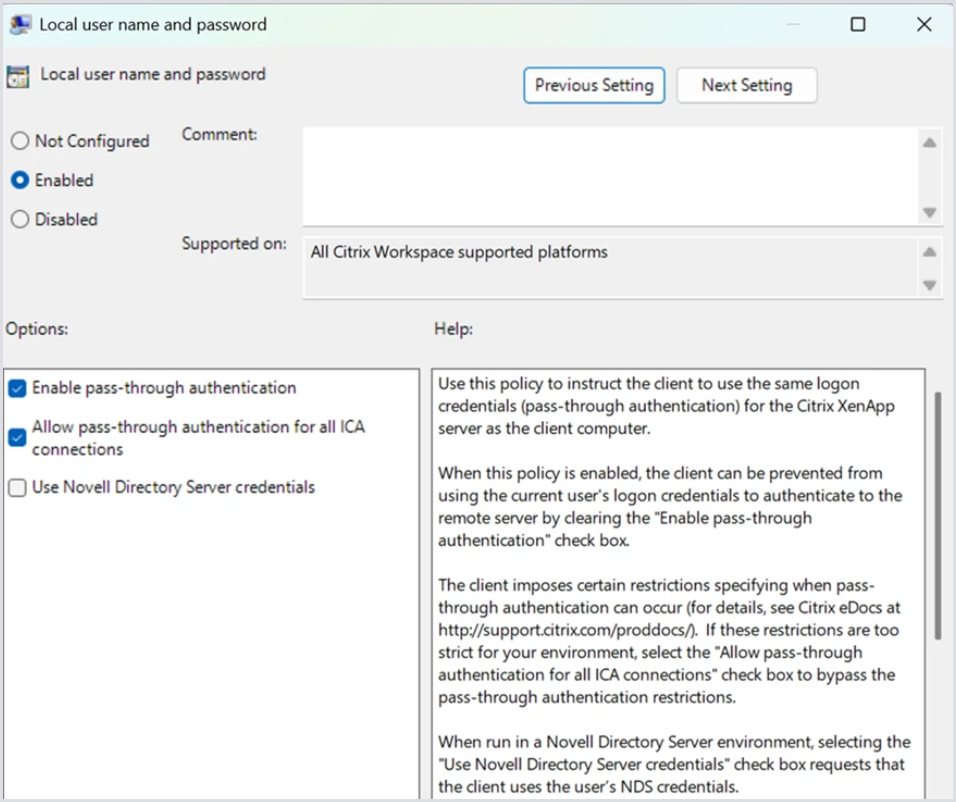
Note: Turning off a GPO does not automatically undo the setting. You may need to turn off the individual checkboxes in this policy and let it apply (with gpupdate /force if necessary) before you turn it off later. One customer reported that he had to cycle the setting more than once to get the new/correct value to stick.
However, we do not have specific information about all the ways this could be happening. Please contact Citrix support and/or your domain administrator for more information about how to turn off SSO for the Citrix client.
Second Possible Cause
If your Delivery Group runs out of running machines, you can see similar behavior: a new session flashes “Powering On…” in the Workspace Launcher before immediately closing. If you only have one working machine, you will see that your second and subsequent sessions quickly fail. Double-check your Delivery Group as well.