
Overview
Managing passwords for test accounts can be time-consuming, especially when dealing with large volumes of accounts or when security policies require frequent updates.
This section guides two methods for updating passwords: Bulk Account Creation and API Account Management. Each method has its advantages and is suited to different environments, depending on factors such as account naming conventions and password policies.
Bulk Account Creation
Bulk account creation works well when the following conditions are met:
-
All users follow the same naming convention (e.g., Testuserxxxx).
-
All users have the same password.
However, this method may not be ideal if you require unique passwords or frequent password changes.
API Account Management
Tip: You can find API details at <Your VA Appliance>/publicApi/v6-preview/docs/index.html
Using our API, you can integrate password updates in various ways. For instance, you can create a PowerShell script to add a new account.
For complete examples, refer to the attached files. They include a scenario where an account true-up script will update a password or create a new account as needed.
Note: You must populate the password.csv file with test accounts and update lines 6-10 in the script with your environment-specific values.

-
Line 6: Update with the fully qualified domain name of your Login Enterprise Appliance.
-
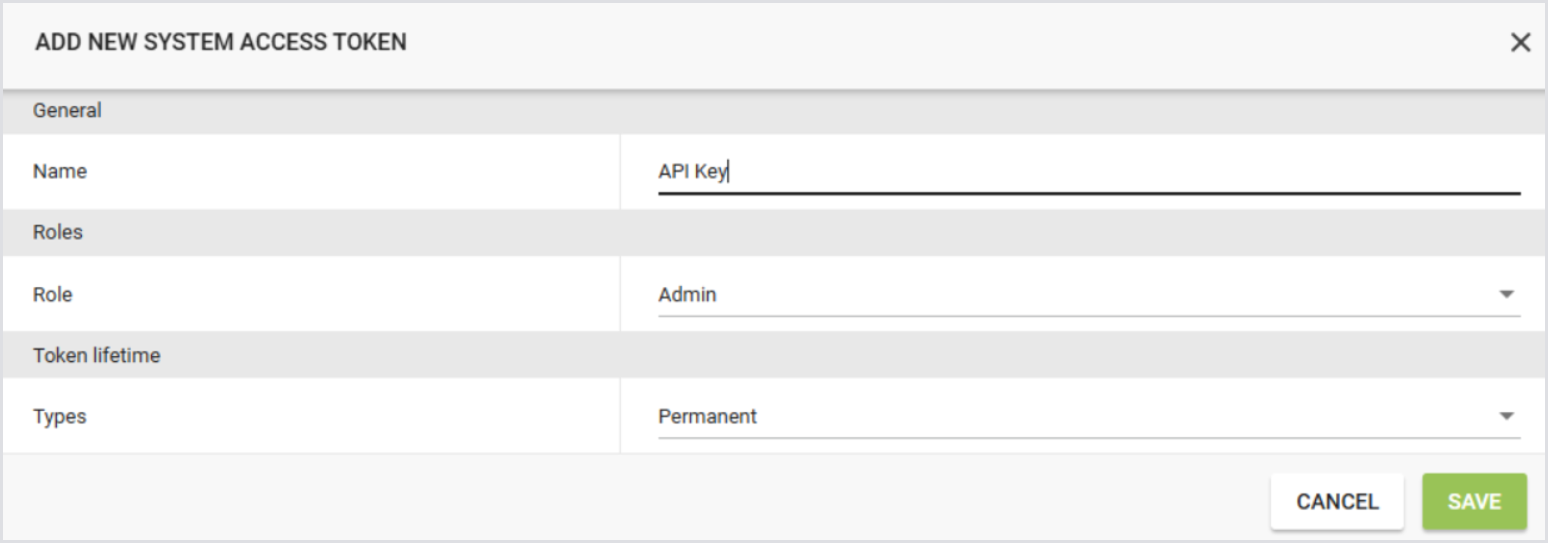
Line 7: Update with a System Access Token, which can be created under the Login Enterprise sidebar menu > Access Control > Public API. For detailed steps, see Adding a System Access Token. The Role you select must have Account > Access Control > Read and Write permissions enabled.
-
Line 8: Update with the location of the password.csv file you are importing.
-
Line 9: Update with the name of the Access Role you want to set by default for these accounts
-
Line 10: Normally, the script will not change the Access Role when updating an account password. Set this to
$trueif you want to replace the Access Role assignment with the specified role from Line 9 when updating an existing account.
Additional Resources