
Introduction
Hydra updates are typically straightforward and seamless, but there are a few things to consider.
Pre-Update Checks and Considerations
-
Please only run an update when no deployments, scripts, or imaging processes are running, so plan a maintenance window around the update. Updates typically take around 5 minutes.
-
Refer to the Release Notes to ensure there aren't any known issues that may impact your deployment, and familiarize yourself with any new features or changes introduced.
-
Have a test Hydra deployment and update it first.
-
Ensure the App Service and SQL backups are working as expected, and you have a relatively recent rollback point.
-
Typical AVD operations, such as brokering and active AVD sessions, will continue as normal.
-
Full administrator permissions are needed in Hydra to conduct the update.
Kicking Off the Update
-
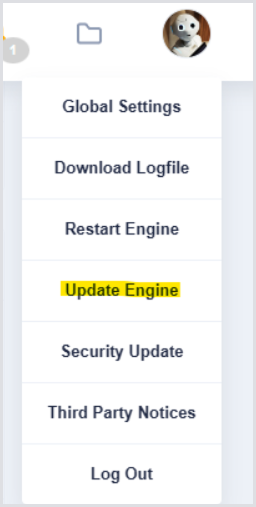
Click on the robot avatar in the upper right corner and select Update Engine:
-
After starting the update, it is normal to see API or communications-related errors pop up as the engine goes offline.
-
After a few minutes, reload the Hydra Portal website.
Post-Update Checks
-
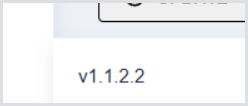
After reloading the Hydra Portal website, scroll to the bottom to check that the version displayed is the expected destination version:
-
Monitor autoscaling and operational activities to ensure Hydra is operating normally.