
Using Private Endpoints
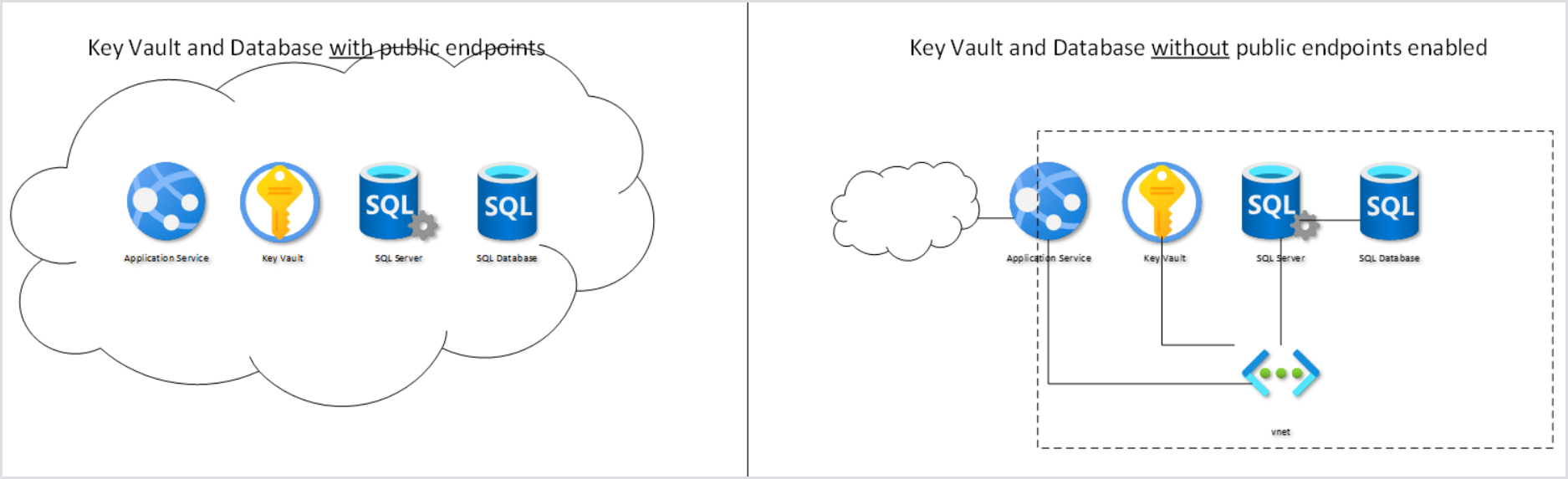
You can configure the Hydra installation to use private endpoints. By following this best practice, you can avoid exposing sensitive components such as your SQL Server and Key Vault to the internet. See How to Secure the Database and Key Vault of an App Service/Web App in Azure.
Configuring Entra ID Only Support for SQL Server (Legacy Installations Only)
We recommend changing the access to the database during a maintenance window by using the app service identity (Entra ID).
This is the default configuration starting with 1.1.1.8. No action is needed if Hydra was deployed after this version.
-
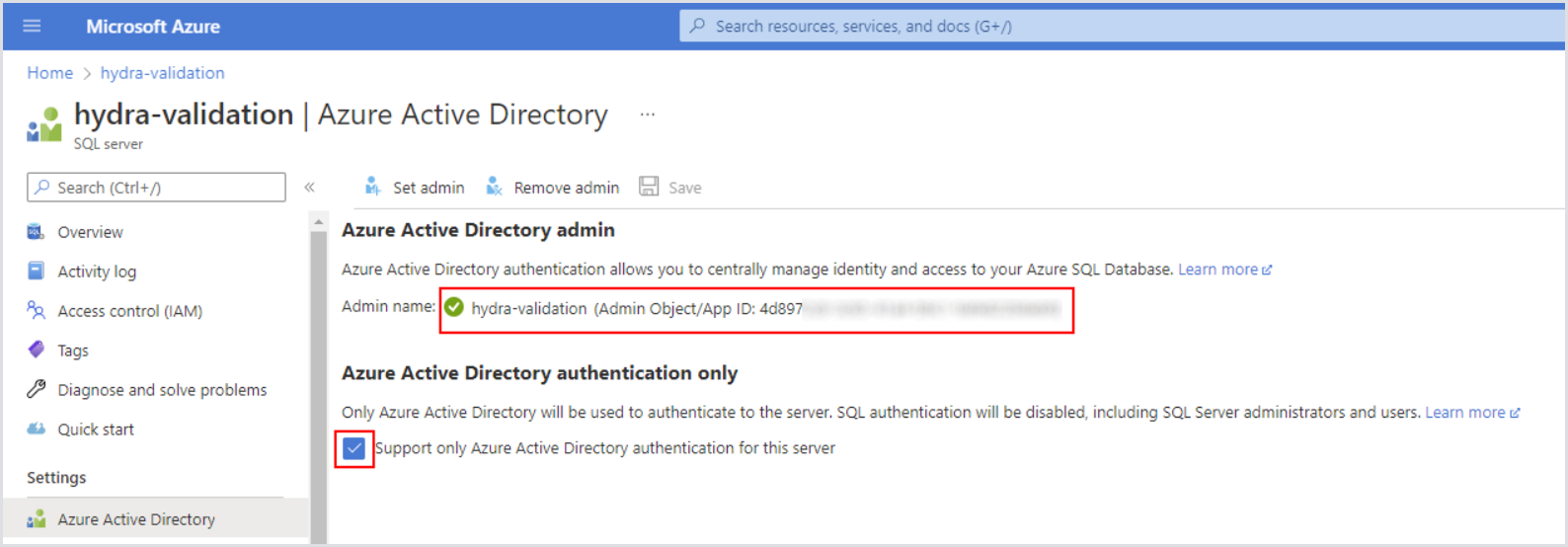
Open the SQL server resource in the Azure Portal > Azure Active Directory.
-
Set the managed identity of Hydra's web service as an administrator.
-
Check Support only Azure Active Directory authentication for this server.
-
-
Open the Key Vault and give yourself permission (Access Policy) to change secrets.
-
In secrets, copy the existing connection string from Hydra-DbConnectionString and modify it to match the following string:
Server=tcp:<your-instance>.database.windows.net,1433;Initial Catalog=Hydra;Persist Security Info=False;Encrypt=True;Connection Timeout=90;
-
Remove the other parts of the string (like user id, ...).
-
Add the new connection string as a new version.
-
Optionally, remove your permission from the Key Vault. Restart the app service and verify that the engine runs with the new configuration.