
Introduction
If, for some reason, Hydra needs to be restored from a backup, you can do so by restoring both the app service and database.
Before You Begin
Before proceeding with the restore, raise a ticket with Support. We need to understand exactly what led to the scenario that prompted the restore so that we can:
-
Gather necessary logs to understand the root cause.
-
Guide you through the process.
-
Better our products.
Please provide as much detail as possible, including screenshots, error messages, logs, and any actions that were taken that left Hydra in an undesirable state.
Stopping the App Service
First, stop the Hydra app service within Azure:

Restoring the Database
-
Navigate to the Hydra SQL Database in Azure and click Restore:

-
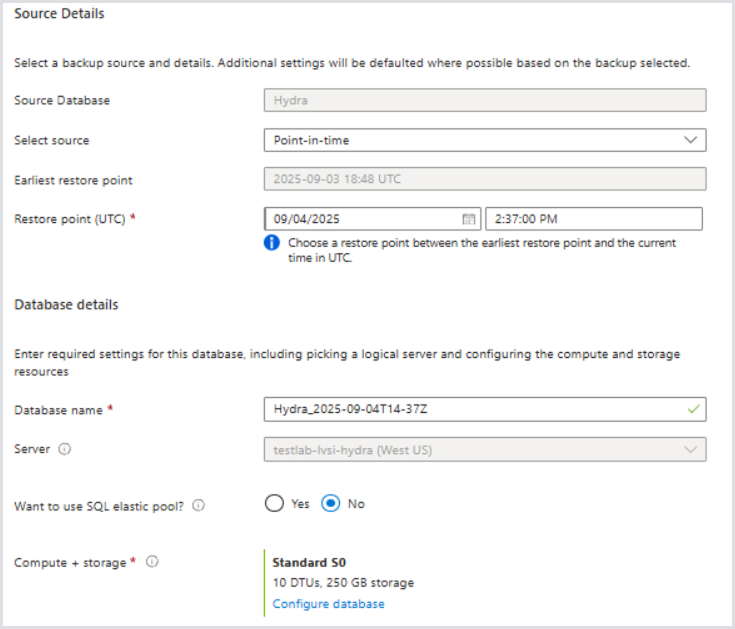
Choose a Point-in-time restore in UTC when Hydra was in a known good state, such as before an outage, change, or update.
-
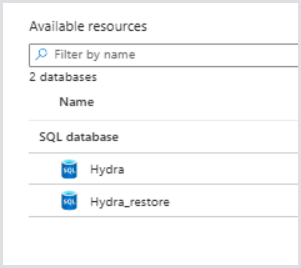
Keep the database name the default, or rename it to, for example, Hydra_restore. Monitor the restore process and ensure that both databases appear in the SQL server before proceeding to the next step:
Deleting the Hydra Database
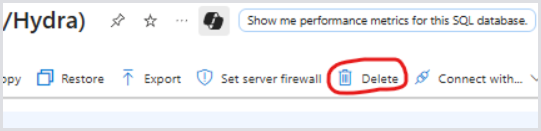
Once the Hydra database restore is complete, delete the original Hydra database:
Restoring the Previously-Restored Hydra Database
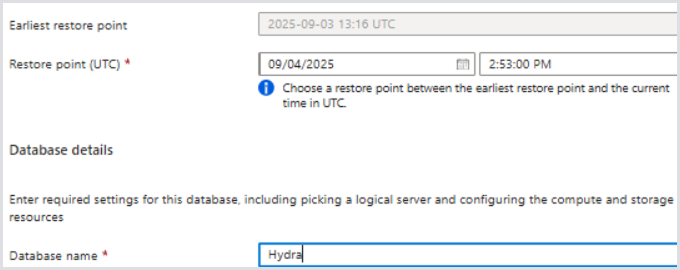
Because Azure does not support database renames, we must restore the restored database with the name Hydra. Choose any time after the previous database was restored. Monitor the restore process and continue once the new Hydra database is available.
Restoring the App Service
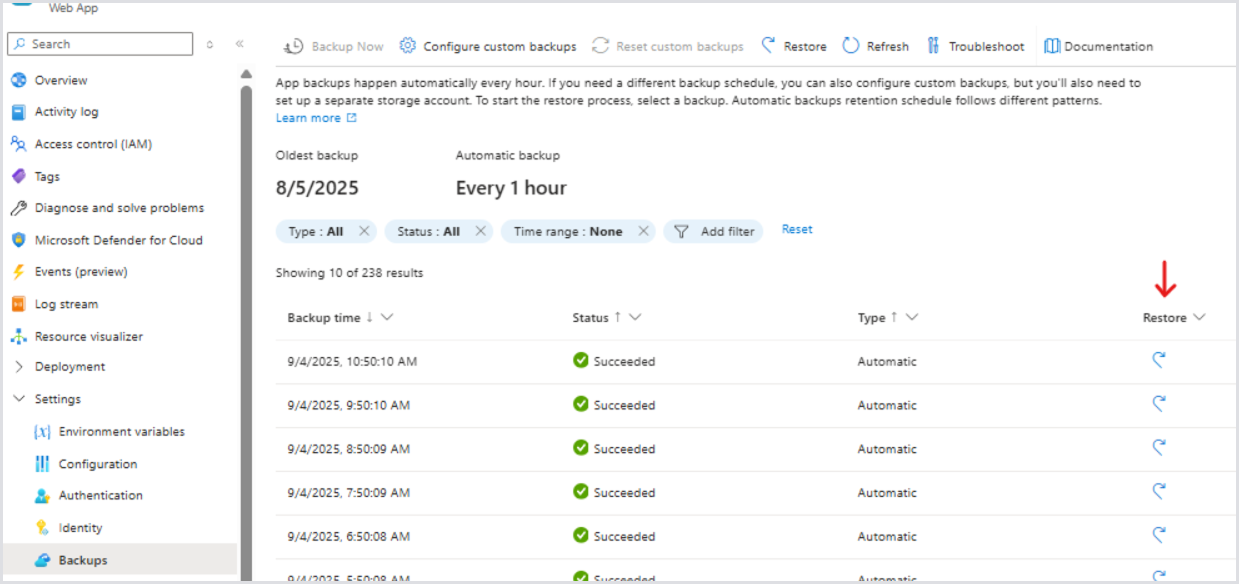
Once the database is available, it is now time to restore the Hydra App Service. Navigate to the stopped App Service, and head to Settings > Backups. Choose a restore point nearest to the time that the SQL database was restored; before the outage, change, or bad update:
Because overwriting the existing app deployment, choose the already-existing deployment slot. You should be presented with the following warning:
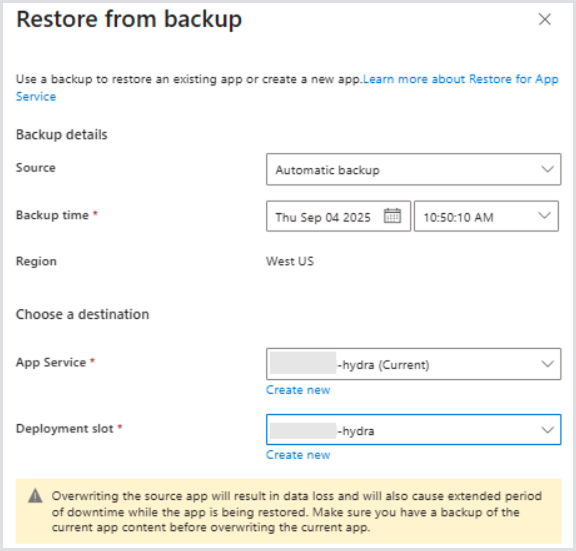
The app service restore may take some time. Once it is finished, it will likely automatically go into the Running state.
Wrapping-Up
Once the app restoration is completed, Hydra should be available again. The original database will show up in the Deleted Databases section of the SQL Server in case further analysis is required.