Introduction
To manage an Azure Virtual Desktop host pool and configure its base settings:
-
Find the host pool that new Session Hosts should be added to, and open its Configuration.
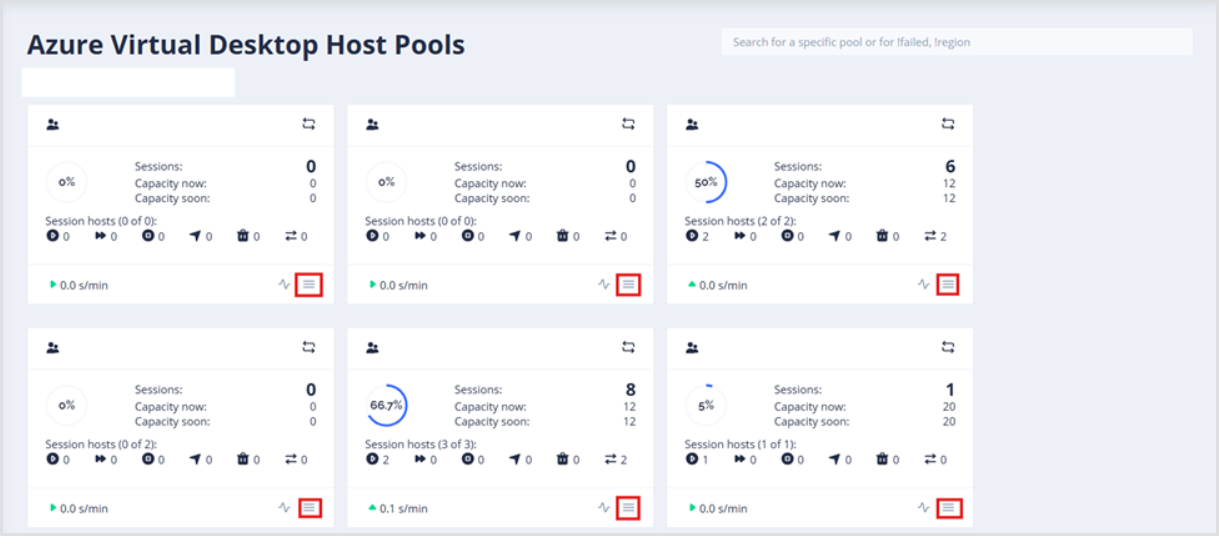
By default, this will open the Base configuration of the host pool.
-
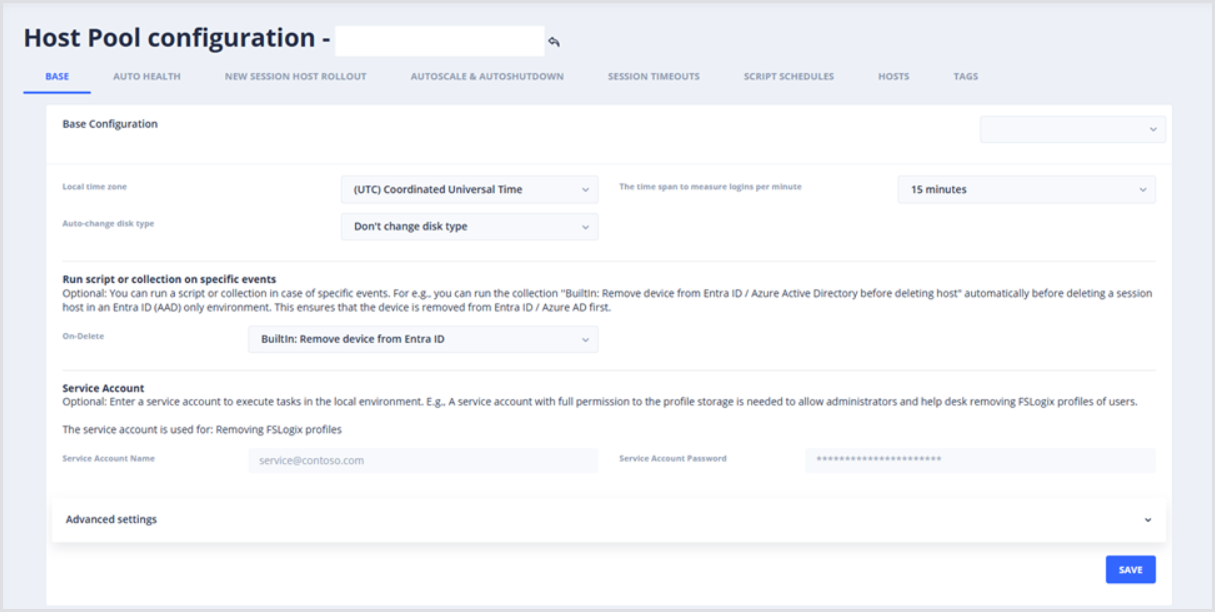
In the Base Configuration section, fill in the following details:
-
Local time zone of the host pool, which will trigger any scheduled actions;the default time zone is UTC.
-
Time span to measure logins per minute is used to measure new logins per minute, powering the Autoscale engine and the Host Pool details dashboard; the default Time span is 15 minutes.
Configuring Host Pool Automatic Disk-Swap
Auto-change disk type can automatically switch the defined SSD Disk to a lower-cost HDD when a VM is deallocated, then restores it to the selected SSD tier (Standard or Premium) on restart, maximizing performance and optimizing costs.
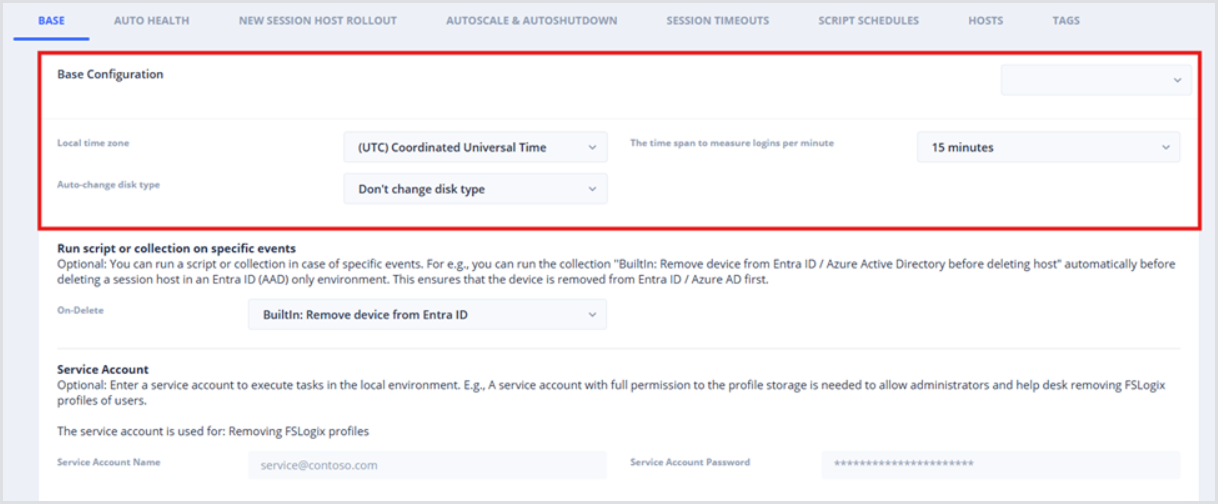
In the Run script or collection on specific events section, optionally select a Script or Script Collection to run when a Session Host is deleted. For example, you may consider running the Built-in: Remove device from Entra ID script to avoid Entra ID Device conflicts from autoscaling operations.
Configuring a Host Pool Service Account
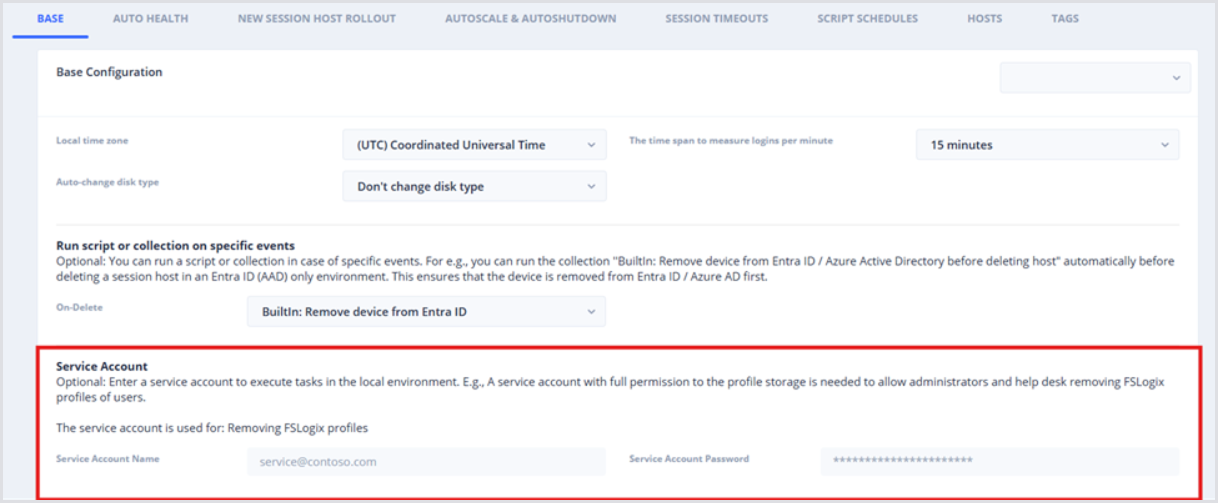
In the Service Account section, optionally provide Service Account credentials that are used for deleting FSLogix profiles, in addition to any custom tasks within custom Scripts or Collections.