
Overview
Scripts are executed on session hosts from the system context, with system permissions. Hydra provides several built-in variables about the host pool, session hosts, and more. Advanced operations, such as those connecting to other services, can be achieved by using a PowerShell credential object (PSC).
Creating a Script
-
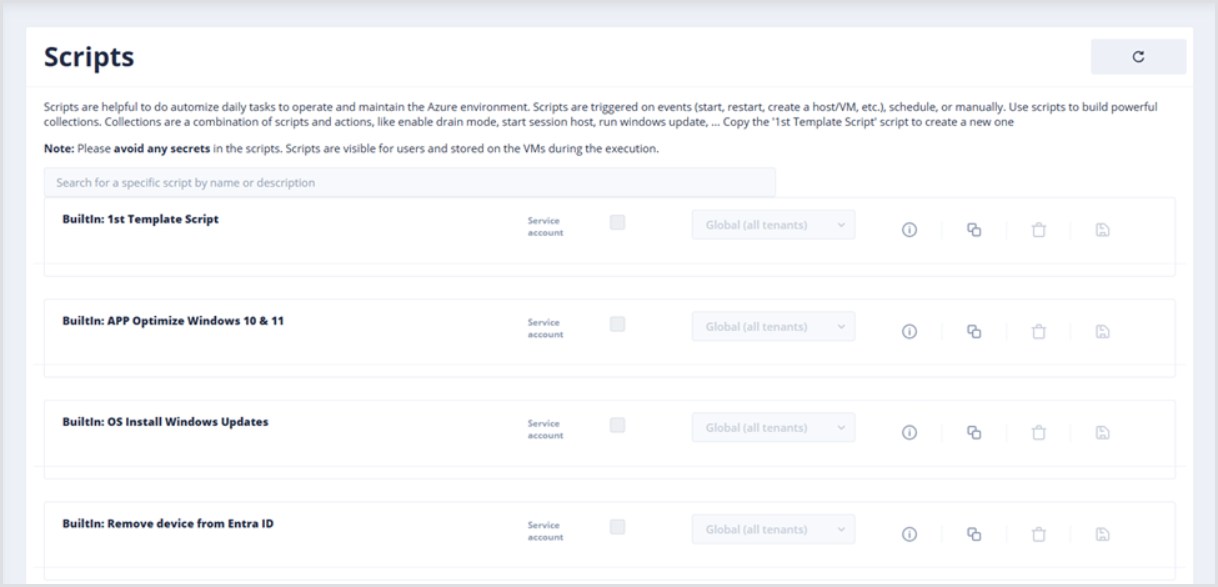
In the left-side menu from the main Dashboard, click Scripts and Collections and then Scripts.

Hydra has several built-in scripts ready for use. For example, scripts that can
-
Install Windows Updates to the OS
-
Remove a device from Entra ID
-
Apply OS optimizations.
-
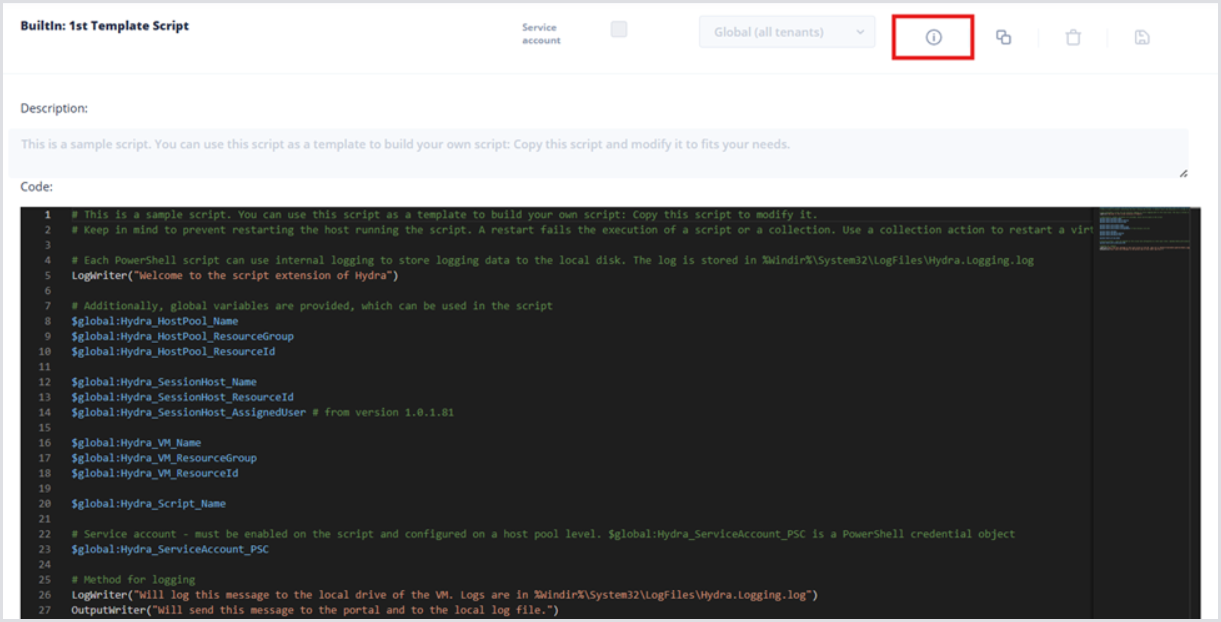
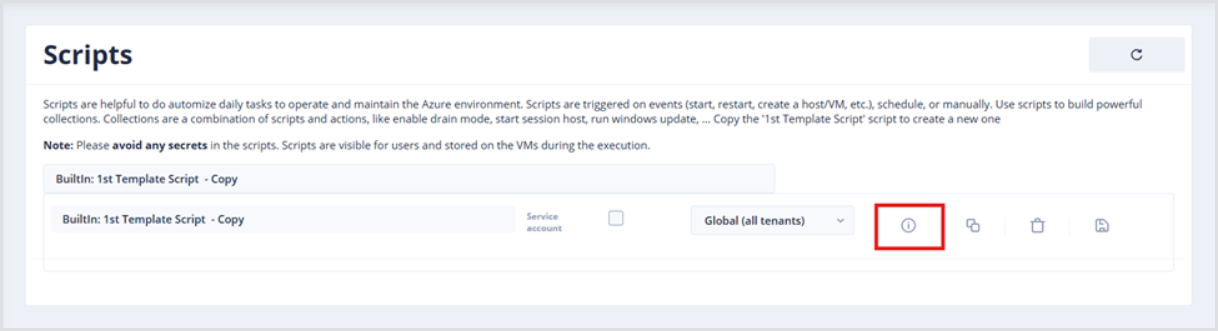
Click the Show Details button to open the Code pane and review the 1st Template script.
-
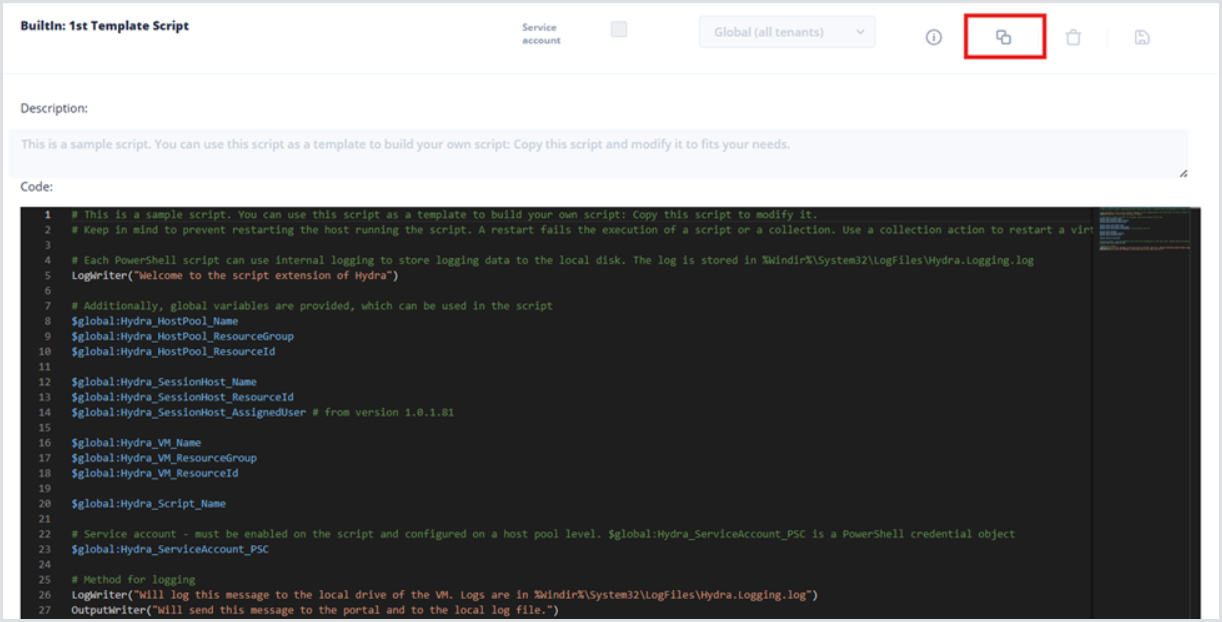
After review, click the Copy Script button to clone the Template script.
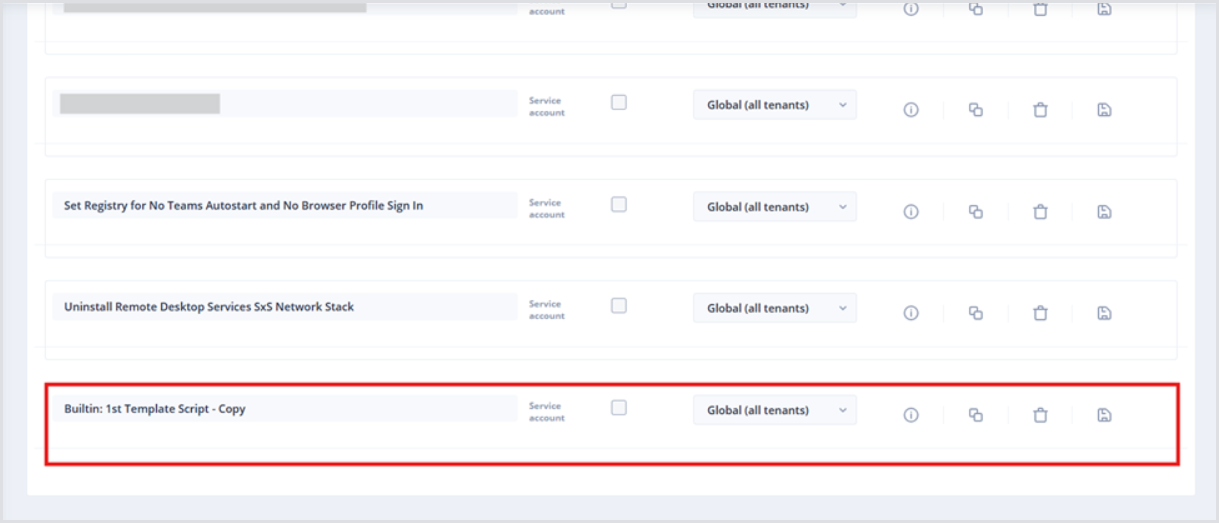
By default, the name of the cloned script will be Builtin: 1st Template Script – Copy. Also, the Script will be added to the bottom of the table.
-
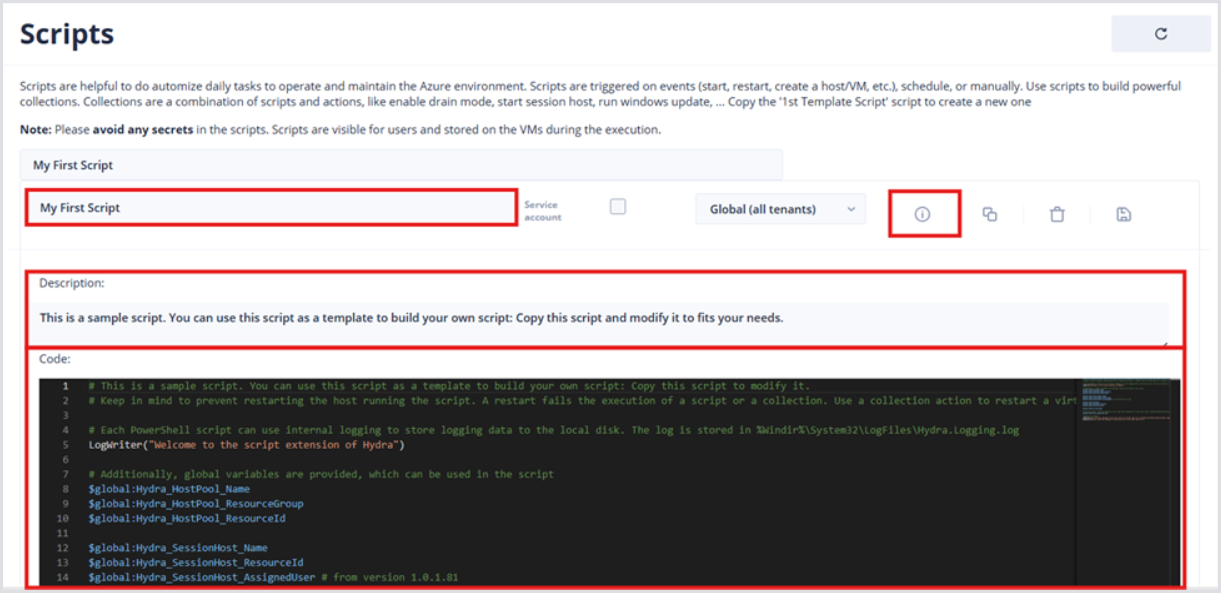
Click the Show Details button to show the Description and Code panes.
-
Click the Script name, e.g., Builtin: 1st Template Script – Copy, and input the desired name. The Scripts table has a search bar, so consider using a naming convention to group scripts based on what they do or where they run.
-
Optionally, add a Description with an overview of the Script. Importantly, input the desired PowerShell script into the Code block.
-
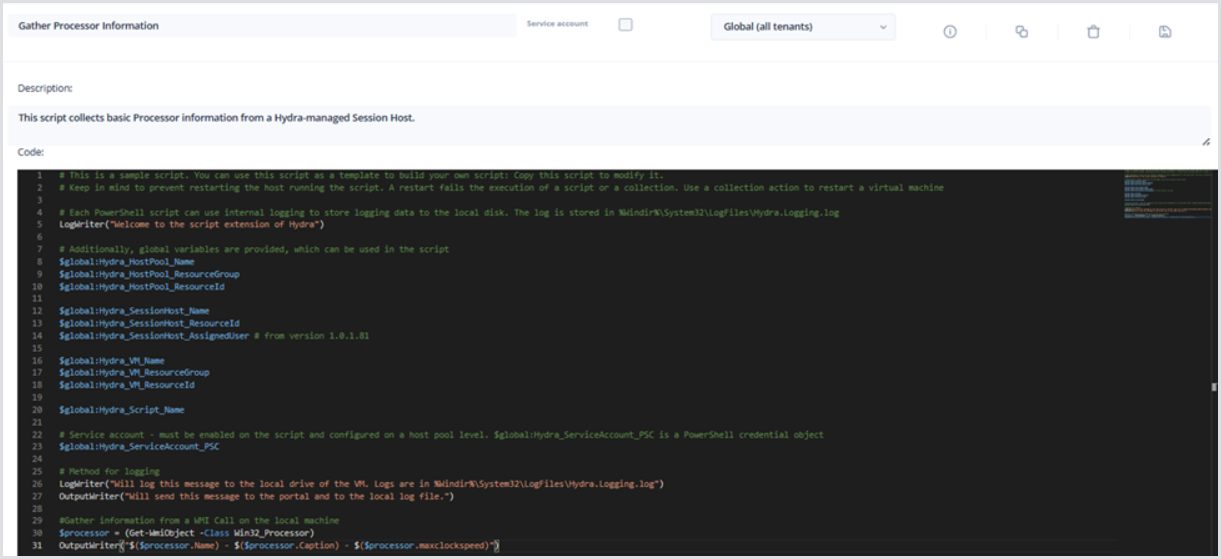
Below is an example Script that will output basic Processor information to the Hydra console:
Hydra Built-in Variables
As shown, Hydra Scripts have built-in variables ready for use in a Script. Consider the following examples:
-
$global:Hydra_HostPool_Name
-
$global:Hydra_SessionHost_Name
-
$global:Hydra_Script_Name
Hydra Built-in Log Functions
In addition to built-in variables, there are two powerful Logging functions included:
-
LogWriter: Writes logs locally on the target session host in %Windir%\System32\LogFiles\Hydra.Logging.log.
-
OutputWriter: Writes logs locally on the target session host in %Windir%\System32\LogFiles\Hydra.Logging.log in addition to displaying it within the Hydra Portal.