
Overview
Starting with version 1.0.6, Hydra supports hosts on Azure Local, starting with Azure Stack HCI 23H2. This means you can leverage the feature set of Hydra to handle hosts on Azure Local in the same way as hosts in Azure Cloud:
-
Autoscaling of pooled and personal host pools
-
Let the user start their personal hosts
-
Create images from Azure VMs and store them in a custom location (on HCI)
-
Create multiple hosts with a click
-
Replace hosts with hosts based on an updated image
-
Automate the daily tasks with scripts and collections
-
Handle user sessions independently from the host type (HCI vs. Azure VM)
-
Using the Hydra agent to show and terminate processes
-
...and more!
Hydra Integrations with Hosts on Azure Local
There is no need for a special configuration. If Hydra reads a custom location in Azure, it automatically offers the networks in the location as a target to roll out new hosts. Existing hosts on HCI are also automatically handled by Hydra. The only requirement is Azure Stack HCI 22H3 with a configured resource bridge.
From Hydra's perspective, there is almost no difference between hosts in Azure or on Azure Local. Theoretically, a host pool can contain both Azure Cloud and Azure Local hosts. The primary difference between hosts is the location/custom location.
Configuring Autoscaling
Autoscaling works in the same way as hosts in Azure. For configuration steps, refer to the Autoscaling section.
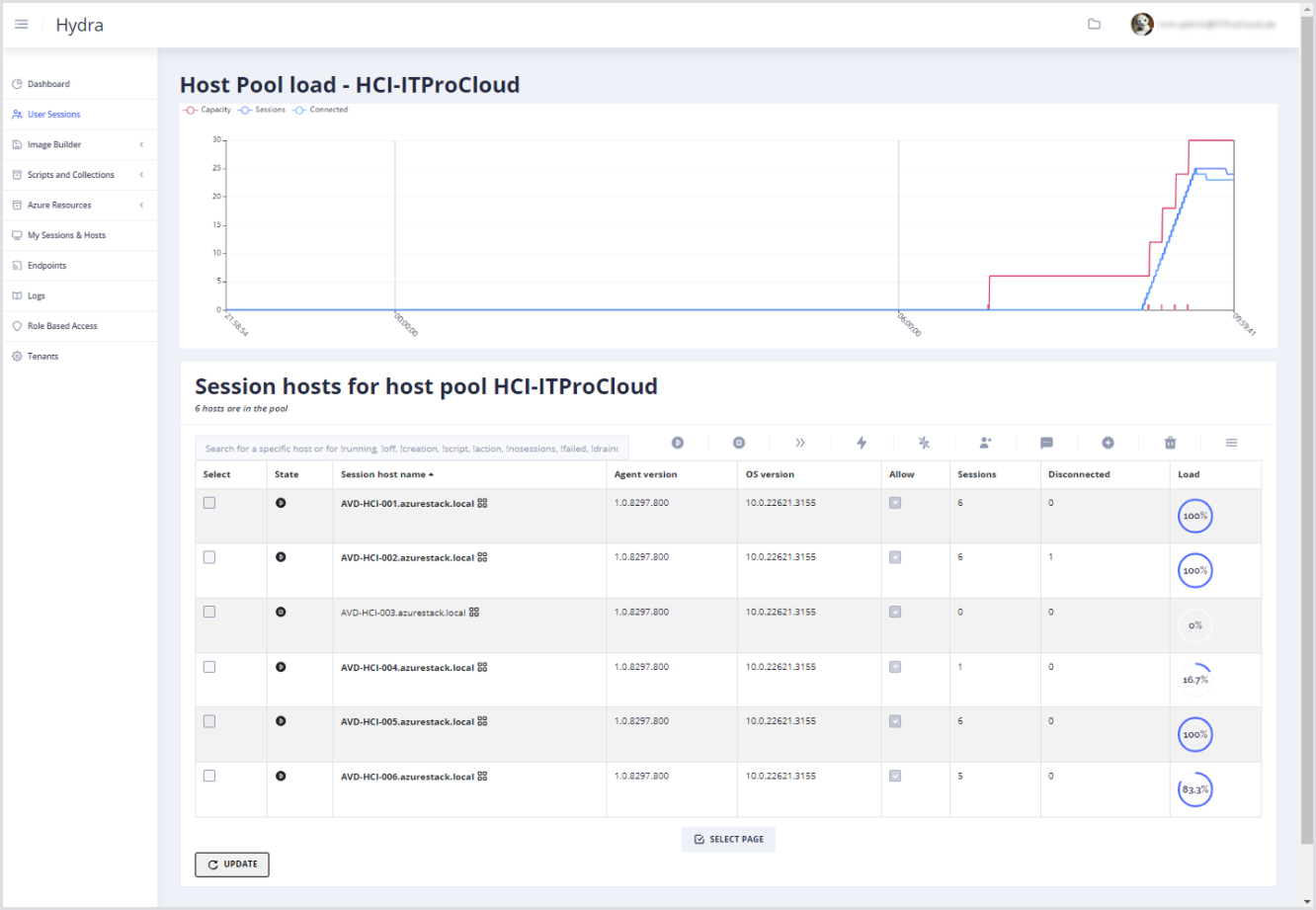
Creating a Custom Image and Soing a Rollout
Creating images based on a "Golden Image" is one of the strengths of Hydra. Compared to the manual approach in native AVD, Hydra always runs the imaging process from a clone of the Golden Image. Due to this, the Golden Image remains usable after the imaging process. Administrators can use the original Golden Master to update and maintain the image the next time. The imaging process looks like this:

After creating the image, the clone is deleted during the clean-up. Imaging for Azure Local works in the same way, but with the following caveats:
-
We can only use an Azure Cloud VM as an image – not a VM on Azure Local.
-
We cannot use Trusted Launch for custom images in Azure Local; our Golden Image must have the security type "Standard"
We can create a custom image for Azure Local with the following steps:
-
Create your Golden Image VM in Azure Cloud:
-
Use a Windows 11 (multi-user) marketplace image.
-
Security type: Standard.
-
-
Log in to the VM.
-
Optionally: Join an AD domain.
-
Install Windows Updates.
-
Install Applications.
-
Go to the Hydra portal > Image Builder > Create an Image.
-
Select your Golden Master VM.
-
Select a Target Resource Group to store the Azure image.
-
In the Azure Stack HCI, select the custom location.
-
Optionally configure the other two options.
-
Click Create Image.
Never let Hydra delete an image version that is being used by a virtual machine. VMs can no longer be started or stopped if the base image version is deleted.
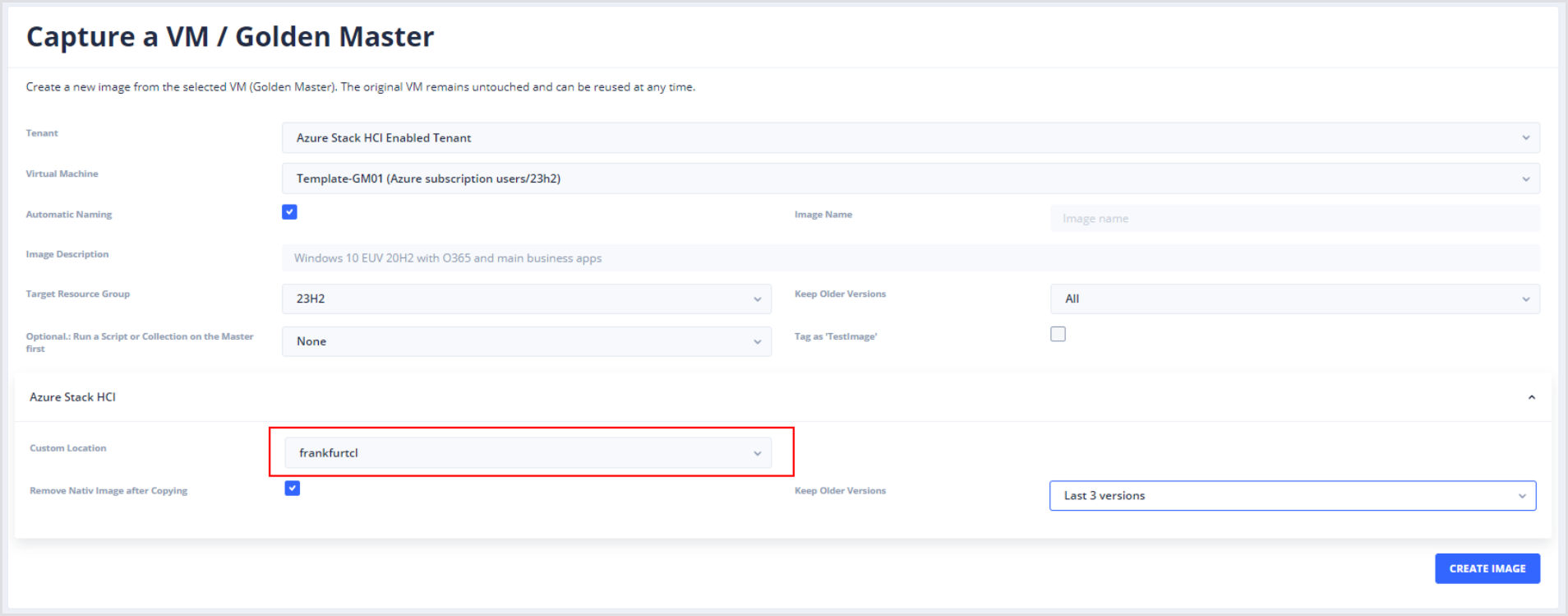
The VM will be cloned, and the image will be transferred to the custom location, which could take some time depending on network bandwidth. After that, you can create new hosts in a host pool by selecting the image in the New Session Host Rollout configuration:
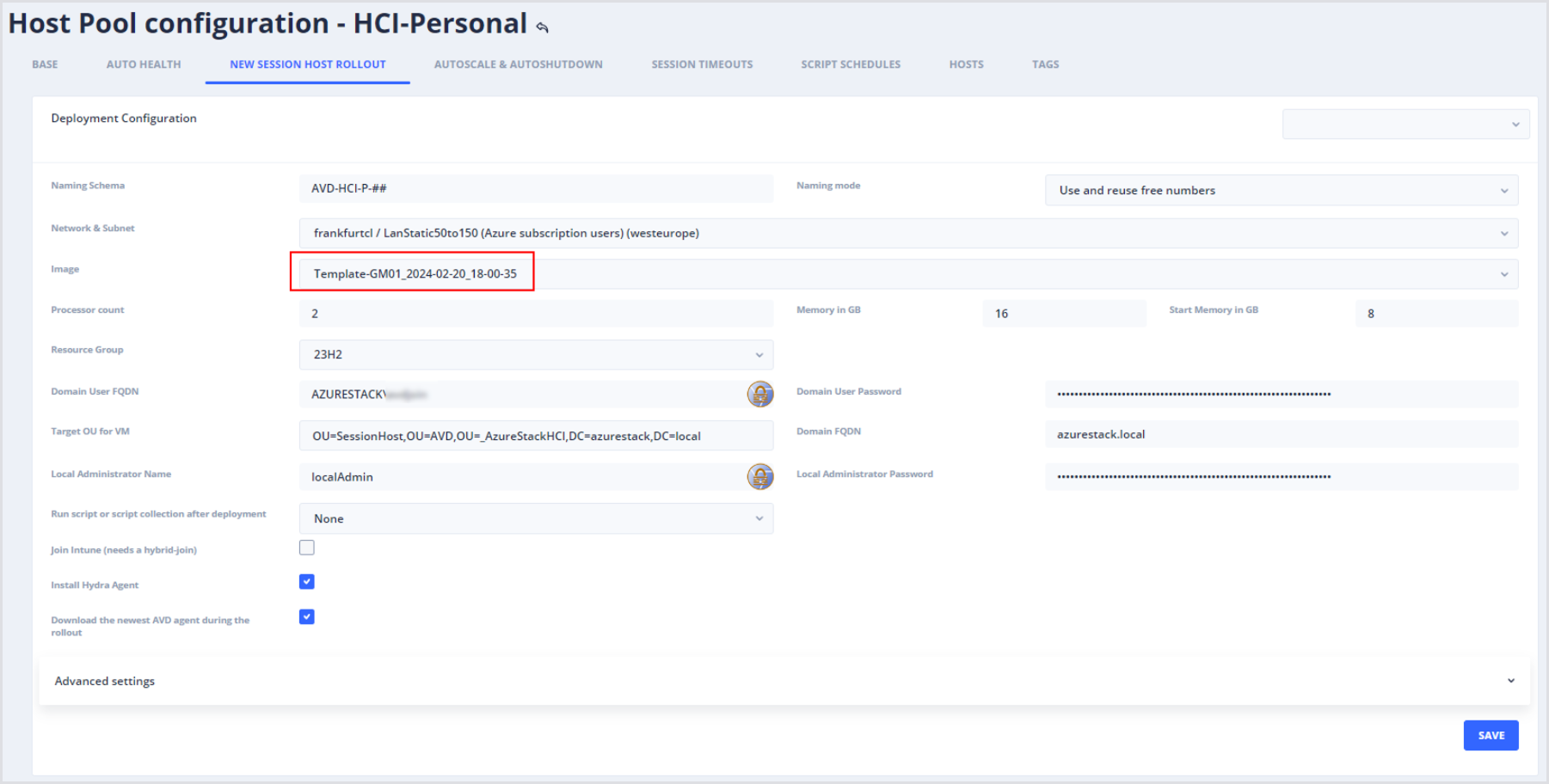
Alternatively, click on the plus icon in the session host list of a host pool to roll out hosts with the custom image. For more information, see Creating New Session Hosts.
Current Limitations
The following features are unavailable or limited with managing AVD on Azure Local using Hydra:
-
Power-on Connect
-
Changing disk types
-
Sourcing the golden image from an Azure Localhost
-
Trusted Launch type VMs