
Introduction
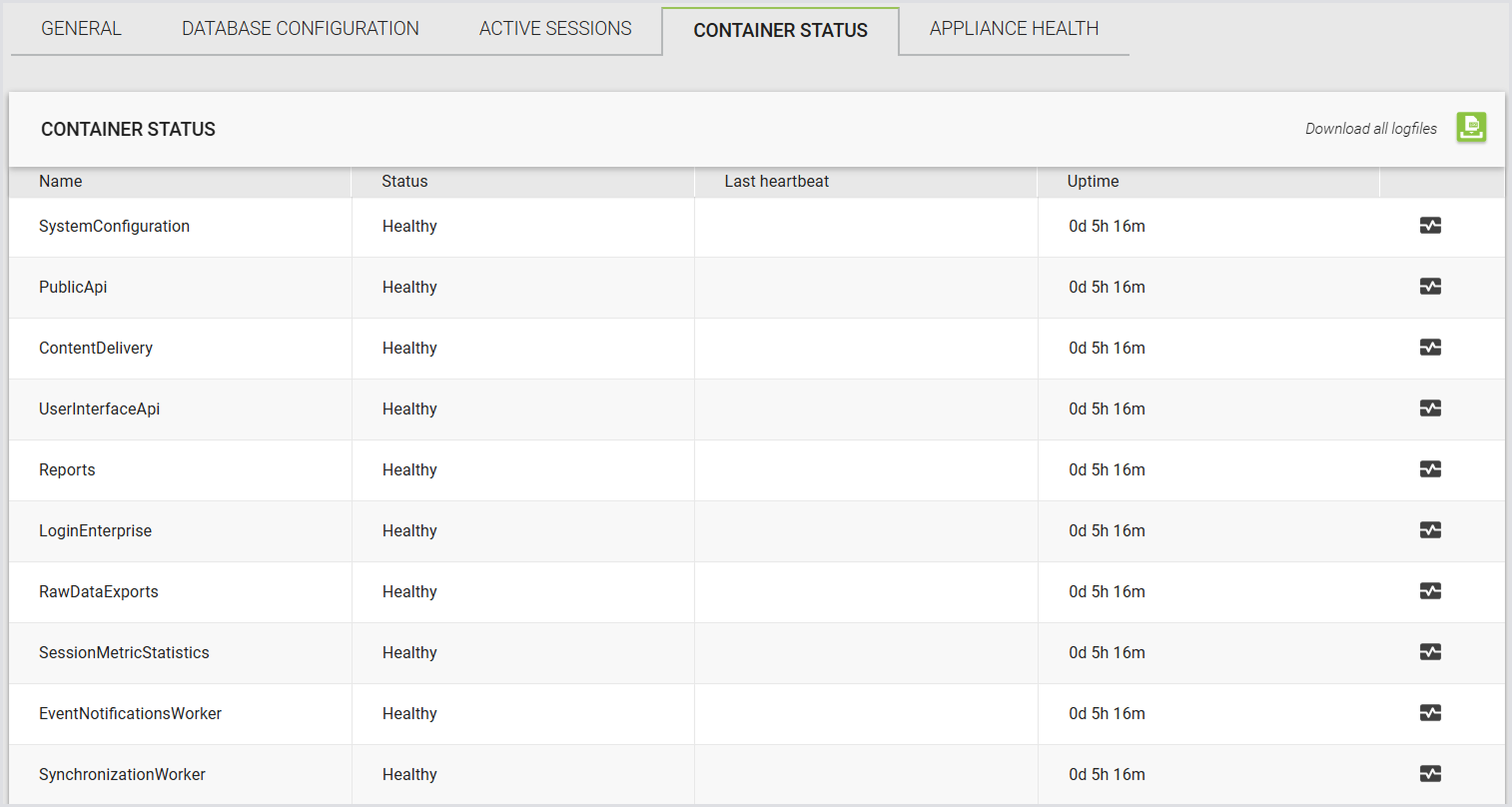
To simplify troubleshooting, the Container Status page provides an overview of the status of each container used in the Virtual Appliance.
Since the Virtual Appliance is built on Docker technology, each component is organized within specific containers, similar to Windows services.
Each container has its own role and purpose. If you encounter unexpected behavior in the Virtual Appliance, check this page to ensure all containers are functioning correctly.
Accessing the Container Status
-
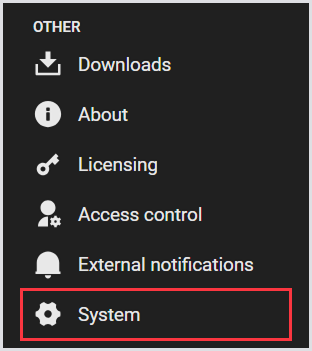
In the Login Enterprise sidebar menu, navigate to Other > System.
-
In System, select Container status from the tab bar menu and wait for the page to load.

Container Status Page Overview
The Container Status page displays various containers and their statuses. The status may change; ideally, all statuses should be set to Healthy.
Troubleshooting
Container Last Status
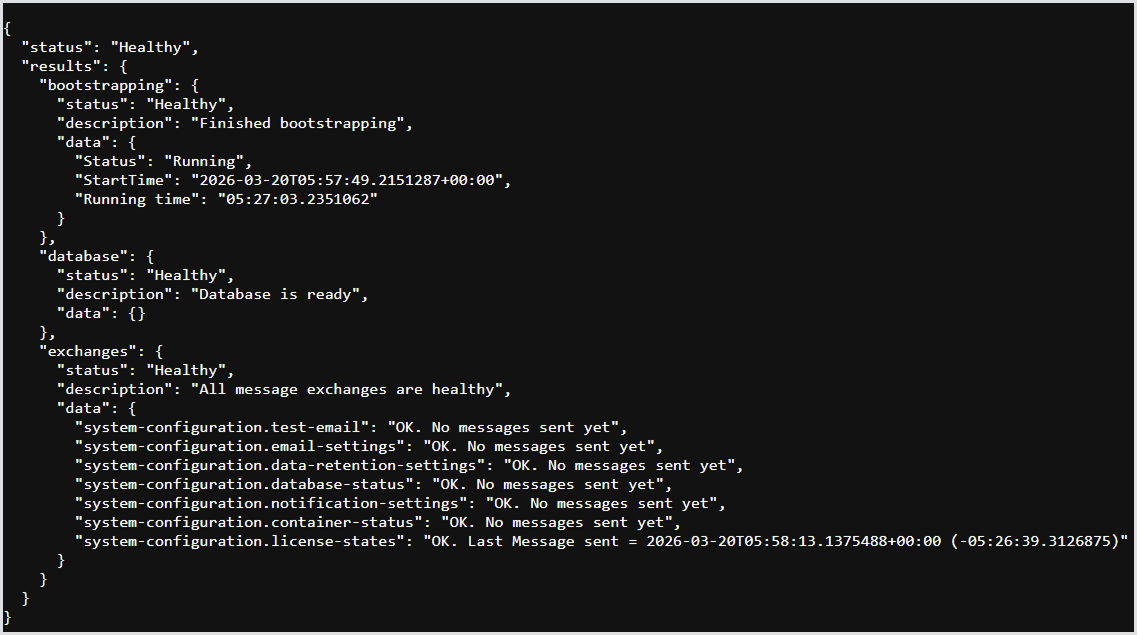
Clicking the Heart icon will show you the latest status of each container:

Downloading Log Files
If a container's status deviates from Healthy and does not resolve, click Download All Logfiles. This action will download a ZIP file.

Please email support@loginvsi.com, including the zipped file and a description of the behavior you are experiencing.
Tip: If you prefer to review the logs yourself, you can use the SEQ application to make the files readable. For more information about this application, see the Seq documentation.