
Overview
By default, Login Enterprise is delivered using an internal database. However, you can add an external SQL database.
Important: Before you choose to migrate to an external SQL database in Login Enterprise, there are several things you need to consider:
-
Migrating to an external SQL database is a one-way process. If you choose to go back to the internal database, your data will not be transferred back into the internal database and you will have data loss.
-
Migrating to an external SQL database will result in deleting all existing data collected up to that point.
If you choose to migrate to an external SQL database, please create a snapshot to eliminate the possibility of losing data permanently.
Why Use an External SQL Database?
|
Benefit |
Explanation |
|---|---|
|
Improved scalability |
Enables Login Enterprise to handle increased data volumes and user loads more efficiently. |
|
Centralized management |
Allows database administrators to monitor and optimize the database independently for better control and maintenance. |
|
High availability and redundancy |
Provides built-in features that ensure the system remains operational and resilient to failures. |
|
Enhanced security |
Offers advanced security measures to better protect data and maintain integrity. |
|
Better performance |
Improves overall system efficiency compared to internal database setups. |
|
Integration flexibility |
Supports seamless integration with various platforms and applications. |
|
Easier compliance |
Simplifies meeting regulatory and compliance requirements. |
|
Long-term efficiency |
Contributes to sustainable performance and reliability as Login Enterprise grows. |
External SQL Database Requirements
For the successful external SQL database implementation in the Login Enterprise user interface, there are several requirements:
-
Login Enterprise is compatible with Microsoft SQL Server 2016, 2017, 2019, and 2022.
-
A database must exist on the SQL Server instance.
-
The SQL database connection requires an SQL user, not a Domain User.
-
Ensure that Named Pipes are enabled for the SQL Server service
-
The connection can be configured to utilize SSL when communicating with the SQL Server.
The minimum requirement for external SQL is the same as the default size of the Appliance or the minimum requirement for the version of the SQL you choose, whichever is greater.
Appliance Default:
|
Configuration |
CPU |
Memory |
Disk |
|
Recommended |
4(v)CPU |
8GB RAM |
100GB |
Configuring an External SQL Database
To configure the external SQL database in the Login Enterprise user interface:
-
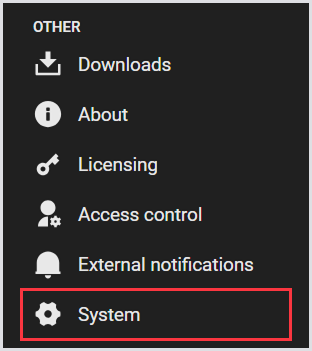
In the Login Enterprise sidebar menu, navigate to Other > System.
-
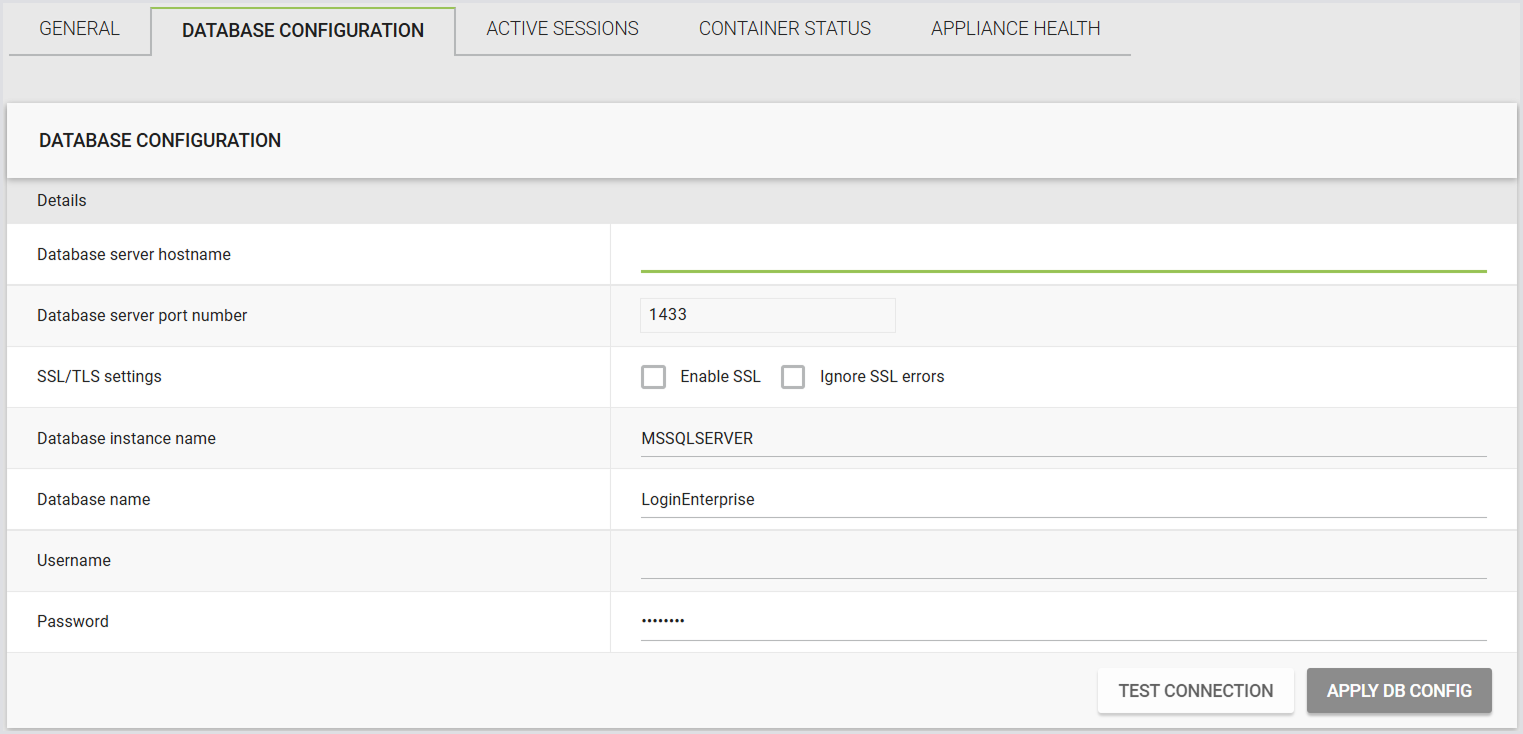
In System, select Database configuration from the tab menu.

-
In Database configuration, provide the following details:
|
Field |
Definition |
|
Database server hostname |
Hostname / IP / FQDN of SQL server. |
|
Database server port number |
The port number used to communicate with the SQL server |
|
SSL/TLS settings |
|
|
Database instance name |
The name of the preferred instance for the database configuration. |
|
Database name |
The name of the created database. |
|
Username |
The username of the preferred SQL user. |
|
Password |
The password of the SQL user. |
-
Click Test connection to ensure the database is correctly configured.
-
Click Apply DB config to save the database configurations.
Congratulations, your external SQL database has now been configured.