
Overview
The Continuous Testing Results page shows the results and statistics for all existing Continuous Tests. For long-running Tests, you can see the entire history of the Tests. To see the results, in the Login Enterprise sidebar menu > Results, navigate to Continuous testing.
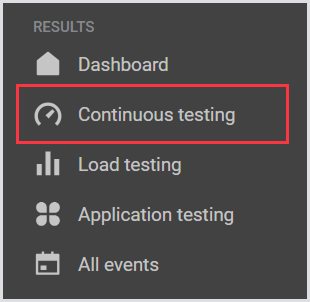
Сharts
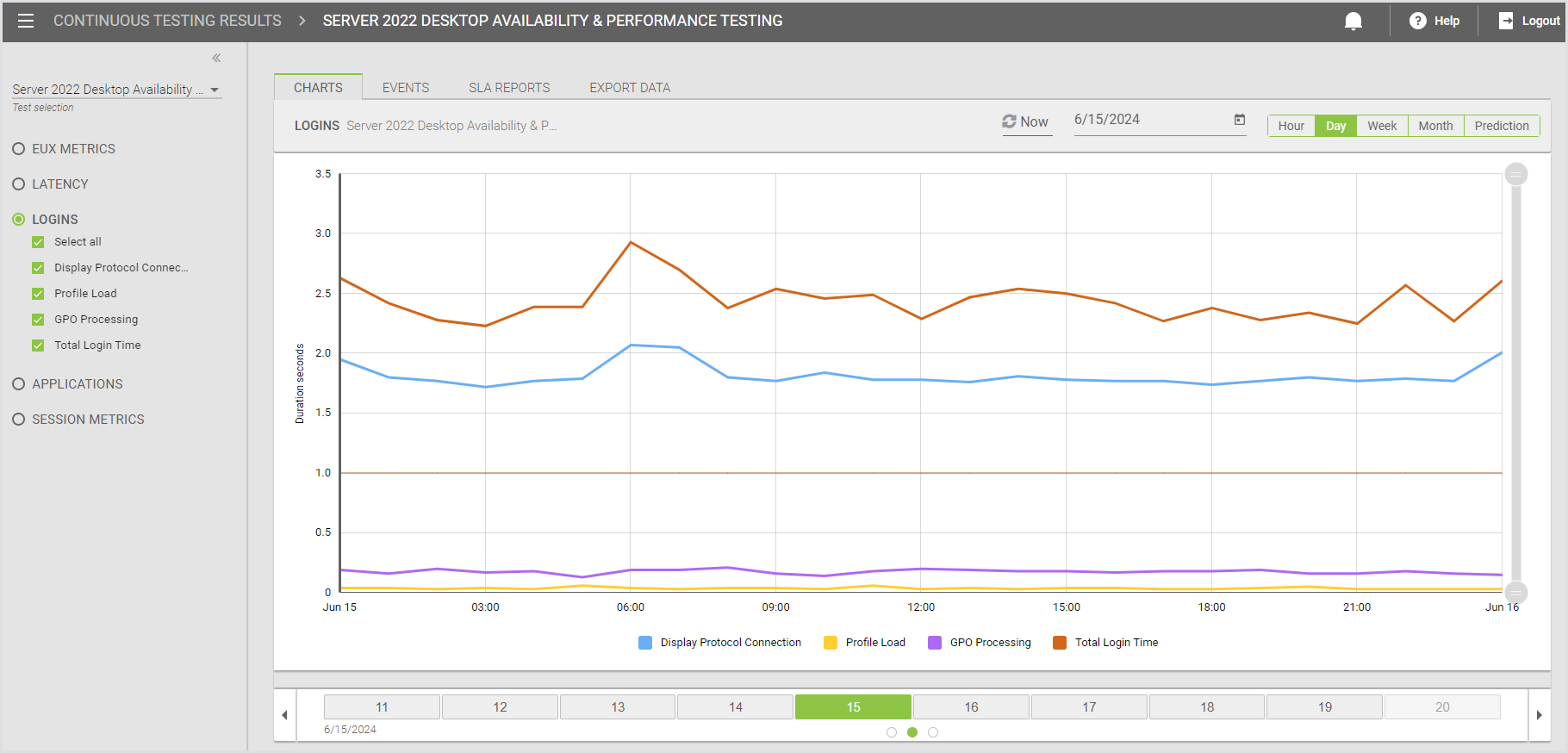
Charts allow you to track data over extended periods of time and use the Prediction model to forecast future performance. For this:
-
In the Continuous Testing charts, select, e.g., Logins from the Measurements menu.
-
Select the specific data you want to examine.
Measurements
Applications
You can analyze application performance metrics, such as application start times and Virtual User workload functions. To do this:
-
In the Continuous Testing charts, select Applications from the Measurements menu.
-
Select the specific application data you want to examine.
-
To define a specific date, click the Calendar icon located above the chart. You can select a resolution for your data, such as Hour, Day, Week, and Monthly views. You can then use the time-slider under the chart itself to choose the time of the day (per hour) you want to investigate further.
Tip: After browsing different times, you can return to the current hour/day/week/month by clicking Now.
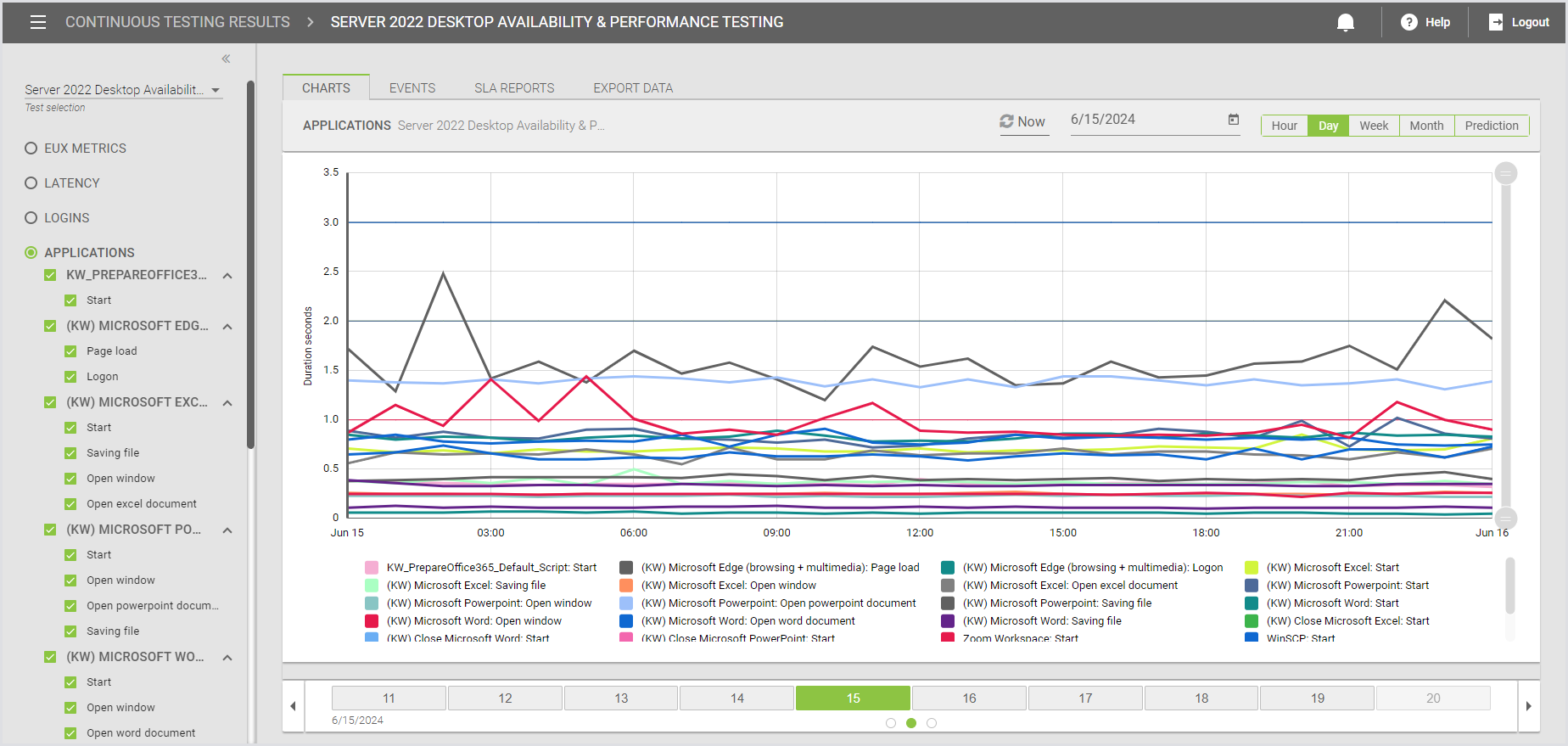
Below the Application charts, you can see the headers that, when clicked, will quickly turn the line on or off so you can see the specific performance metrics you want to investigate.
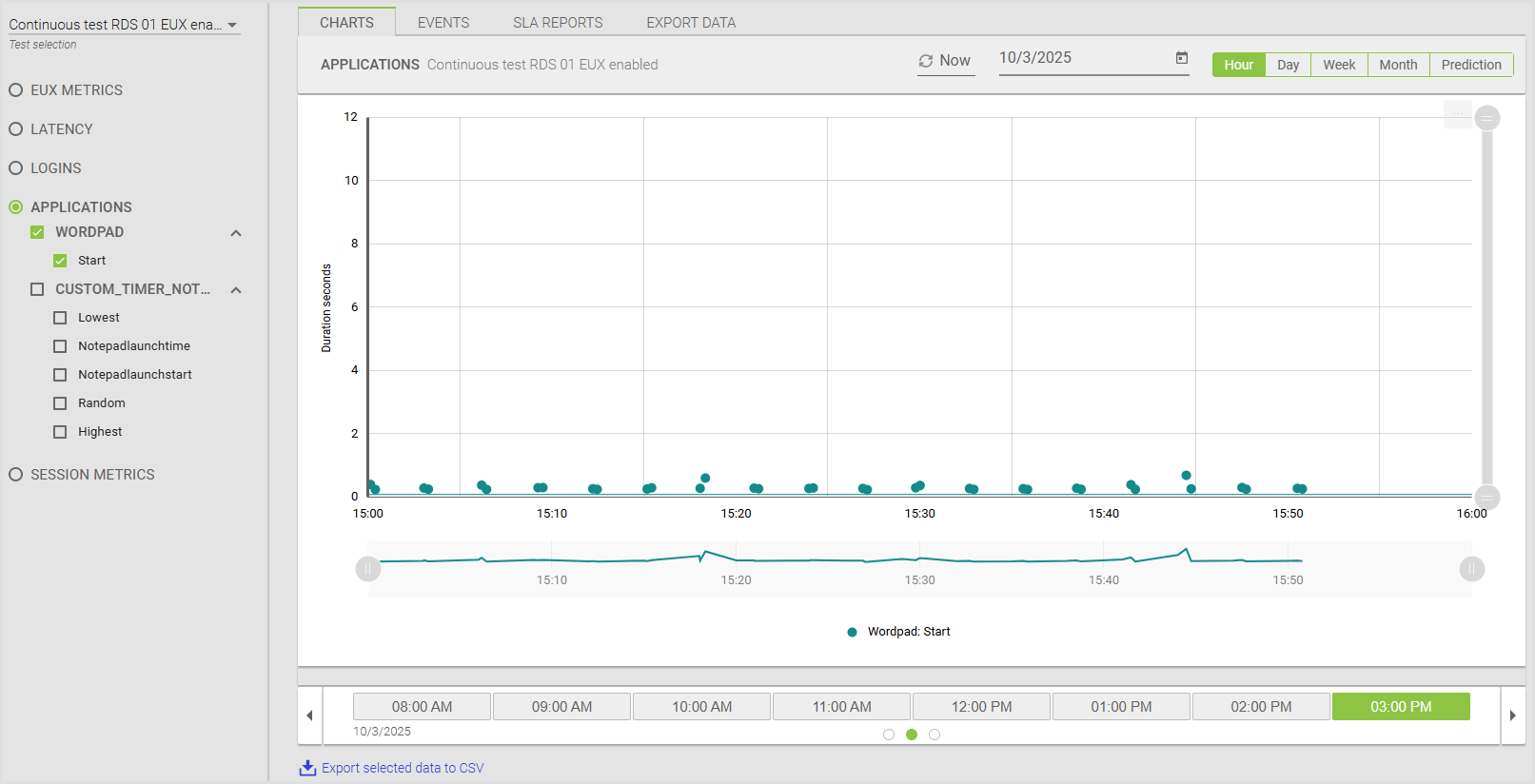
Hovering over each data point on the chart will reveal the exact value for that point in time.
You can predict application performance. This will take a look at past performance measurements and calculate what your application might perform like next.
Note: Prediction is only possible when there are at least 30 hours of application data available.
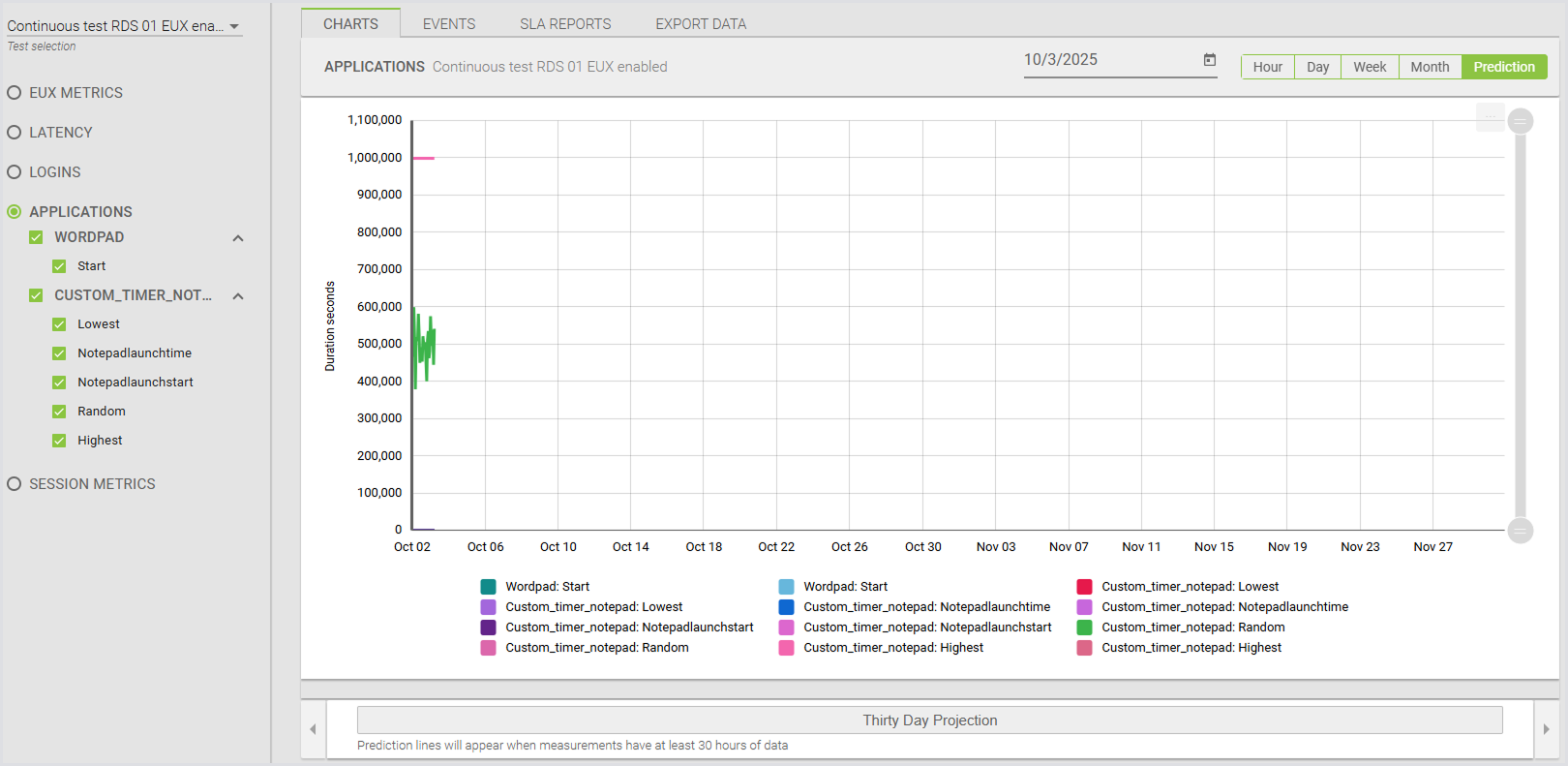
You can view high-level data on applications that exceed defined performance thresholds within the environment. You can also view detailed performance metrics and observe the duration of various functions performed within the workload. For more information, see the Test Dashboard.
EUX Data
You can calculate an End User Experience Score (EUX) to determine the responsiveness of the digital workspace during a Continuous Test. Alongside Latency, Login Performance, and Application Performance, you can visualize the overall end-user experience over a Day, Week, or Month. To do this:
-
In the Continuous Testing charts, select EUX Metrics from the Measurements menu.
-
Select the specific data you want to examine.
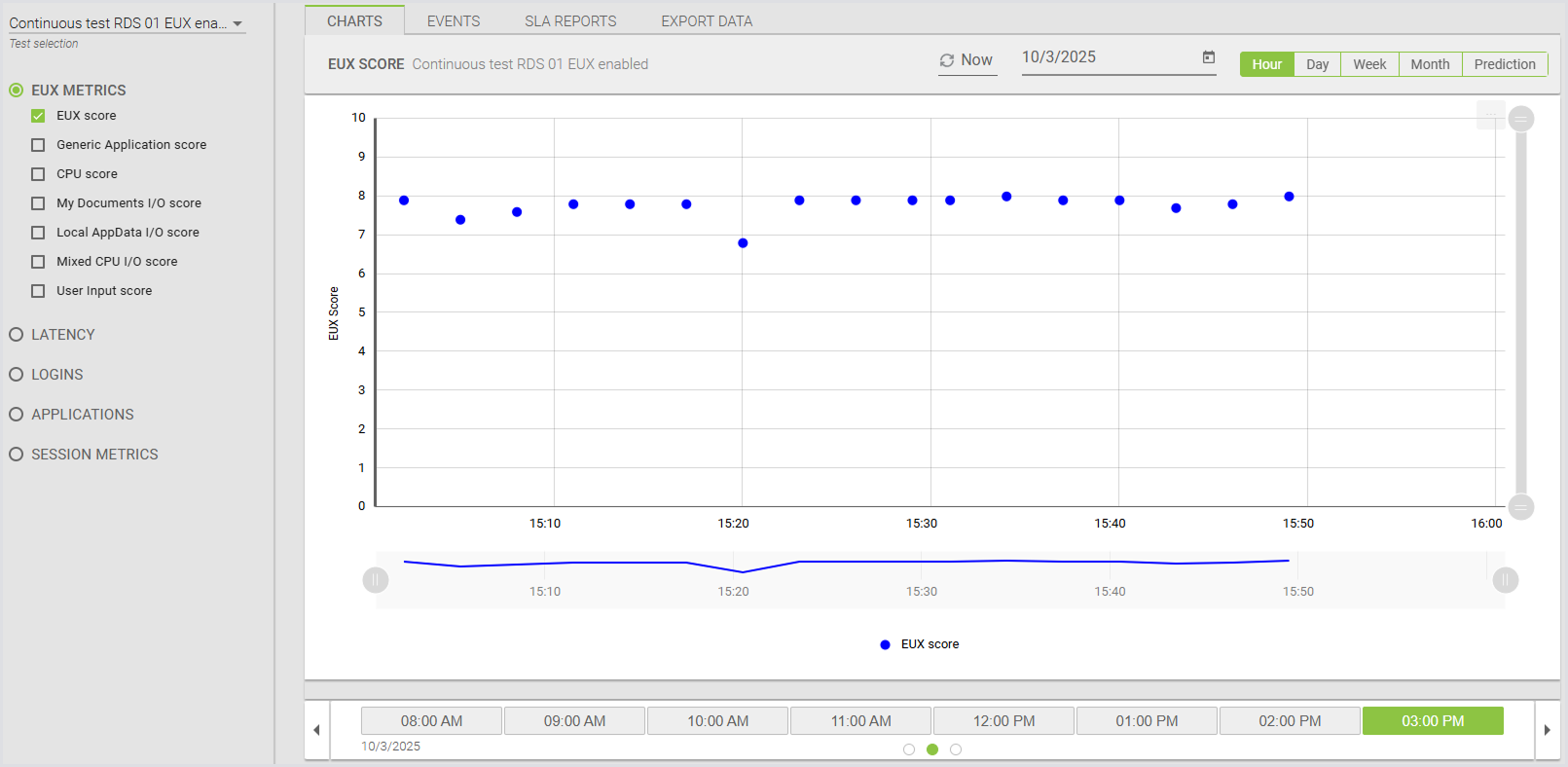
You can surface the EUX timers that are aggregated to calculate the EUX Score. To view the EUX Score and related timers, click the EUX Metrics radio button. You can use the checkboxes to select or deselect the EUX timers, which will add or remove them from the chart.
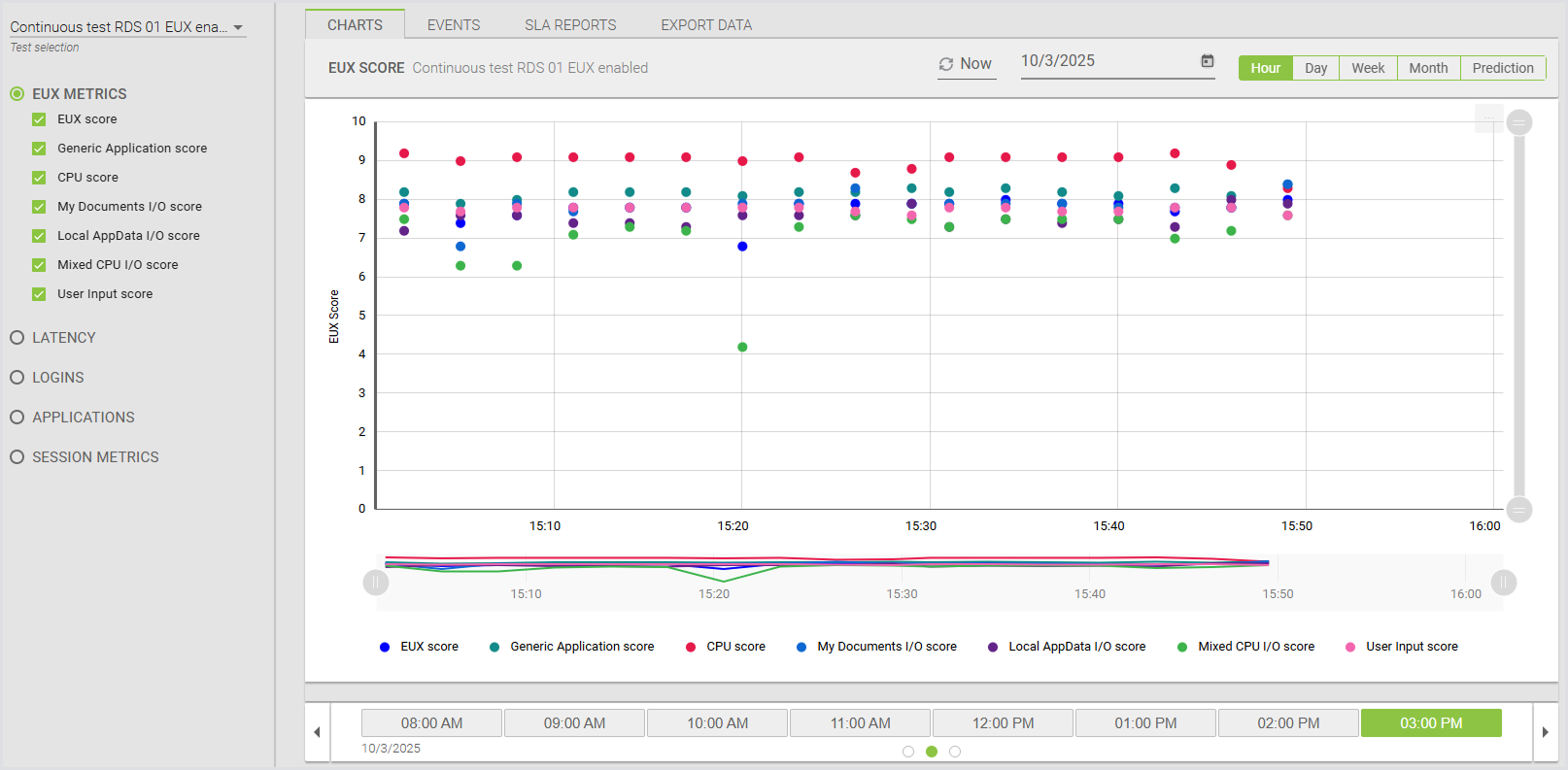
For more information on the EUX score, see Calculating the EUX score and VSImax.
Downloading Charts as an Image
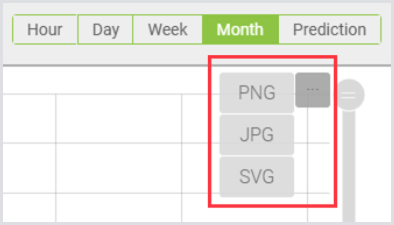
You can download charts as images for sharing or use in custom reports and presentations. Downloading a chart as an image applies to all charts: Load Test, Continuous Test, and Appliance Health. To download a chart:
-
Locate the Download icon in the top right corner of the chart.
-
Select image format: PNG, SVG, or JPG.
-
Download the image. It will be saved to your Downloads folder, or the directory you've configured as your default Downloads location.
Events
The Events tab includes events related to Continuous Test and system events. To access Events:
-
In the Login Enterprise sidebar menu, navigate to Results > Continuous testing.
-
In Continuous testing results, select Events from the top menu.
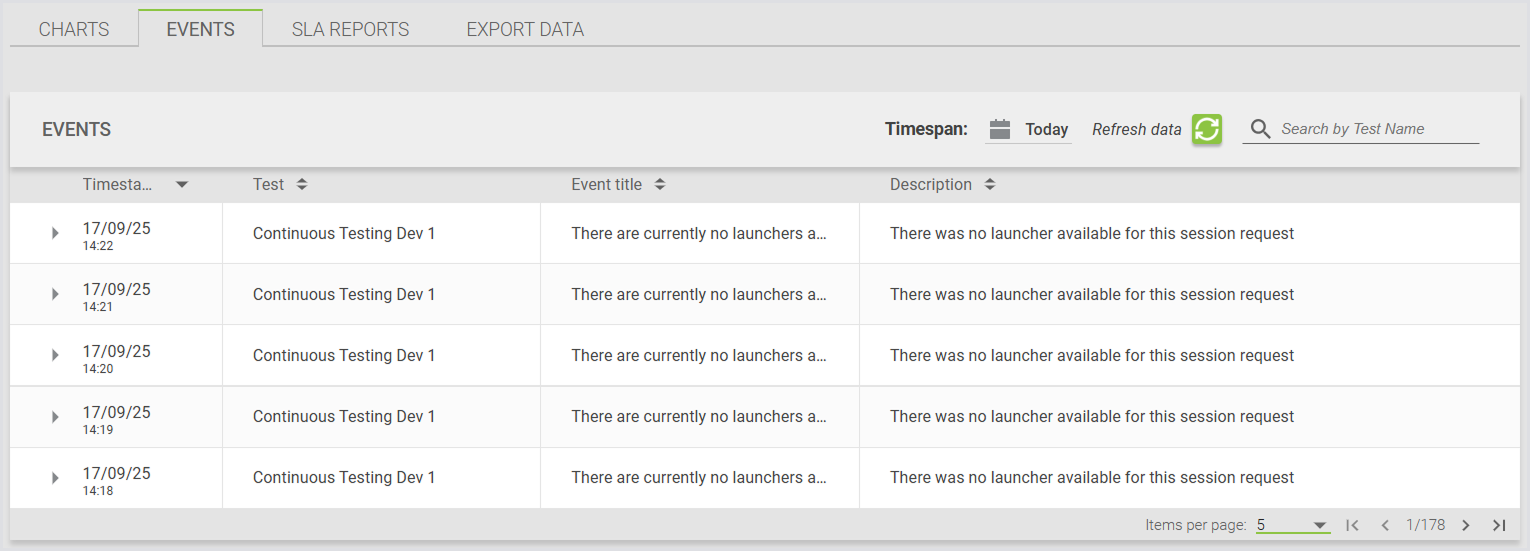
The Events table lists all recorded events:
-
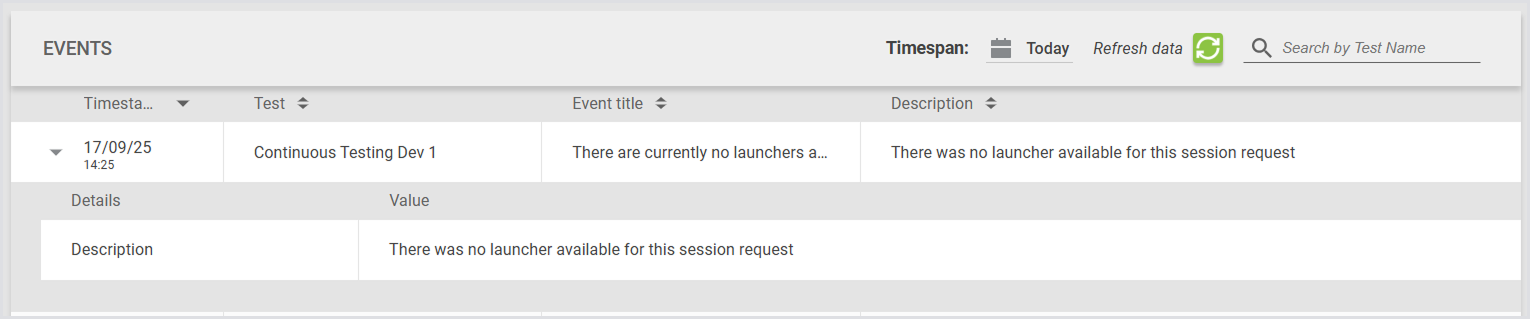
Click an event to view more detailed information:
Time Span Selection
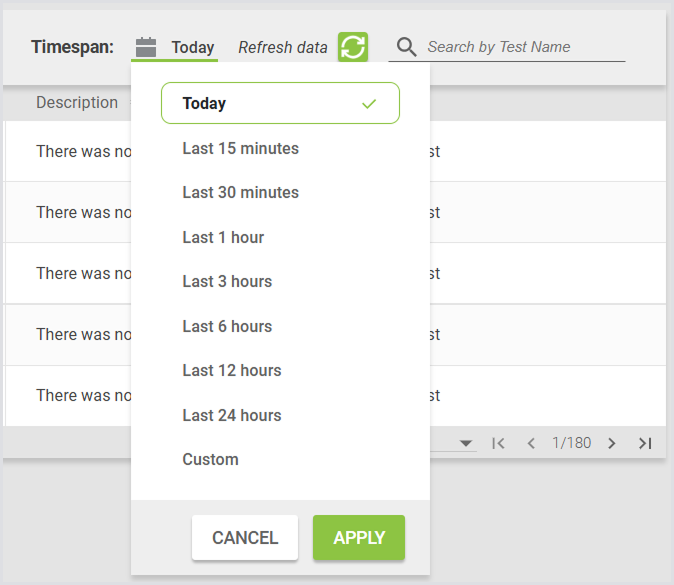
You can select a custom time span to view events. The date picker includes quick-select options:
-
Today
-
Last 15 minutes
-
Last 30 minutes
-
Last 1 hour
-
Last 3 hours
-
Last 6 hours
-
Last 12 hours
-
Last 24 hours
Custom Time Span
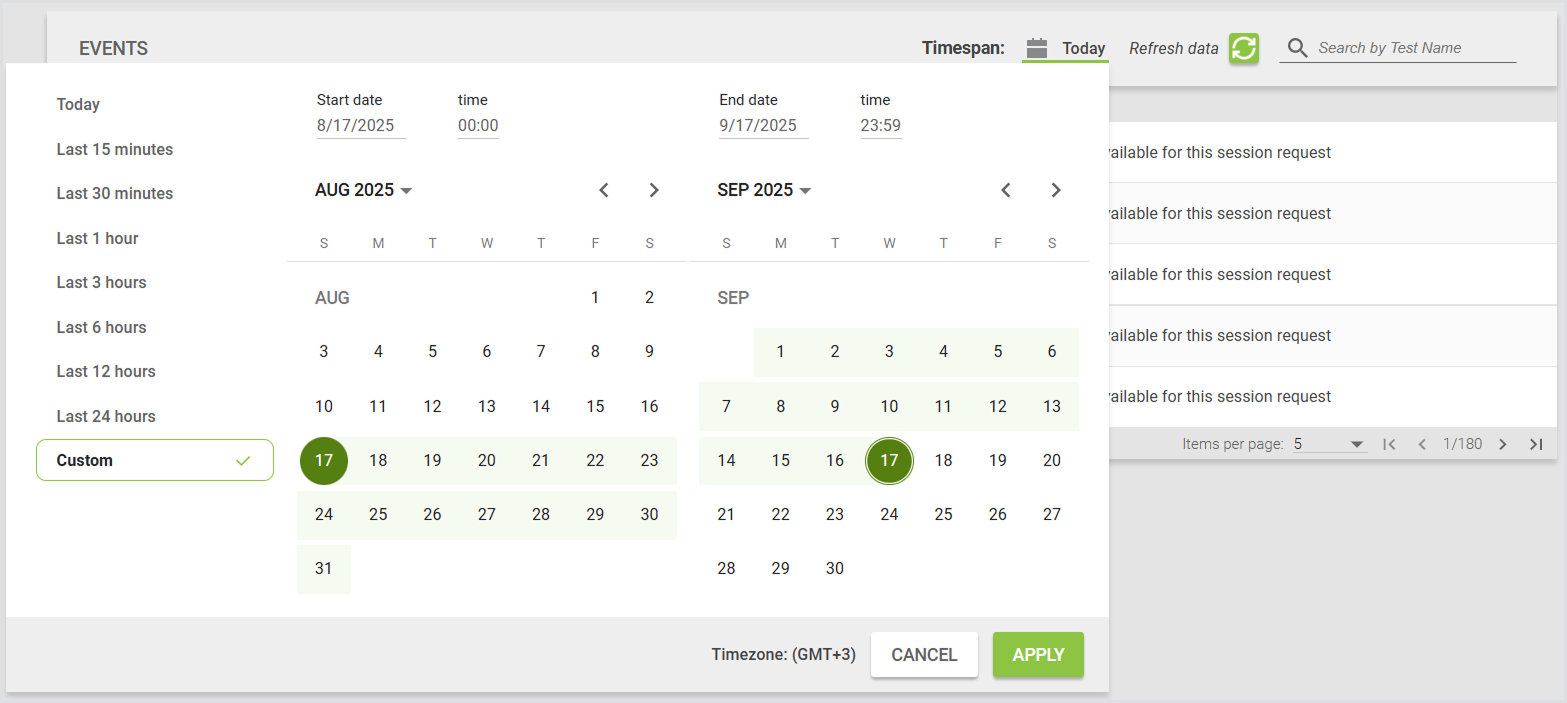
To select a custom time span:
-
Choose Custom in the date picker.
-
Use the From and To fields or the calendar view to select a start and end date.
-
Click Apply.
By default, the page shows events for Today. When you change the time span, your selection is saved in the browser. Returning to the page will display your previously selected time span.
Live Updates
The page automatically updates with new events:
-
If you select a quick option like Today, new events appear immediately in the list.
-
If you select a time span such as Last 15 minutes or Last 1 hour, new events are added automatically, and the time span updates to include the new events.
Tip: A search field above the table allows you to filter events by Test name. This makes it easier to locate specific events quickly.
Possible Events
-
accountCapacityExceeded -
accountDisabled -
appExecutionAbandoned -
applicationFailure -
applicationThresholdExceeded -
connectionInitializationTimeout -
customUserSessionEvent -
dataRetentionFailed -
dataRetentionFinished -
dataRetentionStarted -
databaseFailure -
emailFailure -
emailRequest -
emailSent -
engineLogs -
enginePaused -
engineResumed -
euxExecutionFailure -
euxInitializationFailure -
latencyMeasurementFailed -
latencyThresholdExceeded -
launcherCapacityExceeded -
launcherLogs -
launcherOffline -
licenseSessionLimit -
loginFailure -
loginTimeMeasurementFailed -
loginTimeThresholdExceeded -
remoteSessionDisconnected -
screenshotFailure -
scriptEvent -
scriptScreenshot -
sessionDiscoveryError -
sessionFailure -
sessionRequestEndedBeforeEngineBecameOnline -
testRunCancelled -
testRunFailed -
testRunFinished -
testRunStarted
SLA Reports
SLA reporting provides a concise and straightforward document that delivers key performance information. These reports are generated from historical data gathered by Login Enterprise during its operational processes, making them ideal for monitoring service-level agreements, understanding infrastructure performance over time, and facilitating operations reporting to management and service customers.
Benefits of SLA reporting
|
Benefit |
Explanation |
|---|---|
|
Automated history of Test Results |
SLA reports provide a clear and automatically generated history of test scenario results, making it easy to review and analyze past performance. |
|
Multiple email recipients |
Allows the distribution of results to multiple stakeholders. For example, an IT manager can quickly review the overall health and ROI indicators through a PDF attachment, while Login Enterprise administrators can focus on specific details relevant to their responsibilities within the same email. |
|
Simplified review process |
SLA reports are designed to be easy to read, streamlining the process of reviewing results within a defined time frame. This simplifies the task compared to examining Continuous test results and charts directly in the UI. |
Configuring SLA Reports
-
To create a new report, in the Login Enterprise sidebar menu, navigate to Results > Continuous Testing.
-
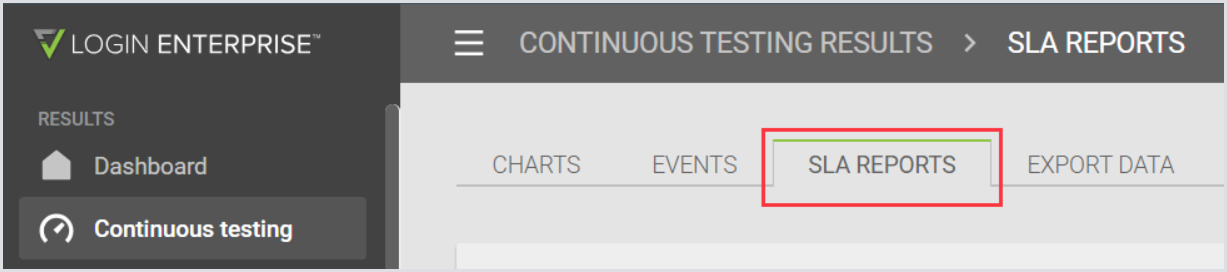
In the Continuous Testing results, select SLA Reports from the top menu.
-
In the SLA reports, click the green "+" in the upper-right corner to add a new SLA report:
-
Configure the SLA report with the following settings:
|
Report info |
||
|---|---|---|
|
Name |
Test |
Description |
|
The name of the SLA report. |
The test for which the SLA report will be generated. |
A description of the SLA report. |
|
Settings |
||
|
Schedule |
The time frame for generating the report, e.g., Daily, Weekly, or Monthly. |
|
|
Time zone |
The time zone in UTC format. |
|
|
Email notification |
Enable email notifications and enter the email addresses that should receive automatically generated reports. Separate multiple email addresses with a semicolon (;). Note: The Email notification function requires that the email settings be configured. For details, see Managing Notifications. If email notifications are enabled and no email addresses are specified, the global email settings will be used. |
|
|
Report logo |
Add your company logo to customize the report. Supported formats: JPEG, JPG, PNG, SVG (max. 1 MB). |
|
-
Click Next.
-
Click Add new threshold. This allows you to configure the following:
|
Application |
Measurement |
Limit (in seconds) |
|---|---|---|
|
Select the application to monitor. |
Choose the specific application measurement. |
Set the time limit for the measurement. |
Note: Any measurements that exceed this limit will be included in the SLA report.
-
Click Save to apply SLA report configurations.
Generating SLA Reports
Reports are not generated immediately unless you click Manually generate report. If the schedule is set to Daily, the first report will be available after one day. To generate a report manually, go to Available reports:
-
Click Manually generate report.
-
Select the desired date.
-
Click Generate.
To view the report, go to Available reports and click the report you just generated. The PDF file will download automatically. You can download a sample SLA report from Additional Resources.
Scheduled Reports
-
Daily reports: Generated every day.
-
Weekly reports: Generated every week.
-
Monthly reports: Generated every month.
Scheduled reports can be deleted as needed.
The SLA report displays the report date, which indicates the time frame it covers.
Note: The Application Success value in the SLA Report represents the status of the entire workload script to complete successfully.
Export Data
You can export data from Continuous Tests in CSV format. This is useful for integrating data from different sources.
|
Benefit |
Explanation |
|---|---|
|
Comprehensive data analysis |
Exporting raw data allows you to perform detailed analysis and compare metrics from different tests or sources. |
|
Data integration |
Easily combine and correlate data from various tests or external systems for more robust reporting. |
|
Error tracking |
Access detailed information about application execution and performance to help troubleshoot issues. |
You can export the data using:
-
The Export Data Tab:
-
In the Continuous Testing Results page, select Export Data from the tab menu.
-
Click the green + icon to create a new export.
-
In From date and To date, specify the timeframe for exporting data, and click Next.
-
In Test selection, select environments for exporting data, and click Export.
-
In Export data, click the folder icon to download the .zip file.
-

-
The Charts Tab:
-
In the Continuous Test Results page, select Charts from the tab menu.
-
Use the drop-down menu on the left to select the configuration.
-
Click Export selected data to CSV under the chart window.
-
The RawData.zip file will be prepared and downloaded.
-

Note: The data you downloaded will also be displayed in the Export Data tab for your reference.
RawData.zip File
The RawData.zip file is named according to the following schema: RawData <TEST_NAME> <DATE> <TIME>.zip
Important: If the raw data export was generated before v6.5, and you download it, it will not contain the EUX data.
|
File Name |
Description |
|---|---|
|
AppExecutions |
Data on application script executions. Each entry represents a Virtual User starting an app and includes details on whether any errors occurred during the execution. |
|
EUX |
EUX data that you can import or export into your own data tools for reporting and analysis. |
|
Measurements |
All measurements captured during the Test Run. It covers application response times and other timers configured in the test settings. |
|
UserSessionMetrics |
CPU and Memory utilization metrics for each user session in the Test Run, expressed as percentages. |
|
UserSessions |
Information about the Virtual User accounts used during the Test Run. It details the Launcher of origin, the target host, and the logon results. |
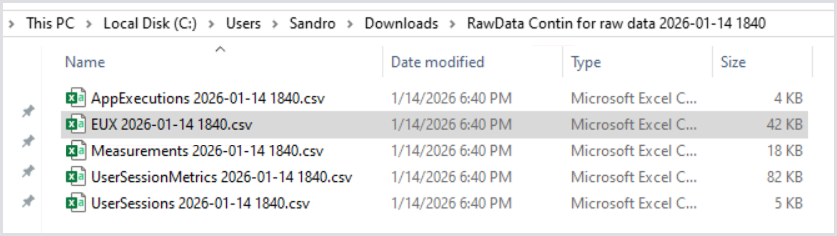
An example of the RawData.zip file looks as follows:
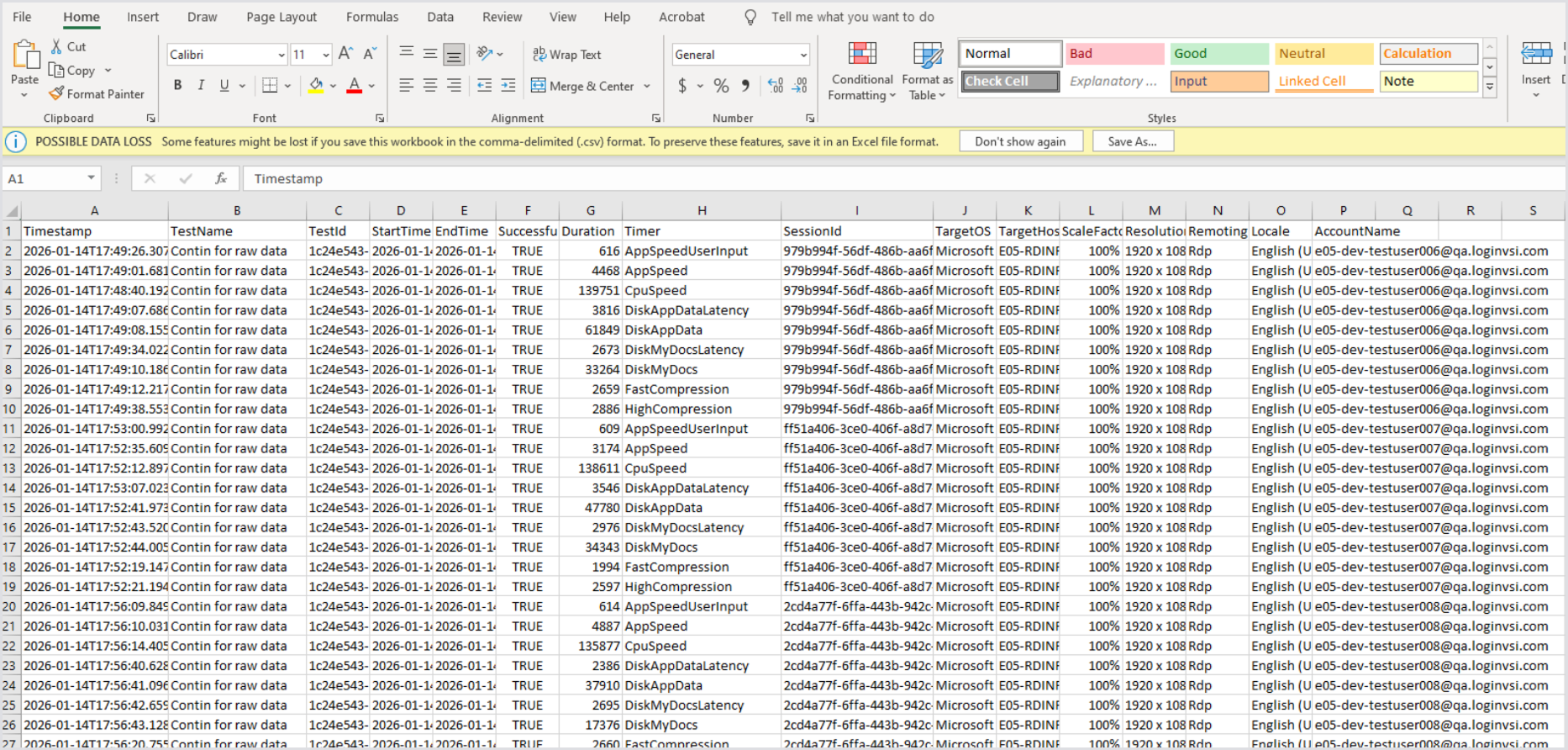
EUX Raw Data
To enhance debuggability and facilitate root-cause analysis, EUX raw timer data can be essential. Login Enterprise stores the raw data by default, and the data retention can be adjusted based on your specific needs.
Retrieving the EUX Raw Data
You can retrieve the EUX raw data via the Public API with the following request:
GET https://appliance.loginvsi.com/publicApi/v7/test-runs/{testRunId}/eux-script-executions
Tip: The testRunId is a Continuous Test Id.
The API will return all the EUX measurements for each user session. Below is an example of how the response is structured:
{
"items": [
{
"userSessionId": "6f838f90-b9ed-4e63-b04e-2291a50e34cb",
"startTime": "2025-01-06T15:20:55.288615Z",
"endTime": "2025-01-06T15:22:08.481351Z",
"successful": true,
"euxMeasurements": [
{
"timestamp": "2025-01-06T15:21:55.998094Z",
"timer": "appSpeedUserInput",
"duration": 635
},
{
"timestamp": "2025-01-06T15:21:32.025Z",
"timer": "appSpeed",
"duration": 5656
},
{
"timestamp": "2025-01-06T15:22:00.373194Z",
"timer": "cpuSpeed",
"duration": 210623
},
{
"timestamp": "2025-01-06T15:21:37.61784Z",
"timer": "diskAppDataLatency",
"duration": 4329
},
{
"timestamp": "2025-01-06T15:22:02.388249Z",
"timer": "diskAppData",
"duration": 16952
},
{
"timestamp": "2025-01-06T15:22:03.918992Z",
"timer": "diskMyDocsLatency",
"duration": 4424
},
{
"timestamp": "2025-01-06T15:22:04.419015Z",
"timer": "diskMyDocs",
"duration": 14851
},
{
"timestamp": "2025-01-06T15:21:42.172781Z",
"timer": "fastCompression",
"duration": 920
},
{
"timestamp": "2025-01-06T15:21:19.825964Z",
"timer": "highCompression",
"duration": 925
}
],
Cleaning the EUX Data (Data Retention)
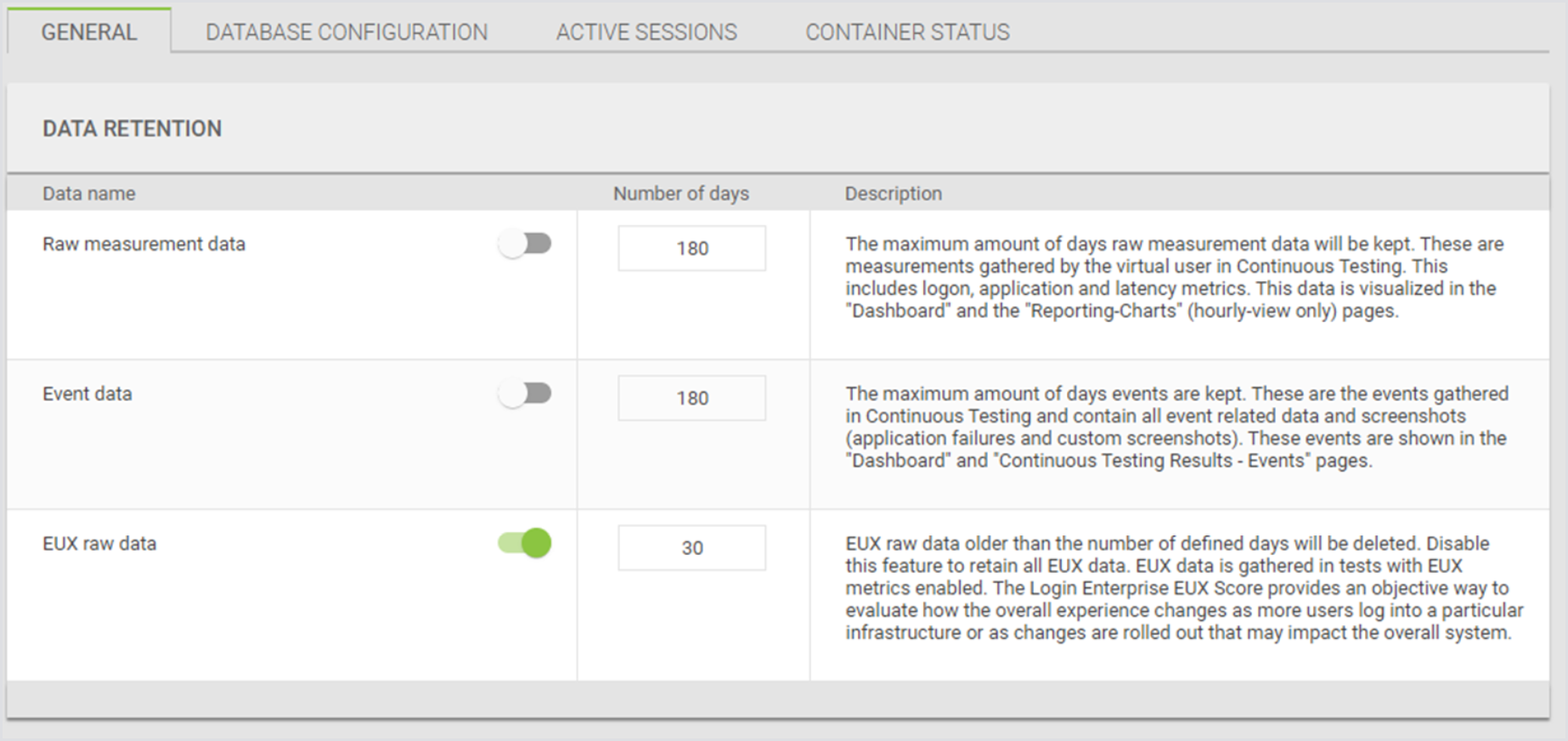
You can configure the data retention period for EUX raw data, ranging from 1 to 9999 days. Customizing this setting is crucial to managing storage resources effectively. New installations and upgrades default to a 30-day retention period, but any customizations persist through subsequent upgrades.
To adjust the EUX raw data:
-
In the Login Enterprise sidebar menu, navigate to Other > System.
-
In the System, click General.
-
In Data retention, configure EUX raw data.
Additional Resources
For general guidelines on how to analyze Continuous Testing Session Metrics, refer to Viewing Session Metrics.