
Overview
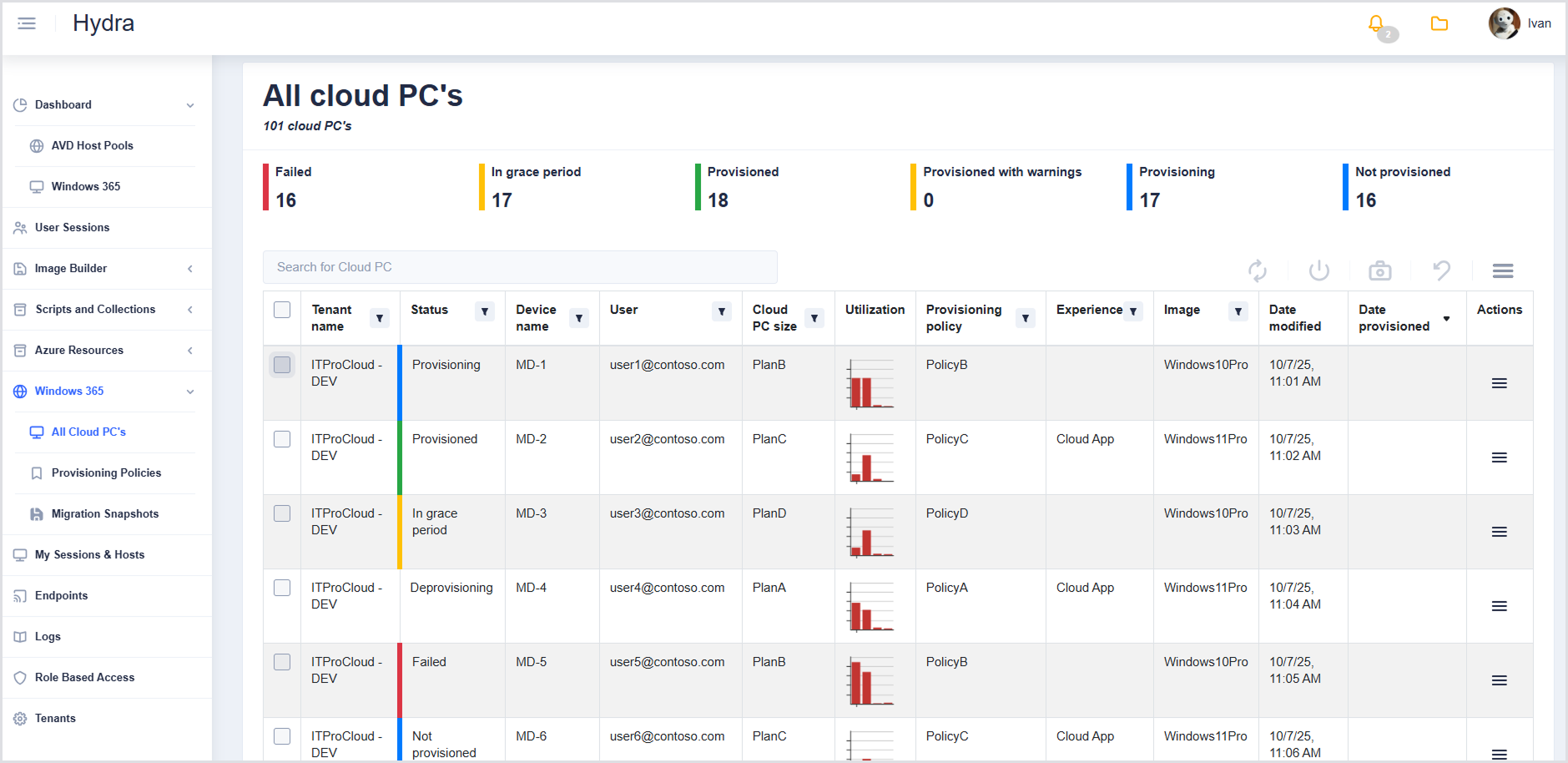
The All Cloud PCs page enables administrators to:
-
Monitor Cloud PC status across tenants at a glance via the dashboard indicators.
-
Search and filter Cloud PCs by key properties.
-
Take bulk actions on selected Cloud PCs: Sync, Restart, Reprovision, Create snapshot.
-
Review detailed information for each Cloud PC, including status, policy, utilization, and image.
-
Access row-level actions to restore a Cloud PC to a previous snapshot.
Cloud PC Dashboard
At the top of the page, a dashboard summarizes Cloud PC status across all tenants. Each indicator shows the number of Cloud PCs in a given state:
|
Indicator |
Description |
|---|---|
|
Red (Failed) |
Cloud PCs that have encountered errors during provisioning or operation |
|
Yellow (In grace period) |
Cloud PCs are temporarily in a grace period, pending updates or actions |
|
Green (Provisioned) |
Fully provisioned Cloud PCs ready for use |
|
Yellow (Provisioned with warnings) |
Provisioned Cloud PCs with warnings that may require attention |
|
Blue (Provisioning) |
Cloud PCs are currently being provisioned |
|
Blue (Not provisioned) |
Cloud PCs not yet provisioned |

Search and Toolbar Actions
Above the Cloud PCs table:
-
Search field: Allows you to search for Cloud PCs by tenant, device name, user, provisioning policy, or other searchable properties.
-
Toolbar icons: Apply actions to selected Cloud PCs in the table. Hover over an icon for instructions:
|
Icon |
Action |
|---|---|
|
Refresh |
Sync selected Cloud PCs |
|
Restart |
Restart selected Cloud PCs |
|
Camera |
Create a snapshot / restore point |
|
Arrow down left |
Reprovision selected Cloud PCs |
|
Burger icon |
Download CSV export of the table |
Actions apply only to selected Cloud PCs in the table. If no item is selected, tooltips explain that a selection is required.
Cloud PCs Table
The table lists all Cloud PCs and their properties. Columns include:
-
Tenant name
-
Status
-
Device name
-
User
-
Cloud PC size
-
Utilization (hover shows CPU%, Memory Usage %, Processor Queue, Disk Queue)
-
To enable device utilization info, install the Hydra Agent on the Cloud PC. For details, see Hydra Agent for Cloud PCs.
-
-
Provisioning policy
-
Experience
-
Image
-
Date modified
-
Date provisioned
-
Actions
Column Filters and Sorting
-
All columns (except Date modified and Actions) have a Filter icon.
-
Filters allow you to search or select values relevant to that column. For example:
-
Status: Deprovisioning, In grace period, Not provisioned, Provisioned, Provisioning
-
Image: Windows 10Pro, Windows 11Pro
-
-
Date provisioned supports sorting ascending or descending.
Actions Column
-
Each row has an Actions menu (burger icon).
-
Clicking the icon restores a Cloud PC to a previous snapshot if available.
Selection Controls
-
At the bottom of the table, you can select all Cloud PCs on the current page to perform bulk actions via the toolbar.