Overview
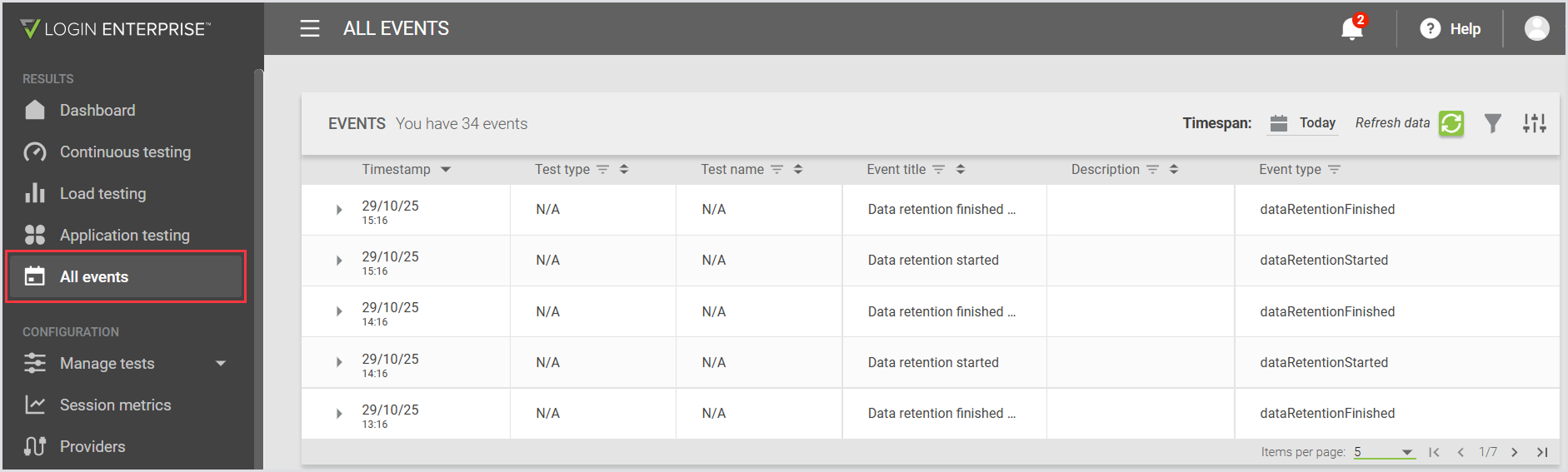
The All Events page allows you to view and filter all events in the system, including all Test types and System events.
Filtering Events
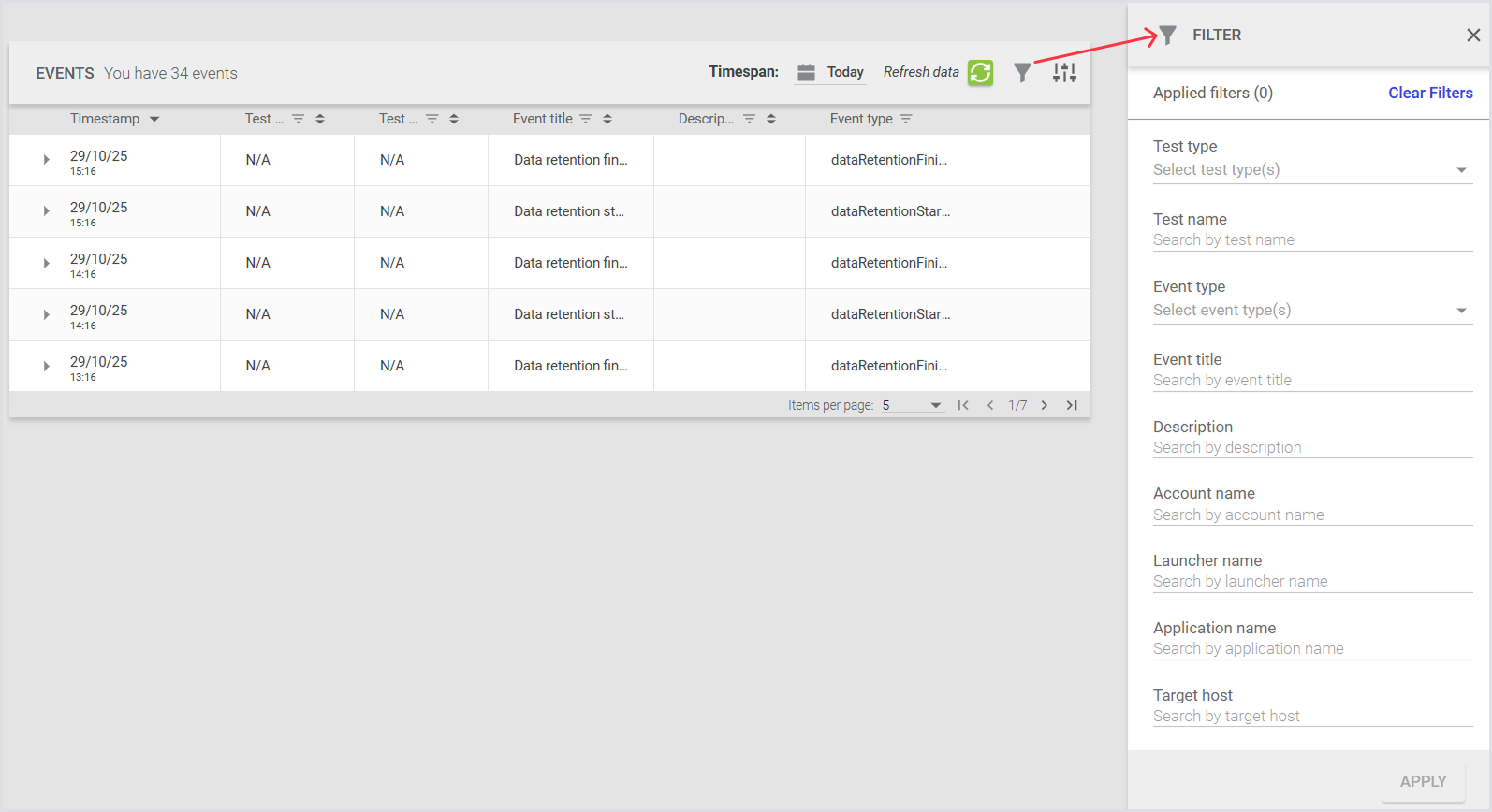
You can use the filter sidebar or column headers to refine which events appear on the page.
Using the Filter Sidebar
The sidebar lets you combine multiple filters. The following options are available:
|
Filter |
Description |
|---|---|
|
Test type |
Select one or more test types from a list of options. |
|
Test name |
Search for a test by name. |
|
Event type |
Select one or more event types from a list of options. |
|
Event title |
Search for events by title. |
|
Description |
Search event descriptions. |
|
Account name |
Search by account name. |
|
Launcher name |
Search by launcher name. |
|
Application name |
Search by application name. |
|
Target host |
Search by target host name. |
Search fields filter results by any text that contains the search term. For example, typing test displays all items with “test” in their name or description.
List-of-options filters let you select one or more checkboxes to include only those items.
For example, selecting specific test types will show only events that match those types.
Using Сolumn Header Filters
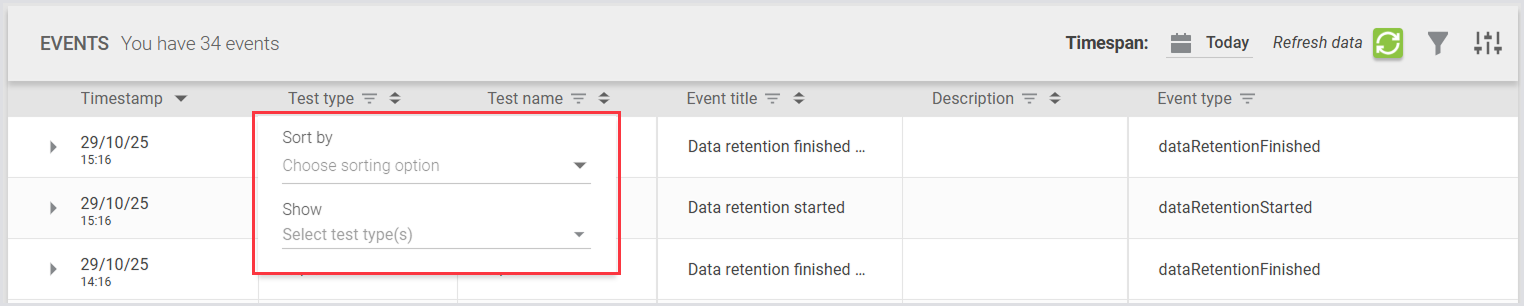
Click a column header to open a small menu that lets you:
-
Set a sorting option, such as ascending or descending order.
-
Apply quick filters specific to that column, such as selecting a test type.
Configuring Columns
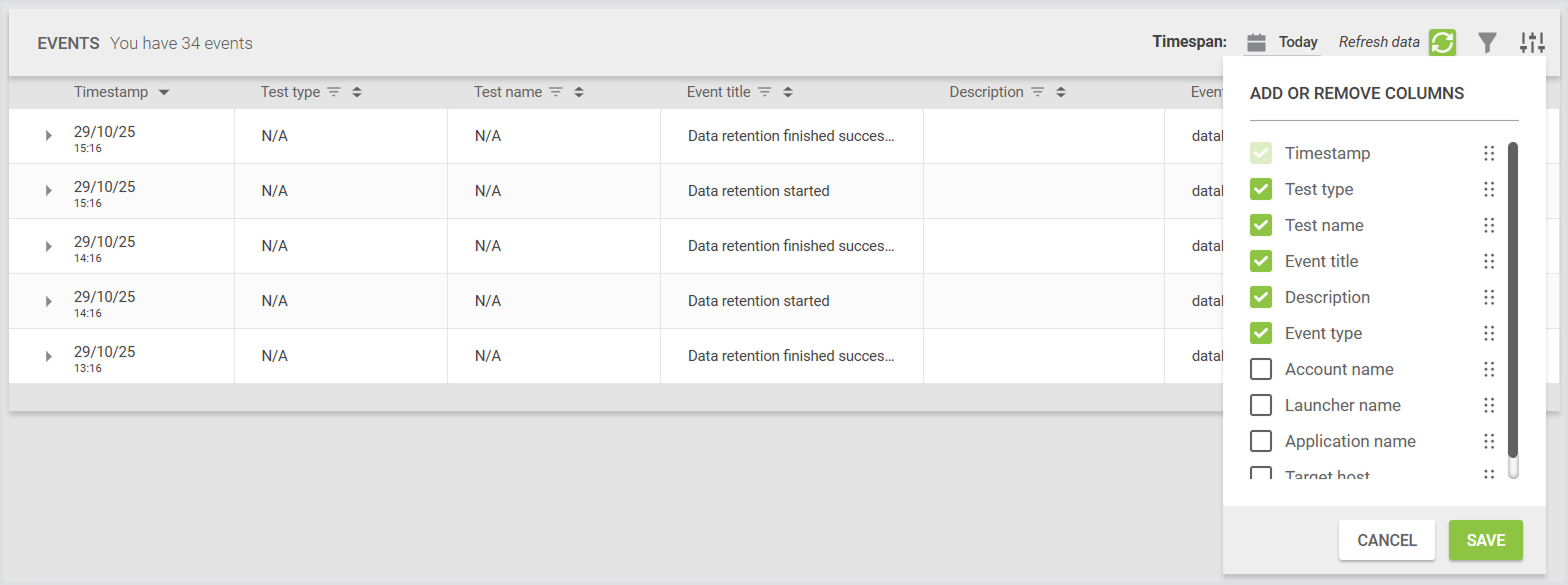
You can customize which columns are displayed and how they’re arranged.
-
You can show or hide any column except Date. The Date column is fixed and always visible.
-
You can reorder columns, but Date always appears first.