
Overview
Leveraging FSLogix for profile management can enhance user experience, but also introduce issues that require help desk support. Hydra simplifies this process by providing a single pane of glass for these tasks.
The User and profile manager role (or higher) is required to delete FSLogix profiles. There are two methods Hydra users can use to remove user profiles.
This feature is completely independent of the Azure File/NetApp monitoring and auto-scaling setup. It does not require the Service Principal used in the other feature.
Prerequisites
Deleting FSLogix profiles requires a Service Account configured on the Host Pool. For more information, see Configuring a Host Pool Service Account.
The Service Account must meet the following requirements:
-
Must be an Active Directory (AD) service account. Pure Entra DS is not sufficient. For details, see the Microsoft documentation.
-
Must have modify or delete NTFS permissions on the share/folder where FSLogix profiles are stored. Assigning these permissions via File Explorer’s Security tab is sufficient.
-
You can validate the permissions by mapping the share with the Service Account and manually attempting to delete a test profile.
For monitoring and auto-scaling of Azure File Shares or NetApp Files, see Managing Azure File Shares.
Delete the FSLogix Profile of the Active Session
The Service Account configured for the Host Pool will be used to authenticate to the share, locate the user’s profile via registry lookup, and perform the deletion.
-
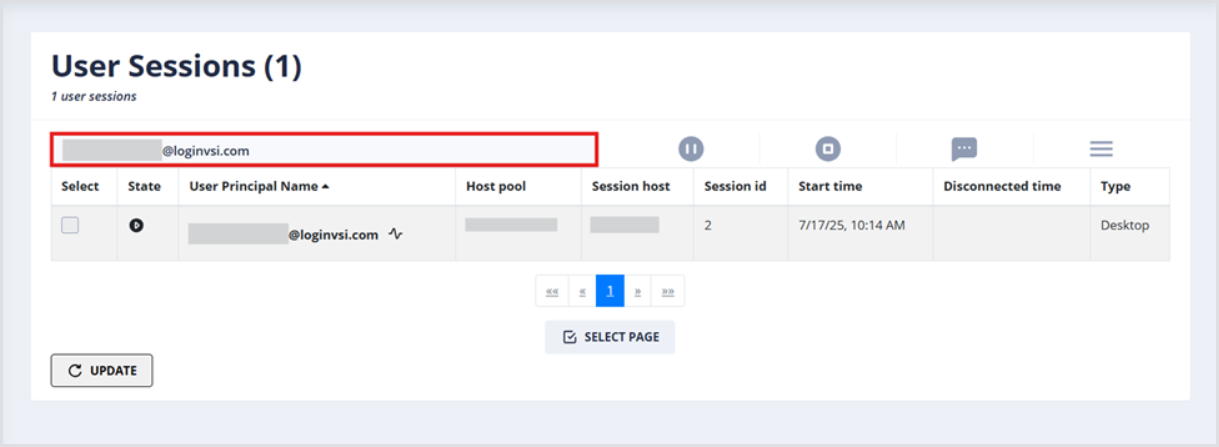
Enter username(s) (UPN format, e.g., username@loginvsi.com) into the search bar.
-
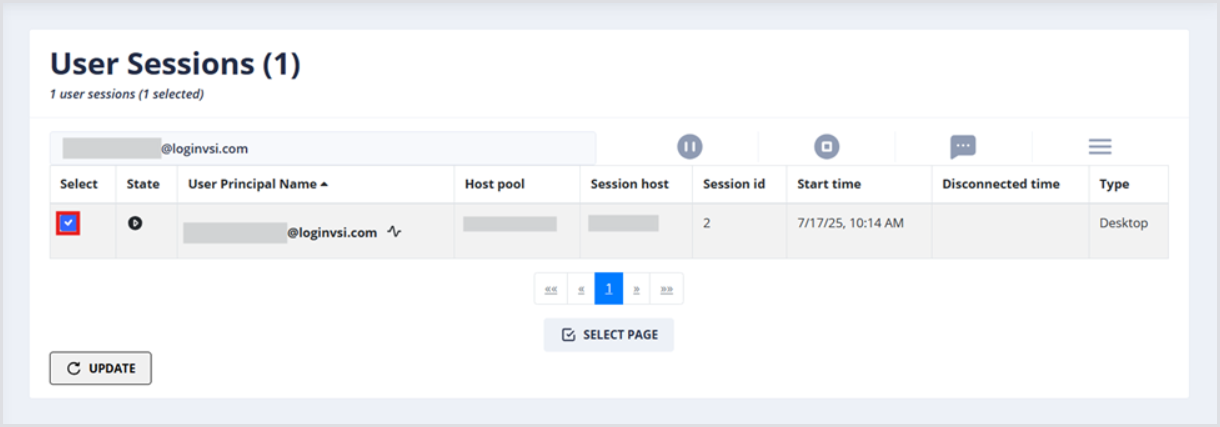
Once the user account is shown in the User Sessions table, select it by clicking the check box.
-
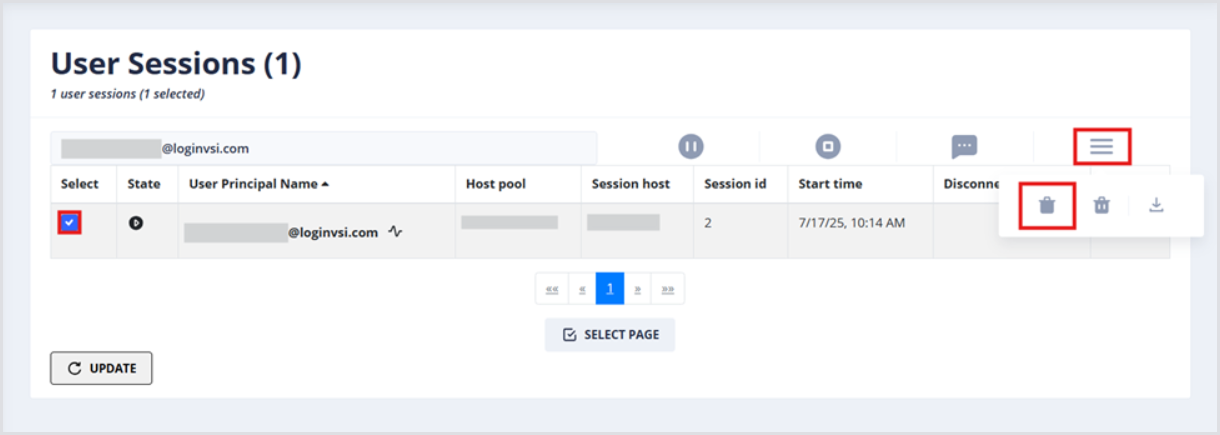
Click the hamburger menu to display available actions, and click the left-most icon to Delete FSLogix Profile. The user will be logged off the active session.
-
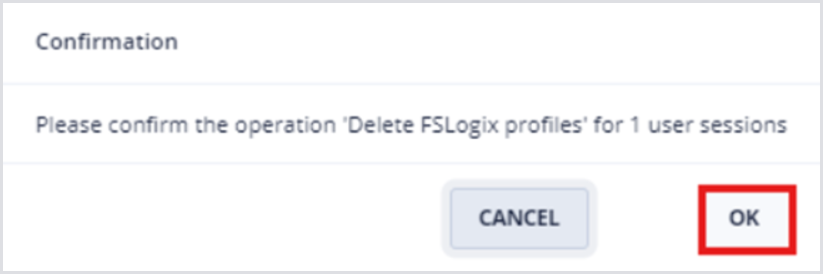
Click OK to confirm the profile deletion.
Delete FSLogix Profile of Inactive Session
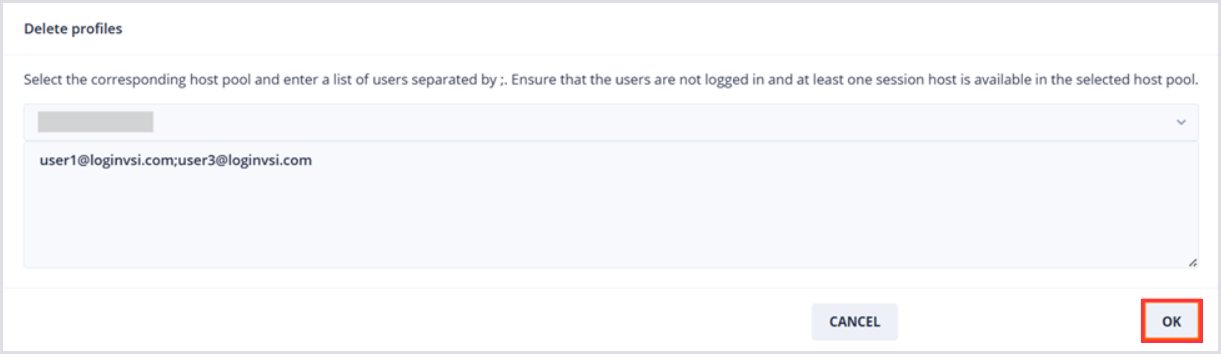
Select the corresponding host pool and enter a list of users separated by ;. Ensure that the users are not logged in and that at least one session host is available in the selected host pool.
-
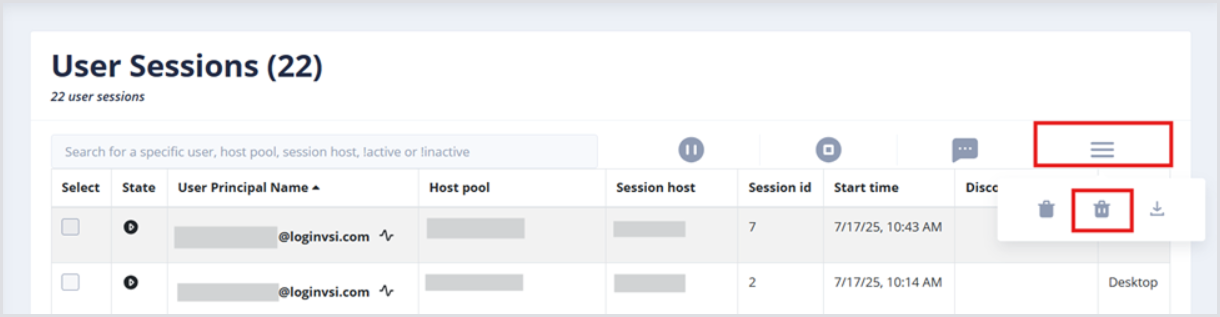
Click the hamburger menu to display available actions, and click the middle icon to Delete FSLogix Profile by Name and Host Pool.
-
In the window that appears:
-
Select the host pool where profiles should be deleted from.
-
The usernames (semi-colon separated) whose profiles should be deleted.
-
Click OK to confirm.
-
Ensure the Service Account has appropriate permissions on the share. Without this, deletion will fail even if all other steps are correct.
