
Overview
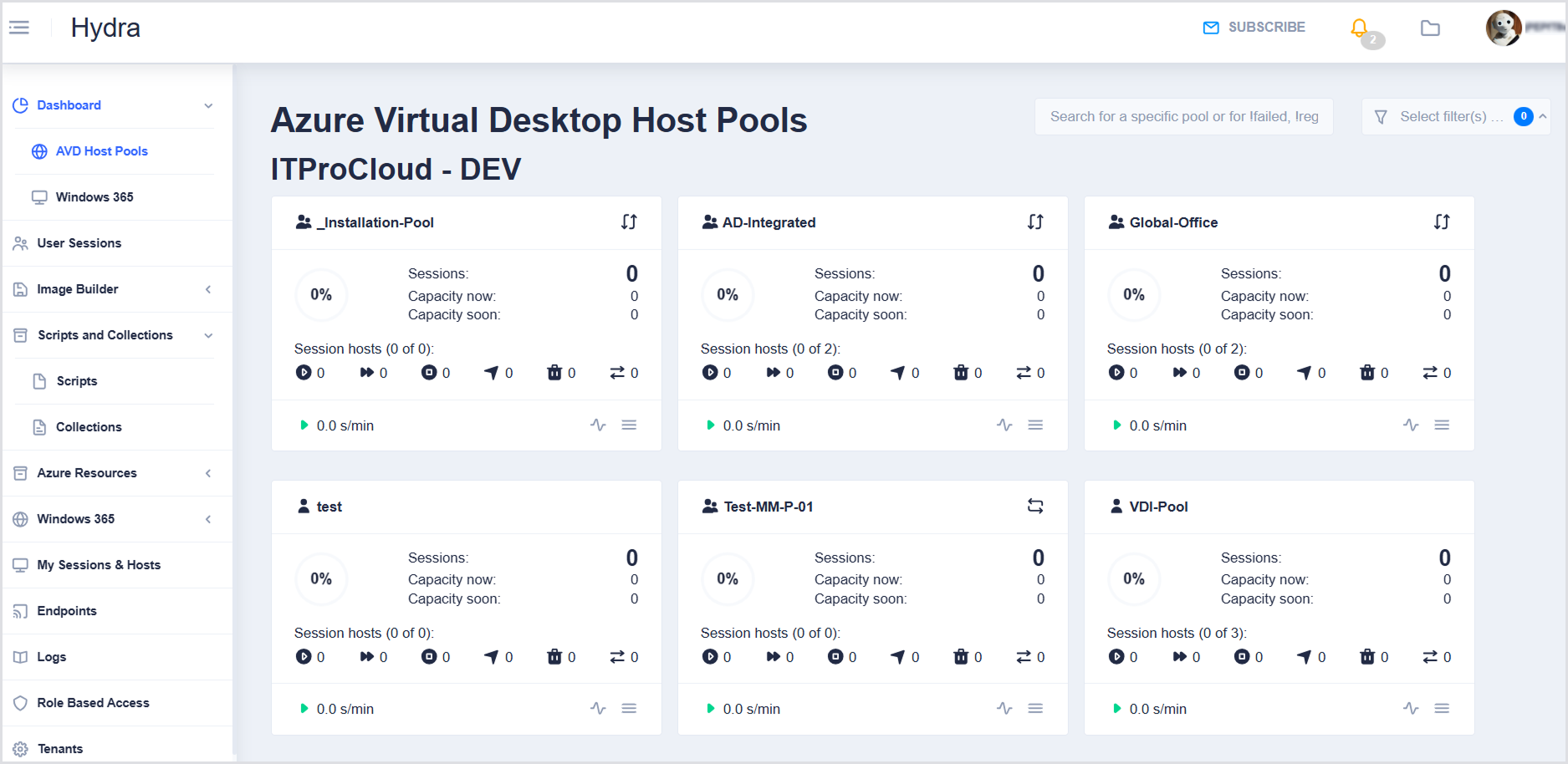
The Admin Dashboard provides an overview of Azure Virtual Desktop (AVD) host pools across all tenants where AVD management is enabled. The dashboard displays all configured host pools and provides key information for each pool in individual tiles.
Search by Pool Name or Tenant
Use the search field at the top to search for a host pool name or tenant name within the currently filtered list of host pools.
Filter by Tenant
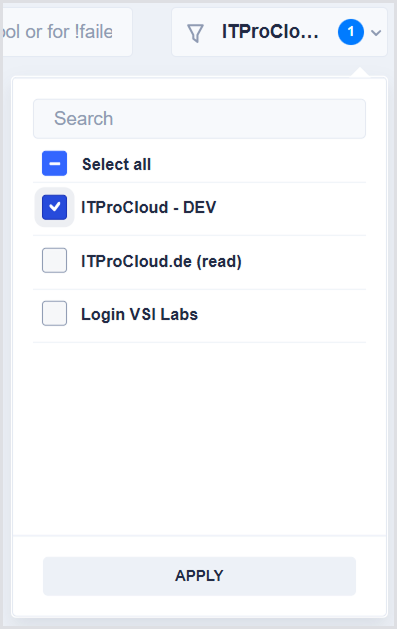
Use a filter to help narrow down the list of host pools by tenant. This filter allows you to focus on host pools associated with specific tenants.
You can use this filter to:
-
Select one host pool
-
Select multiple host pools
-
Select all host pools
-
Select no host pools
Selecting all host pools or none produces the same result: host pools from all tenants are displayed.
Host Pool Tile Details
|
Icon / Field |
Description |
|---|---|
|
People icon |
Multi-session host pool |
|
Two-way arrow (up/down) |
Load balancer mode. e.g, Depth first |
|
Circular percentage icon |
% load of the session host based on the number of sessions and session capacity |
|
Sessions |
Number of connected and disconnected sessions |
|
Capacity now |
Current session capacity of the host pool |
|
Capacity soon |
Upcoming session capacity of the host pool, including free capacity from hosts currently starting or in the roll-out phase |
|
Play icon/button |
Number of available session hosts, including temporary hosts created during scale-out |
|
Right arrow icon |
Number of starting session hosts |
|
Stop/pause icon/button |
Number of deallocating session hosts |
|
Angled arrow top-right |
Number of session hosts currently in the roll-out phase |
|
Trash icon |
Number of session hosts deleting |
|
Left-right arrow icon |
Number of session hosts temporarily scaled out (included in the available hosts number) |
|
Green play arrow with 0 s/min |
Login rate in new sessions per minute |
|
Wavy icon |
Expand Details for the host pool |
|
Burger icon |
Configure host pool settings |
Email Subscription
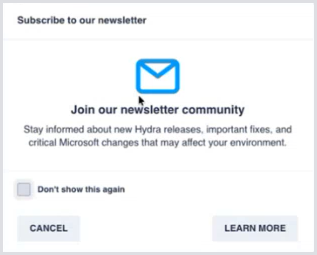
An email subscription prompt is available to keep administrators informed of new releases, features, and other important information via the Hydra Dispatch newsletter.
When a Full Admin user logs in for the first time, a pop-up prompt is displayed inviting the user to subscribe to the newsletter.
|
Action |
Description |
|---|---|
|
Learn more |
Opens the Login VSI website, where you can subscribe to the newsletter. This does not subscribe the user directly from Hydra. |
|
Cancel |
Dismisses the prompt. If you click “Cancel” without clicking “Learn more” or “Don't show this again”, the prompt will appear again on the next visit. The same behavior applies to the banner: dismissing it will cause it to appear again unless you click “Learn more” or “Don't show this again.” |
|
Don’t show this again |
Prevents the prompt from being shown again. |
If you dismiss the prompt, a Subscribe button remains available in the Hydra header, allowing you to subscribe to the product updates whenever convenient.

-
The newsletter is currently the primary way to receive product updates (for example, new versions or announcements).
-
In-product notifications for such updates are not currently available.