
Overview
Hydra includes a user-friendly shadowing feature that allows administrators to remotely view or control active user sessions. This is particularly useful for support and troubleshooting scenarios.
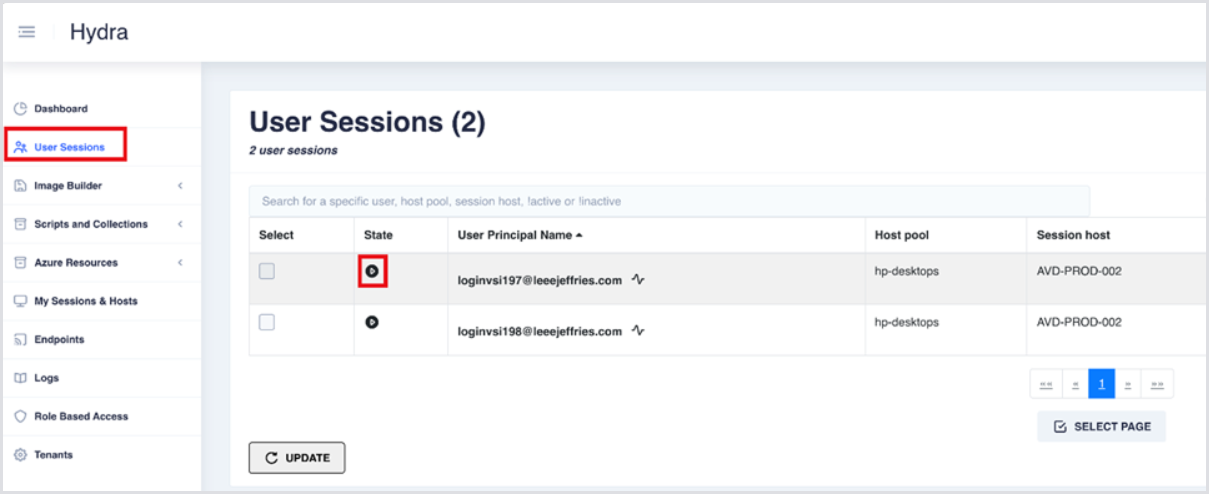
Shadowing is initiated by selecting User Sessions from the left-hand side menu and then selecting the play icon in line with a user session.
Prerequisites
To shadow a user's session:
-
You must be on the same network as the session host or connected via a VPN that allows routing to the session host.
-
The BrowserHelper utility must be installed once per machine that will initiate the shadowing.
Installing BrowserHelper
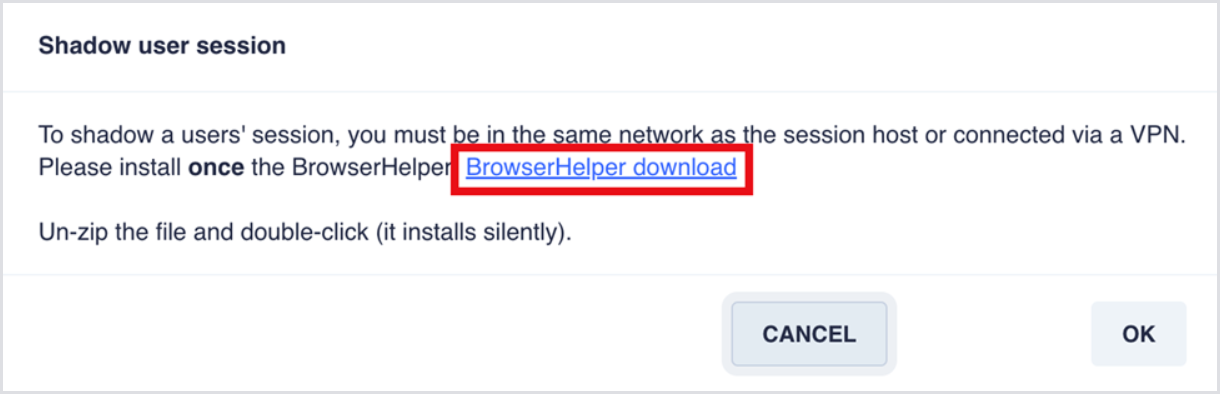
When you initiate a shadowing session, Hydra will display a prompt guiding you to download the BrowserHelper. This is a lightweight Windows-only tool that installs silently and configures the system to handle Hydra’s shadow session files (.hydra-browserhelp).
Steps:
-
Download the tool from the prompt – “BrowserHelper download”.
-
Unzip the archive.
-
Run the .exe file — it installs silently to %AppData%\Hydra\BrowserHelper.exe
Initiating Shadowing
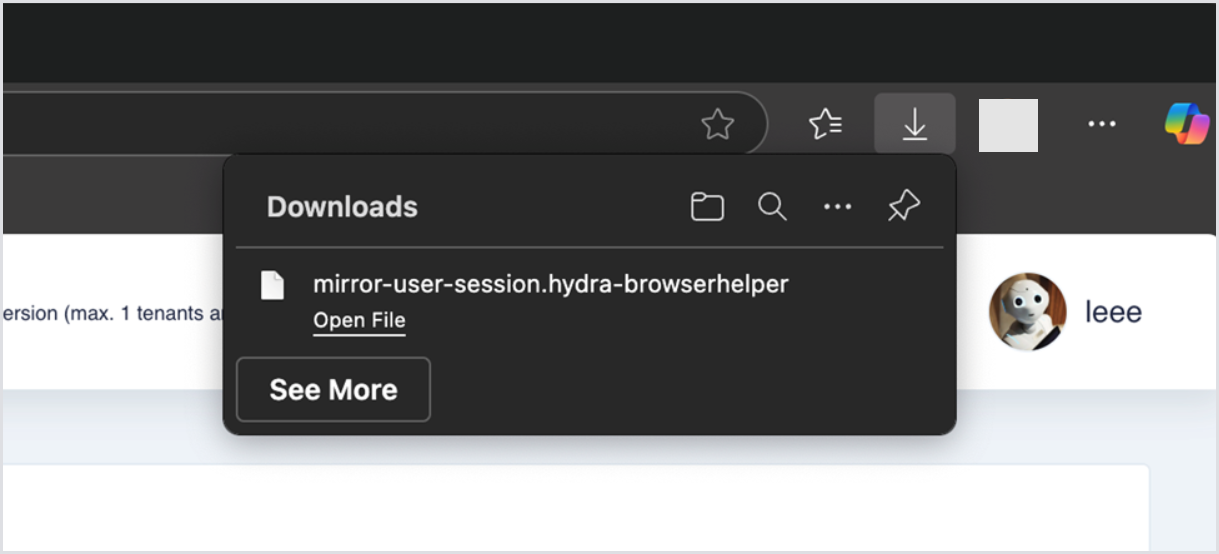
Shadowing is initiated by selecting OK in the Shadow user session prompt. Your browser will download the shadowing file, which can be opened in the same way as any normal download.
An alternative approach to shadowing a user can be taken by manually running mstsc.exe via the command line.
mstsc.exe /v:<AVD MACHINE NAME> /control /shadow:<SESSION ID> /prompt
Both the machine name and session ID can be found on the User Sessions page.
