Overview
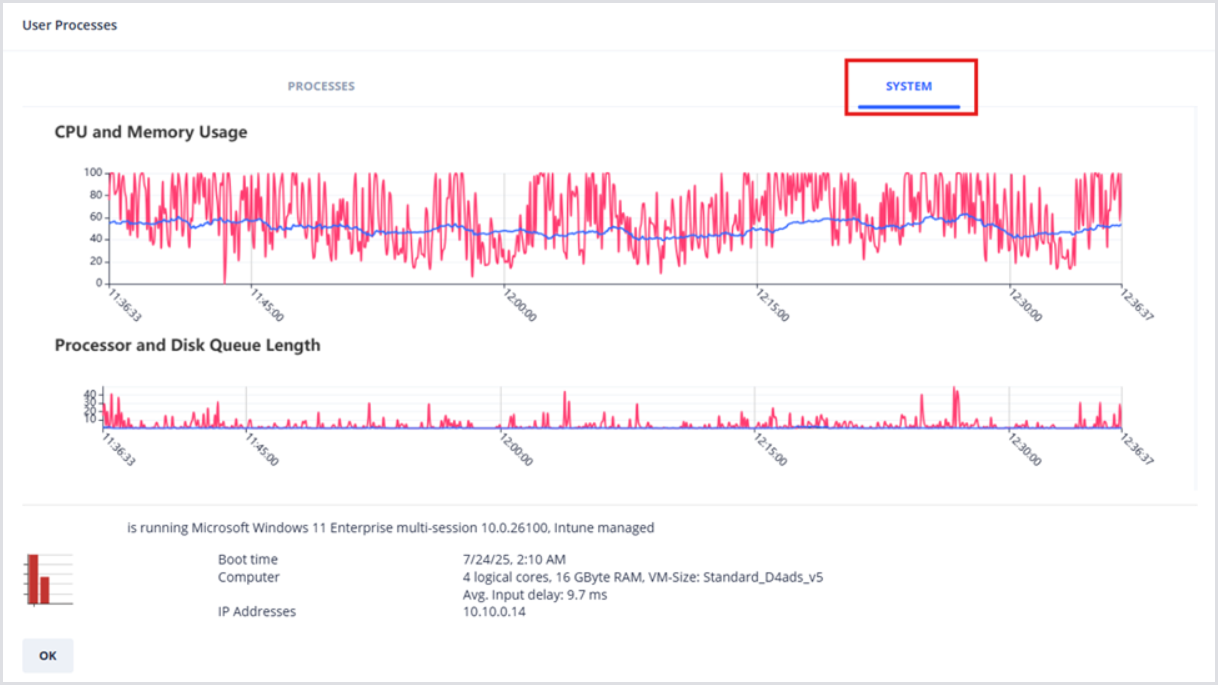
The Hydra agent adds an optional feature set to Hydra, including the ability to measure session host performance (CPU, Memory, CPU & Disk Queue Length), and show user processes on the session or session host.
Prerequisites
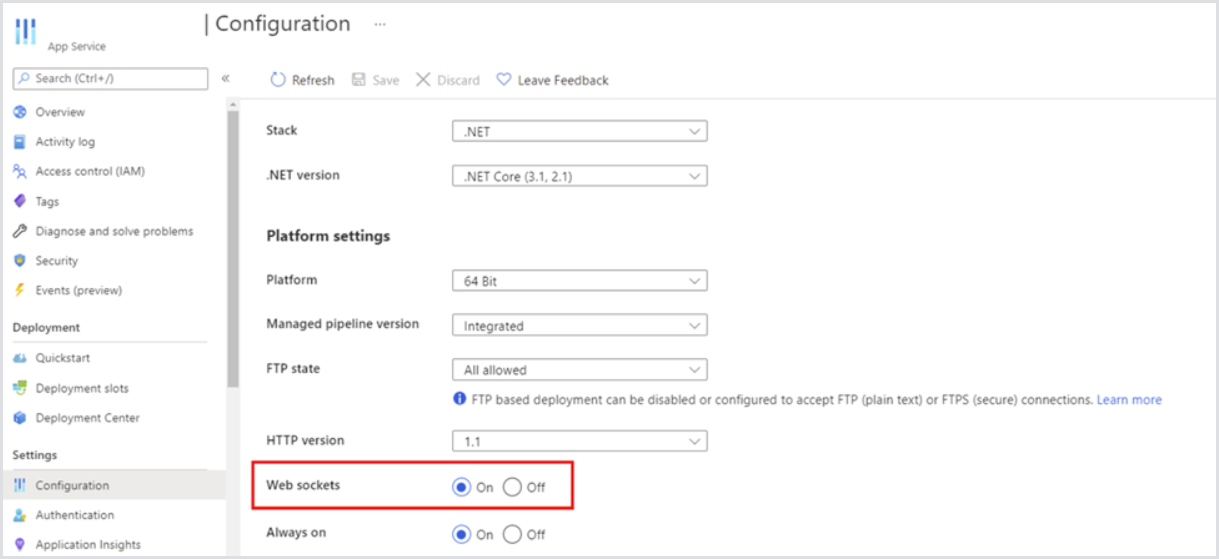
The Hydra Agent uses WebSocket for secure communication with the Hydra app service. To configure this:
-
Open your Hydra instance Configuration within the Azure Portal.
-
From the Settings section, find and open the Configuration pane.
-
Find the Platform settings section, and set Web sockets to On to enable Hydra Agent communication.
Installing the Hydra Agent
Once Web Sockets are enabled on the Hydra app service, the Hydra Agent can be installed. There are two ways to achieve this:
-
You can set automatic installs as part of the New Session Host Rollout
-
Or, the Hydra Agent can be installed as part of a Script Collection, which can be set to run as part of the New Session Host Rollout.
New Session Host Rollout: Install Hydra Agent
Within the New Session Host Rollout page, there is an option to automatically install the Hydra Agent to session hosts. For more information on the New Session Host Rollout configuration, see Configuring New Session Host Rollout.
Within the New Session Host Rollout configuration, check the Install Hydra Agent option.

Script Collection: VM – Deploy Hydra Agent
Script Collections can couple PowerShell Scripts with built-in VM-level actions, such as restarts or deletion. For more information on Script Collections, see the Script Collections. To deploy the Hydra Agent as part of a Script Collection:
-
Open the Script Collection where Hydra Agent deployment is desired.

-
Click the Add new script or action button to add an action to the Collection.

-
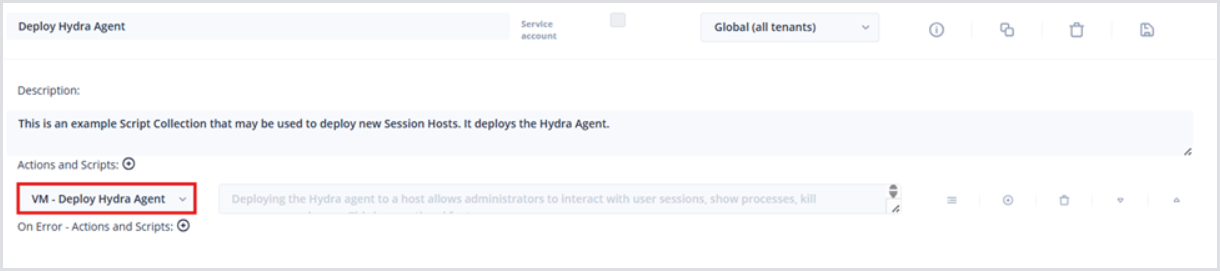
From the Actions and Script item that was added, select VM – Deploy Hydra Agent from the dropdown menu.
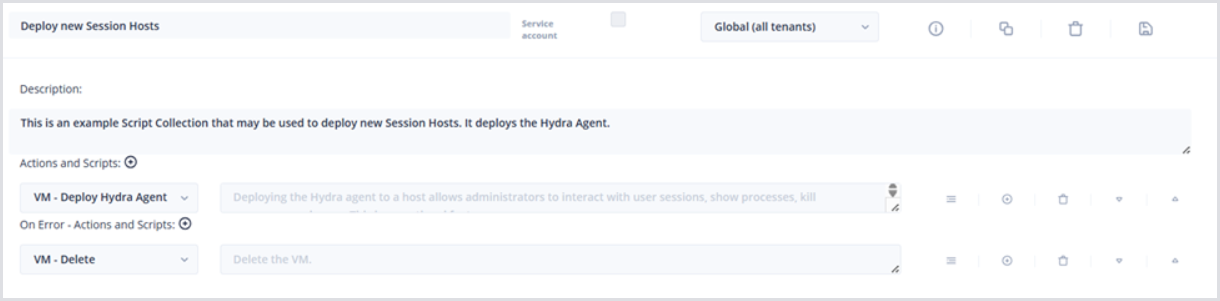
Below, an example Script Collection is shown to demonstrate the usage of the VM – Deploy Hydra Agent action. In this example, failed installs of the Hydra Agent will delete the Session Host VM.
Session Host Remote Task Manager
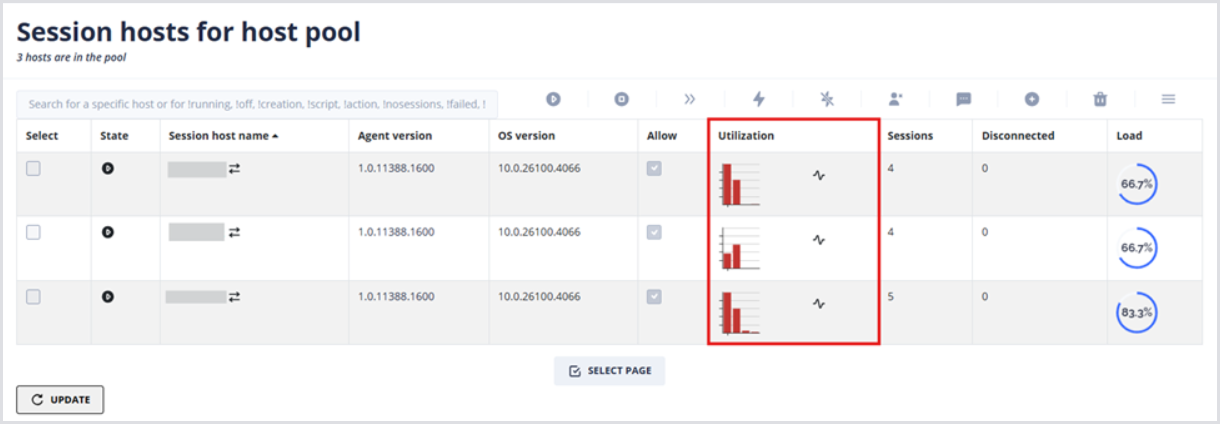
Once the Hydra Agent is installed on a deployed session host in a host pool, Utilization metrics can be displayed from the Host Pool details page:
-
Open the Host Pool details, and locate the Session hosts for the host pool table.
-
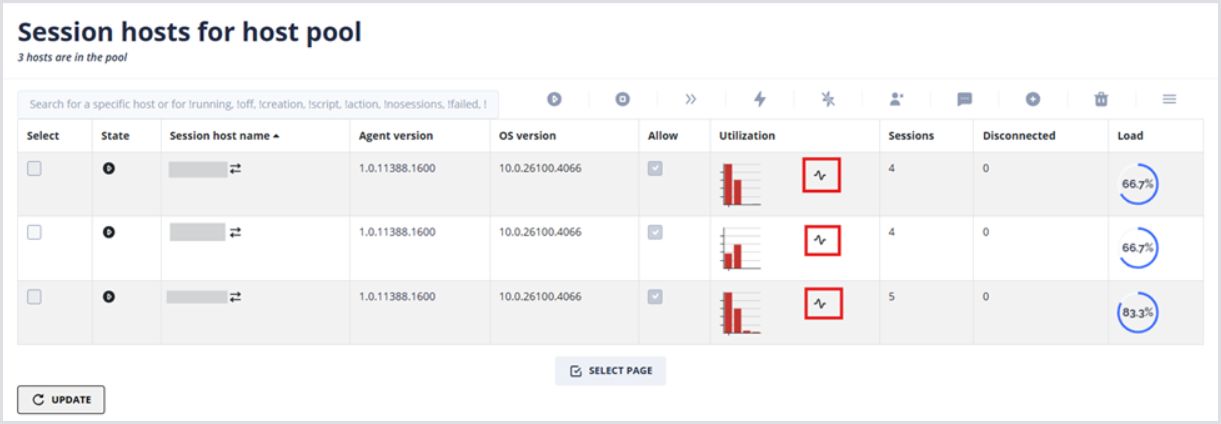
Click the Show processes button to show Hydra Agent telemetry from the session host.
-
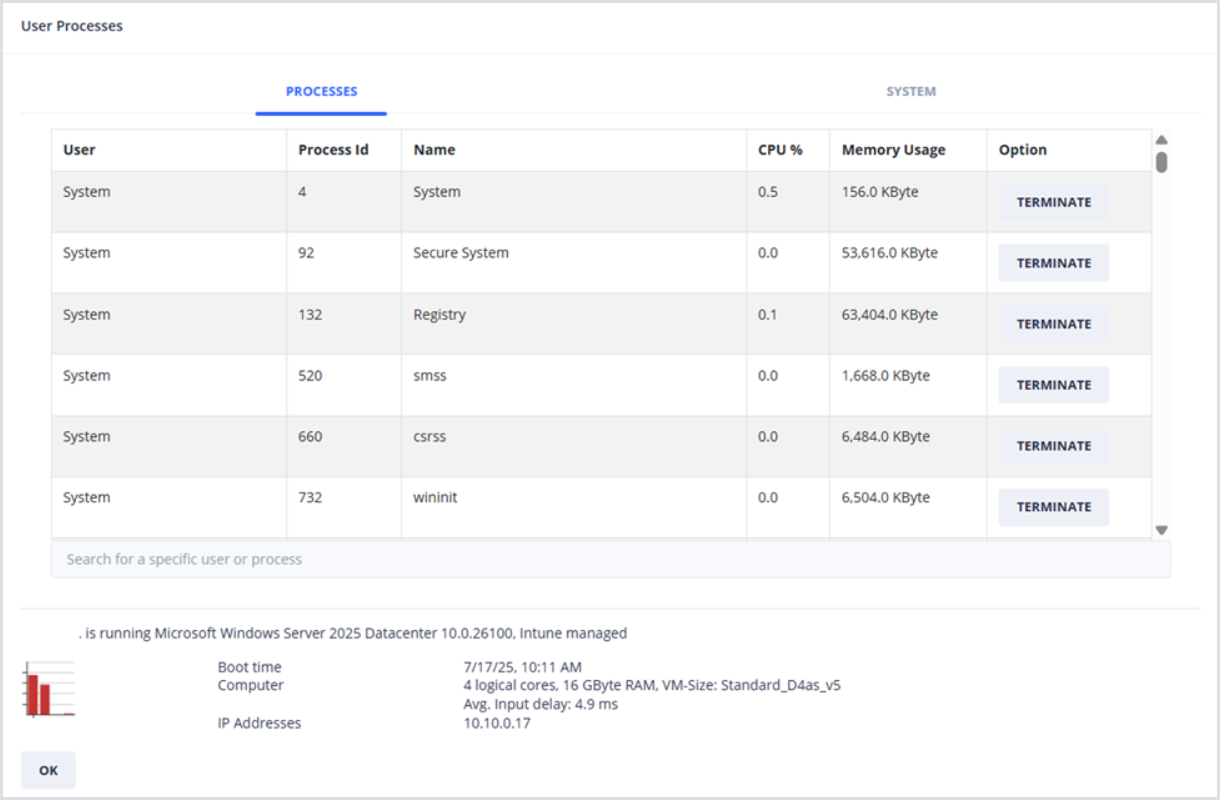
In the User Processes window that appears, there are two tabs: Processes and System.
Processes
The Processes tab shows real-time user processes on individual session hosts. This may be useful for helpdesk support and troubleshooting activities. You can also sort using the column headers, for example, to display the processes using the most CPU or Memory.
Terminate Process
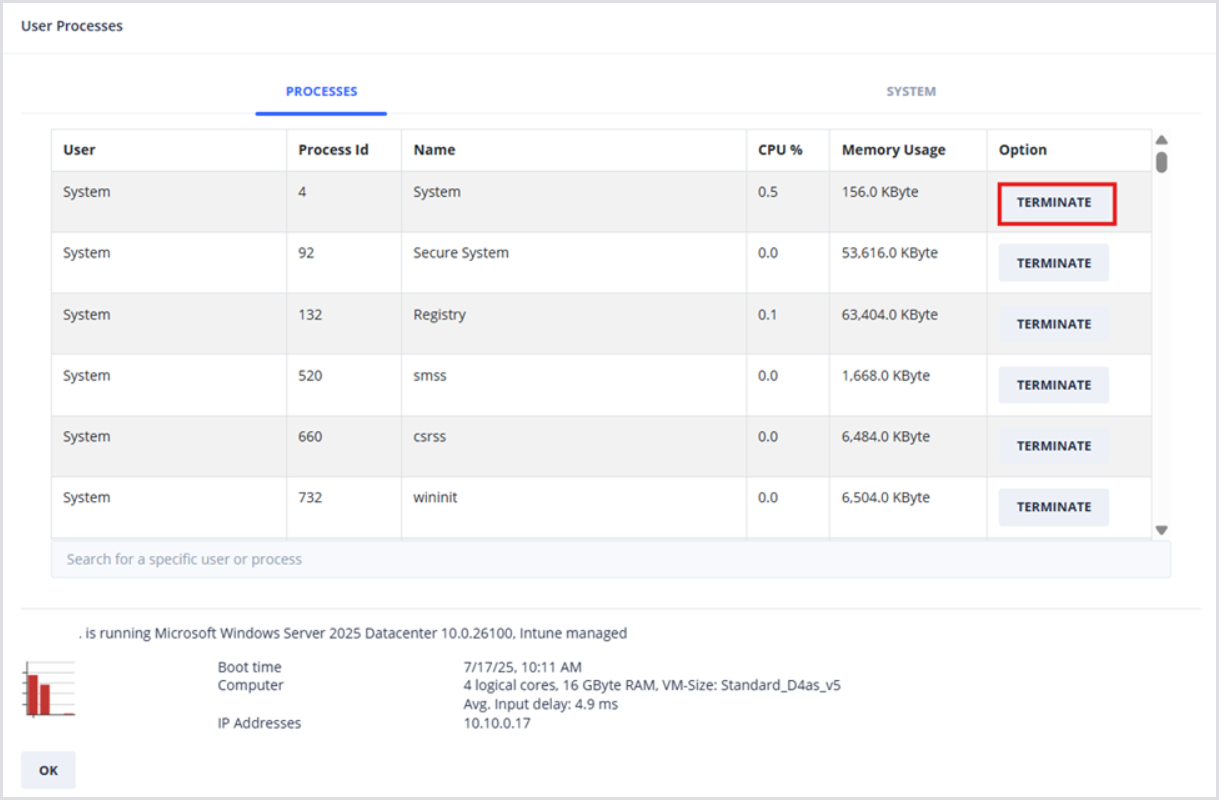
To remotely terminate a session host process:
-
Scroll through the Processes table and locate the desired process.
-
Clicking the Terminate button will terminate the process without confirmation.
System
The System tab shows real-time Session Host CPU and Memory Usage, in addition to Processor and Disk Queue Length. It provides a dashboard to analyze system performance for correlation at the help desk. The chart displays data for the last hour, and hovering over the tooltip will display the raw timestamp, with each metric and its measurement.