Creating a Script Collection
-
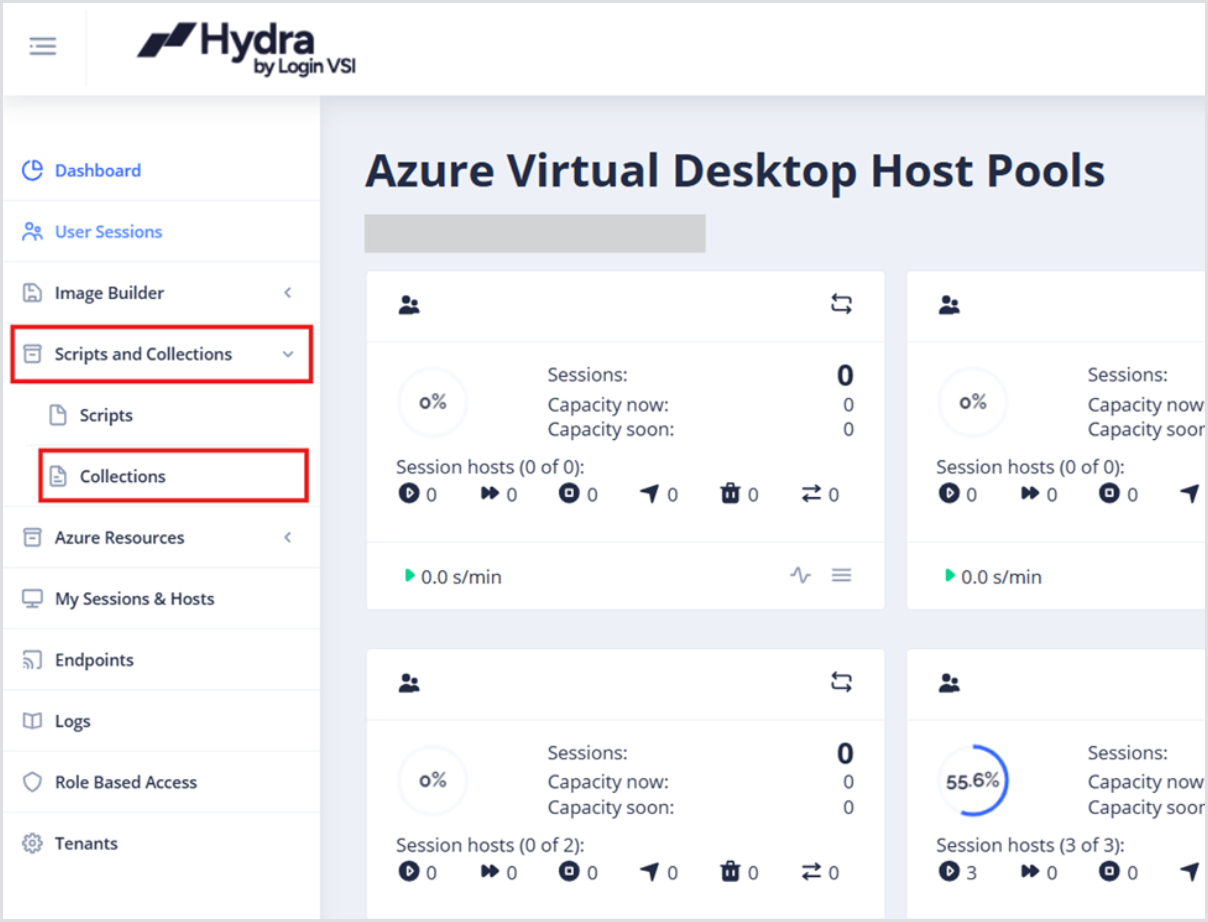
In the left-side menu from the main Dashboard, click Scripts and Collections and then Collections.
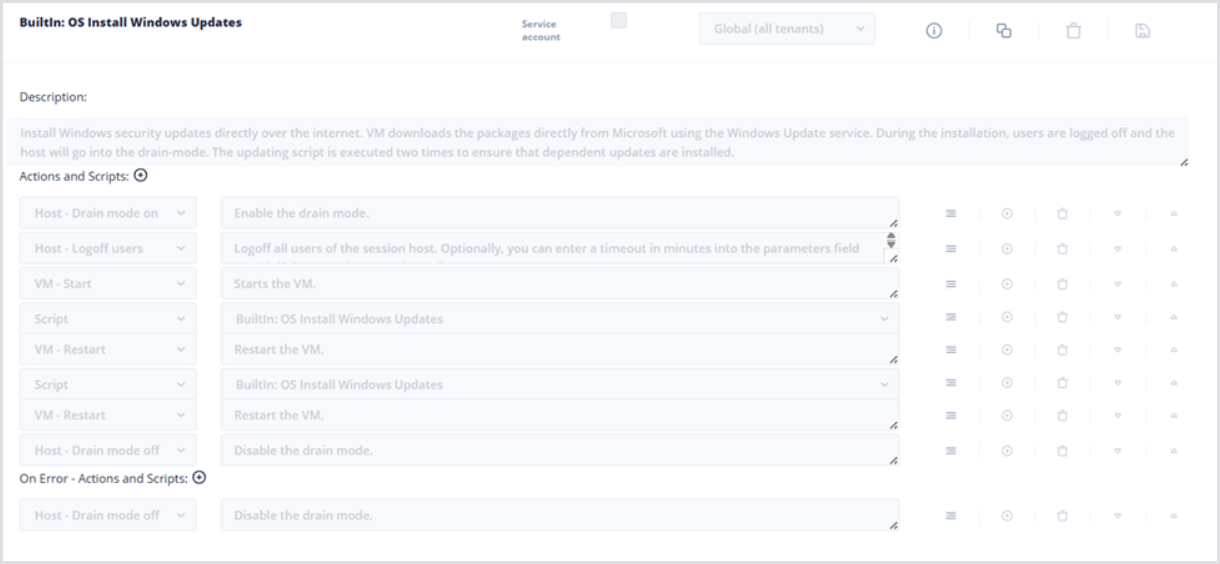
Hydra has several built-in Collections ready for use. For example, Collections that can Install Windows Updates.
-
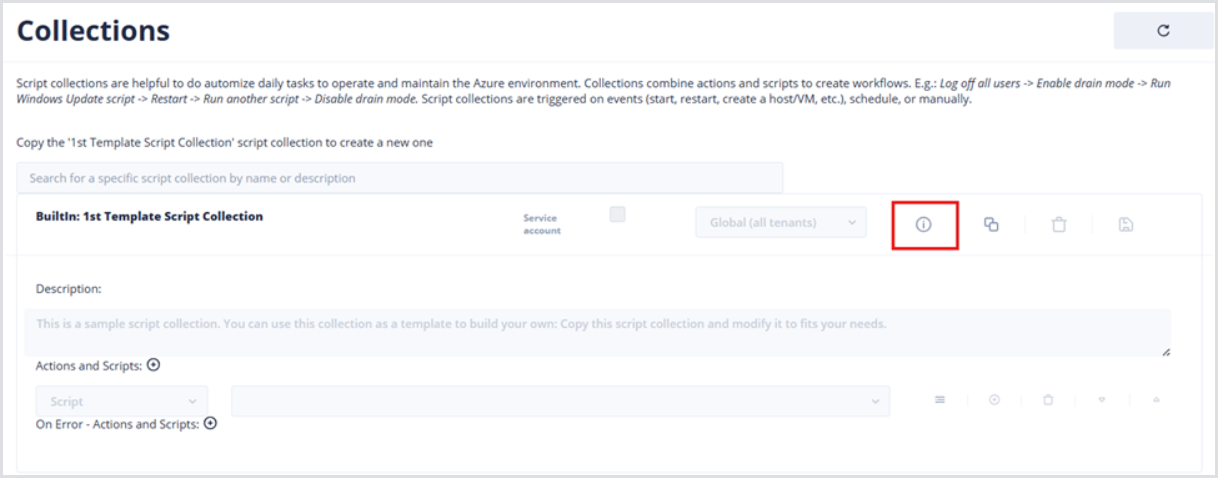
Click the Show Details button to open the Code pane and review the 1st Template Script Collection. This is meant to be cloned and modified, so there isn’t much information here.
-
After reviewing, click the Copy Script Collection button.
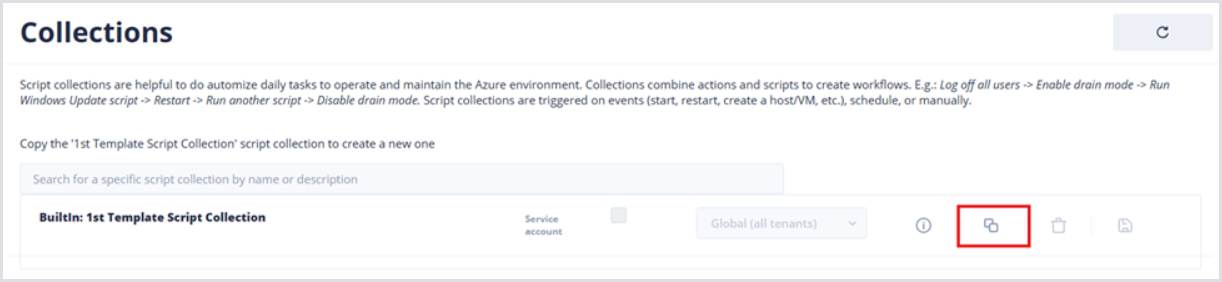
By default, the name of the cloned script will be Builtin: 1st Template Script – Copy. Also, the Script Collection will be added to the bottom of the table.
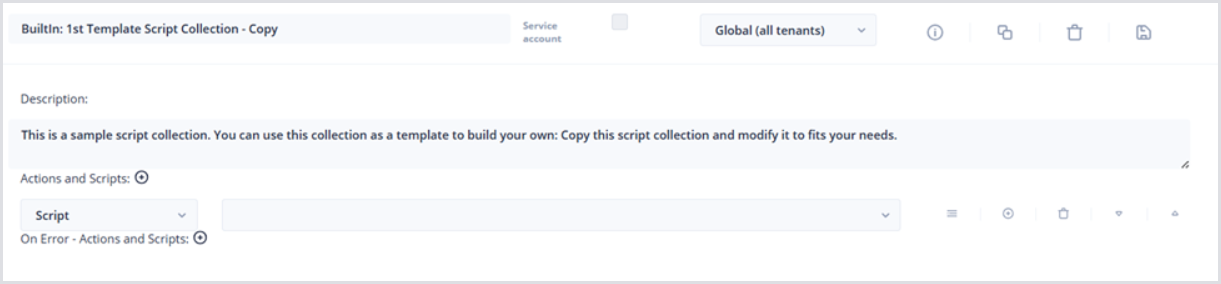
-
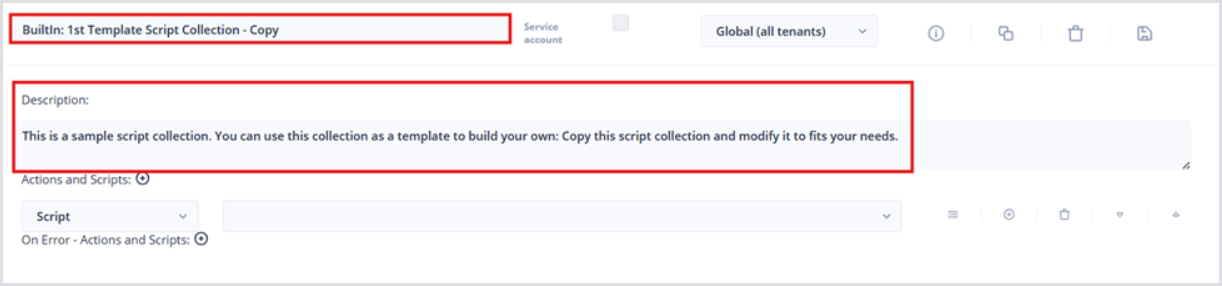
Click the Collection name, e.g., Builtin: 1st Template Script Collection – Copy, and input the desired name. The Collections table has a search bar, so consider using a naming convention to group scripts based on what they do, or where they run.
-
Optionally, add a Description with an overview of the Collection’s purpose, workflow, and error-handling.
-
Modifying a Script Collection
Once a Collection has been cloned, there is inevitable configuration. For each added Action in the Collection, there are a few options:
-
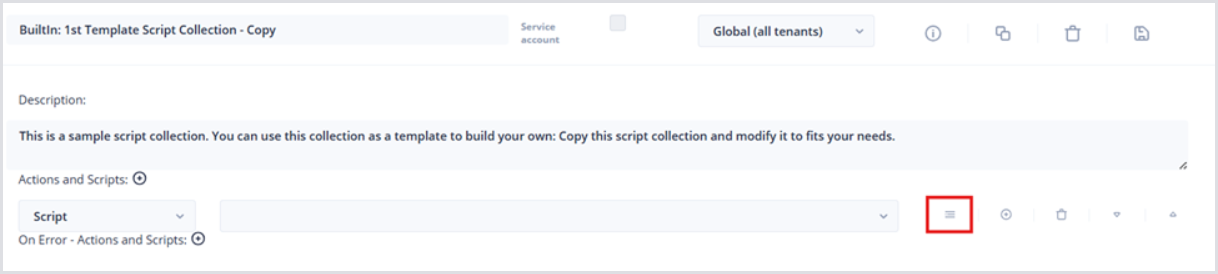
Click the Show details button to open the Parameters field:
-
Click the Add button to add a new script or action.
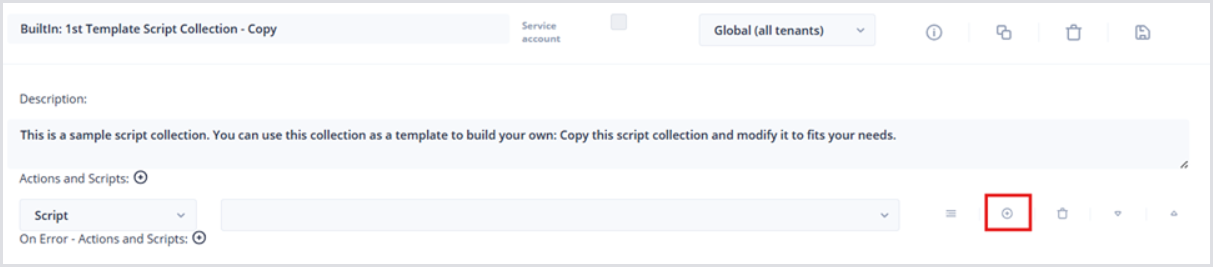
-
Click the Delete button of a given step to remove that step.
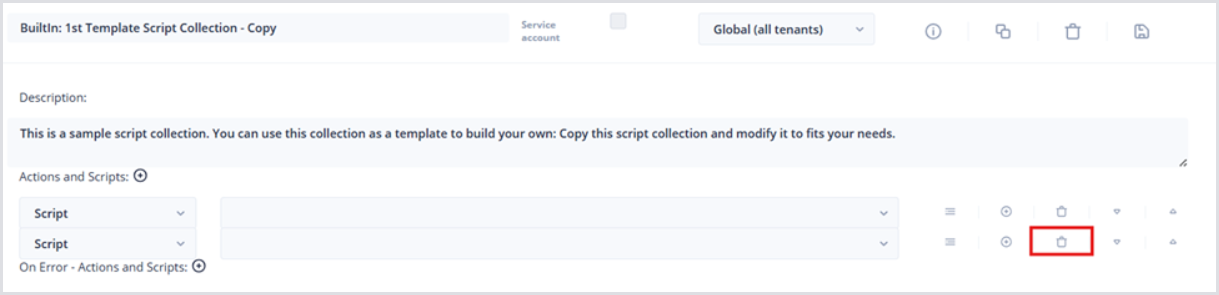
-
Click the Down (or Up) arrow to move a step down (Up) in the sequence.
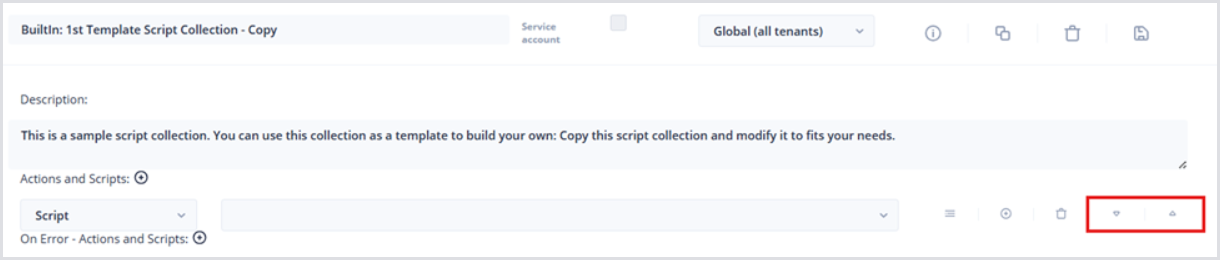
Performing Action on Script Collection Error
Hydra has built-in error handling for Script Collections. To configure an Action or Script to trigger On Error:
-
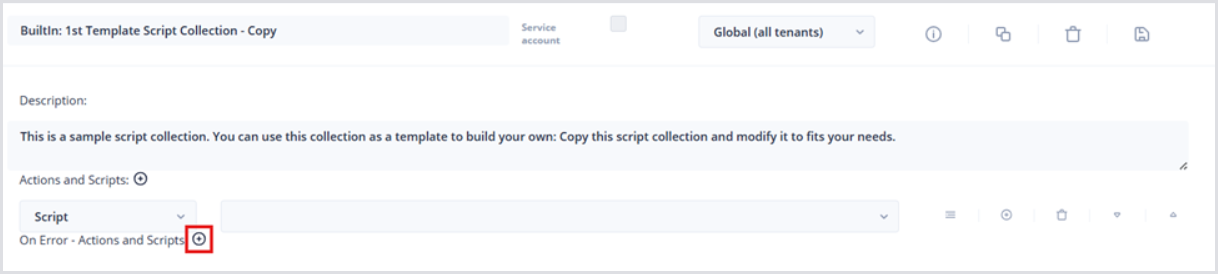
Underneath the Actions and Scripts section of the Collection, find the On Error – Actions and Scripts section
-
Click the Add button.
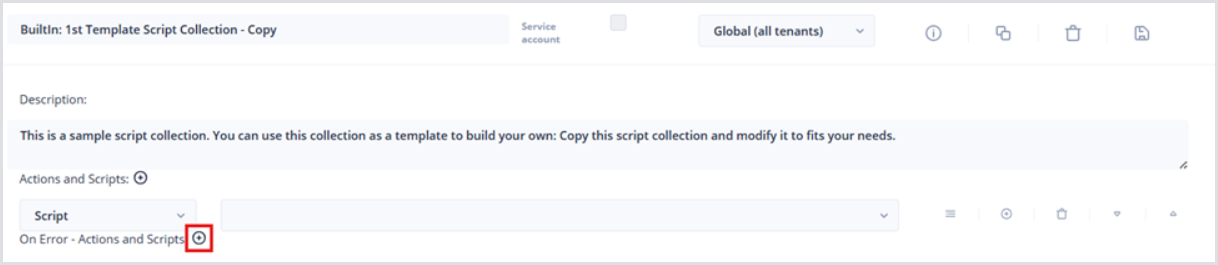
-
Choose an appropriate Action or Script to execute On Error. Below are a few built-in examples: Run a Custom or Built-in Script, VM – Start, VM – Deallocate, VM – Delete.
Below, a basic example Script Collection configuration: