Introduction
-
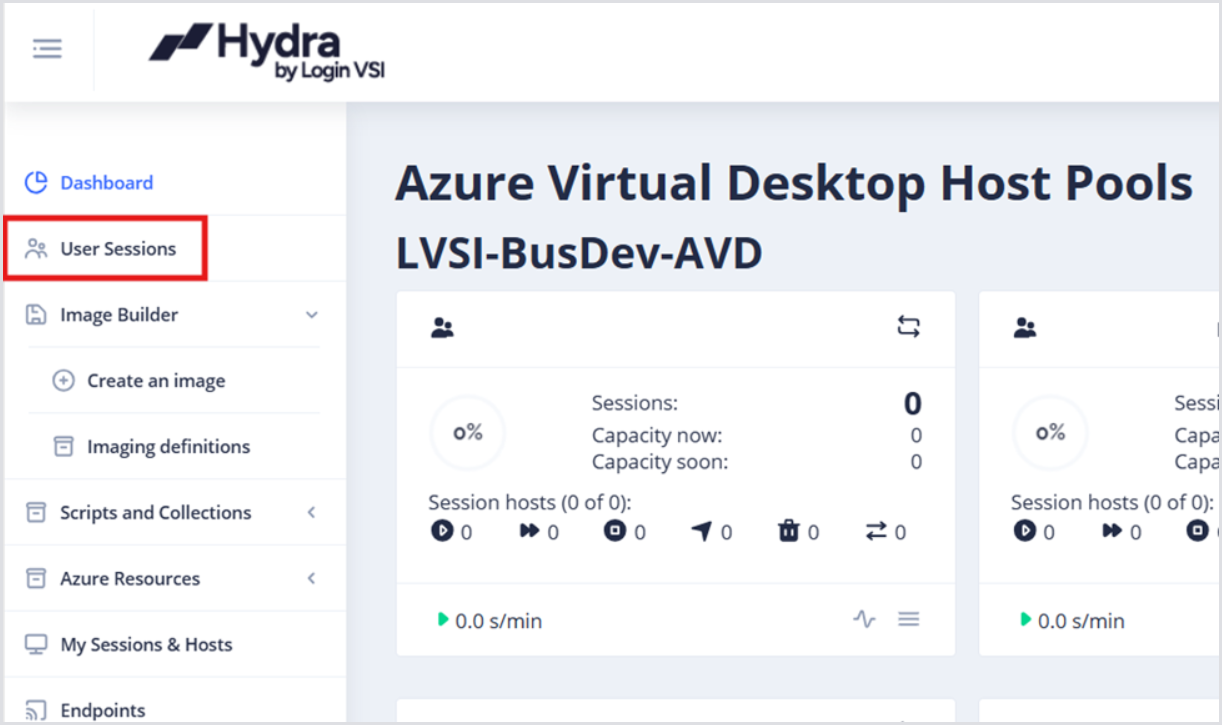
From the main Dashboard, click User Sessions in the left-side menu to open the User Sessions page.
Logging Off Users
Hydra can force user logoffs through the Hydra portal. From the User Sessions page:
-
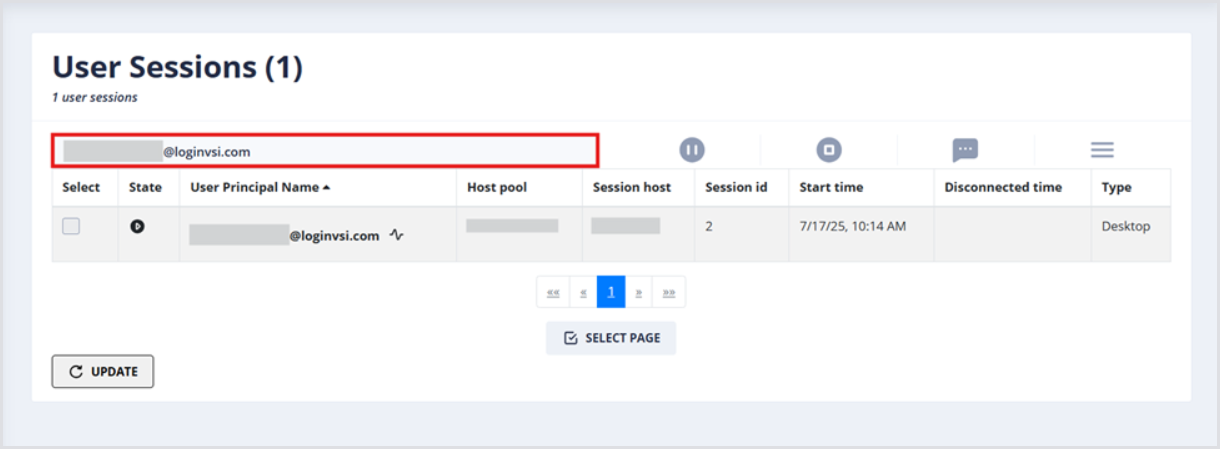
Enter username(s) (UPN format, e.g., username@loginvsi.com) into the User Sessions search bar.
-
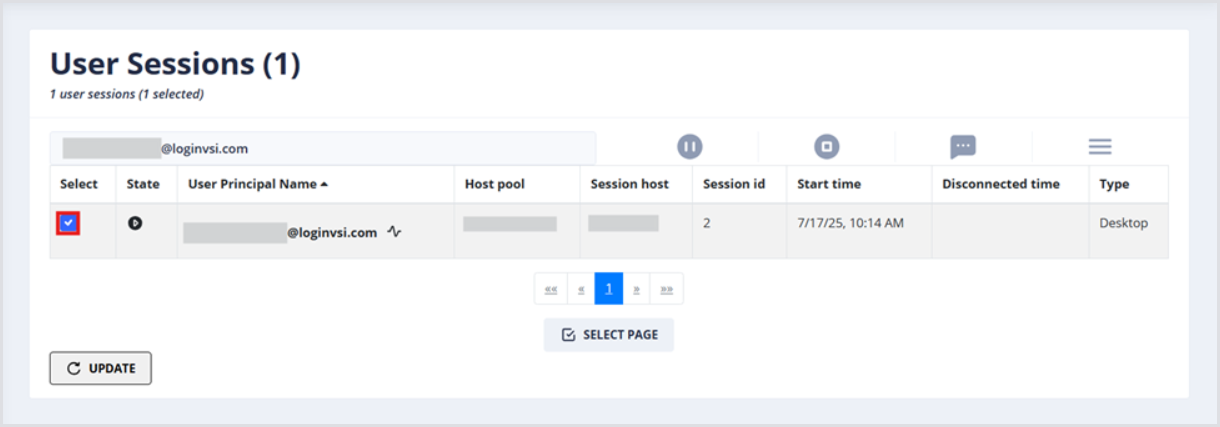
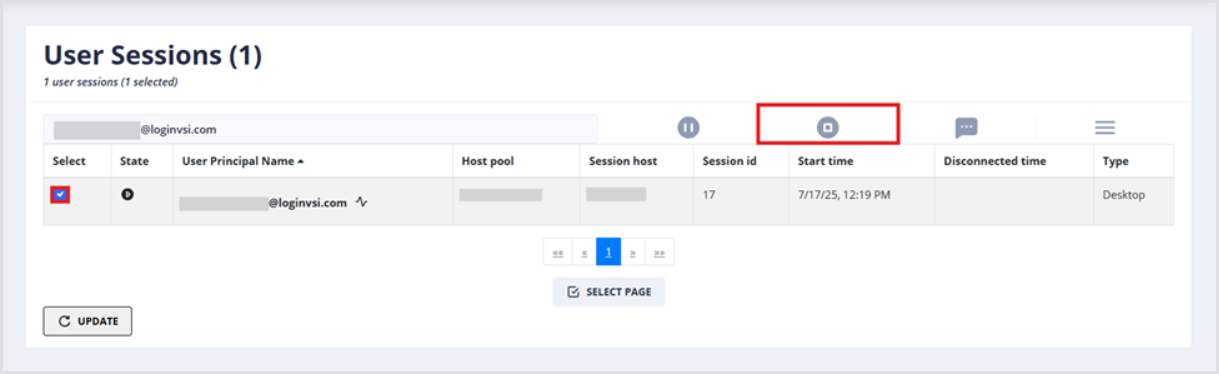
Once the user account is shown in the User Sessions table, select it by clicking the check box.
-
Click the Logoff icon.
-
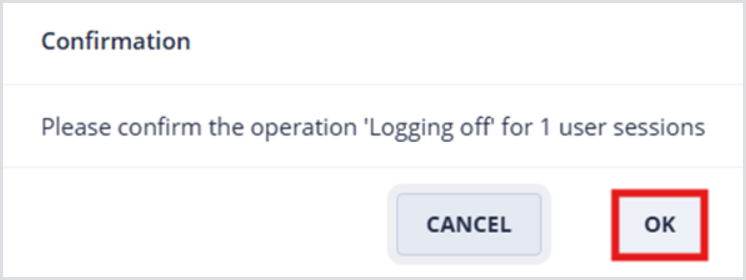
Click OK to confirm the user logoff.
Sending Message to Users
Hydra can send messages to active user sessions through the Hydra portal. From the User Sessions page:
-
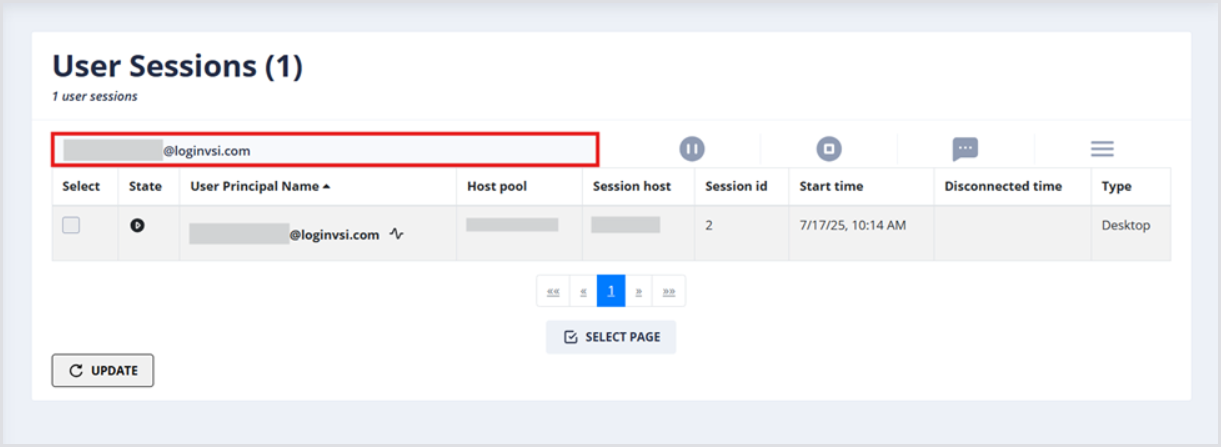
Enter username(s) (UPN format, e.g., username@loginvsi.com) into the User Sessions search bar.
-
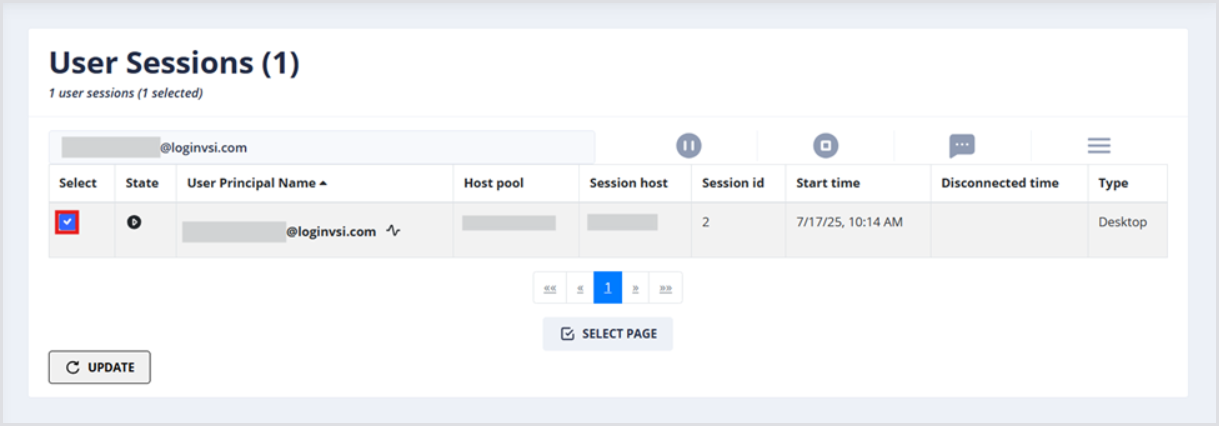
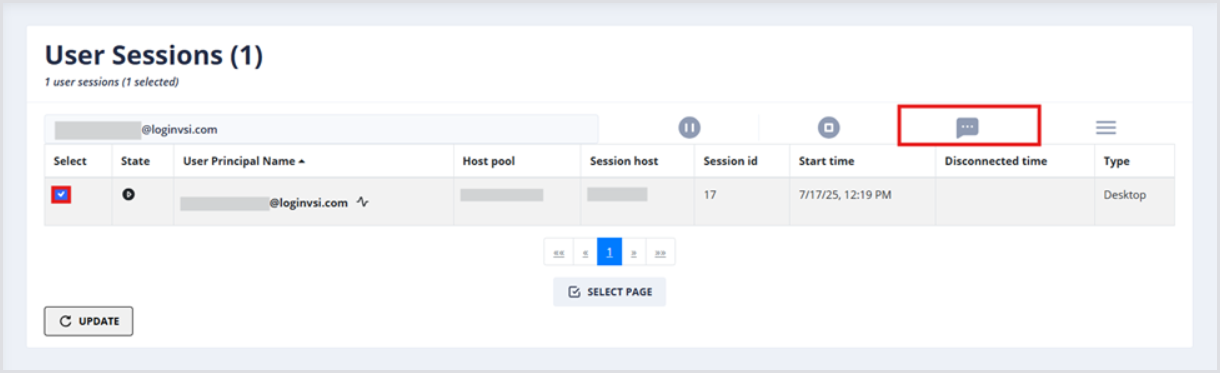
Once the user account is shown in the User Sessions table, select it by clicking the check box.
-
Click the Message button to open the Message details.
-
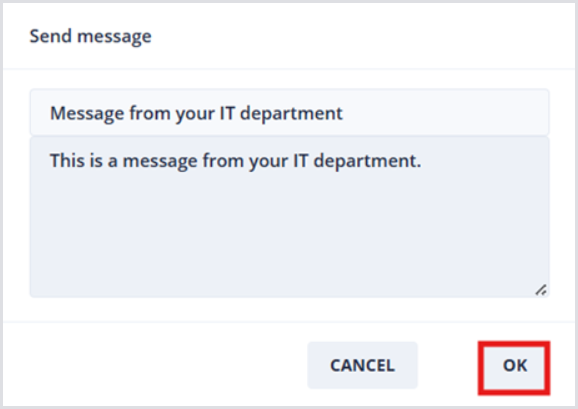
In the Send message window, optionally change the subject line, and enter the desired message, e.g., “This is a message from your IT department.” Click OK to send the message.