
Overview
Hydra can be configured to host more than one tenant by utilizing a Service Principal. Note that a Service Principal is also required in a single tenant scenario when the environment is larger than 2000 users or 100 hosts. You can optionally use the Managed Service Identity (MSI) that comes with Hydra, if smaller than that within a single tenant.
Creating the Service Principal in the Target Tenant
-
Within Azure, go to Entra ID.
-
Navigate to Manage > App registrations.
-
Click New Registration.
-
Give the app registration a name, such as svc-hydra or sp-hydra, and click Register.
-
In the Overview pane, take note of the Application (client) ID and the Directory (tenant) ID. These will be needed later.
-
Go to Manage > Certificates & secrets on the left.
-
Go to Client secrets > New client secret.
-
Give it a description and make a note of the expiration. When it expires, Hydra will lose access to the AVD resources. Record the secret value – once you navigate away from this page, it is unable to be retrieved again.
-
Go to the subscription or resource group where the AVD resources reside. Under Access Control (IAM), give the newly-created Service Principal Contributor access to the resources. If the Virtual Networks don’t reside in the resource group, ensure you give them proper access there as well.
-
If the Contributor role is restricted in your environment, you can also utilize the custom role template at the bottom of this page. Select the Start from JSON option when creating the custom role and attach the provided JSON file.
Adding the Service Principal to Hydra
-
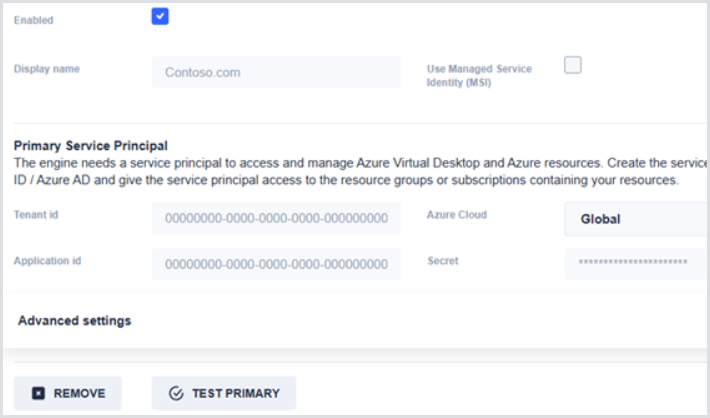
In the Hydra portal, head to Tenants and add a new tenant. Fill in the Display Name you wish to align with the tenant, Tenant ID, Application ID, and Secret.
-
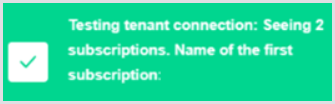
Click Test Primary prior to saving to ensure that the values are correct. If the test is successful, click Save.
-
If the Host Pools do not appear in the Dashboard after several minutes, click Restart Engine at the top right. Wait several minutes and then try reloading the Hydra portal again. The Host Pools should now be visible.