Introduction
Currently, a manual deployment must be done in the Azure Government Cloud. This manual deployment model also applies to organizations in Commercial Cloud, where marketplace restrictions exist, but you must ensure any references to azure.us are replaced with the typical azure.com or azurewebsites.com commercial URL.
Determining a Name for the Deployment
First, determine a unique name for your Hydra instance. It must be a lower-case, 4-22-character name, not starting or ending with a “-“, and must be globally unique. If the name is not valid, the configuration and the deployment must be redone.
Valid examples (up to 22 characters):
-
gov-avd-hydra-company
-
avd-hydra-gov-department
-
hydra-gov-facility
Configuring the Service Principal for Web Authentication
-
Open the Azure Portal in the destination tenant, and go to Entra ID > App registrations.
-
Click New Registration.
-
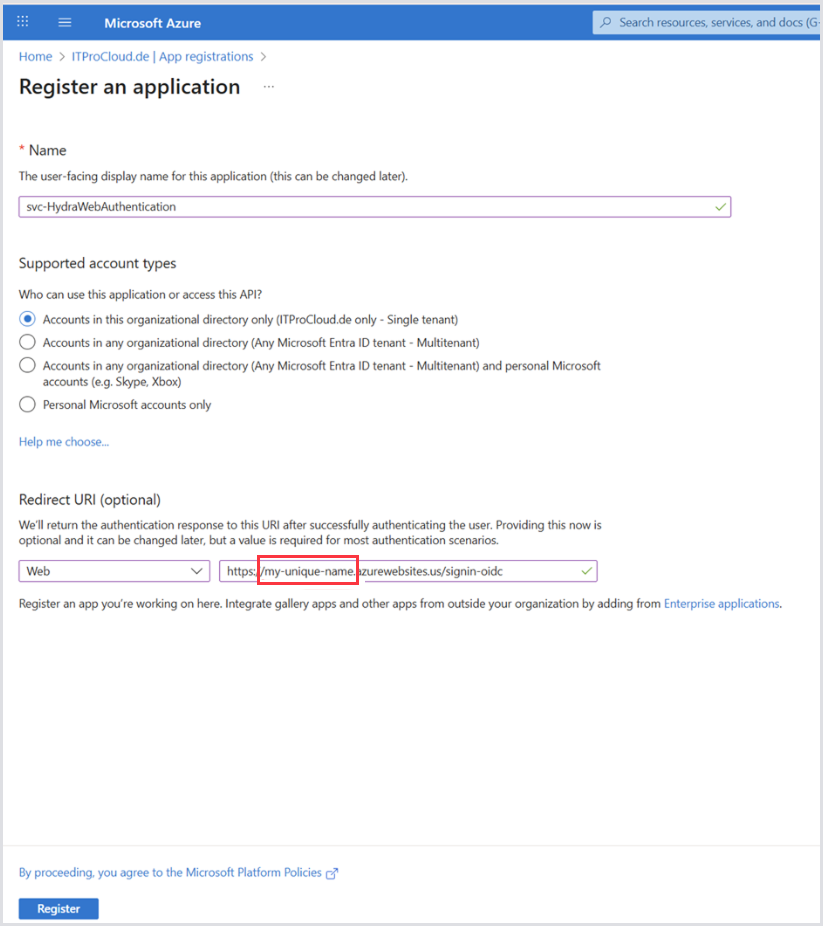
Enter a name (e.g., svc-HydraWebAuthentication) and the Redirect URI.
-
Redirect URI type: Web.
-
Redirect URI (where my-unique-name is the name determined above): Enter the full URL, including .azurewebsites.us/signin-oidc: https://my-unique-name.azurewebsites.us/signin-oidc.
-
Click Register.
-
Go to Certificates and Secrets and add a new secret with “New client secret”.
-
Copy the secret value (not the ID) for later use.
.png?cb=da674cfc94bdba7478c63d9c57eef364)
-
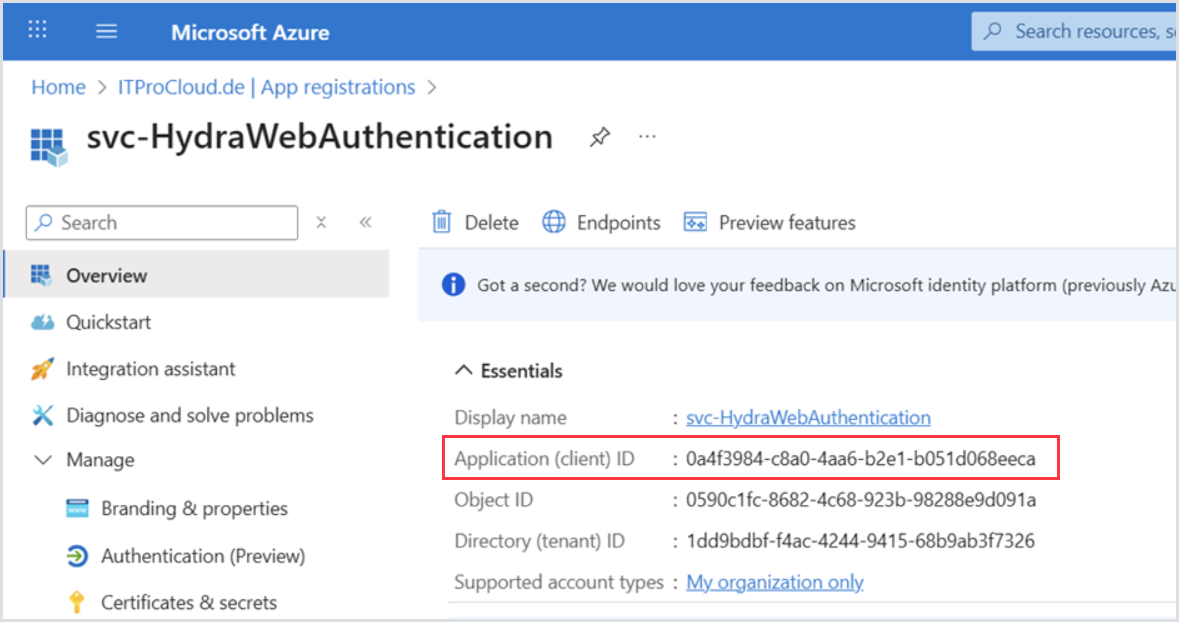
Go to the overview and copy the Application (client) ID. This is the ID of the service principal we need later.
Deploying Hydra
-
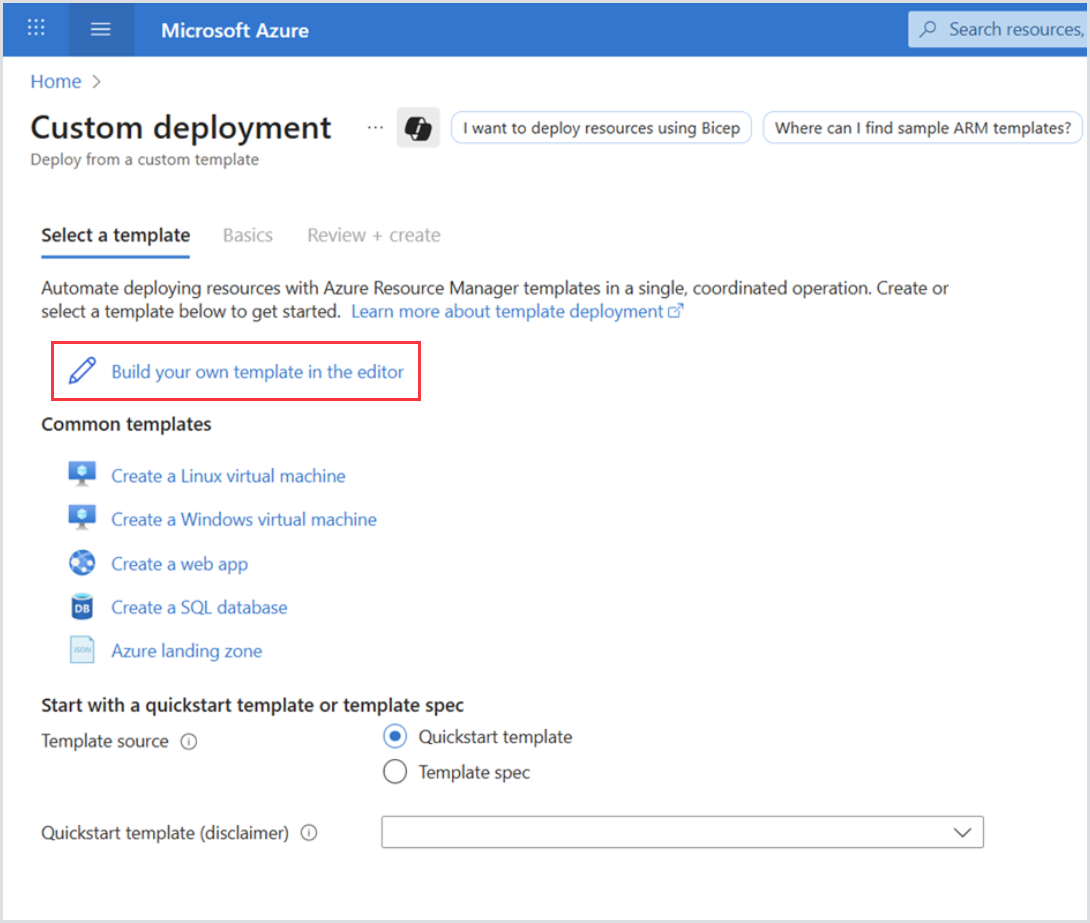
Go to the Azure Portal > Custom Deployment > Build your own template.
-
Copy the given deployment script mainTemplate.json into the editor and save:
.png?cb=0149e79e389c2df363ef006e0b2bea40)
-
Fill out the Instance details, as follows:
-
Region: Your cloud region.
-
Site name: As defined before (lower-case, 4-22 characters, do not start or end with a “-“, globally unique).
-
Sp ID: The service principal ID we created before.
-
Sp Secret: The secret of the service principal we have created before.
-
Admins: You administrator UPN name to log in after the deployment.
-
Click Review and create > Create.
.png?cb=d659ea9feed25cfe356e50c111dcfbda)
Post Deployment
-
Open the Hydra website: https://my-unique-name.azurewebsites.us and consent or request application access on behalf of your organization, if prompted.
-
Continue configuring a Service Principal for resource access and add it to the tenant configuration in Hydra. For details, see Adding a Tenant.
-
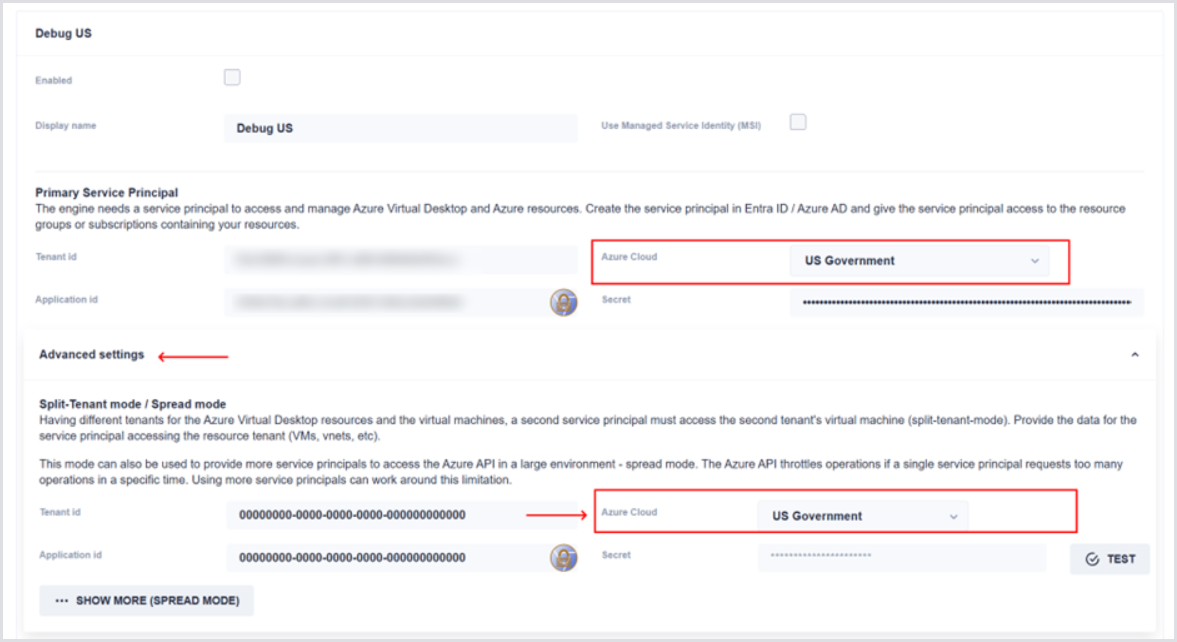
If Gov Cloud, ensure that you navigate to Advanced Settings and change the Azure Cloud type as needed.