
Overview
OpenID Connect (OIDC) is an authentication protocol used for Single Sign-On (SSO). It allows users to authenticate through an external identity provider (IdP).
Login Enterprise relies on the identity provider to verify the user’s identity and uses LDAP for authorization. LDAP group membership is used to assign roles in Login Enterprise.
Login Enterprise supports the following OIDC providers:
-
Microsoft Entra ID
-
AD FS
Note: Only one SSO provider can be active at a time.
Prerequisites
Before configuring OIDC, make sure that the following requirements are met:
-
An LDAP configuration is in place. For more information, see Configuring Authentication.
-
LDAP credentials are available.
-
These credentials are optional when saving the LDAP configuration without SSO.
-
These credentials are required when SSO is enabled, because Login Enterprise uses them to query user and group information for role assignment.
-
-
A supported OIDC-compatible identity provider is available, such as Microsoft Entra ID or AD FS.
-
An application is registered in the identity provider.
For AD FS, an administrator must have permission to create and configure an OIDC application group or client in AD FS.
Configuring OIDC in the Identity Provider
To configure OpenID Connect (OIDC), you must register an application in your identity provider. This application is used to authenticate users who sign in to Login Enterprise.
Microsoft Entra ID
For guidance on configuring single sign-on in Microsoft Entra ID, see the Microsoft documentation.
Configuration options such as multi-factor authentication (MFA), conditional access, and user assignment are managed in Microsoft Entra and are outside the scope of this documentation.
AD FS
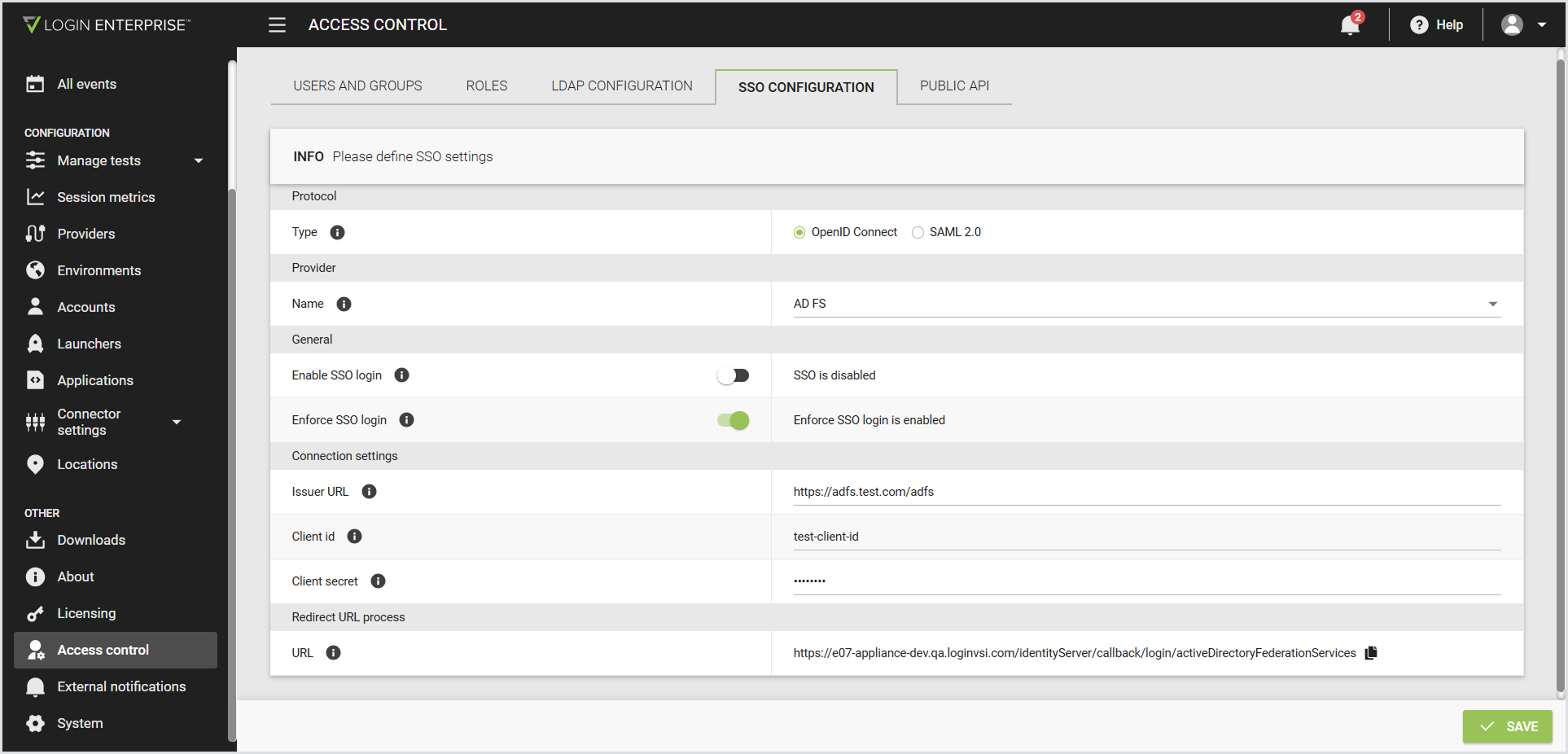
Before configuring AD FS in Login Enterprise, an administrator must configure the OIDC application in AD FS. For guidance on configuring an OpenID Connect application in AD FS, see the Microsoft documentation.
The AD FS administrator must create an application group or client and generate a client secret. After the Redirect URL is available in Login Enterprise, add it as a redirect URI in AD FS.
Configuring OIDC in Login Enterprise
-
Sign in to Login Enterprise using the local admin account.
-
In the Login Enterprise sidebar menu, navigate to Access Control > SSO configuration.
-
Configure the following:
|
Protocol |
|
|---|---|
|
Type |
The protocol used for SSO. Select OpenID Connect. |
|
Provider |
|
|
Name |
The identity provider used for SSO. Select one of the following options:
|
|
General |
|
|
Enable SSO login |
When disabled, the SSO login option isn’t available on the login page. |
|
Enforce SSO login |
When enabled, users can sign in only with SSO or the admin account. |
|
Connection settings (Microsoft Entra) |
|
|
Tenant ID |
The Microsoft Entra tenant (directory) ID to authenticate users. This value is a GUID and determines which directory is used for sign-in. |
|
Client ID |
The application (client) ID of the Microsoft Entra app for SSO. |
|
Client Secret |
The client secret for the Microsoft Entra app registration, used to authenticate the application. |
|
Connection settings (AD FS) |
|
|
Issuer URL (required) |
The AD FS server base URL used as the OpenID Connect issuer, format |
|
Client ID (required) |
The client identifier registered for Login Enterprise in the AD FS application group. |
|
Client Secret (required, masked) |
The shared secret generated for the Login Enterprise server application in AD FS. |
|
Redirect URL process |
|
|
Redirect URL |
The Login Enterprise-generated URL that Microsoft Entra or AD FS uses to redirect users after successful sign-in. Note: The URL cannot be edited in Login Enterprise, but can be modified when pasting it into the identity provider’s configuration. You can add multiple URLs in Microsoft for multiple domains, if needed. |
-
Save the configuration.
Here’s an example of the Microsoft Entra ID configuration:
.png?cb=b24d9dcf28474ee8bb6e91136af42aea)
An example of the AD FS configuration looks as follows:
Testing the Configuration
To verify that OIDC authentication is configured correctly:
-
Sign out of Login Enterprise.
-
Select the appropriate identity provider sign-in option. The available options depend on the identity providers that are configured and enabled:
-
Sign in with your organization for AD FS.
-
Microsoft account / Entra ID for Microsoft Entra ID.
-
-
Sign in using a user account from the selected identity provider.
-
Optionally, confirm that the user is assigned the correct roles based on LDAP group membership.
Note: If the redirect URL is misconfigured, sign-in may fail. Ensure that the redirect URL configured in Microsoft Entra ID or AD FS matches the Redirect URL process field in Login Enterprise.
Break-Glass Access
The built-in admin login remains available even when OIDC authentication is enabled and Enforce SSO login is turned on.
This account provides break-glass access if OIDC authentication is unavailable or misconfigured.