
Overview
The Login Enterprise Script Recorder is a tool that captures and records the sequence of user interactions with a computer system or software application. It records user inputs, such as mouse clicks, keyboard actions, and other commands, creating a script that can be replayed to automate repetitive tasks or test software functionality. Script recorders are commonly used in testing, automation, and workflow optimization.
In the context of the Login Enterprise virtual appliance, a Script Recorder makes it easier to create Application scripts and get maximum value from the Tests. Our vision with the Script Recorder is to make it accessible and easy to use, allowing you to generate application scripts even if you are not familiar with scripting languages or may not have a background in scripting.
The Script Recorder v1 is integrated into the Script Editor.
Benefits of Using the Script Recorder
The Script Recorder offers significant advantages, including:
-
Accelerated workload creation: You can develop workloads faster, enabling you to quickly perform valuable testing on target applications. For instance, if you previously spent one hour per workload, you can now complete the task in just 10 minutes. This efficiency boost allows you to script six workloads per hour instead of one. This improvement is particularly beneficial if you have extensive backlogs. You may have hundreds of applications that need scripting with Login Enterprise but lack the necessary time and resources. The Script Recorder enables you to address their backlog more rapidly, enhancing productivity and streamlining their workflow.
-
Enhanced multi-application support: The Script Recorder enables you to quickly create multiple workloads for a single target application. This focused capability helps you manage and test different scenarios within the same application efficiently.
-
Backlog reduction: If you have a backlog of applications that need scripting against the target application, the Script Recorder can help you address this backlog more efficiently by speeding up the scripting process.
-
Natural interaction workflow: You can perform actions continuously while the Script Recorder captures your interactions, making the process more intuitive. Unlike the previous method of recording line by line, this continuous recording aligns better with your natural workflow and reduces interruptions in thought processes.
-
User-friendly experience: The Script Recorder simplifies the process by reducing the amount of code you need to manage. You can create workloads in a single recording session, moving closer to the low-code model. This accessibility allows you to perform application scripting effectively, even without a scripting or programming background.
-
Lower barrier to entry: The Script Recorder lowers the entry barrier, enabling you to quickly gain value from Login Enterprise. This increased ease of use ensures that you can script and test applications without extensive training or experience.
Downloading and Installing the Script Recorder
-
In the Login Enterprise sidebar menu, navigate to Configuration > Applications.
-
In Applications, select Downloads from the tab bar menu and download the Script Editor file (the file with the integrated Script Recorder will start downloading immediately).
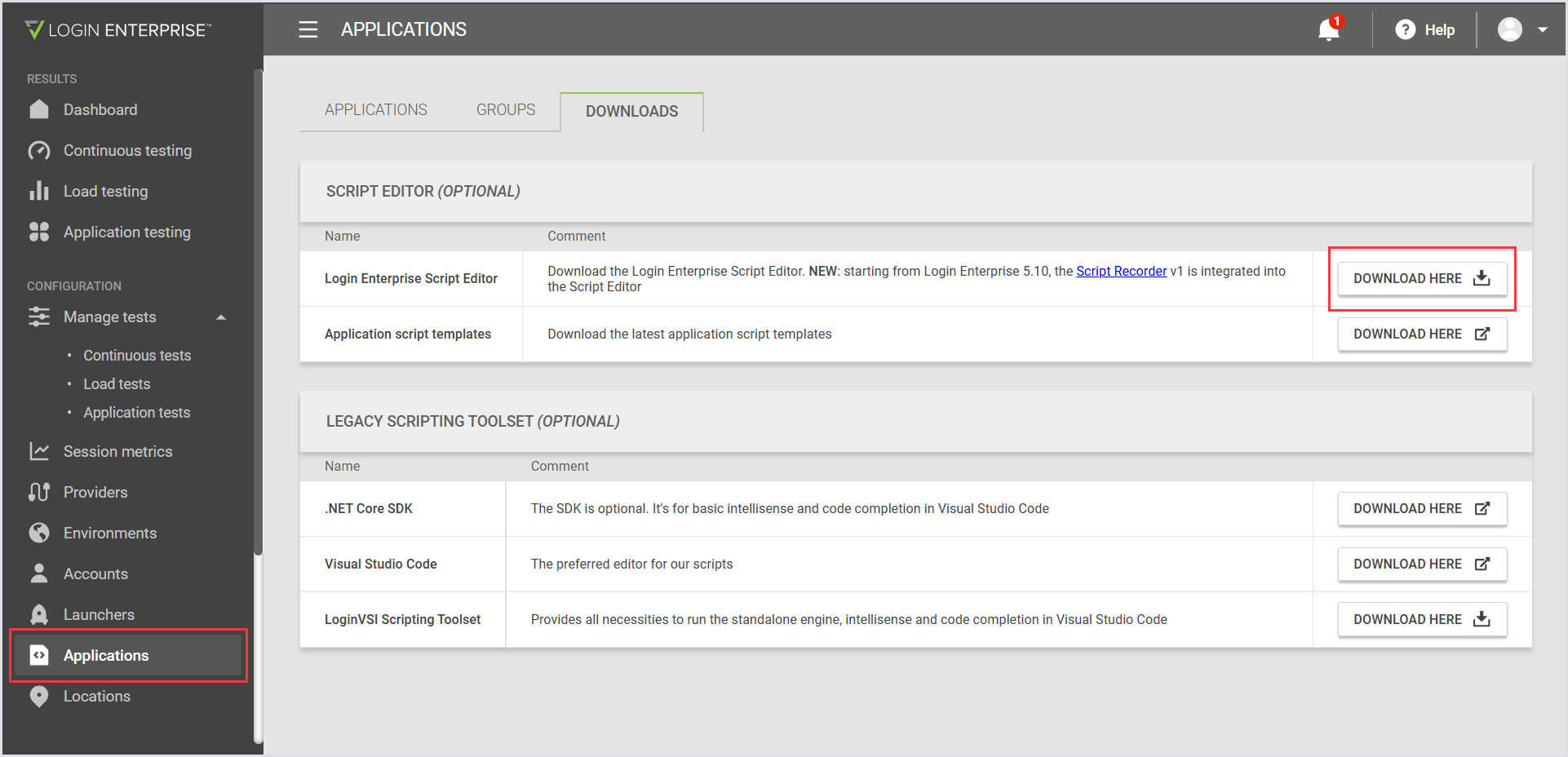
Alternatively, the Script Editor can be downloaded from the sidebar menu under Other > Downloads.
-
Extract the contents of the zip file onto your machine.
-
Open the folder and run the ScriptEditor.exe file.
When you click on the .exe file, a blue window may appear advising you not to run the file. This warning may be due to the file being unrecognized or from an unknown source. To proceed and run the file, click More info, and then Run anyway.
Additional Resources
-
For instructions on using the WinApp Recorder, see the WinApp Recorder.
-
For details on the Script Recorder (WinApp) implementation, see Understanding the Script Recorder (WinApps) Implementation.
-
-
To learn how to use the Web Recorder, see the Web Recorder.