
Overview
The instructions below describe the use of the WinApp Recorder.
For general information on the Script Recorder and related use cases, see Using the Script Recorder.
For details on the Script Recorder (WinApp) implementation, see Understanding the Script Recorder (WinApps) Implementation.
Getting Started
Download the latest Script Editor package containing the WinApp Recorder v1 from your admin or setup email. For details, see Downloading and installing the Script Recorder.
Creating a New Login Enterprise Application
-
In the Login Enterprise Script Editor, click Create a new Login Enterprise Application.
-
In Create New Application, take the following steps:
-
In Script Location, click the three-dot menu and select a folder where you want to save the script. After you’ve selected the folder, provide a file name. For example, notepadScript.
-
Leave the Application type field unchanged.
-
In Target, enter your target application. For example, notepad.exe.
-
Leave the Start in field empty.
-
-
Click Create.
Starting the Recording: Recording the Script
In the Script Editor top menu, click Record to start the recording.
When the recording starts, a player opens where you can perform actions.
The appearance of a blue box blinking over a button or object indicates that the Script Recorder is finding an element, and you can start performing an action. Wait for the blue frame to blink before performing an action.
With the Script Recorder, you can perform the following actions:
-
Stop the recording of actions
-
Start the recording of actions
-
Pause or continue the recording
-
Remove the last recorded action
-
Remove all recorded actions
-
Show or hide the list of recorded actions (downward/upward arrow icon)
Run and Continue Recording
The Run and Record button in the Script Editor allows you to execute an already created script and then automatically opens the recorder at the end of the script.
This feature is particularly useful if you need to add new steps to an existing script or make adjustments without re-recording everything from the beginning.
How it works
-
Execute the existing script: Click Run and Record. This will first execute the script that is currently open in the Script Editor.
-
Automatic recording: Once the script has finished running, the recorder will open automatically, enabling you to continue capturing additional actions or steps without starting from scratch.
Stop the recorder, click Generate script, and copy the script to the clipboard. Then, paste the script into the Script Editor and click Run.
Launching Apps with a START_IN Magic Comment
The Script Recorder uses the START_IN magic comment to launch applications, such as OBS Studio, if this comment is present in the script.
The screenshot below shows how the START_IN path appears in the recorded script:
For information on how to use the magic comment, including its formatting, practical examples, and best practices, see Using // TARGET: Comments for CLI Automation.
Identifying and Recording Win11 Apps
With Windows 11, it has become evident that various default applications exhibit a distinct process and window structure, posing challenges for the engine or Script Recorder to identify them. Examples include Calculator and Notepad, particularly when launched via environment variables such as Calc.exe or Notepad.exe. Many of these default applications employ a process-triggering mechanism, where they initiate a separate process to launch their windows. For instance, Calc.exe initiates a CalculatorApp.exe process, which subsequently spawns its windows under the ApplicationFrameHost process. This process is independent of the Calculator app, and multiple instances of Calculator can coexist under it.
This architecture poses implications for the Script Recorder, as attaching to this temporary launcher process would result in the recorder reporting the target window as non-existent. To address this limitation, you need to assist the recorder by clicking on the target window before initiating recording operations. Subsequently, the recording proceeds as usual. As a general practice, you can confirm the identification of the application by ensuring that the Task list can record the intended actions. Once a script is generated, a StartApplication command is included to enable the Engine to identify the target window. For example:
StartApplication(mainWindowClass: "Window:ApplicationFrameWindow", mainWindowTitle: "Calculator");
This StartApplication command is intended to replace any existing START commands already present in the script.
CLI Parameters and Arguments
The Script Recorder (and the Engine) allows you to write arguments and parameters to scripts. You will write your parameters in the // Target: aka the Target application.

There are a few things to note:
-
Script Recorder will allow the use of environment variables, and these will be expanded to the respective values
-
It is possible to write in the target application without quotations as per legacy behavior in the Engine.
-
While the Script Recorder allows the end user to write in the target application without quotations, this goes against standard Windows functionality when starting a process. Windows expects the user to wrap ANY file paths containing spaces IN QUOTATIONS. This functionality exists due to legacy behavior. See the following example. The second attempt is the standard behavior.
-

-
This functionality will only allow the end user to write down a target application without quotations IF the target application has the following File extensions: ".exe", ".bat", ".cmd", ".vbs", ".wsh". This is also part of the legacy behavior in the Engine.
-
If you do not provide any of these extensions, the behavior will revert to the original Windows behavior. Thus, the end user should wrap the target application in quotations, or at least, make sure that the provided file path does not contain spaces.
-
Arguments provided to the Script Recorder expect that any arguments with a file path be wrapped in quotations. Otherwise, you just have to ensure that your file path does not contain any spaces. This is consistent with standard Windows behavior.
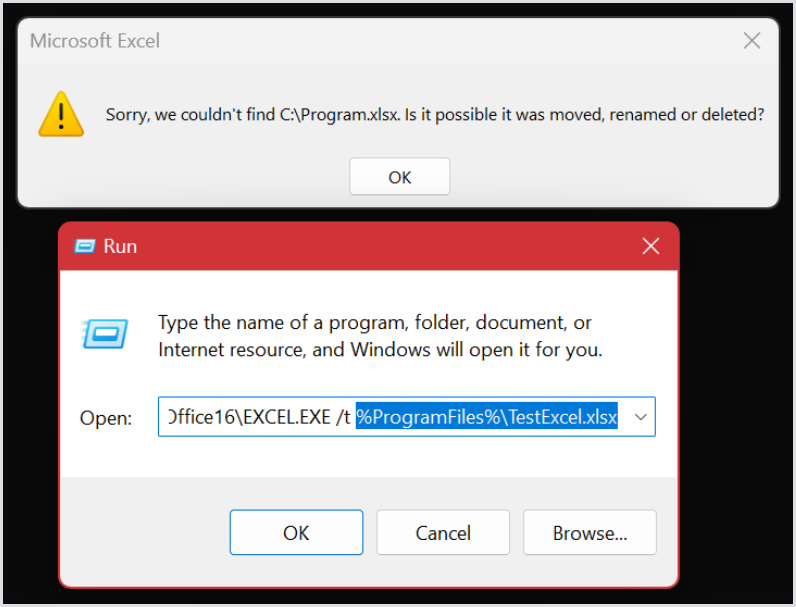
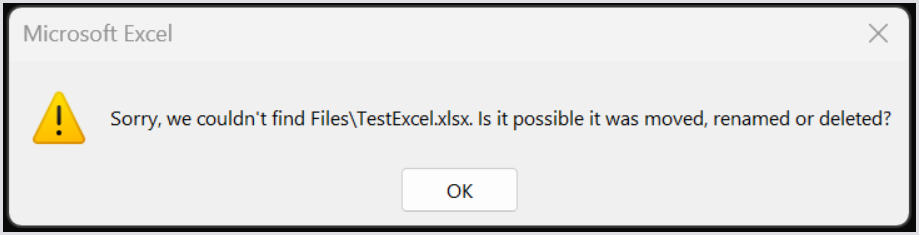
The previous example attempts to run the following command:
%ProgramFiles%\Microsoft Office\root\Office16\EXCEL.EXE /t %ProgramFiles%\TestExcel.xlsx
This example expands environment variables to:
C:\Program Files\Microsoft Office\root\Office16\EXCEL.EXE /t C:\Program Files\TestExcel.xlsx
-
This means that Excel then identifies C:\Program as one parameter and Files\TestExcel.xlsx as another parameter. Therefore, it fails to find the file
-
The solution is to wrap the argument in quotations as “%ProgramFiles%\TestExcel.xlsx”
Stopping the Recording: ScriptResultWindow
When you stop the recording, the ScriptResultWindow shows an overview of all recorded steps (before generating the script, right after the recording was stopped).
In this Overview screen, you can perform the following actions:
Settings
-
Record interaction - Determines mouse positioning when interacting with elements.
-
Click to center (default) - The script will always click in the center of the element.
-
Use X and Y coordinates - The script will click within the element as it was recorded.
-
-
Mouse move - Determines the inclusion or exclusion of mouse movements in the script.
-
Include/exclude mouse moves in the recording - Once you select the checkbox, the actual mouse movements will be included in the script. This might lead to an increased runtime of the script.
-
-
Waits - Adds a pause after each recorded step in the script.
-
CPM (Characters Per Minute) - Adjusts typing speed. The default is 300 characters per minute. If you leave this box unchecked, the default value will be used. If you select this checkbox, the CPM value will appear in the script.
-
Timeout - Overrides the default timeout of the
findWindowsfunctions. The default is 15 seconds. If you leave this box unchecked, the default value will be used. If you select this checkbox, the timeout value will appear in the script.
Export JSON
-
This option provides additional information on script failures, facilitating feedback submission and analysis.
Generate script
-
This option generates the script. After generating the script, you can go back, change the settings, and generate the script (with new settings) again.
New START Methodology
Starting with Windows 11, certain default applications like Calculator and Notepad have a different process and window structure that can make it difficult for the Script Recorder to identify them. These applications, when launched through environment variables (e.g., Calc.exe or Notepad.exe), trigger a separate process that manages the window under a different application (for example, CalculatorApp.exe creates its windows under the ApplicationFrameHost process). This architecture can cause issues because the temporary launcher process terminates after the window is created, which means the Script Recorder might fail to latch onto the target window.
To handle this, the Script Recorder will prompt you to click inside the target application window before starting the recording. Once this is done, the Script Recorder will generate a script, and the following StartApplication command will be included:
StartApplication(mainWindowClass: "Window:ApplicationFrameWindow", mainWindowTitle: "Calculator");
This StartApplication command is specifically designed to identify the target window, allowing the Engine to properly interact with the application. If you see this StartApplication command in your generated script, it indicates that you need to replace any default START (); command that was initially included in the template. This step is crucial to ensure that the Recorder functions correctly for applications with unique launch processes.
For most other applications, the default START (); function will work as expected, and additional steps will be inserted after this function during the recording. However, for applications like Calculator, where the StartApplication command is generated, you must override the default START function to ensure accurate script execution.
Delete actions
-
For example, if you’ve accidentally clicked twice, you can remove one of the clicks.
Collapse and uncollapse actions
-
To see: description of action, tag of action, name of action.
-
To change action settings (overwrites the global setting for this particular action).
Wildcards for Class Names, Names, Titles, and Automation IDs
Wildcards are particularly useful when dealing with elements that have dynamic properties in an application.
Why use wildcards?
Wildcards allow for flexible matching of elements when their properties are not fixed. For instance, if elements in an application have names or IDs that change dynamically, using wildcards can help you identify and interact with these elements more effectively.
How wildcards work
-
A
*(asterisk) serves as a wildcard character. -
Placing the
*at the end of a string, e.g.,classn*will match all elements that start with the given prefix. -
The
*can also be placed at the beginning or middle of the string to match elements with varying prefixes or suffixes.
Syntax example
{TagGoesHere} : {ClassNameGoesHere} [{NameGoesHere}][AutomationId : {AutomationIdGoesHere}][Position: {PositionGoesHere}]
In this syntax, wildcards can be used in the following elements:
-
{ClassNameGoesHere} -
{NameGoesHere} -
{AutomationIdGoesHere}
Practical example
Imagine you’re writing a script to interact with Microsoft Word. When you open a new document, the Script Recorder might capture the window title as:
var nWindow0 = FindWindowByClassAndName(className: "Window:OpusApp", name: "Document1 - Word");
Here, the title "Document1 - Word" is specific and might not always be the same. If you want your script to work regardless of the specific window title, you can use a wildcard to match any title that ends with " - Word":
var nWindow0 = FindWindowByClassAndName(className: "Window:OpusApp", name: "* - Word");
In this example, the asterisk (*) acts as a wildcard character, allowing the script to successfully find any Microsoft Word window where the title ends with " - Word", even if the part before " - Word" changes.
Running the Script
-
In the ScriptResultWindow, click Generate script.
-
Copy the generated script to the clipboard and paste it into the Script Editor.
Currently, the Script Recorder doesn’t support notifications, such as Copied to the clipboard. So, once you copy the script to the clipboard, it has been saved; the Script Recorder is just not letting you know about it. You can now proceed and paste the script into the Script Editor.
-
In the Script Editor top menu, click Run to run the script.
Importing an existing script
Alternatively, if you already have an existing script recording (JSON file), click Import recording in the Script Recorder top menu and proceed with the steps described above.
If you have questions or need additional information on specific Script Recorder functions, feel free to get in touch with our support at support@loginvsi.com.
Restrictions and Limitations
|
Aspect |
Details |
|---|---|
|
Script compatibility |
The script generated by the Script Recorder can only be run in Login Enterprise v5.10 or higher. |
|
Supported applications |
V1 supports only WinApps. Browser and browser-based apps (e.g., Teams, Spotify) are currently out of scope. |
|
Unsupported actions |
Actions that were not previously supported in the Engine remain unsupported, e.g., mouse drag and mouse scroll. |
|
Application types with limited functionality |
Applications built with Java, Web components, or those that launch separate windows with new executables do not function properly yet. |
|
Script handling |
The Script Recorder now only generates the script and does not automatically import it into the editor. You must copy the script to the clipboard and paste it manually into the editor. Important: The generated script includes the initial |
|
Recording scope |
Only one application per recording can be captured at a time. |
|
Handling modal pop-ups |
If a modal pop-up opens as a new window, the Script Recorder will continue functioning during recording. However, during playback, the script engine may fail unless the new window is explicitly declared as a variable. This happens because the engine does not automatically recognize new windows, which may cause playback errors that aren’t visible during recording (e.g., in Excel, where modal pop-ups open in separate windows). |
Recommendations
|
Recommendation |
Explanation |
|---|---|
|
Use one monitor during recording |
Using multiple monitors with different scaling settings during recording may cause issues. Specifically, when working across two screens with varying scaling configurations, the Script Recorder may not function correctly. |
|
Proceed slowly |
Wait for the blue box to blink over a button or object before proceeding. This visual cue indicates that you can safely move to the next step. |