
Overview
The Cloud PC Settings page provides a consolidated view of Cloud PC-related settings across tenants. You can create, edit, assign, and delete supported setting types from this page, including User settings, Cloud PC configurations, and Windows App settings.
Cloud PC Settings Table
|
Column |
Description |
|---|---|
|
Tenant |
The tenant associated with the setting. |
|
Name |
The name of the setting or configuration. |
|
Assigned |
Indicates whether the setting is assigned to users or groups. |
|
Type |
Identifies the setting type, i.e., User setting or Cloud PC configuration. |
|
Last updated |
Shows the most recent date and time the setting was updated. |
|
Priority |
Shows the priority order for the setting, when applicable. |
|
Edit |
Provides access to edit or manage the selected setting. |

Creating a New Setting
Select the + button in the top-right corner of the table to create a new setting. A prompt window appears with the following options:
|
Option |
Description |
|---|---|
|
User Settings |
Creates a user setting. For details, see User Settings. |
|
Cloud PC Configuration |
Creates a Cloud PC configuration. For details, see Cloud PC Configuration. |
|
Windows App Setting |
Creates a Windows App setting. For details, see Windows App Setting. |

User Settings
User settings let you configure how Cloud PCs behave for specific users or groups. This includes enabling local admin permissions, allowing users to reset their Cloud PCs, configuring point-in-time restore options, applying optional disaster recovery, and selecting the provisioning image source.
Settings Tab
General
-
Tenant: Select the tenant for the user setting.
-
Name: Enter a descriptive name for the user setting.
-
Enable local admin: Makes the end user a local administrator on all of their Cloud PCs.
-
Enable users to reset their Cloud PCs: Allows targeted users to reprovision their Cloud PC from the Windows 365 app or web app.
Point-in-time restore service
Allows restoring a user’s Cloud PC to a backup taken at a specific point in time. Users will lose any data stored on the Cloud PC disk between the current time and the recovery point. For details, see Point-in-time restore for Windows 365 Enterprise.
-
Allow user to initiate restore service: Allows users to start their own point-in-time restore for supported Cloud PCs.
-
Frequency of restore-point service: Choose how often Windows 365 creates restore points for eligible Cloud PCs.
Optional Business Continuity and Disaster Recovery
Before configuring, purchase and assign optional disaster recovery licenses to users. Note that Disaster Recovery Plus cannot be configured for Frontline Cloud PCs, and optional disaster recovery cannot be configured for Government Cloud PCs. To learn more, see Cross region disaster recovery in Windows 365.
-
Enable additional DR for this user setting: Adds extra resilience for Cloud PCs with optional disaster recovery. Additional licenses may be required.
Provisioning source type
-
Select the image source:
-
Default: Use the image from the provisioning policy.
-
From Snapshot: Use an uploaded personal image if available. Provisioning fails if no snapshot exists for the user.
-

Assignments Tab
-
After configuring settings, switch to the Assignments tab.
-
Assign groups to the tenant.
-
Click Update to save the user setting.
Updating an existing user setting follows the same procedure: open the dialog via the gear icon, modify the desired configuration, then save.
Cloud PC Configuration
Cloud PC Configurations let you configure how Cloud PCs behave for specific users or groups. This includes defining configuration settings, applying scope tags, and assigning the configuration to users or groups.
Settings Tab
General
-
Tenant: Select the tenant for the Cloud PC configuration.
-
Name: Enter a descriptive name for the Cloud PC configuration.
-
Description: Enter a description for the Cloud PC configuration.
Configuration settings
Supported on higher-spec devices (8 vCPU, 32 GB RAM, 256 GB storage, and above).
Not configured by default. When enabled, the hybrid compute framework is installed and allows the user’s device to use AI-enabled features. For more information, see the AI-enabled Cloud PC (Frontier Preview).

Scope Tags Tab
Use scope tags to control which administrators can view and manage the Cloud PC configuration.
To manage scope tags, first select a tenant on the Cloud PC configuration page. Select the configuration, then choose Edit and select the Settings (gear) icon. The Scope tags window opens.
Here, you can:
-
Search for scope tags by name.
-
Select all to assign all available scope tags.
-
Select Default to assign the default scope tag.
-
Select or clear individual scope tags as needed.

Assignments Tab
Use the Assignments tab to specify which groups receive the Cloud PC configuration.
Here, you can:
-
Search for groups by name.
-
Select all to assign the Cloud PC configuration to all available groups in the selected tenant.
-
Select or clear individual groups to update the assignment.

Windows App Setting
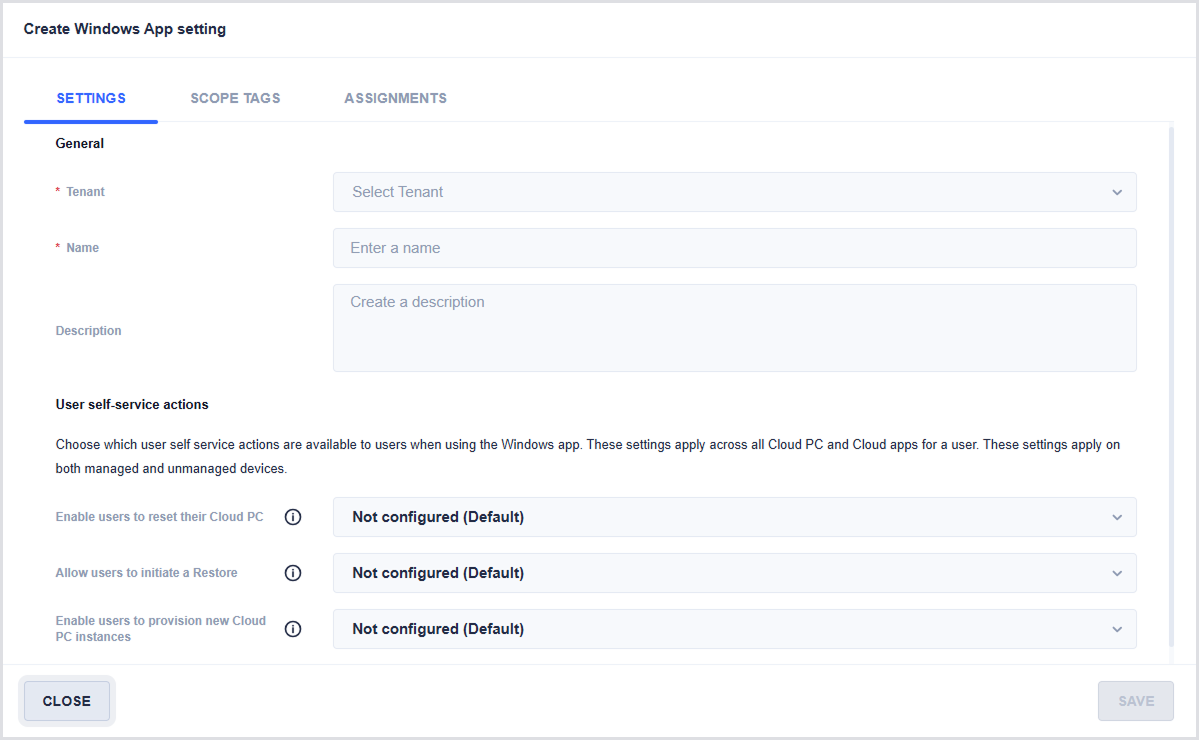
Use Windows App Setting to configure user self-service actions for Cloud PCs and Cloud apps. These settings apply to the selected users on both managed and unmanaged devices.
Settings Tab
General
-
Tenant: Select the tenant where the setting applies.
-
Name: Enter a name for the setting.
-
Description: Enter a description for the setting.
User self-service actions
Choose which self-service actions are available to users in the Windows app. These settings apply across all Cloud PCs and Cloud apps for a user, on both managed and unmanaged devices.
-
Enable users to reset their Cloud PC: Allows selected users to reprovision their Cloud PCs from the Windows 365 app or web app.
-
Allow users to initiate a restore: Allows users to start a point-in-time restore for supported Cloud PCs.
-
Enable users to provision new Cloud PC instances: Allows selected users to provision their Reserve Cloud PCs from the Windows 365 app or web app. Additional Reserve licenses may be required.
Each self-service action supports the following options:
|
Option |
Description |
|---|---|
|
Not configured |
Uses the default setting. |
|
Enable |
Makes the action available to users. |
|
Disable |
Prevents users from using the action. |
Scope Tags Tab
Use the Scope Tags tab to add scope tags to the Windows App setting.
Search for tags by name, select the tags you want to apply, and then select Save.

Assignments Tab
Use the Assignments tab to assign the Windows App setting to groups.
Search for groups by name. Enter at least three characters to search, select the groups you want to assign, and then select Save.
