
Overview
The Hydra agent enables administrators to view device resources and latency information and perform remote actions on Cloud PCs.
Installing the Hydra Agent
-
Go to the Tenant Configuration page.
-
Click Hydra Agent for installation details and download.
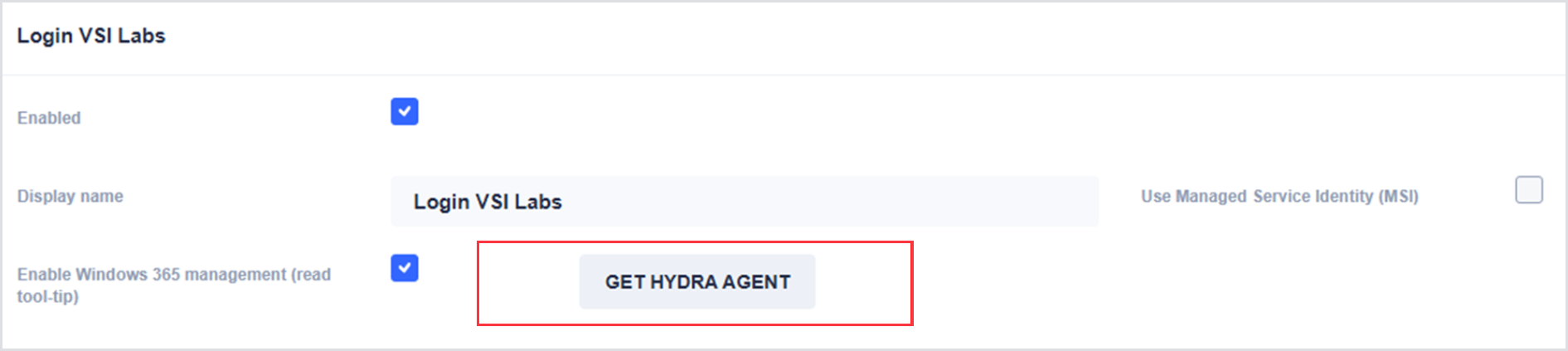
Once the Hydra agent is downloaded, follow the instructions to install the agent as a scheduled task by running the following command in a command shell with administrative permissions.
For the Windows 365 Hydra Agent support, there are 2 secrets required (i.e., -s and -t).
.png?cb=e5310f6e78b1d1340ef53d40fe7c6c52)
Hydra Agent in Cloud PC Overview
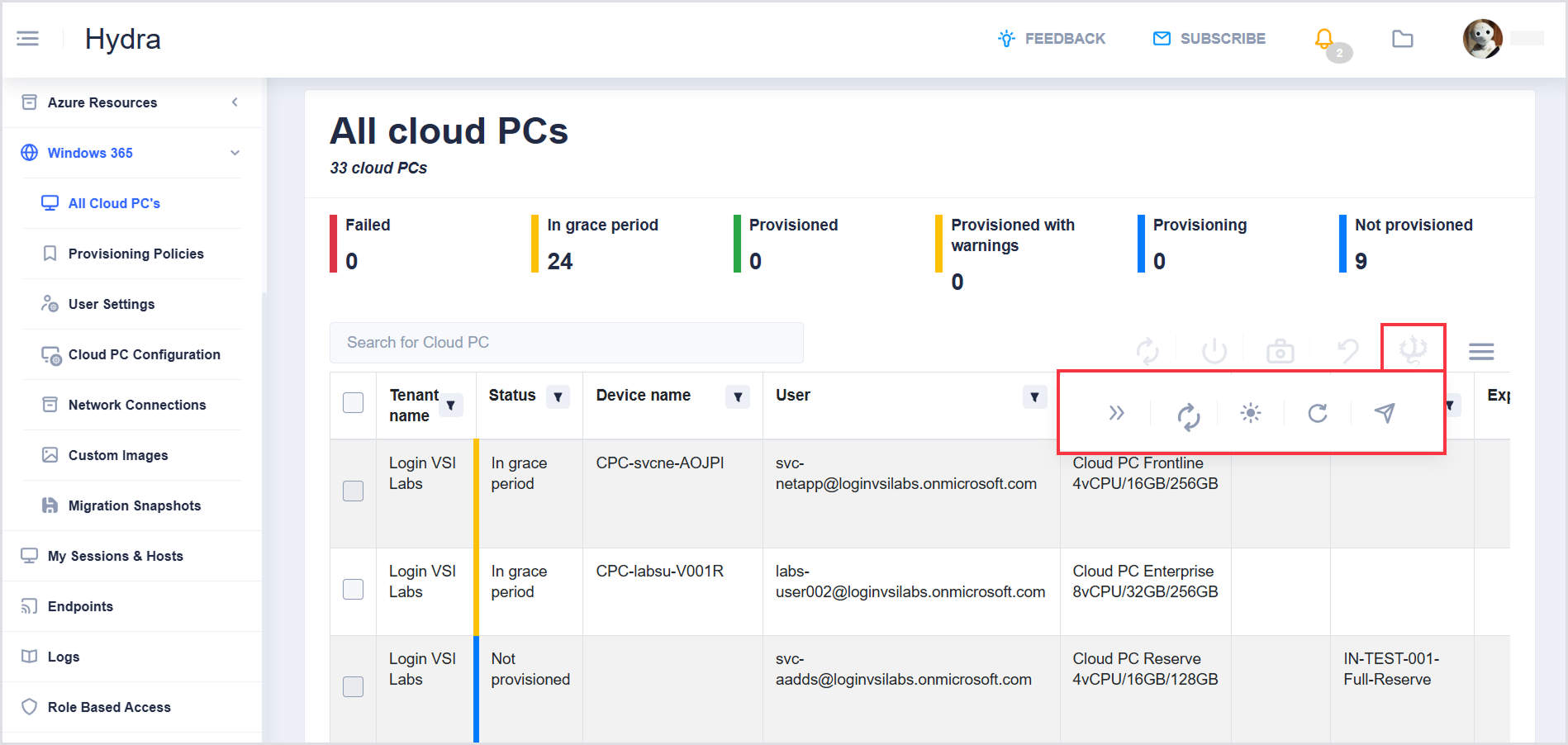
You can click on the Hydra Agent icon only if some Cloud PCs (CPCs) are selected. There are different actions that you can do. All actions happen on the selected CPC, if a Hydra Agent is available:
-
Restart the Intune service (triggered from the CPC if the management extension for Intune is installed)
-
Sync the Client with Intune (triggered from the CPC if the management extension for Intune is installed)
-
Request the internet-facing IP address
-
Update Hydra agent
-
Run a script *
To use “Update Hydra agent” or to “Run a Script”, the Cloud PC must be configured to allow these actions to be taken. You can do this after the Hydra Agent is installed.
To enable actions on endpoints set the following registry values: Set-RegistryKey -Key Path: HKLM\SOFTWARE\ITProCloud\HydraAgent
-
Allow remote update of the agent Allow-UpdateAgent, DWord, Value 1
-
Allow remote running a script on the endpoint Allow-RunScript, DWord, Value 1
You can select CPC with or without a Hydra Agent, but the operation is only triggered on CPC with a Hydra agent for this sub-menu. See the screenshot below for details.
.png?cb=e725d51ca6d1e97ea1fdae4fe4e5f64c)