
Overview
The Cloud PC configuration page lets you view and manage Cloud PC configurations in Windows 365, including creating, editing, assigning, and deleting configurations.
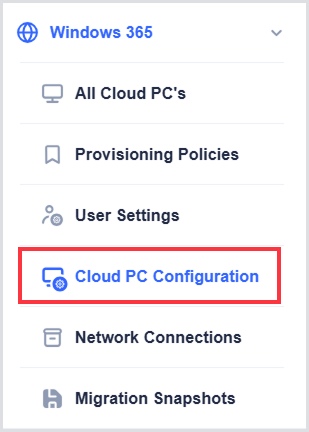
You can find this page in the left navigation under Windows 365, between User settings and Network Connections.
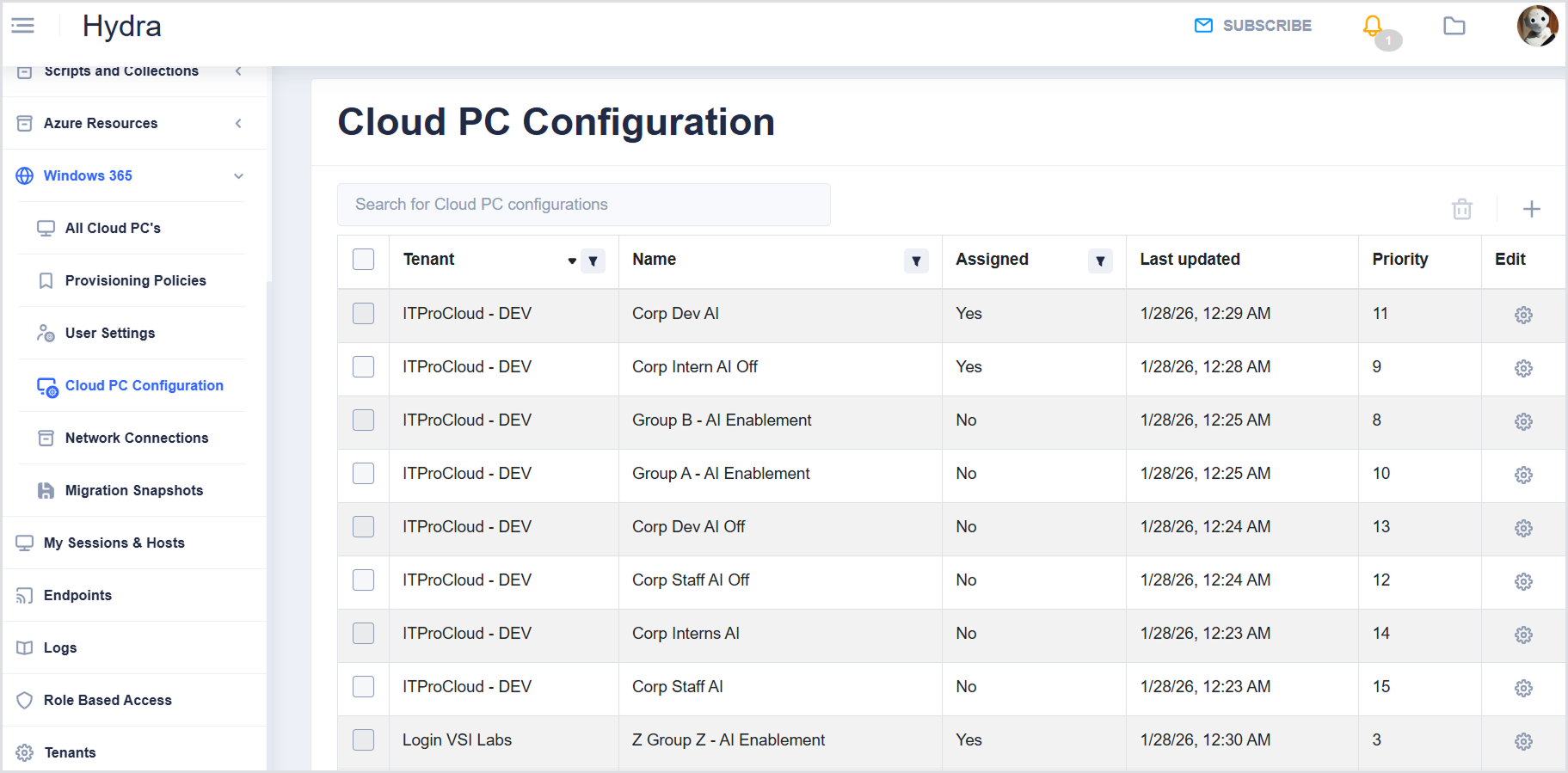
Cloud PC Configuration Table
The table lists the Cloud PC Configuration with the following columns:
|
Column |
Description |
|---|---|
|
Tenant |
Shows the tenant associated with the Cloud PC configuration. You can sort the column in ascending or descending order and filter by tenant. |
|
Name |
Shows the name of the Cloud PC configuration. |
|
Assigned |
Indicates whether the Cloud PC configuration is assigned. You can filter the list by assignment status. |
|
Last updated |
Shows the date and time of the most recent update. |
|
Priority |
Indicates the order in which Cloud PC configurations were added, represented by a numeric value. |
|
Edit |
Opens the Cloud PC configuration for editing. |
Use the Search field to find Cloud PC configurations by name.
Create and Edit Cloud PC Configuration
Cloud PC Configurations let you configure how Cloud PCs behave for specific users or groups. This includes defining configuration settings, applying scope tags, and assigning the configuration to users or groups.
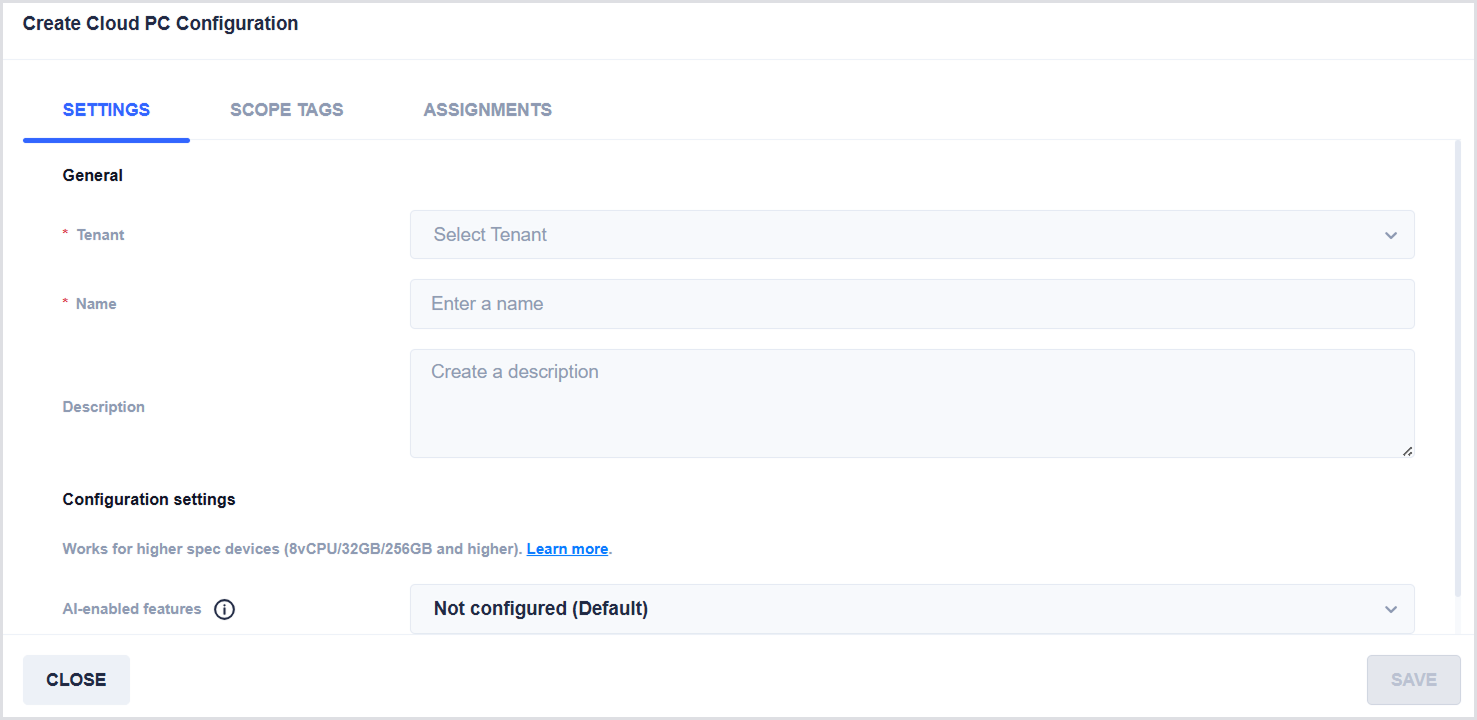
To create a new user setting, click Add (+) on the top right of the Cloud PC Configuration table. The Settings window will open.
Settings Tab
General
-
Tenant: Select the tenant for the Cloud PC configuration.
-
Name: Enter a descriptive name for the Cloud PC configuration.
-
Description: Enter a description for the Cloud PC configuration.
Configuration settings
Supported on higher-spec devices (8 vCPU, 32 GB RAM, 256 GB storage, and above).
Not configured by default. When enabled, the hybrid compute framework is installed and allows the user’s device to use AI-enabled features. For more information, see the AI-enabled Cloud PC (Frontier Preview).
Scope Tags Tab
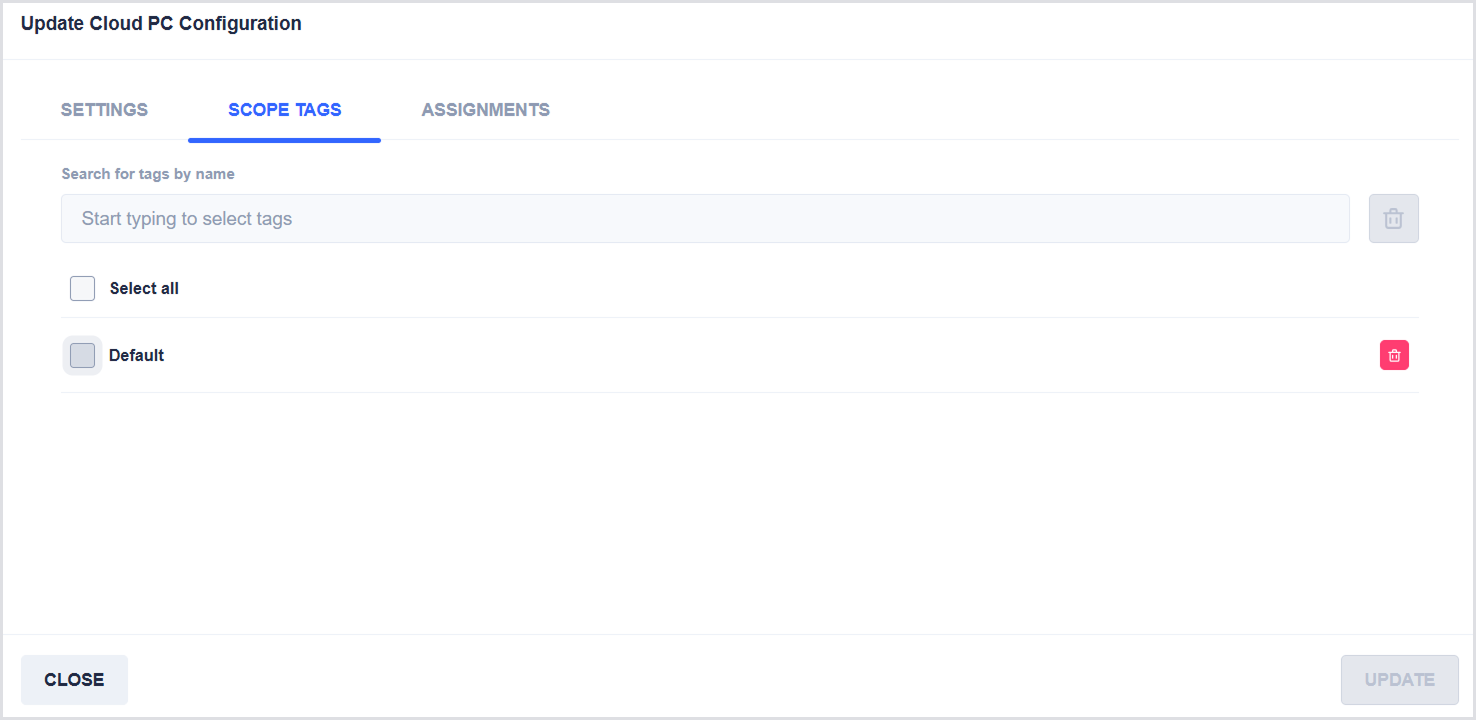
Use scope tags to control which administrators can view and manage the Cloud PC configuration.
To manage scope tags, first select a tenant on the Cloud PC configuration page. Select the configuration, then choose Edit and select the Settings (gear) icon. The Scope tags window opens.
Here, you can:
-
Search for scope tags by name.
-
Select all to assign all available scope tags.
-
Select Default to assign the default scope tag.
-
Select or clear individual scope tags as needed.
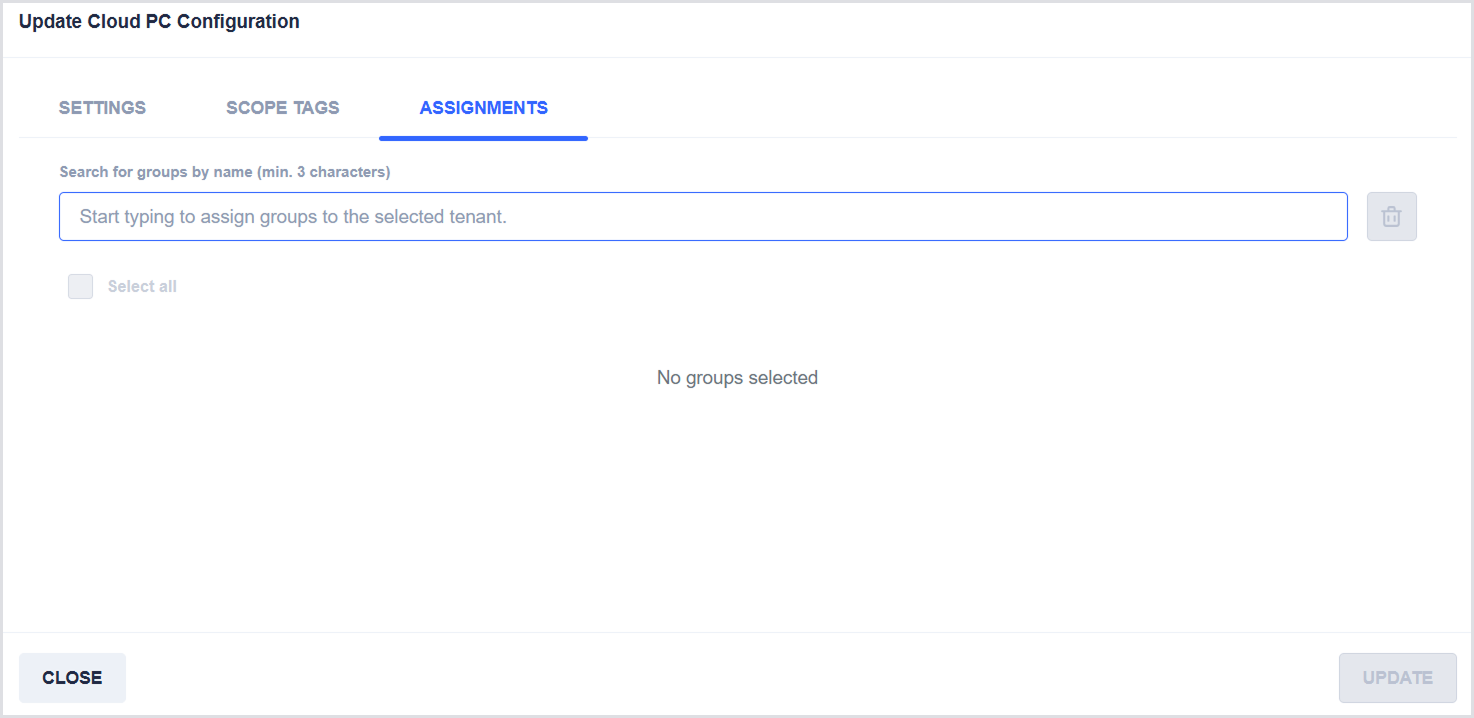
Assignments Tab
Use assignments to specify which groups receive the Cloud PC configuration.
Here, you can:
-
Search for groups by name.
-
Select all to assign the Cloud PC configuration to all available groups in the selected tenant.
-
Select or clear individual groups to update the assignment.
Bulk Actions
-
Click Select page to select all Cloud PC configurations currently shown in the table.
-
When multiple Cloud PC configurations are selected, you can delete them by clicking Delete.