
Overview
The Admin Dashboard provides an overview of Windows 365 provisioning activity and Cloud PC usage across all tenants where Windows 365 management is enabled.
Search by Policy Name or Tenant
Use the search field at the top to search for a provisioning policy name or tenant name within the currently filtered list of policies.
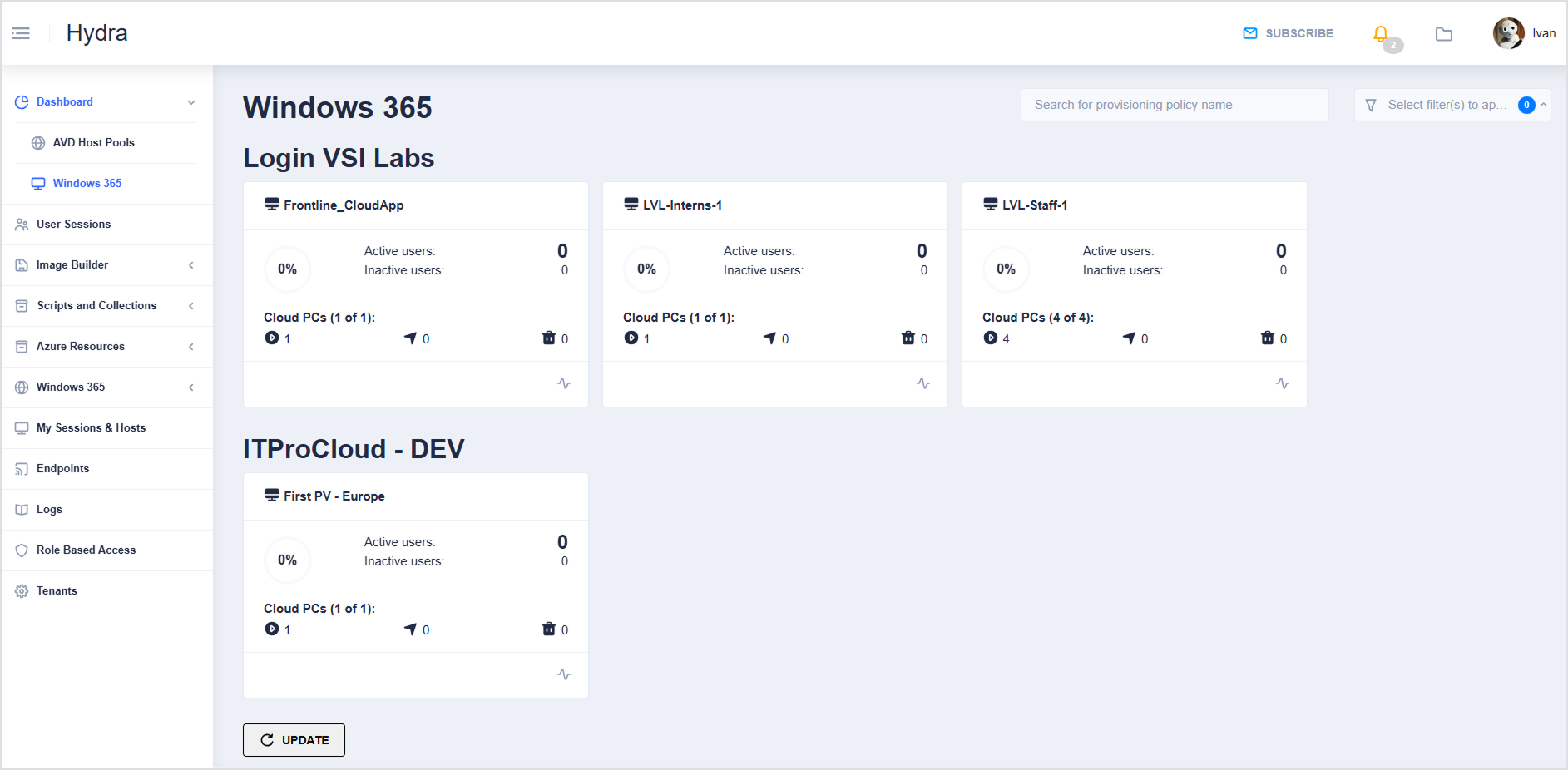
Filter by Tenant
Use a filter to help narrow down the list of provisioning policies by tenant. This filter allows you to focus on policies associated with specific tenants.
You can use this filter to:
-
Select one tenant
-
Select multiple tenants
-
Select all tenants
-
Select no tenants
Selecting all tenants or none produces the same result: policies from all tenants are displayed.
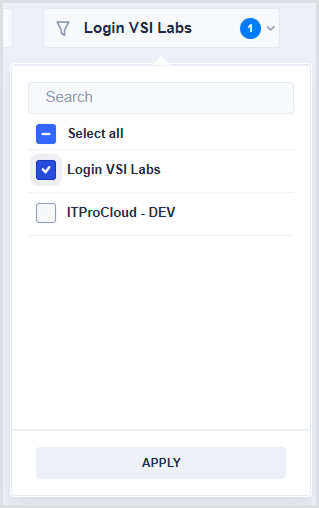
Provisioning Policy Tile Details
|
Field |
Description |
|---|---|
|
Policy Name |
Name of the provisioning policy (e.g., PolicyA). |
|
Circular icon |
Percentage of provisioned Cloud PCs with an active user, as reported by the Hydra Agent. |
|
Active Users |
Number of Cloud PCs where the Hydra Agent is installed and currently importing activity. |
|
Inactive Users |
Number of Cloud PCs where the Hydra Agent is installed, but no activity is reported. |
|
Cloud PCs (Status Counts) |
Shows Cloud PCs in different states:
Example: 8 of 25 Cloud PCs are provisioned. |
Clicking any part of a tile (policy name, percentages, counts, or status icons) navigates to All Cloud PCs for that policy, where more detailed management and actions are available.
Email Subscription
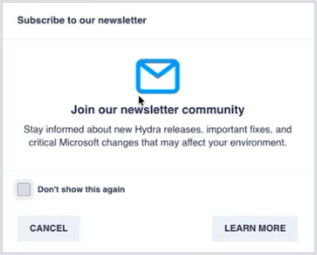
An email subscription prompt is available to keep administrators informed of new releases, features, and other important information via the Hydra Dispatch newsletter.
When a Full Admin user logs in for the first time, a pop-up prompt is displayed inviting the user to subscribe to the newsletter.
|
Action |
Description |
|---|---|
|
Learn more |
Opens the Login VSI website, where you can subscribe to the newsletter. This does not subscribe the user directly from Hydra. |
|
Cancel |
Dismisses the prompt. If you click “Cancel” without clicking “Learn more” or “Don't show this again”, the prompt will appear again on the next visit. The same behavior applies to the banner: dismissing it will cause it to appear again unless you click “Learn more” or “Don't show this again.” |
|
Don’t show this again |
Prevents the prompt from being shown again. |
If you dismiss the prompt, a Subscribe button remains available in the Hydra header, allowing you to subscribe to the product updates whenever convenient.

-
The newsletter is currently the primary way to receive product updates (for example, new versions or announcements).
-
In-product notifications for such updates are not currently available.