
Overview
The User settings page lets you view and manage user settings in Windows 365, including creating, assigning, editing, and deleting them.
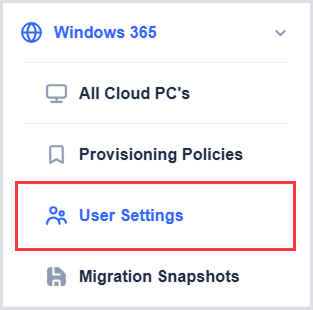
You can find this page in the left navigation under Windows 365, between Provisioning policies and Migration snapshots.
User Settings Table
The table lists the user settings with the following columns:
|
Column |
Description |
|---|---|
|
Tenant |
Shows the tenant associated with the user setting. You can sort the column in ascending or descending order and filter by tenant. |
|
Name |
Shows the name of the user setting. |
|
Assigned |
Indicates whether the user setting is assigned.
|
|
Last updated |
Shows the date and time of the most recent update. |
|
Edit |
Opens the user settings for editing. |
Use the Search field to find user settings by name.
.png?cb=a29a898d0db8b435b68d129d01660ee9)
Create and Edit User Settings
User settings let you configure how Cloud PCs behave for specific users or groups. This includes enabling local admin permissions, allowing users to reset their Cloud PCs, configuring point-in-time restore options, applying optional disaster recovery, and selecting the provisioning image source.
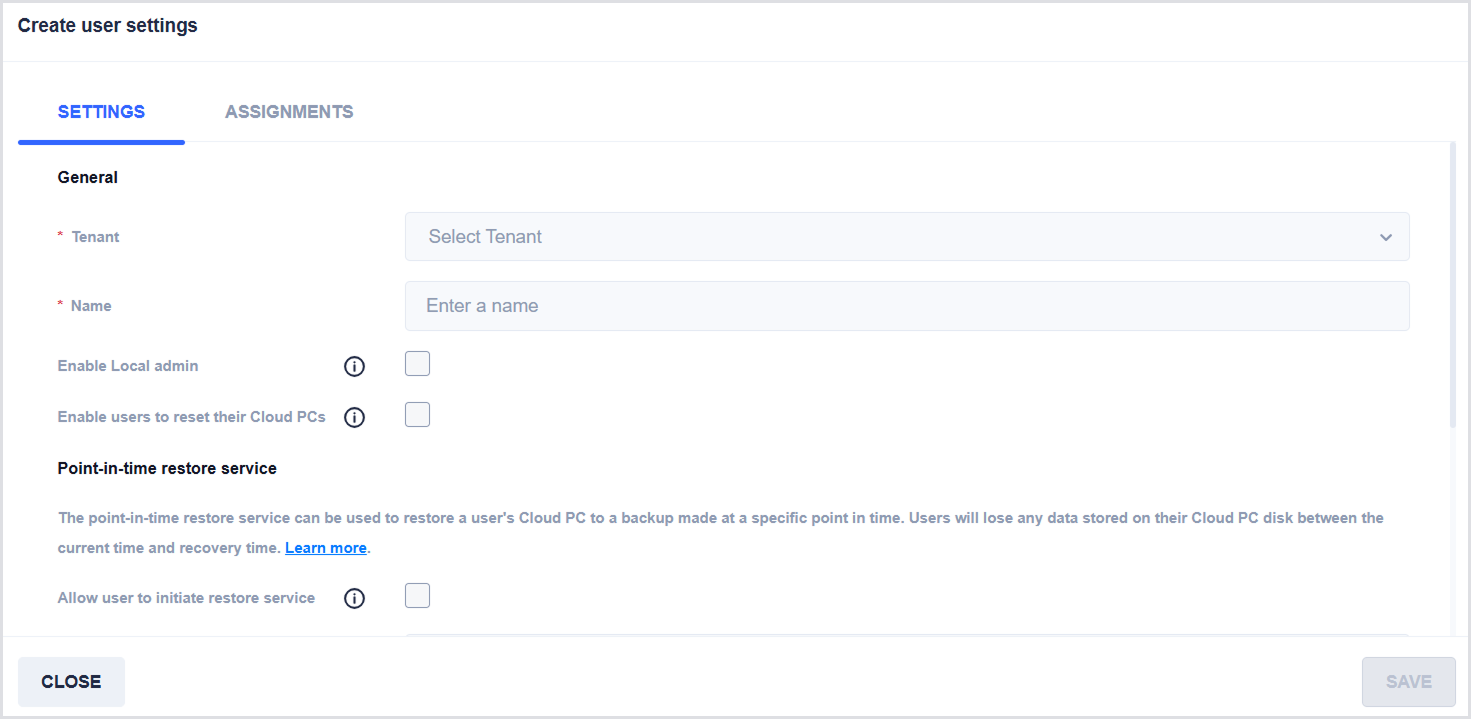
To create a new user setting, click Add (+) on the top right of the User Settings table. The Settings window will open.
Settings Tab
General
-
Tenant: Select the tenant for the user setting.
-
Name: Enter a descriptive name for the user setting.
-
Enable local admin: Makes the end user a local administrator on all of their Cloud PCs.
-
Enable users to reset their Cloud PCs: Allows targeted users to reprovision their Cloud PC from the Windows 365 app or web app.
Point-in-time restore service
Allows restoring a user’s Cloud PC to a backup taken at a specific point in time. Users will lose any data stored on the Cloud PC disk between the current time and the recovery point. For details, see Point-in-time restore for Windows 365 Enterprise.
-
Allow user to initiate restore service: Allows users to start their own point-in-time restore for supported Cloud PCs.
-
Frequency of restore-point service: Choose how often Windows 365 creates restore points for eligible Cloud PCs.
Optional Business Continuity and Disaster Recovery
Before configuring, purchase and assign optional disaster recovery licenses to users. Note that Disaster Recovery Plus cannot be configured for Frontline Cloud PCs, and optional disaster recovery cannot be configured for Government Cloud PCs. To learn more, see Cross region disaster recovery in Windows 365.
-
Enable additional DR for this user setting: Adds extra resilience for Cloud PCs with optional disaster recovery. Additional licenses may be required.
Provisioning source type
-
Select the image source:
-
Default: Use the image from the provisioning policy.
-
From Snapshot: Use an uploaded personal image if available. Provisioning fails if no snapshot exists for the user.
-
Assignments Tab
-
After configuring settings, switch to the Assignments tab.
-
Assign groups to the tenant.
-
Click Update to save the user setting.
Updating an existing user setting follows the same procedure: open the dialog via the gear icon, modify the desired configuration, then save.
Bulk Actions
-
Click Select page to select all user settings currently shown in the table.
-
When multiple user settings are selected, you can delete them by clicking Delete.