
Introduction
This section of the Troubleshooting page provides an overview of currently active sessions, the ability to filter and sort active sessions, and the ability to abort them.
Accessing Active Sessions
-
To access the Active sessions, in the Login Enterprise sidebar menu, navigate to Other > System.
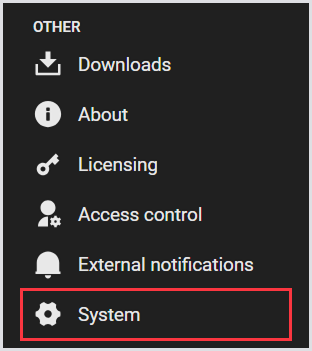
-
In the System, select Active sessions from the tab menu:

Active Sessions Page Overview
The Active Sessions table displays a table with the following information:
|
Test |
Launcher |
Account Name |
Login State |
Session State |
Date Created |
Date Updated |
|---|---|---|---|---|---|---|
|
Name of the Test. |
Name of the Launcher. |
Name of the Launcher. |
State of the login: succeeded or failed. |
State of the session, e.g., Undefined. |
Date when the active session was created. |
Date when the active session was updated. |
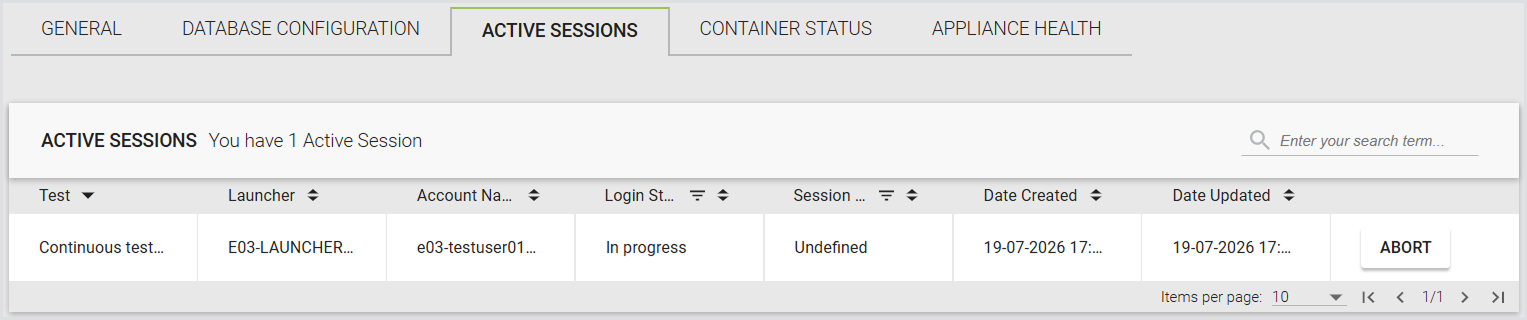
If you click Abort, the selected session will be terminated within one minute.
Filtering and Sorting Active Sessions
Use the search box to filter active sessions by:
-
Test
-
Launcher
-
Account Name
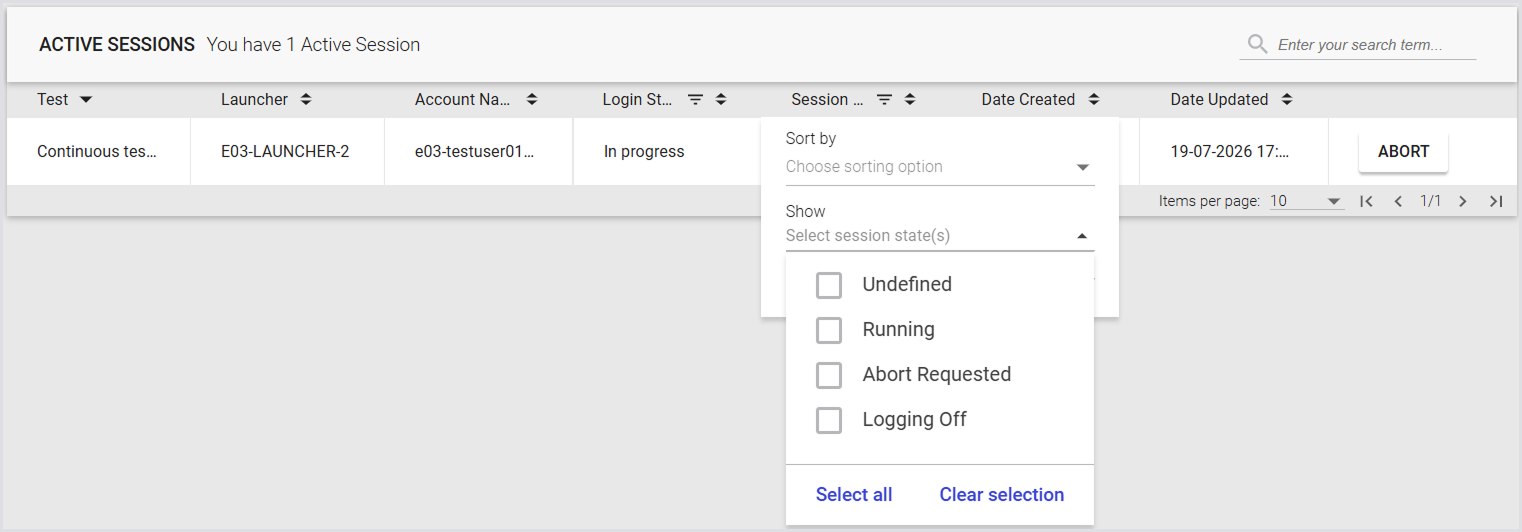
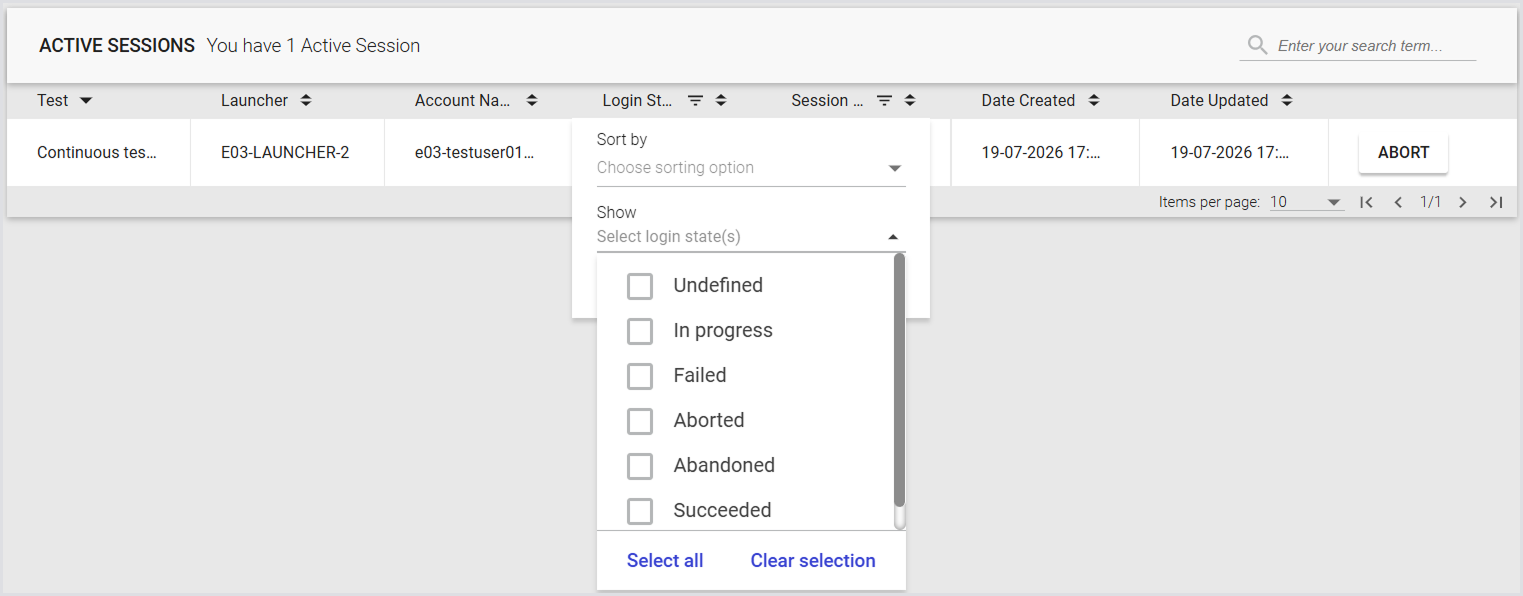
Filter the Login State and Session State columns by selecting one or more values from their column filters.
Select any column heading to sort the table by that column. Select the heading again to reverse the sort order.