.png)
Custom FindImage Function
Overview
This is a custom function to find an image on the screen that matches a reference image with the option to click, right click, or double click on an image when found. If the image is found, the function returns a Boolean value of true, which can be used in logic statements.
Usage
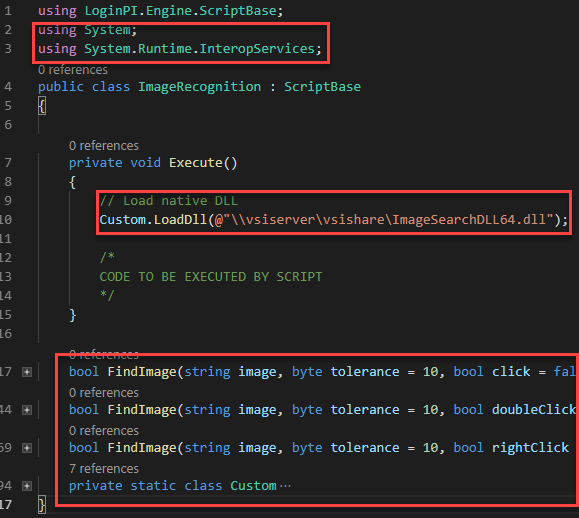
Before the custom FindImage function can be used, you will need to specify the using directive for the namespace System and System.Runtime.InteropServices at the top of the script. You will also need to load the ImageSearchDLL64 library with Custom.LoadDll at the beginning of the Execute method. This will load the dll needed by the FindImage function later on in the script. The rest of the code for the Findimage function can be pasted below Execute()
FindImage
Syntax
FindImage(string image, byte tolerance = 10, bool click = false, bool resetMousePosition = false, bool log = false, int timeout = 30);Parameters | Type | Default Value | Description |
image | string |
| reference image to find on screen |
tolerance | byte | 10 | value 0-255, lower = more strict when it comes to differences in the images, higher = less strict but more prone to errors. Setting the value to 10 has proved successful in most cases. |
click/doubleClick/rightClick | bool | false | click, double click, or right click on an image if found |
resetMousePosition | bool | false | reset the mouse/cursor position after an image is found |
log | bool | false | show findimage attempts in the log output |
timeout |
| 30 | timeout value in seconds to perform findimage |
Code Example
// find an image, click on it, and reset the mouse position.
FindImage(image:@"\\vsishare\image.png", click:true, resetMousePosition:true, timeout:60);

// FindImage wrapped around a timer
StartTimer("find_image");
var image = FindImage(image:@"\\vsishare\image.png", click:false);
// if image is found or true, stop the timer, else cancel the timer
if(image)
{
StopTimer("find_image");
}
else
{
CancelTimer("find_image");
}
Demonstration Video
https://youtu.be/mm542s9Xs34?feature=shared
In this video example we have a workload that opens calculator, finds the numbers 1 to 6 button using findimage and clicks on them. There is a timer wrapped around each findimage function so we can measure how long it takes to find an image. As you can see, the findimage is very fast, taking only 40-60 milliseconds on average to find the reference images. This, of course, can vary depending on the size of the reference image and the screen resolution of the target environment.
Disclaimer
This workload is provided as-is and might need further configuration and customization to work successfully in each unique environment. For further Professional Services-based customization please consult with the Login VSI Support and Services team. Please refer to the Application Script Recording for further self-help information regarding workload crafting and implementation.
customFindImageFunction_v1.0.cs