
Overview
Use Hydra Profile Management to scan, shrink, archive, restore, and clean up FSLogix profile containers across Azure Virtual Desktop host pools. This guide covers setting up the Hydra Proxy and profile stores, enabling access in Hydra, and running or scheduling profile operations.
For more information on Azure, Microsoft Entra ID, Active Directory, SMB file shares, and FSLogix, refer to the appropriate Microsoft documentation.
Profile Management capabilities
FSLogix profile containers grow over time, stay on the share after users leave the company and sometimes stay locked after a session host crashed. Profile Management gives you one place in Hydra to see and clean up your profile shares - across host pools, file servers and tenants.
With Profile Management you can:
-
See all profile stores and their profiles: size, how full the disks are, when they were last used, whether they are in use and whether the user still exists in Active Directory or Entra ID.
-
Look inside the disks (deep scan): how much of a disk is really used and how much a shrink could give back.
-
Shrink dynamic VHD/VHDX disks, also in a deep mode that defragments and shrinks the partition first.
-
Archive profiles that are not used any more (for example of users that left) to an archive share, and restore them.
-
Delete profiles - single ones, or by criteria (not used for a number of days and the user no longer exists) - and clean up the archive with it.
-
Find and close open file handles that block a profile disk after a session host crashed.
-
Create subfolders (for example one per host pool) with the NTFS permissions FSLogix needs.
-
Automate all of this with maintenance tasks that run on a weekly schedule.
How Profile Management works
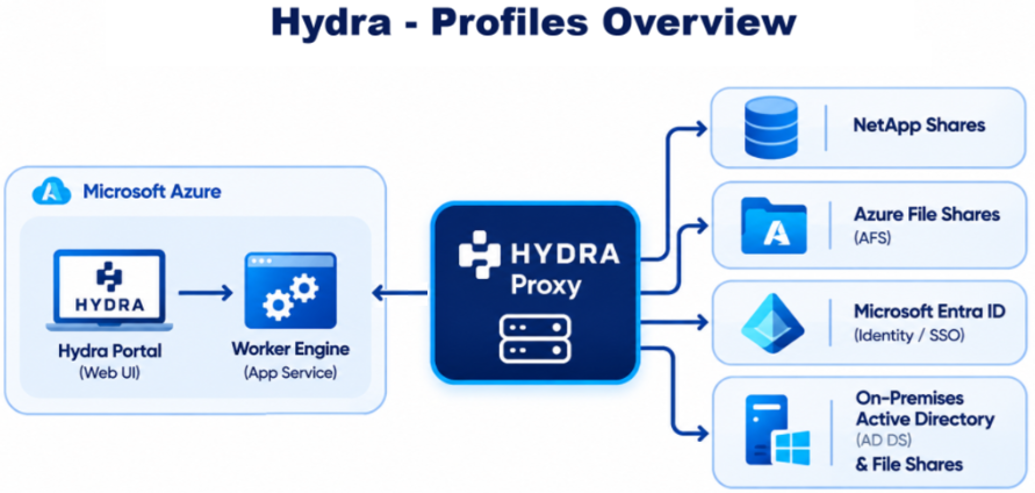
Profile Management runs on the Hydra Proxy - the Hydra Agent in proxy mode on a Windows server close to your file shares. The proxy does the work on the shares; the Hydra portal and the Hydra worker engine only send requests and show the results.
-
The profile stores are defined only on the proxy, in HydraProxy.json. Paths and credentials never leave the proxy.
-
The portal addresses a store only by its id and names subfolders and profiles by name. The proxy matches these names against the folders that really exist - a request from the portal can never point to another path.
-
Operations that change something (shrink, archive, restore, delete, close handles, create subfolder) run as Hydra actions: they are logged, show their progress and result under Logs, and can be cancelled.
-
Reading (scan, open handles, archive list) is answered directly and cached for a short time.
Supported storage
|
Storage |
Profiles |
Open file handles |
|
Windows file server (SMB) |
yes |
yes - the proxy needs administrator rights on the file server |
|
Azure Files (SMB) |
yes |
yes - with the storage account key or an Entra app registration |
|
Azure NetApp Files (SMB) |
yes |
yes - uses the SMB server management API |
The FSLogix folder naming is detected automatically: %sid%_%username% and the "flip flop" form %username%_%sid%. Profile folders can be directly in the root of the share or in one level of subfolders below it (for example one subfolder per host pool).
Before you run profile operations
Review these safeguards before you run an operation.
-
Dry run by default. Every operation that changes something only reports what it would do, unless you tick Execute.
-
Disks in use are never touched. Each disk is checked right before the operation. A profile that is mounted is skipped - this cannot be overridden.
-
Fresh data before acting. Archive and delete scan each profile again right before they act and look up its user again (no cached identity). If the profile changed since the scan, it is skipped.
-
Unknown is not "no". If a criterion cannot be decided (for example the user could not be looked up), the profile is skipped and the reason is shown.
-
Archived profiles keep everything. An archive keeps the folder with its permissions and timestamps and writes a manifest next to it (when, why, by whom, where from). Only folders with a manifest can be restored or deleted from the archive.
-
Deleting by criteria only removes profiles of users that no longer exist (or are disabled). Profiles of existing, enabled users can only be deleted one by one in the profile table.
Prerequisites
Hydra Proxy
-
A Windows server with the Hydra Agent installed in proxy mode and connected to Hydra (the same Hydra Proxy you may already use for other features).
-
The proxy runs as SYSTEM (default). It needs local administrator rights for the deep scan and the shrink, because these attach the profile disks.
-
Network access to the file shares (SMB, TCP 445).
-
For user lookups in Active Directory: the proxy is domain joined (it queries AD with its own computer account). Without AD, users can only be looked up in Entra ID.
-
For user lookups in Entra ID and for Azure Files handles with Entra: outbound HTTPS to Microsoft Graph and Azure Storage, and an app registration (“Create a Microsoft Entra app registration”).
Access to profile and archive shares
The proxy works on the shares with its own identity (the computer account) - or, if you store credentials for a server (“Store credentials on the proxy”), with that account.
|
Storage |
Account |
Rights it needs |
|
Windows file server |
proxy computer account, or a service account |
Full Control on the share and NTFS of the profile root and of the archive root (like an FSLogix storage administrator); local administrator on the file server to list and close open file handles |
|
Azure Files |
localhost\<storage account> with the storage account key |
Full access through the key; for handles with Entra see “Grant Azure Files access for file handles” |
|
Azure NetApp Files |
a domain account |
Full Control on the share and NTFS of the profile root and of the archive root |
The archive must not be inside the profile root. It can be on another share or another server.
Hydra settings and access
-
The features Hydra Proxy and Profile Management are switched on in the global settings (“Enable Profile Management in Hydra”).
Users need a Hydra role that grants the profile store permissions required for their work. See “Enable Profile Management in Hydra” for role examples.
Plan your profile stores
A profile store is one share (or folder) with FSLogix profiles, as the proxy sees it. For each store you decide:
-
Store id - a short, unique id (for example avd-profiles-cgn). Hydra uses it in all requests and logs.
-
Root path - the UNC path of the profile root, for example \\fs01\fslogix or \\stprofiles.file.core.windows.net\profiles.
-
Archive root (optional) - where archived profiles go, for example \\fs02\fslogix-archive. Without it, archive and restore are not available for the store.
-
Layout - where the profile folders are below the root (see the table in “Profile store settings”).
-
Kind of file server - Windows file server, Azure Files or Azure NetApp Files.
-
Entra tenant (optional) - needed for cloud-only users, for hybrid users that Active Directory cannot answer, and for closing Azure Files handles with Entra.
-
Subfolder creation (optional) - whether admins may create new subfolders in the root through Hydra, and which groups get which permissions on them.
The archive mirrors the structure of the store: a profile from \\fs01\fslogix\HostPool1\<profile> is archived to <archive root>\HostPool1\<profile>, a profile directly in the root to <archive root>\<profile>. Use one archive root per store.
Create a Microsoft Entra app registration
The app registration lets the proxy look up users in Entra ID and, optionally, close open file handles on Azure Files. You need it if you have cloud-only users (Entra joined, SIDs starting with S-1-12-1), hybrid users that your Active Directory cannot query, or if you want to close Azure Files handles without the storage account key. You may choose to either use the existing Service Principal assigned to your tenant or create a new one. If you use the existing Service Principal, skip to the Grant Azure Files access for file handles section to assign the Service Principal the Storage File Data Privileged Contributor role.
If all your users are in Active Directory and the proxy is domain joined, you can skip this section entirely.
Register the application
-
Sign in to the Azure portal and open Microsoft Entra ID > App registrations > New registration.
-
Name: for example Hydra Profile Management. Supported account types: Accounts in this organizational directory only. No redirect URI.
-
Select Register. Note the Application (client) ID and the Directory (tenant) ID from the overview page.
-
Open Certificates & secrets > Client secrets > New client secret. Choose an expiry that fits your policy and copy the Value right away - it is shown only once.
Grant Microsoft Graph access
-
Open API permissions > Add a permission > Microsoft Graph > Application permissions.
-
Select User.Read.All and add it.
-
Select Grant admin consent for your tenant and confirm. The status must show a green check mark.
User.Read.All is used to read a user by its object id or by its on-premises SID, and to check whether a deleted user is still in the recycle bin. Profile Management never writes to Entra ID.
Grant Azure Files access for file handles
Only needed if you want to list and close open file handles on Azure Files with the app registration instead of the storage account key.
-
Open the storage account > Access control (IAM) > Add > Add role assignment.
-
Select the role Storage File Data Privileged Contributor.
-
Assign access to User, group, or service principal and select the app registration / Service Principal.
-
Review and assign.
Note: The roles Owner and Contributor are not enough: they only cover the management of the storage account, not the data in the file shares.
Rotate the secret
Before the secret expires, create a new one and store it again on the proxy with the same command as in “Store credentials on the proxy” below. The old secret can be deleted afterwards.
Configure the Hydra Proxy
Define profile stores in the proxy configuration
The profile stores are defined in HydraProxy.json next to HydraAgent.exe on the proxy. Add an EntraTenants list (only if you use Entra) and a ProfileStores list:
{
"EntraTenants": [
{ "Name": "contoso", "TenantId": "00000000-0000-0000-0000-000000000000", "Cloud": "AzureGlobalCloud" }
],
"ProfileStores": [
{
"StoreId": "avd-profiles-cgn",
"StoreName": "Cologne profiles",
"RootPath": "\\\\fs01\\fslogix",
"ArchiveRoot": "\\\\fs02\\fslogix-archive",
"ServerKind": "WindowsFileServer",
"Layout": "Auto",
"EntraTenant": "contoso"
},
{
"StoreId": "avd-profiles-azure",
"StoreName": "Azure Files profiles",
"RootPath": "\\\\stprofiles.file.core.windows.net\\profiles",
"ArchiveRoot": "\\\\stprofiles.file.core.windows.net\\archive",
"ServerKind": "AzureFiles",
"EntraTenant": "contoso",
"AllowCreateSubFolders": true,
"SubFolderUsersGroup": "CONTOSO\\AVD-Users",
"SubFolderAdminGroups": [ "CONTOSO\\AVD-Admins" ]
}
]
}
In JSON every backslash is written twice: \\\\fs01\\fslogix is the path \\fs01\fslogix.
The proxy reads the file again every 30 seconds - no restart is needed. A store with an invalid definition is logged and skipped; the other stores still load. Check the file with a JSON validator after each change: a file that is not valid JSON is not loaded at all.
Profile store settings
|
Setting |
Meaning |
|
StoreId |
Required. Unique id of the store, used by Hydra in all requests. Don't change it later - maintenance tasks refer to it. |
|
StoreName |
Display name in the portal. |
|
RootPath |
Required. UNC path of the profile root. |
|
ArchiveRoot |
Optional. UNC path of the archive. Must not be inside RootPath. Without it there is no archive and no restore. |
|
ServerKind |
WindowsFileServer (default), AzureFiles or AzureNetAppFiles. Decides how open file handles are read and closed. |
|
Layout |
Auto (default): profile folders directly in the root and/or in subfolders, decided per folder. SubFolders: only in subfolders (for example one per host pool). Root: only directly in the root. |
|
EntraTenant |
Optional. Name of an entry in EntraTenants. Enables user lookups in Entra ID and Azure Files handles with Entra. |
|
Enabled |
Optional, default true. false hides the store without deleting its definition. |
|
AllowCreateSubFolders |
Optional, default false. Allows creating new subfolders in the root through the portal. |
|
SubFolderUsersGroup |
Optional. Group (DOMAIN\group or SID) that may create profile folders in a new subfolder. Empty: Authenticated Users. |
|
SubFolderAdminGroups |
Optional. Groups (names or SIDs) that get Full Control on a new subfolder, in addition to SYSTEM and Administrators. |
|
EntraTenants setting |
Meaning |
|
Name |
Your name for the tenant, used in EntraTenant of a store and in the credential command. |
|
TenantId |
Directory (tenant) id of the app registration. |
|
Cloud |
AzureGlobalCloud (default), AzureUSGovernment, AzureChinaCloud or AzureGermanCloud. |
Store credentials on the proxy
Credentials are never written to HydraProxy.json. They are stored encrypted on the proxy with the Hydra Agent command line. Run these commands in an elevated command prompt on the proxy, in the folder of HydraAgent.exe: Replace angle-bracket placeholders with your own values before running a command.
REM Account for a file server (per server, not per share)
HydraAgent.exe ServerAuthentication set fs01 CONTOSO\svc-hydra-profiles <password>
REM Azure Files: user localhost\<storage account>, password = storage account key
HydraAgent.exe ServerAuthentication set stprofiles.file.core.windows.net localhost\stprofiles <storage account key>
REM App registration of an Entra tenant (Name from EntraTenants)
HydraAgent.exe EntraAuthentication set contoso <application (client) id> <client secret>
REM Show and delete
HydraAgent.exe ServerAuthentication list
HydraAgent.exe EntraAuthentication list
HydraAgent.exe ServerAuthentication delete fs01
-
Store a server credential only where the proxy's own computer account has no access.
-
The commands store the credentials for the running proxy service. The variants ServerAuthenticationCurrent and EntraAuthenticationCurrent store them for your own user account instead - only useful if you run the Hydra Agent interactively for tests.
-
After storing a new secret, the next request uses it; no restart is needed.
Enable Profile Management in Hydra
-
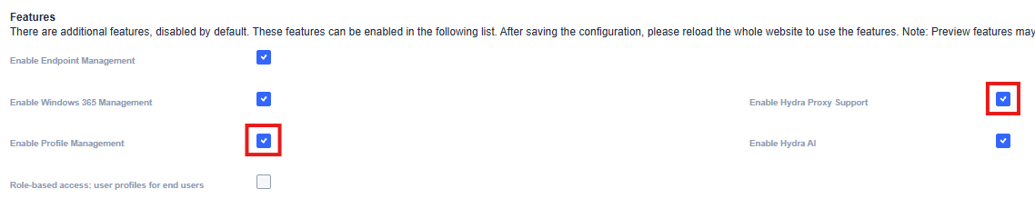
In the Hydra portal, open the global settings and go to the Features section.
-
Make sure Enable Hydra Proxy is on, and switch on Enable Profile Management. Save.
-
Assign a role with the permissions needed at the appropriate scope. Use Profile store operator for scanning and closing handles or Profile store administrator to manage assigned stores.
The Profiles menu appears when the signed-in user can access at least one store served by a connected Hydra Proxy. Check that both features are enabled and that the user has access to the store.
Manage profiles in Hydra
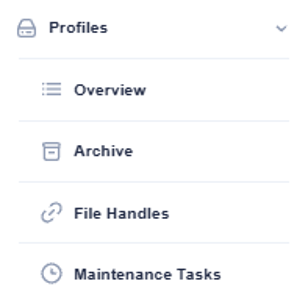
The menu Profiles has four pages:
|
Page |
What for |
|
Overview |
All profile stores and their profiles. Deep scan, shrink, archive, delete, close handles, create subfolders. |
|
Archive |
The archived profiles of each store. Restore or delete them. |
|
File Handles |
Profiles whose disks are open right now, with the handles. Close stale handles. |
|
Maintenance Tasks |
Prepared operations with a weekly schedule. |
All tables work like the other tables in Hydra: search, filters in the column headers, hidden columns that you can show, paging, CSV download, and checkboxes to select rows for an action.
Preview actions and review results
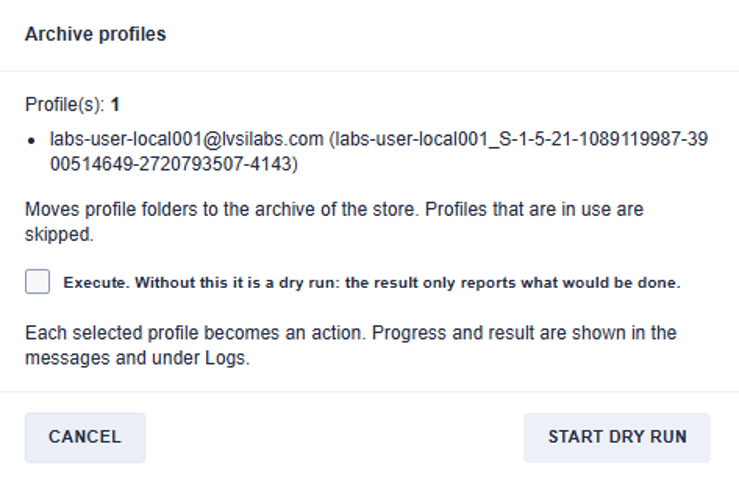
Every operation that changes something opens a dialog first:
-
Execute - without it the operation is a dry run: it only reports what it would do. Start with a dry run and read its result.
-
Subfolders - for a store with subfolders you can tick the subfolders to work on. Nothing ticked means the whole store. Each ticked subfolder becomes its own action.
-
DELETE - deleting profiles needs the word DELETE typed in.
After you confirm, the operation runs as an action. Its progress and result are shown in the messages of the portal and under Logs. A running action can be cancelled there: the profiles in progress are completed, no new ones are started, and the result lists what was done.
View profile stores
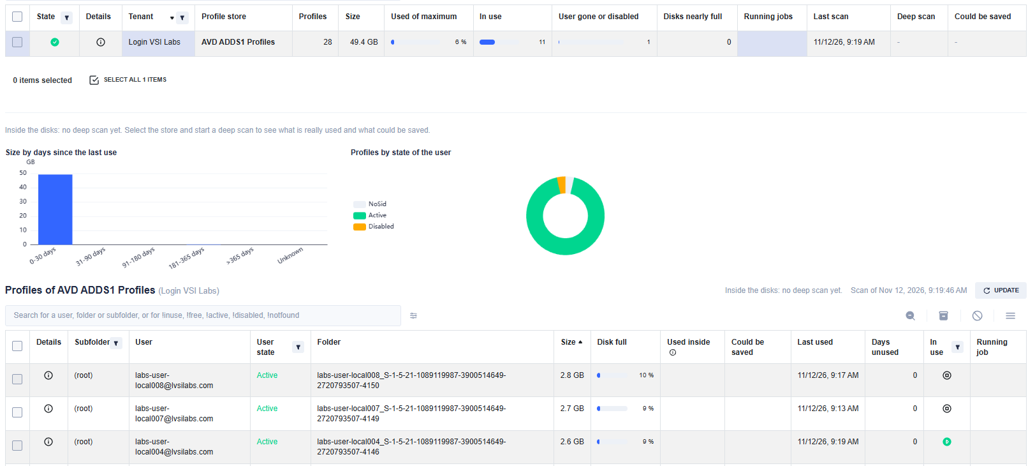
The upper table lists all profile stores you have access to - across tenants - with the numbers of their last scan:
-
State - Ready, Scanning, Not connected (the proxy of the store is offline) or Error.
-
Profiles, Size, Used of maximum - the number of profiles, their size on the share, and how full the disks are compared to their maximum size (bar chart).
-
In use - profiles that are mounted right now.
-
User gone or disabled - profiles whose user no longer exists or is disabled, and their size: the candidates for an archive or a clean-up.
-
Disks nearly full - disks at 90 % or more of their maximum size.
-
Deep scan - when the store was last deep scanned. The info icon shows the summary of that deep scan.
-
Could be saved - what a shrink could give back, from the last deep scan.
The info icon at the start of a row shows all details of the last scan of the store.
Scans are kept for 30 minutes - the page does not refresh on its own. Select Update to scan again; a scan that is already running is joined, never started twice.
Actions on stores
Select one or more stores with the checkboxes, then:
-
Deep scan - looks inside every disk that is not in use (“Deep scan profile disks”).
-
Shrink - compacts the disks of the store (“Shrink profile disks”).
-
Archive - archives the profiles that match your criteria: not used for more than a number of days and the user no longer exists (or is disabled, or any user).
-
In the menu: Create subfolder (“Create subfolders”), Delete profiles by criteria (“Delete profiles by criteria”) and Download CSV.
View profiles in a store
Click a store row to see its profiles in the lower table:
-
User, User state - the owner and whether the account is Active, Disabled, NotFound, SoftDeleted (in the Entra recycle bin) or could not be resolved.
-
Size, Disk full - the size on the share and how full the fullest disk is.
-
Last used, Days unused - the last write to the newest disk.
-
In use - whether a disk is mounted right now.
-
Running job - an operation that is working on this profile right now, with its progress.
-
From the last deep scan: Used inside, Could be saved, and the optional columns Last use of the profile and Days since last use (read from the registry hive inside the disk).
-
Optional columns: subfolder, containers, owner SID and where the SID was taken from, category, Warnings and Errors. Point at the number of warnings or errors to read them; the details show them in full.
The info icon of a row shows everything known about the profile, including the warnings and errors.
Actions on profiles
Select one or more profiles, then:
-
Shrink - compacts the disks of the selected profiles.
-
Archive - moves the selected profiles to the archive of the store.
-
Close file handles - closes open handles on the disks (only for handles left behind by a crashed session host - a session that really uses the profile breaks).
-
Delete - deletes the selected profiles from the share. They are not archived first. Optionally the archived copies of these users (same subfolder) are deleted, too. A profile is only deleted if it still belongs to the owner you saw in the table.
Deep scan profile disks
A normal scan reads the file system only: sizes, dates, owners. A deep scan also attaches every disk that is not in use - read-only, without a drive letter - and reads what is inside:
-
how much of the disk is really used, and how much a shrink could give back (a range from what a plain compaction surely frees to what a deep shrink could free),
-
the owner SID inside the disk (a mismatch with the folder name is reported),
-
when the profile was last used, from the registry hive (more reliable than the file dates) and whether the hive was closed cleanly.
A deep scan changes nothing. It takes a few seconds per disk; run it at a time with few logons. Disks that are in use are skipped. The proxy keeps the last deep scan of each store and subfolder; the overview shows its values next to the current scan.
Shrink profile disks
Dynamic VHD/VHDX disks grow but never shrink on their own. A shrink compacts them:
-
Standard - attaches the disk read-only and compacts it. Safe and quick.
-
Deep - if the standard compaction cannot reach the minimum savings, defragments the volume inside the disk and shrinks and expands its partition first, then compacts. This mounts the disk for writing and takes longer.
-
Skip disks with estimated savings below - disks that would give back less than this (default 512 MB) are not touched.
Disks in use, fixed-size disks and differencing disks are skipped. The timestamps of the disk files are kept, so the "last used" date stays correct.
A user who logs on while their disk is being compacted gets an FSLogix error. Shrink outside working hours - ideally with a maintenance task.
Archive and restore profiles
An archive moves the profile folder to the archive root of the store, into the same subfolder. On the same volume it is a rename; across servers the folder is copied with its permissions and timestamps, verified and then removed. A manifest file next to the archived folder records when, why (the criteria), by whom and from where it was archived, and the user's state at that time.
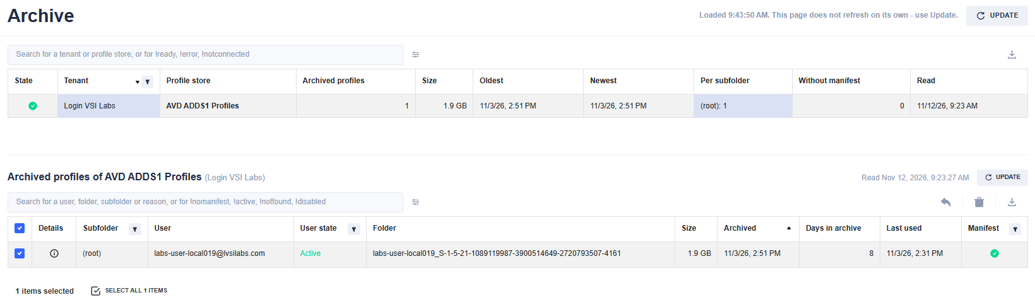
The page Profiles > Archive lists the stores with an archive. Click a store to see its archived profiles:
-
Restore moves the selected profiles back to where they came from. Nothing is overwritten: if the user has a profile folder there again, the restore of that profile is refused.
-
Delete removes the selected profiles from the archive for good.
-
Folders without a manifest (not archived by Hydra) are listed, but cannot be restored or deleted from here.
Delete profiles by criteria
Delete profiles by criteria (menu of the store actions) deletes the profiles of a store - or of selected subfolders - that:
-
were not used for more than a number of days (default 365), and
-
whose user no longer exists - or no longer exists or is disabled.
For security reasons, profiles of users that still exist and are enabled cannot be deleted by criteria. To delete such a profile, select it in the profile table and delete it there. A profile whose user could not be looked up is skipped.
Options for stores with an archive:
-
also delete the archived copies of the profiles that are deleted (same user, same subfolder),
-
also delete archived profiles of such users that were archived more than a number of days ago, even if the user has no profile on the share any more.
Find and close file handles
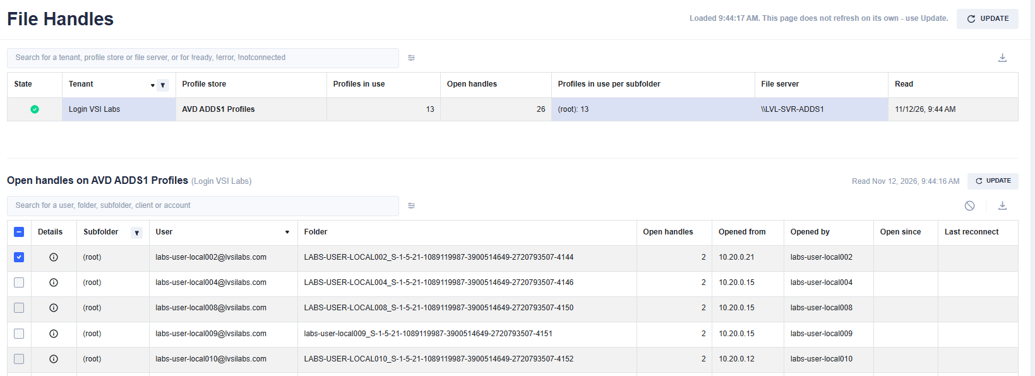
The page Profiles > File Handles asks the file server of each store which profile disks are open right now:
-
the upper table shows per store how many profiles are in use and how many handles are open,
-
click a store to see the profiles with open handles: from which computer, by which user, since when.
Select profiles and close their handles to release a disk that is still locked after a session host crashed. Closing handles of a session that really uses the profile breaks that session.
Create subfolders
If the store allows it (AllowCreateSubFolders), Create subfolder creates a new folder in the root of the store - for example for a new host pool - with the permissions FSLogix needs, without inheritance:
-
SYSTEM, Administrators and the configured admin groups: Full Control,
-
the users group (SubFolderUsersGroup): may create their own profile folder in the new subfolder (this folder only),
-
CREATOR OWNER: Modify on the profile folders and files below.
The name may contain letters, digits, spaces, _, . and -, up to 64 characters, and must not start or end with a space or a dot. The name is checked by the portal and again by the proxy.
Maintenance tasks
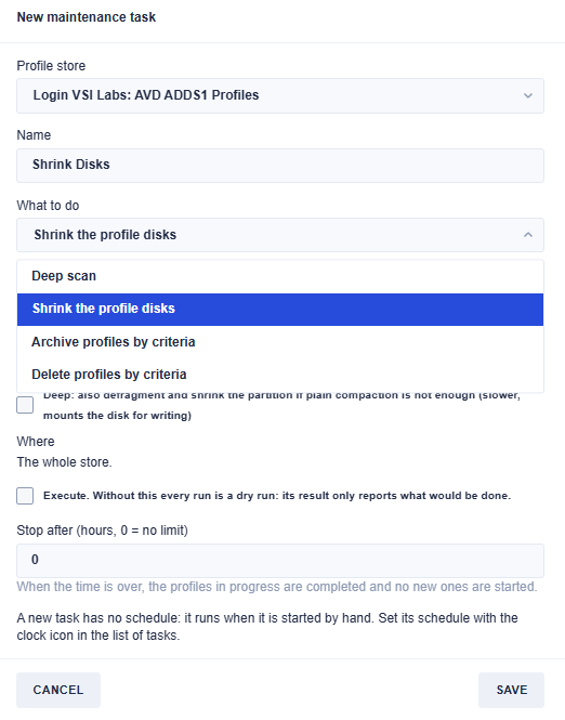
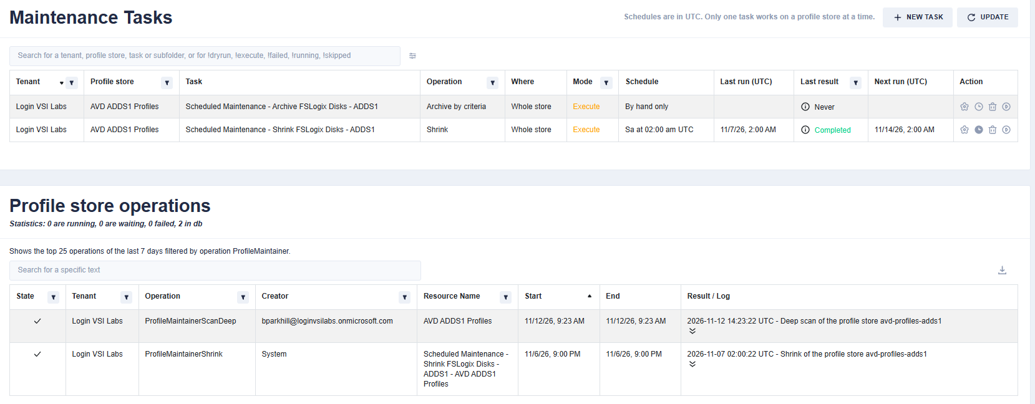
A maintenance task is a prepared deep scan, shrink, archive or delete on one profile store that runs on a weekly schedule or when you start it.
-
Select New task, choose the store, give the task a name and choose what it does and where (the whole store or selected subfolders).
-
Set the options of the operation, Execute (without it every run is a dry run) and optionally Stop after a number of hours.
-
Save. A task that deletes profiles and executes needs the word DELETE typed in.
-
Select the clock icon of the task to set its schedule: weekdays and start time in UTC, and advanced options (start and end date, every n-th week of the month, quarters). The icon is filled when a schedule is active.
In the table of tasks you see the schedule, the last and the next run and the result of the last run. The info icon shows the full result of the last run. With the play icon you start a task now.
-
Only one task works on a store at a time. A task that is due while another task is still running on the same store is skipped (shown as "Skipped" with the reason) and runs again at its next schedule.
-
Stop after - when the time is over, the profiles in progress are completed and no new ones are started. A deep scan that is stopped this way gives no result.
-
If the proxy of the store is not connected when a task starts, the run fails with that reason; the next schedule tries again.
-
The log at the bottom of the page shows all operations on profile stores of the last days.
Profile operation safeguards
When an operation skips a profile, the result says why:
|
Reason |
Meaning |
Can be overridden |
|
In use |
A disk of the profile is mounted |
never |
|
In use unknown |
The in-use check failed |
never |
|
Changed since scan |
The profile changed between the scan and the operation |
never |
|
Not a profile / orphan |
The folder is not a profile folder, or has no user SID (orphans are never archived) |
never |
|
Filter undetermined |
A criterion could not be decided, e.g. the user could not be looked up |
no (Hydra never forces) |
|
Owner from permissions only |
The owner came only from the NTFS owner, not from the folder name |
no |
|
Internal SID mismatch |
The SID inside the disk differs from the folder name |
no |
|
Scan errors |
The folder could not be read completely |
no |
|
No manifest |
Archived folder without a manifest (not archived by Hydra) |
no |
Shrink has its own reasons: fixed-size disk, differencing disk, below the minimum savings, no estimate possible.
Troubleshooting
|
Problem |
What to check |
|
The menu Profiles is missing |
Both features are on in the global settings; your role grants access to the profile store; the proxy is connected and announces at least one store. |
|
A store is missing |
HydraProxy.json is valid JSON; the store has a unique StoreId and is not Enabled: false; the log of the Hydra Proxy shows why a store was skipped. Wait 30 seconds after a change. |
|
"No connected Hydra Proxy is serving the profile store" |
The proxy is offline or reconnecting. Running actions retry for a while; maintenance tasks try again at the next schedule. |
|
Access denied on the share |
The proxy computer account (or the stored server credential) needs Full Control on the root and the archive. Check with HydraAgent.exe ServerAuthentication list. |
|
Many users "Unresolved" or "NotFound" |
The proxy is not domain joined or cannot reach a domain controller; for cloud-only users the store needs an EntraTenant with a stored app secret and User.Read.All with admin consent. Profiles with an unresolved user are skipped by criteria-based operations. |
|
Azure Files handles: 403 / not authorized |
The app registration needs the role Storage File Data Privileged Contributor on the storage account (“Grant Azure Files access for file handles”), or store the storage account key as server credential. |
|
Deep scan shows "SkippedInUse" |
The disk was mounted at the time of the scan. Run the deep scan when fewer users are logged on. |
|
A profile shows errors |
Show the column Errors and point at the number, or open the details of the profile: the message says what could not be read and why. |
|
A shrink saves less than estimated |
The upper estimate assumes a deep shrink; a standard compaction cannot move used blocks behind free space. Use Deep, or check the deep scan values. |
Reference
Hydra Proxy commands
|
Command |
Purpose |
|
HydraAgent.exe ServerAuthentication set <server> <user> <password> |
Store the account for a file server (Azure Files: localhost\<account> and the key) |
|
HydraAgent.exe ServerAuthentication list |
Show the stored server accounts |
|
HydraAgent.exe ServerAuthentication delete <server> |
Delete a stored server account |
|
HydraAgent.exe EntraAuthentication set <tenant name> <client id> <secret> |
Store the app registration of an Entra tenant |
|
HydraAgent.exe EntraAuthentication list |
Show the stored app registrations |
|
HydraAgent.exe EntraAuthentication delete <tenant name> |
Delete a stored app registration |
Permissions summary
|
Where |
What |
|
Hydra |
A role granting the required profile store permissions; features Hydra Proxy and Profile Management on |
|
Profile and archive shares |
Full Control (share and NTFS) for the proxy computer account or the stored server account |
|
Windows file server |
Local administrator for the proxy account, to list and close open file handles |
|
Microsoft Graph |
Application permission User.Read.All with admin consent (only with Entra) |
|
Azure Files |
Storage File Data Privileged Contributor for the app registration (only for handles with Entra) |