
Overview
Use role-based access control (RBAC) to manage who can perform actions in Hydra and where they can perform them. A role defines the permissions. An assignment links a role to a user or group and specifies the scopes where it applies.
In Hydra, open Role Based Access. The page has three tabs.
|
Tab |
Use it to |
|
Assignments |
Review role assignments, manage scopes, and inspect effective access. |
|
Roles |
Review available roles and create custom roles. |
|
Users |
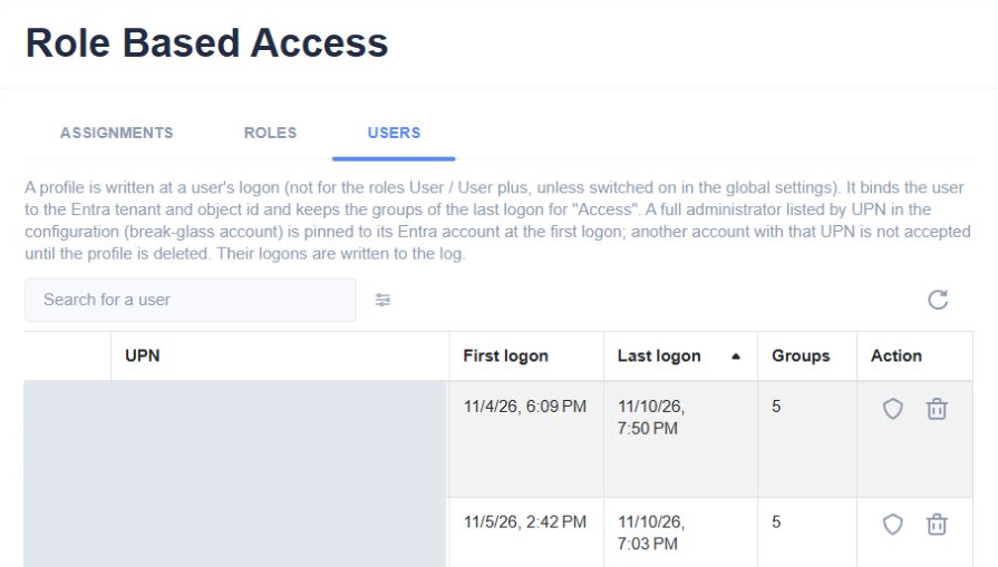
Find users with a Hydra sign-in profile and review when they last signed in. |
The Assignments tab lists full administrators from the configuration above the assignment table. These are break-glass administrator accounts configured at the initial deployment of Hydra. You can use the config:Administrators environment variable on the App Service to modify these after deployment.

Assign a role to a user or group
-
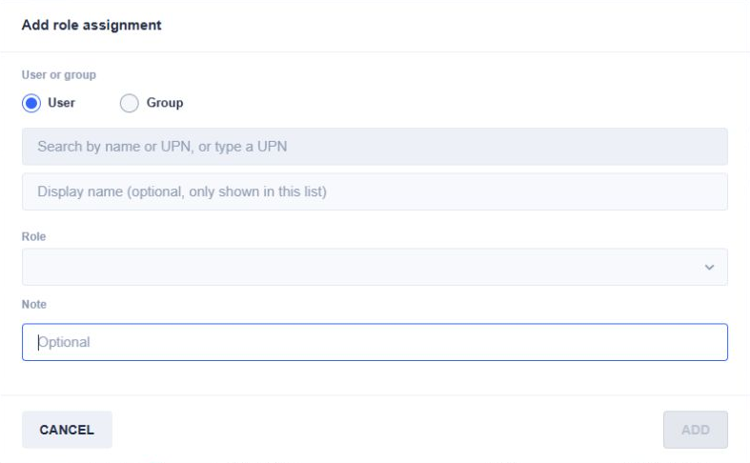
On the Assignments tab, select + to open Add role assignment.
-
Under User or group, select the identity type.
-
User. Search by name or user principal name (UPN), or enter the UPN directly.
-
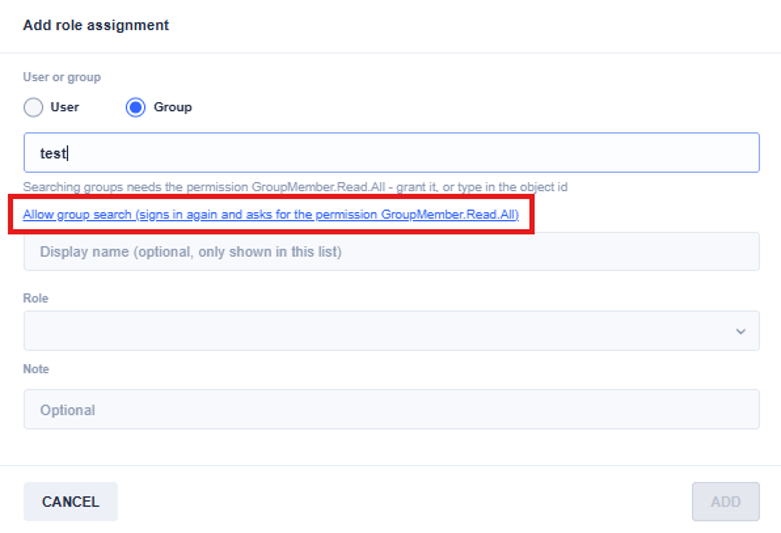
Group. Search by name or enter the Microsoft Entra group object ID directly.
· Note: Because the Web Authentication service principal may not have GroupMember.Read.All permissions, you can select the allow group search link, after attempting to search, to automatically give it the necessary permission for group searches. An Entra administrator will typically need to complete this step or assign the appropriate Graph application permission manually. Otherwise, you can use the group’s object ID.
-
Optionally, enter a display name for the assignment list.
-
Select a built-in or custom Role. The Scopes picker appears after you select a role.
-
Check the scopes where the role should apply. Depending on the role, you can select All tenants, a tenant, or a resource such as a host pool. Full administrator can only be assigned at All tenants.
-
Optionally, enter a Note. Select Add.
-
Find the assignment in the table and check the Role and Scopes columns.
To extend an existing assignment, select Add scopes in the row's Scopes column. Scopes already on that row are checked and marked (assigned). Check the scopes you want to add, then select Add.
View effective access
-
On the Assignments tab, open Effective access using either shield icon.
-
Select the shield in a row's Access column to look up that user or group.
-
Select the shield above the table to look up another identity. Choose User or Group, specify the identity, and select Show.
-
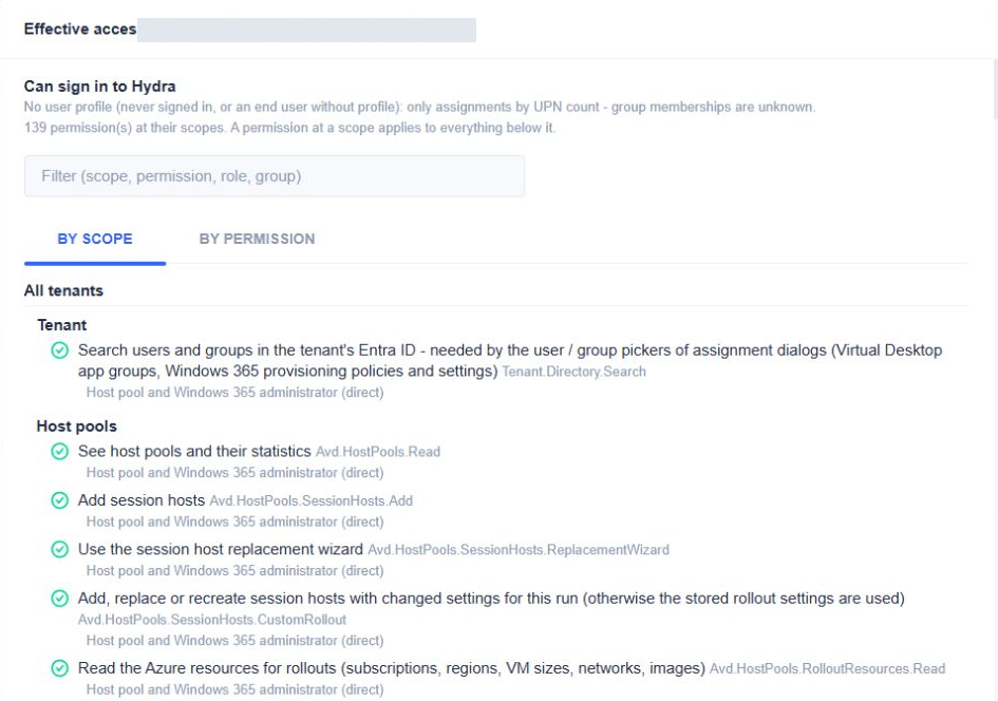
For a user, check the sign-in status at the top of the results.
-
Select By scope to see the permissions that apply at each scope, or By permission to see where a particular action is allowed. A permission granted at a parent scope also applies to its child scopes.
-
Review the source listed for each permission to see which assignment grants it. For a user with a sign-in profile, Hydra uses the group memberships recorded at the last sign-in. If the user has no profile, Hydra can evaluate direct assignments by UPN, and group membership is unknown.
Create a custom role
-
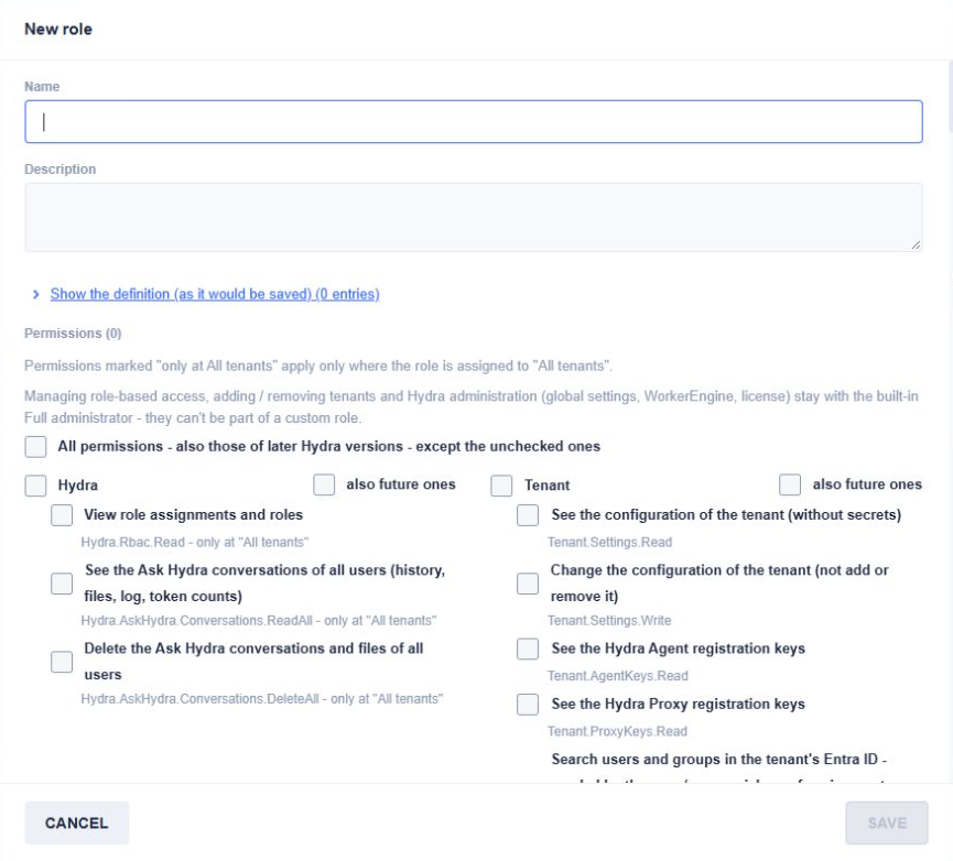
On the Roles tab, select + to open New role.
-
Enter a Name and describe the role in Description.
-
Under Permissions, check the individual actions or permission categories to include. Use also future ones on a category to include permissions added to it in later Hydra versions. The All permissions option includes permissions added in later versions across categories, except those you uncheck.
-
Expand Show the definition (as it would be saved) to review the role definition, then select Save.
-
Return to Assignments to assign the new role to a user or group and select its scopes.
Permissions marked only at All tenants apply only when the role is assigned at All tenants. Managing RBAC, adding and removing tenants, and administering global settings, Engine, and licensing are reserved for the built-in Full administrator role.
View users who have signed in
-
In Role Based Access, open the Users tab.
-
Find the user by Name or UPN. Compare First logon and Last logon to see when the user's profile was first recorded and when they most recently signed in. Groups shows the number of groups recorded at the last logon.
-
Select the shield in the Action column to view the user's effective access.
Hydra records a profile at sign-in and associates it with the user's Microsoft Entra tenant and object ID. Profile recording for end user roles (such as User or User Plus) depends on the RBAC: User Profiles for End Users setting found under the Features section in Global Settings. In large environments using the My Sessions & Hosts, enabling this option may cause excessive users to get recorded here.
Use the Last logon column to check sign-in recency.
Built-in roles
Select a role name on the Roles tab to review its permission details. Some capabilities require assignment at a particular scope, as described in the role's details. Note that you can copy from these built-in roles to use as templates for custom roles.
|
Role |
Description |
|
Full administrator |
Administers Hydra, including RBAC, tenants, global settings, shared scripts and collections, and licensing. Assign at All tenants. |
|
Host pool and Windows 365 administrator |
Manages host pool settings and operations. At tenant or broader scope, also manages AVD resources, Windows 365 resources, and profile stores. |
|
Host pool resource manager |
Adds, replaces, and recreates session hosts, runs scripts and collections, and manages images. At tenant or broader scope, also performs Cloud PC operations. |
|
Session host operator + delete |
Includes the Session host and Cloud PC operator permissions and adds session host deletion. |
|
Session host and Cloud PC operator |
Operates session hosts, manages drain mode and personal host assignments, and views Hydra Lens data. At tenant or broader scope, also performs operations such as restarting, shutting down, and syncing Cloud PCs. |
|
User and profile manager |
Includes User manager + processes permissions and adds FSLogix profile deletion. |
|
User manager + processes |
Adds session process management and endpoint diagnostics to User manager. At tenant or broader scope, also supports Cloud PC process management and selected Hydra Agent operations. |
|
User manager |
Views host pools and sessions, sends messages to sessions, disconnects and logs off sessions, and views and closes open file handles. |
|
End user |
Manages power for their own assigned session hosts and Cloud PCs and can disconnect or log off their own sessions. |
|
Ask Hydra user |
Uses Ask Hydra with the data their other roles allow them to see. |
|
Hydra Lens reader |
Views Hydra Lens data for assigned host pools. |
|
Imaging operator |
Creates images for an assigned Azure tenant or an assigned Hydra Proxy or custom location. |
|
Profile store administrator |
Manages assigned profile stores. |
|
Profile store operator |
Views profile stores, scans profiles, and closes open handles. |
|
Script author |
Views and edits scripts and collections in assigned tenants and can view shared scripts and collections. |
|
Windows 365 administrator |
Manages Windows 365 resources, including Cloud PCs, provisioning policies, and licenses. A provisioning policy assignment limits access to the Cloud PCs under that policy. |