
Preview feature — Hydra 3.0.0. Ask Hydra is available as a preview in version 3.0.0. Preview functionality may change in future releases. Feedback is welcome through the Feedback option in Hydra.
Overview
Ask Hydra is an AI-assisted reporting feature in Hydra Lens. Users can ask questions about the Hydra-managed environments they are authorized to access and review responses in a conversation. Ask Hydra is read-only in this preview: it provides information and analysis but does not execute administrative changes.
Responses may include formatted text, tables, line charts, bar charts, pie charts, and KPI cards. The availability and quality of a response depend on the question, accessible data, and selected AI model.
To access the feature, navigate to Hydra Lens > Ask Hydra in the left-hand menu.
Prerequisites and Access
-
A Full Admin must enable Ask Hydra in Global Settings and enable AI access for each tenant that Ask Hydra may access.
-
A Full Admin must configure at least one AI model registry with valid provider connection details.
-
Only Full Admins can access Ask Hydra model settings. Other users may be granted access to Ask Hydra through Role Based Access (RBAC).
-
Ask Hydra is scoped to the tenants, resources, and data the signed-in user is authorized to access.
Enabling Ask Hydra
Enable Ask Hydra in Global Settings
-
As a Full Admin, open Global Settings.
-
In the Features section, select Enable Hydra AI.
-
Save the configuration changes. Reload the Hydra website as instructed by the Features section.

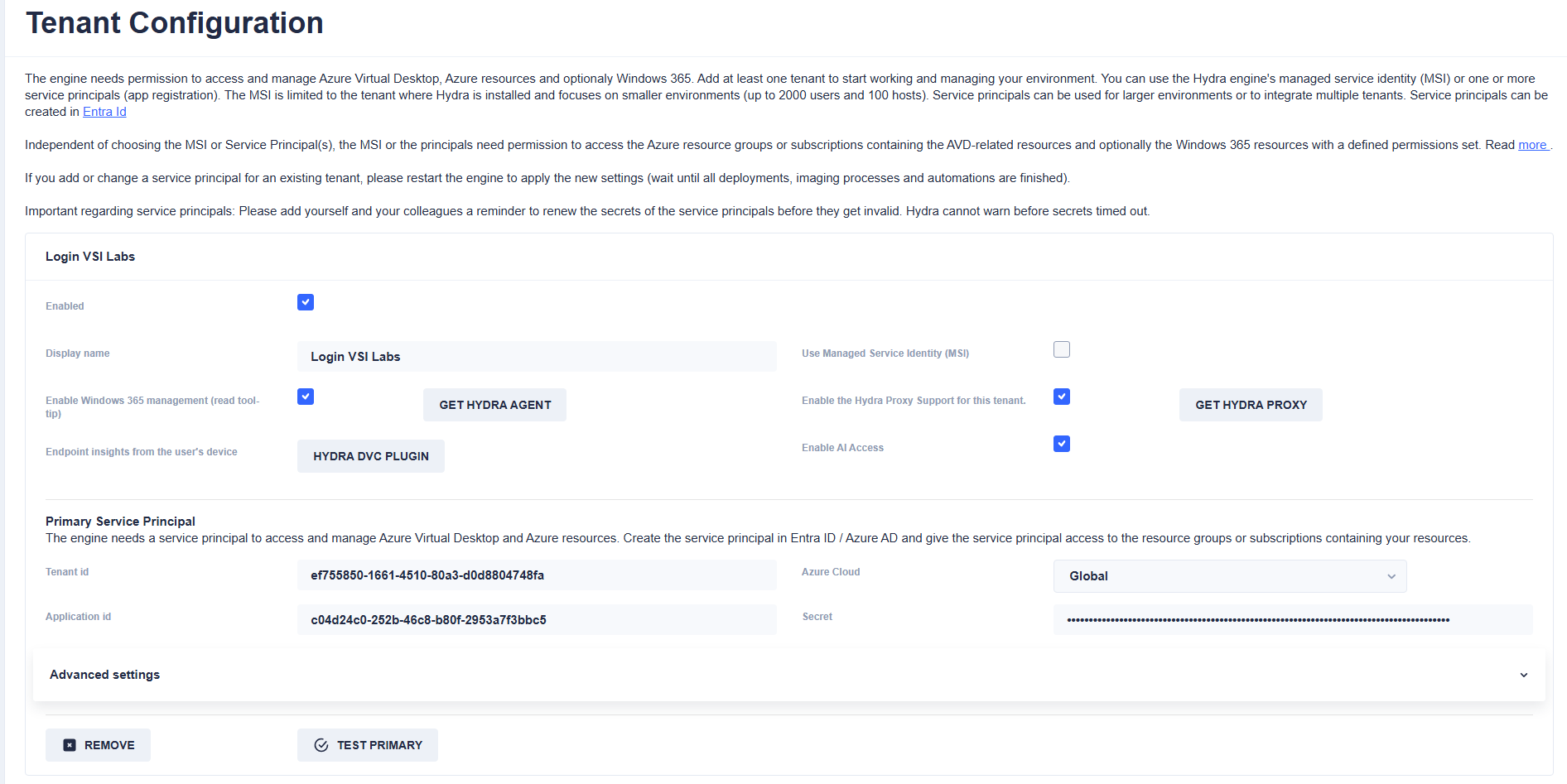
Enable AI Access for a Tenant
-
Navigate to Tenants.
-
Open the configuration for the tenant you want to make available to Ask Hydra.
-
Select Enable AI Access.
-
Save the tenant configuration. Repeat for each tenant that should be available to Ask Hydra.
Enabling Ask Hydra globally does not automatically enable AI access for every tenant. Tenant-level access must be enabled separately.
Configuring the First AI Model
When a user first opens Ask Hydra and no model registry has been configured, Hydra displays the AI Registry Setup page. A Full Admin must create the first registry before conversations can be used.
The initial release supports OpenAI ChatGPT and Anthropic Claude models, with direct provider connections or connections through Microsoft Foundry. Obtain the endpoint URI, exact model name, and API key from the selected provider or Foundry deployment.
-
Navigate to Hydra Lens > Ask Hydra.
-
On AI Registry Setup, select the Provider and Connection type.
-
Enter the provider connection information and review the model configuration fields described below.
-
Select Create New Registry to save the model configuration.
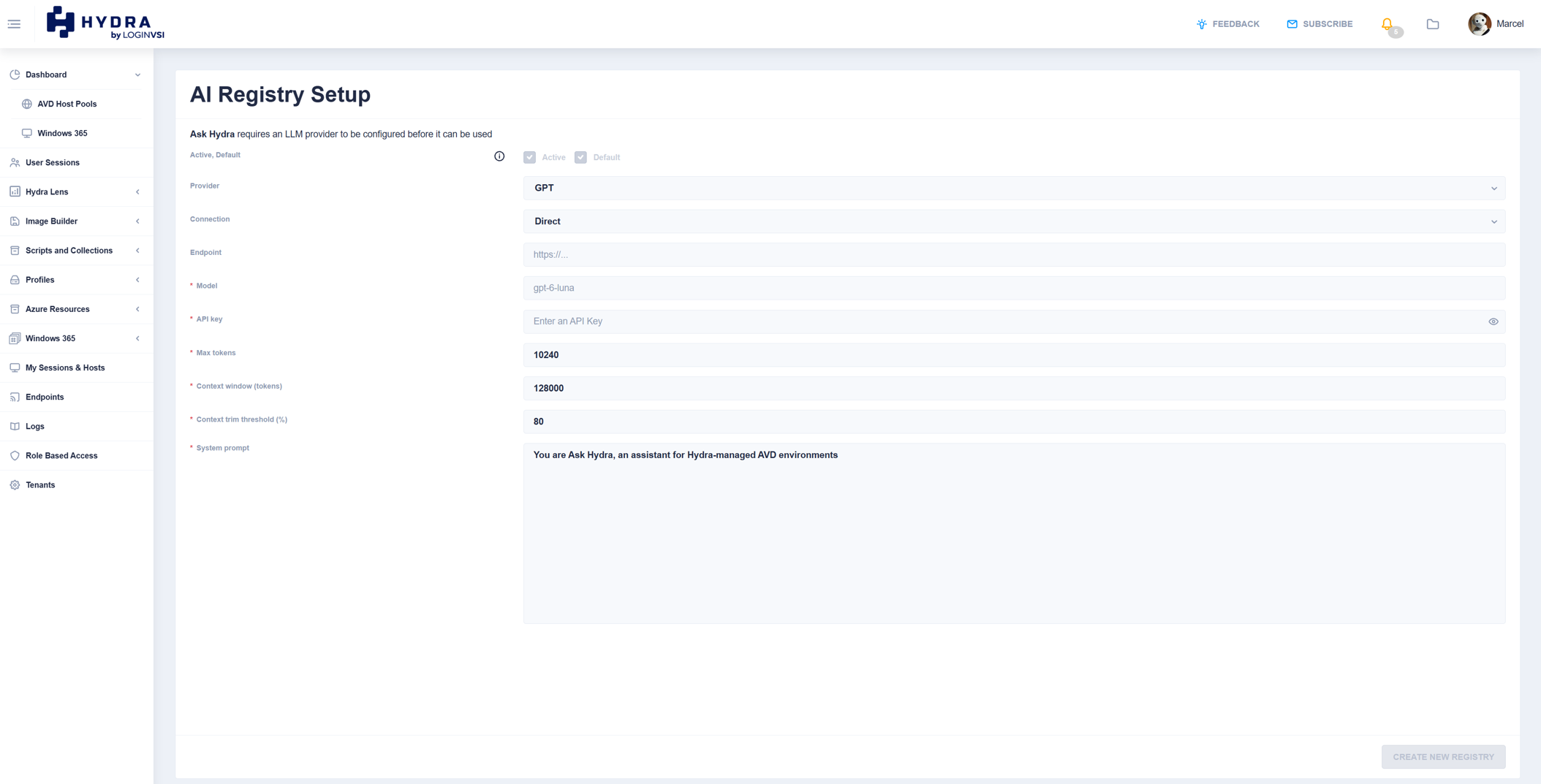
AI Registry Settings
|
Field / Control |
Description |
|
Provider |
Select the AI provider for the model, such as OpenAI or Anthropic. This determines which provider service the registry uses. |
|
Connection |
Choose how Hydra connects to the model: directly to the provider or through Microsoft Foundry. The endpoint and credentials must correspond to the selected connection. |
|
Endpoint |
The endpoint URI used to send requests to the provider or Foundry service. Enter the endpoint supplied for the chosen connection; endpoint formats can differ by provider. |
|
Model |
The exact model identifier expected by the provider or deployment. The value must match the provider configuration; an incorrect name may prevent requests from succeeding. |
|
API key |
The credential used to authenticate requests. Obtain it from the provider or configured Foundry resource. Treat the key as sensitive and use a credential with appropriate access. |
|
Max tokens |
The configured maximum token allowance for model output. This can affect how much information a single response can contain and must be compatible with the provider/model limits. |
|
Context window (tokens) |
The configured context capacity used for the conversation. It defines how much context the model can accommodate and should match the supported model configuration. |
|
Context trim threshold (%) |
The context utilization threshold at which Ask Hydra is configured to trim conversation context. This helps manage the amount of conversation history sent to the model. |
|
System prompt |
Instructions that define the assistant’s role and general behavior. The default text identifies Ask Hydra as an assistant for Hydra-managed AVD environments. Review changes carefully because they may affect responses. |
Note: Required fields are marked with an asterisk in the setup interface. Provider limits and supported model settings may differ. Verify the configured values against the provider’s documentation.
Managing Model Registries
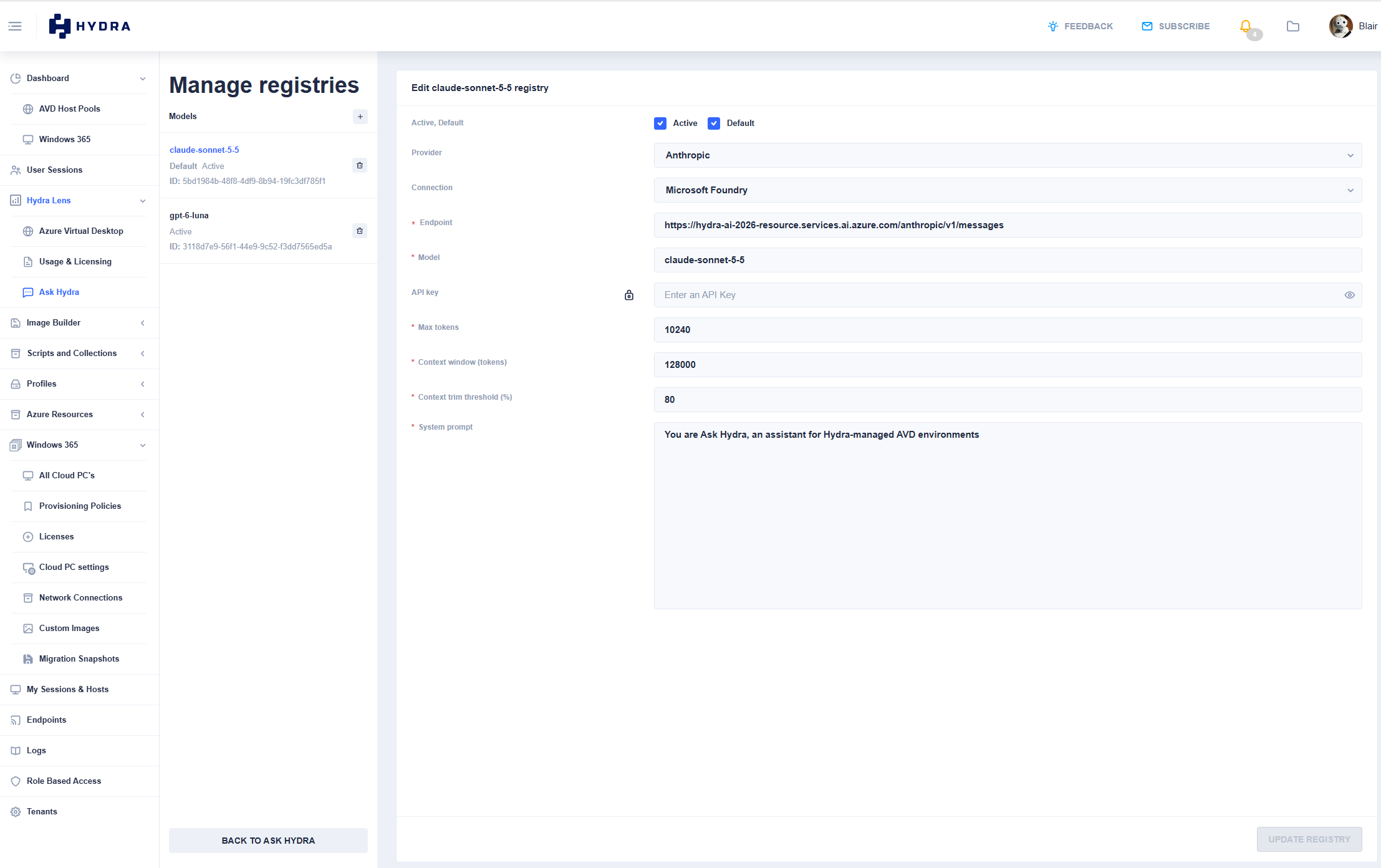
After creating a registry, Full Admins can use the settings icon next to the Ask Hydra heading to open Manage registries. The Models list displays configured registries. Select a registry to review or edit its configuration, use the plus icon to add another, or use the delete control to remove a registry when appropriate.
The lock icon beside API key indicates that an API key has been entered, encrypted, and stored. The field may appear empty when editing an existing registry; the lock indicates that a stored key exists.
One model is designated as Default. All users use the default model unless the default is changed by a Full Admin. Changing the default causes new conversations or new prompts to use the newly selected model. A conversation’s model information can be checked from its information icon.
The final interface does not include an Active toggle in model setup or Active/Inactive labels in the model list.
Working with Conversations
Create and Open Conversations
-
Navigate to Hydra Lens > Ask Hydra.
-
Select New Conversation at the bottom of the conversation list.
-
Type a question into the message field and submit it.
-
Review the response. Enter another prompt in the message field to continue the conversation.
-
To return to a previous conversation, select its title from the conversation list.
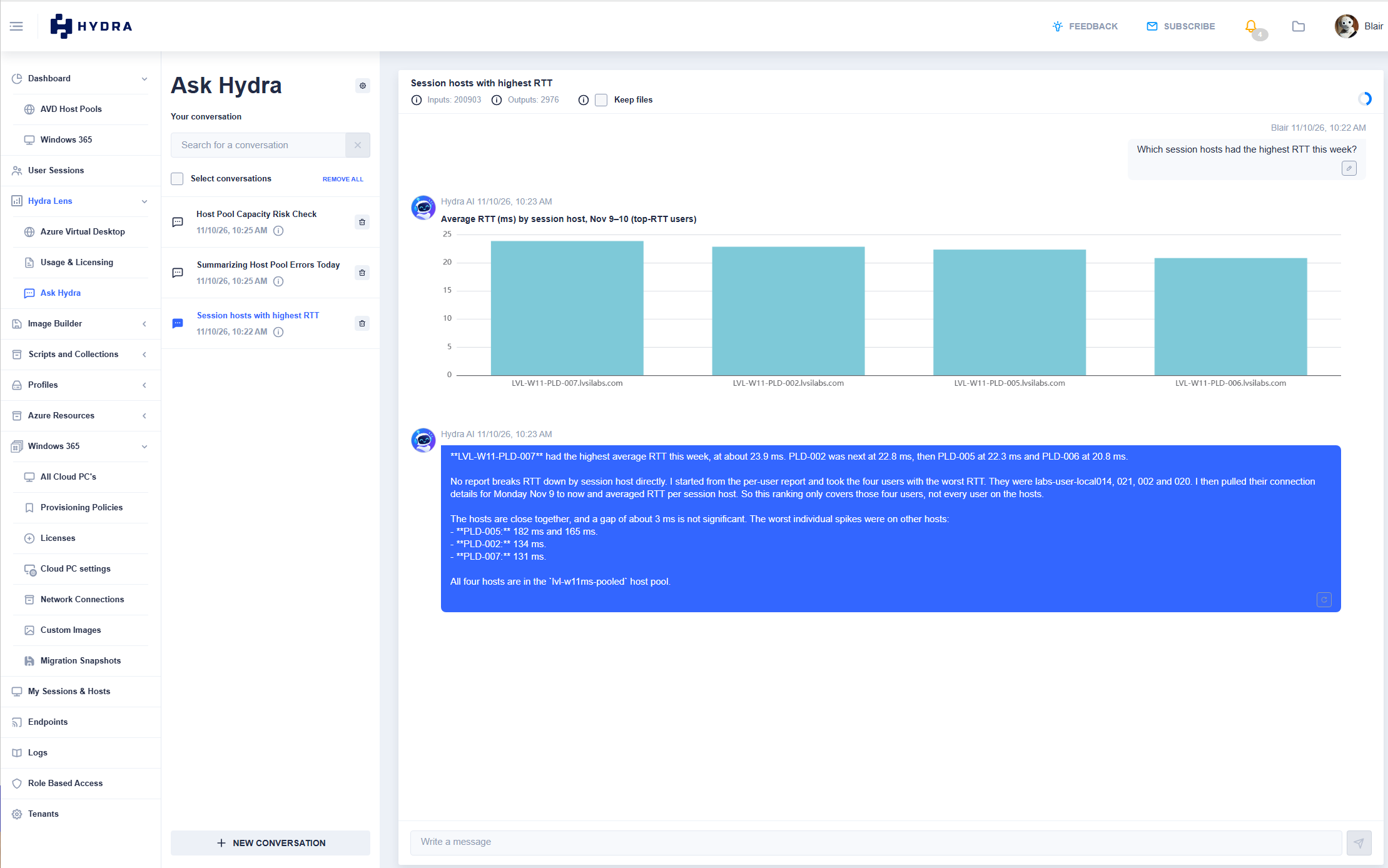
The conversation list shows conversation titles and timestamps. The selected conversation is highlighted, and its messages appear in the main pane.
Find and Manage Conversations
|
Field / Control |
Description |
|
Search for a conversation |
Use the search field above the conversation list to find an existing conversation. |
|
Conversation title and timestamp |
Identify a conversation in the list and when it was recorded. |
|
Information icon beside a conversation |
View the conversation identifier and the model currently used for that conversation. |
|
Delete icon |
Remove the selected conversation using the delete control beside its entry. |
|
Select conversations / Remove all |
Use the selection control and the visible Remove All action to manage conversations. Confirm the intended scope before removing entries. |
|
New Conversation |
Start a separate conversation from the current one. |
Understand the Conversation View
|
Field / Control |
Description |
|
Conversation heading |
Displays the selected conversation title. |
|
Input and output indicators |
Display input and output token counts shown for the conversation. |
|
Context-length circle |
The circular indicator at the upper-right of the message pane represents context-length utilization. |
|
Keep files |
A checkbox displayed in the conversation header. Its retention behavior should be confirmed before it is described as a user-facing feature. |
|
User and Ask Hydra messages |
Show the prompts and responses, including timestamps and any generated visualizations. |
|
Message field |
Enter a new question or follow-up prompt. |
|
Edit icon on a user prompt |
An edit control is shown on user prompts; the precise edit-and-resubmit behavior should be confirmed before publication. |
Response Formats
Ask Hydra can return narrative answers and structured visualizations, including line charts, bar charts, pie charts, tables, and KPI cards. The format depends on the request and the information available to the model. Review chart labels, date ranges, and any stated limitations before using results to make operational decisions.
For example, a question about session-host network latency may produce a bar chart and explanatory text. Where source data is limited, the response may explain that limitation.
Provider Configuration and Best Practices
-
Review provider-side settings before connecting a model. Providers may enforce tokens-per-minute (TPM), requests-per-minute (RPM), quotas, access permissions, or deployment-specific restrictions. Adjust these in the provider service where supported.
-
Choose a model based on the workload. Some models respond faster or cost less; others may be more capable for complex analysis or longer conversations.
-
Use the correct endpoint and exact model identifier for the selected provider and connection method.
-
Configure Max tokens and Context window to values supported by the selected model, and monitor context-length utilization during longer conversations.
-
Use appropriately scoped API credentials and protect access to model registry settings.
-
Test representative questions after configuring a model, including questions that produce tables or charts, before granting wider access.
-
Be specific about the tenant, resource, metric, and time period when asking questions. Check results against source data when accuracy is critical.
Note: Model usage may incur charges from the provider or Microsoft Foundry, depending on the selected service and billing configuration.