Overview
Global Settings control configuration options that apply across the Hydra installation. Use these settings to configure monitoring, rollouts, scripts and script collections, additional features, Hydra behavior, and announcement banners.
Note: These settings apply to the full Hydra installation, regardless of tenants or host pools.
To open Global Settings, select the user icon in the upper-right corner and then select Global Settings.
.png?cb=778a7970efdb05071468cb55c4630dbe)
After configuring the settings below, click Save at the bottom of the page to apply your changes.
Monitoring
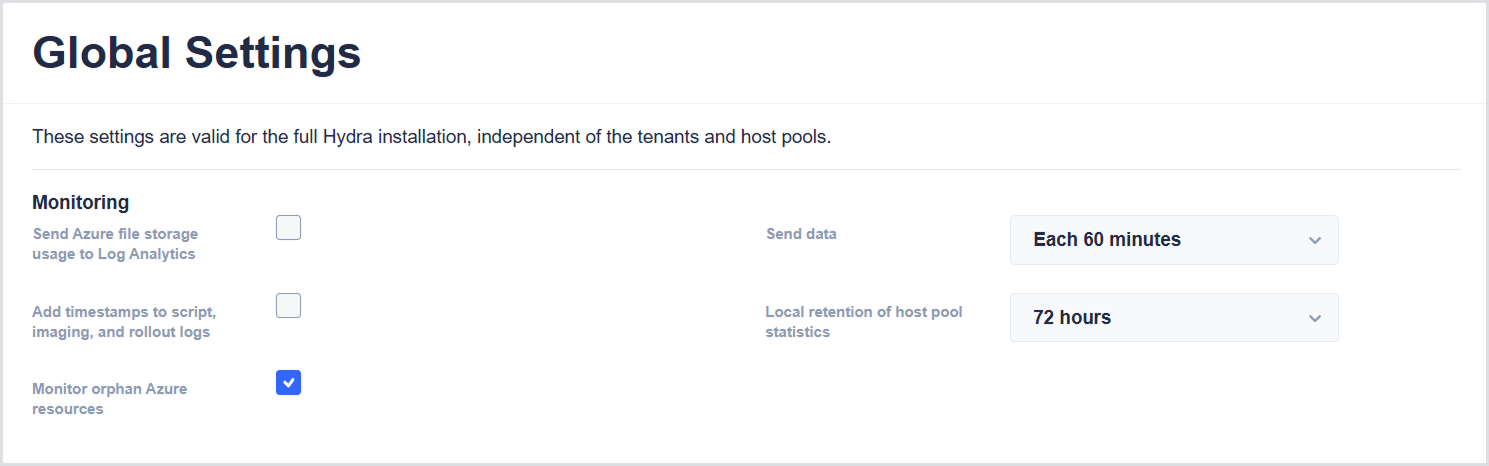
Use these settings to configure monitoring, logging, and retention for the Hydra installation.
|
Setting |
Description |
|---|---|
|
Send Azure file storage usage to Log Analytics |
Sends Azure file storage usage data to Log Analytics. |
|
Add timestamps to script, imaging, and rollout logs |
Adds a timestamp to each step of a logged process. |
|
Monitor orphan Azure resources |
Displays a notification in the portal when a virtual machine for a host exists, but the host does not, or when a session host is running but is not communicating with the AVD backend. Review these notifications to avoid unnecessary costs. Note: A resource must remain orphaned for a period of time before it appears in the portal. |
|
Send data |
Specifies how often file storage usage is queried and sent to Log Analytics. Available options: Every 30 minutes, Every 60 minutes, Every 8 hours, and Every day. |
|
Local retention of host pool statistics |
Specifies how long host pool statistics are displayed above the session hosts. The data is also stored in Log Analytics for a longer period. |
Rollout
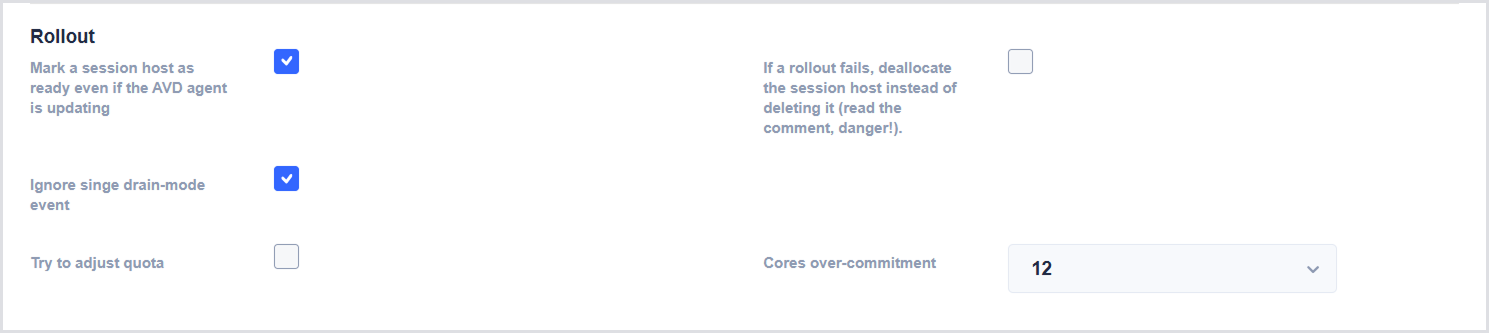
Use these settings to control how Hydra handles session hosts during deployment and how it responds to AVD agent updates, quota limits, and rollout failures.
|
Setting |
Description |
|---|---|
|
Mark a session host as ready even if the AVD agent is updating |
Normally, Hydra waits for the session host to reach the “Available” state. Enabling this option marks the first part of the deployment as completed even if the session host is in the “Updating” status. This can prevent Hydra from deleting the host after a timeout if the AVD agent update takes a long time. |
|
Ignore single drain-mode event |
Ignores a single drain-mode event that can sometimes be caused by an AVD agent upgrade. If this occurs, the host pool capacity is unexpectedly reduced, and triggers a new start or rollout. Enabling this option attempts to prevent this behavior. |
|
Try to adjust quota |
When a new rollout starts, Hydra checks whether enough cores are available for the new deployment based on the VM type and region. If needed, Hydra tries to increase the quota. Important: The quota API is very restrictive. Requests may be blocked for several hours, especially if multiple requests are made at the same time or within a short period. |
|
If a rollout fails, deallocate the session host instead of deleting it |
Normally, Hydra deletes a session host if the rollout fails. Enable this option to deallocate the host instead of deleting it. Important: Use this option carefully. Deallocating the host can cause multiple compute, disk, and NIC resources to not appear in Hydra. This can result in high costs and may prevent new hosts from being rolled out. |
|
Cores over-commitment |
Specifies the number of additional cores included in a quota request. When Hydra requests cores, it requests the number of cores required for the deployment plus the selected number of additional cores. Available options: 0, 12, 24, 36, 48, 96, and 144. |
Scripts and Script Collections for Host Pool Administrators
Use these settings to control whether Host Pool Administrators can create, modify, and view scripts and script collections.
By default, only Full Administrators can add and edit scripts and script collections. For full tenants, you can allow Host Pool Administrators to manage scripts and collections that belong to their tenant.
Scripts and script collections can be assigned to individual tenants or to all tenants. Global scripts and script collections can only be assigned and modified by Full Administrators.
|
Setting |
Description |
|---|---|
|
Allow Host Pool Administrators of a tenant access to scripts and collections |
Allows Host Pool Administrators of a tenant to create and modify their own scripts and script collections. These scripts and collections are only visible in the selected tenant. |
|
Read access for Host Pool Administrators of a tenant to the content of global scripts |
Allows Host Pool Administrators of a tenant to view the content of global scripts. |

Features
Use these settings to enable additional Hydra features that are disabled by default.
After you enable a feature and save the configuration, reload the Hydra web page before you use the features. Preview features may change in future versions.
|
Setting |
Description |
|---|---|
|
Enable Endpoint Management |
Enables the management of Windows 10 and Windows 11 clients. Clients only require an internet connection and the Hydra Agent for Endpoints. Administrators can restart or shut down clients, run scripts, view and terminate processes, and more. |
|
Enable Windows 365 Management |
Enables management features for Windows 365. After enabling this setting, reload the Hydra web page in your browser. You must also enable Windows 365 for each tenant in the Tenant configuration. |
|
Enable Hydra Proxy Support |
Enables Hydra Proxy support. Hydra Proxy is an external resource that runs in data centers and provides additional capabilities for managing Azure Local and Azure Virtual Desktop in hybrid environments. For example, a Hydra Proxy configured for a custom location in Azure Local can provide local image management. You must also enable Proxy Support for each tenant in the Tenant configuration. |

Others
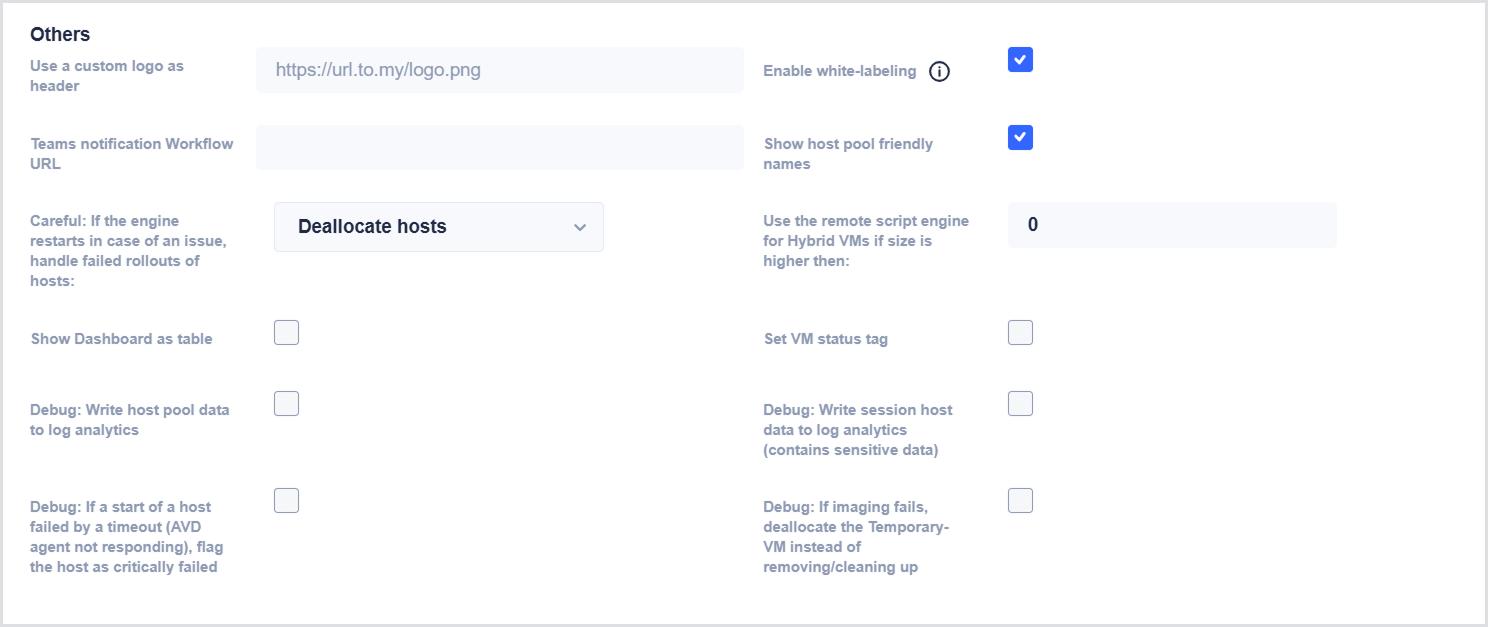
Use these settings to configure the Hydra Portal appearance, notifications, rollout recovery, debugging, and other advanced Hydra behavior.
|
Setting |
Description |
|---|---|
|
Use a custom logo as header |
Specifies a URL for a logo to display in the Hydra Portal header instead of the word “Hydra.” Note: The web server hosting the image may collect the IP addresses of users who access the Hydra Portal. |
|
Teams notification Workflow URL |
Specifies the Workflow Webhook URL of a Teams channel. The Hydra engine uses this workflow to report orphaned resources and invalid service principal secrets. |
|
Careful: If the engine restarts in case of an issue, handle failed rollouts of hosts |
Specifies how Hydra handles interrupted host rollouts after an unexpected app service / Hydra engine restart. This can happen if Microsoft moves the service to another hypervisor or if the app service fails. An interrupted rollout can leave orphan VMs that are not session hosts and can generate costs, especially while they are not shown in AVD. Hydra can detect an interrupted rollout after a restart and stop or delete the affected hosts. Use this setting to specify how Hydra handles these hosts. Available options: Do nothing, Deallocate hosts, and Delete hosts. Important: There is a possibility that Hydra could handle the wrong hosts. |
|
Show Dashboard as table |
Displays host pools in a table instead of the default tile layout. This can be useful in larger environments. Reload the Hydra web page after enabling this setting to apply the change. |
|
Debug: Write host pool data to Log Analytics |
Writes host pool data to the Log Analytics workspace during each iteration for debugging purposes. Note: This can generate a large amount of data and result in additional Log Analytics costs. |
|
Debug: If a start of a host failed by a timeout (AVD agent not responding), flag the host as critically failed |
Marks a session host as critically failed when the host cannot be started because the AVD agent does not respond within the configured timeout. A critically failed host is ignored by autoscaling. To remove the flag, resolve the underlying issue, and then stop and start the host using Hydra. |
|
Enable white-labeling |
Removes the Hydra footer and LoginVSI.com links from the Hydra Portal for all users that are not Full Administrators. |
|
Show host pool friendly names |
Displays the friendly name of a host pool, if available, instead of its resource name. |
|
Use the remote script engine for Hybrid VMs if size is higher than |
Specifies the script size threshold, in encoded characters, above which Hydra uses the remote script engine for hybrid VMs. The VMs must have HTTPS access to the Hydra instance (xxx.azurewebsites.net). 0=disabled. Permitted range: 0-99999999 |
|
Set VM status tag |
Enables Hydra to set and update a status tag on VMs. If a VM was deallocated, the flag 'AVD.IsDown' is set to '1.' If the VM is intended to be started, the flag is set to '0.' A failed start or stop operation does not change the tag afterward. VMs started by Power-On-Connect are ignored. |
|
Debug: Write session host data to Log Analytics (contains sensitive data) |
Writes session host data to the Log Analytics workspace during each iteration for debugging purposes. Important: The data includes sensitive information, such as encrypted passwords and the key used to join a host pool. This can generate a large amount of data and result in additional Log Analytics costs. |
|
Debug: If imaging fails, deallocate the Temporary-VM instead of removing/cleaning up |
Deallocates the Temporary-VM when imaging fails instead of deleting or cleaning it up. Normally, Hydra deletes the Temporary-VM after an imaging failure. Deallocating the VM allows you to investigate the root cause of the imaging failure. |
Announcement Configuration
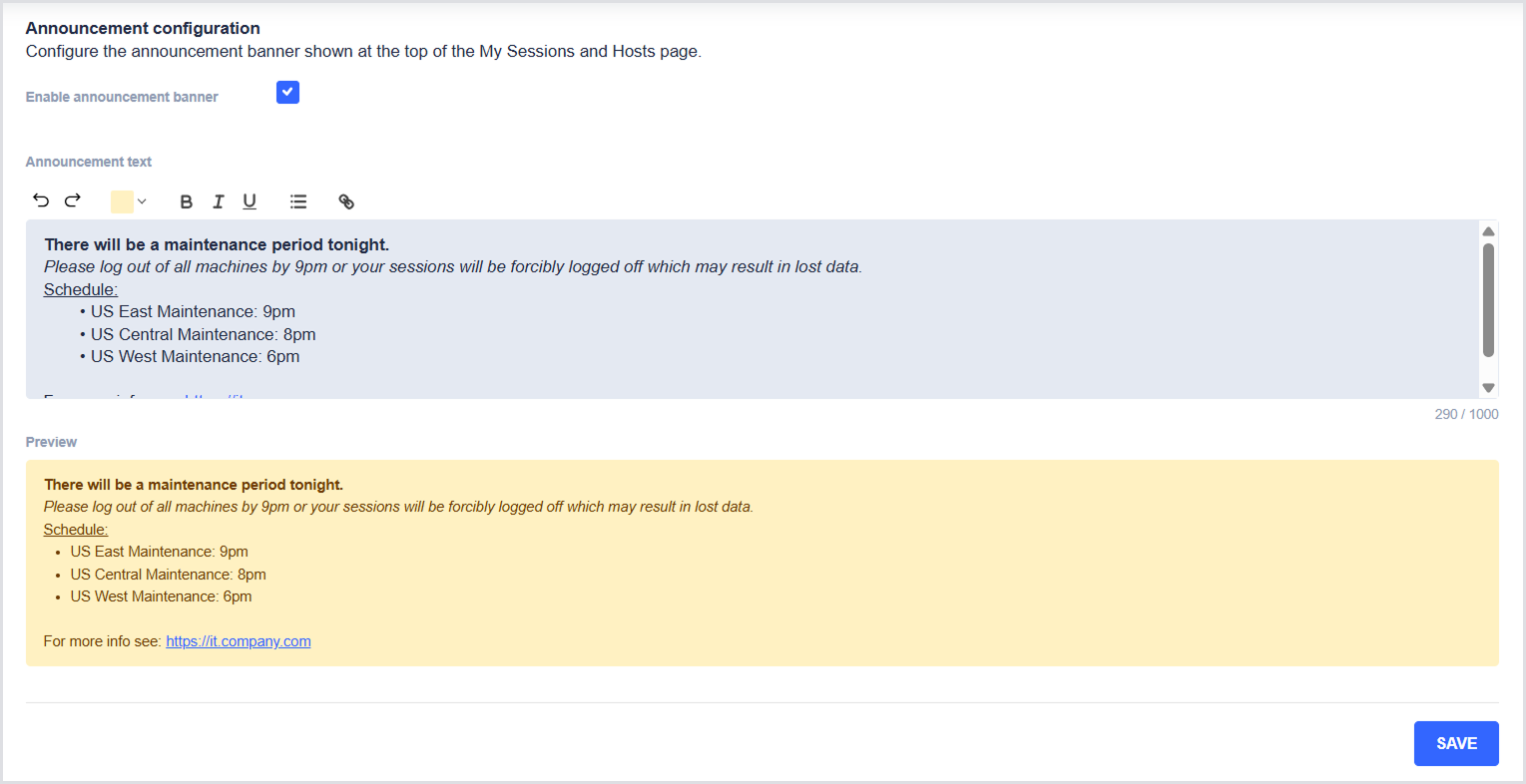
Use these settings to configure the announcement banner displayed at the top of the My Sessions and Hosts page.
|
Setting |
Description |
|---|---|
|
Enable announcement banner |
Displays the announcement banner above the user sessions and hosts. |
|
Announcement text |
Specifies the text displayed in the announcement banner. Use the available formatting options to customize the text. |
The Announcement text field supports the following formatting options:
-
Color
-
Bold
-
Italics
-
Underline
-
Bullet list
-
Insert link
Use Preview to verify how the announcement banner will appear before saving the configuration.