Overview
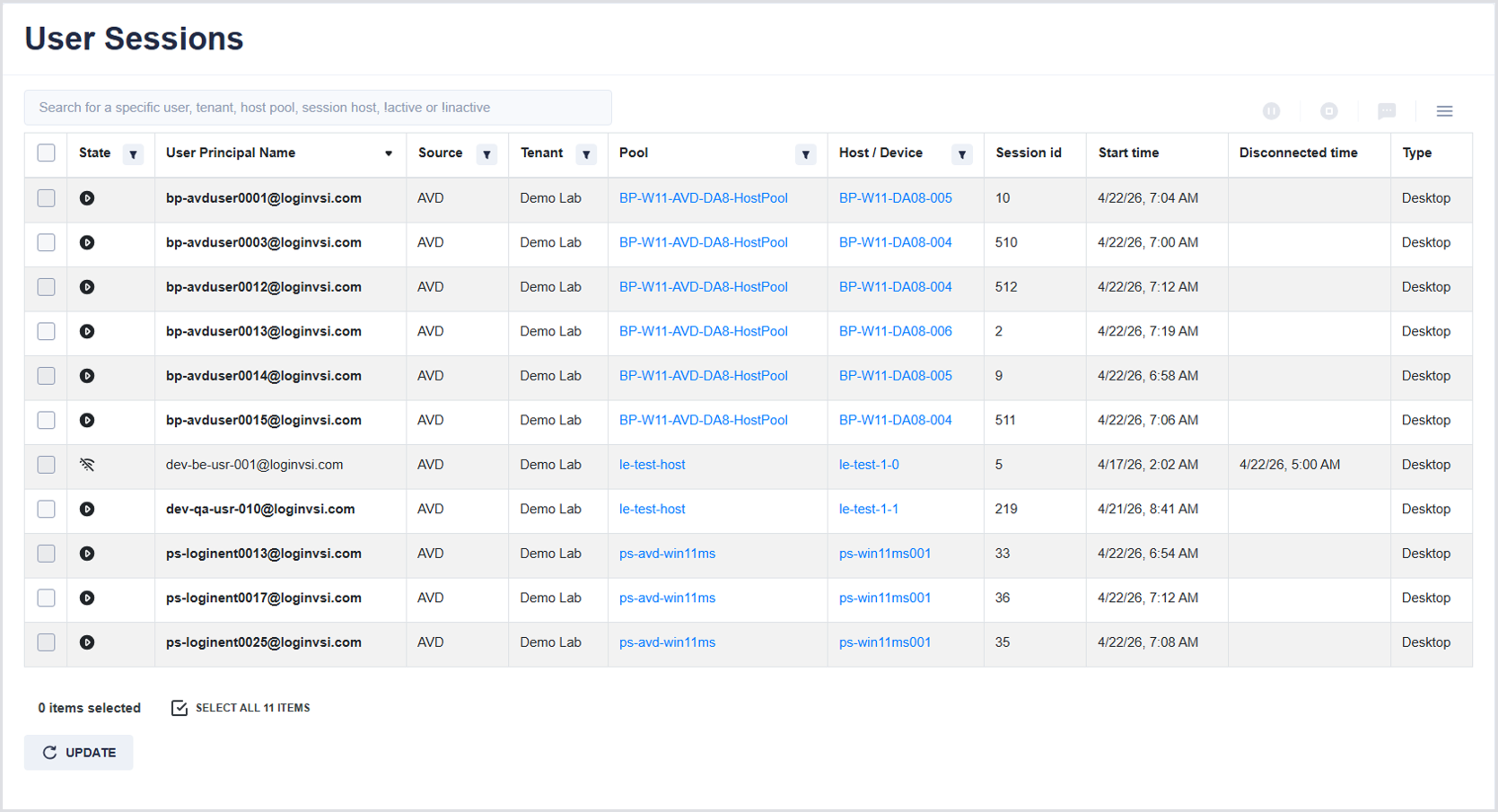
The User Sessions page allows you to search for users, tenants, host pools, and session hosts. You can also filter sessions by various criteria, including State, User Principal Name, Source, Tenant, Pool, Host/Device, Session ID, Start Time, Disconnected Time, and Type.
To access User Sessions, from the Dashboard in the left-side menu, click User Sessions:
Logging Off Users
Hydra can force user logoffs through the Hydra portal. From the User Sessions page:
-
Enter username(s) (UPN format, e.g., username@loginvsi.com) into the User Sessions search bar.
-
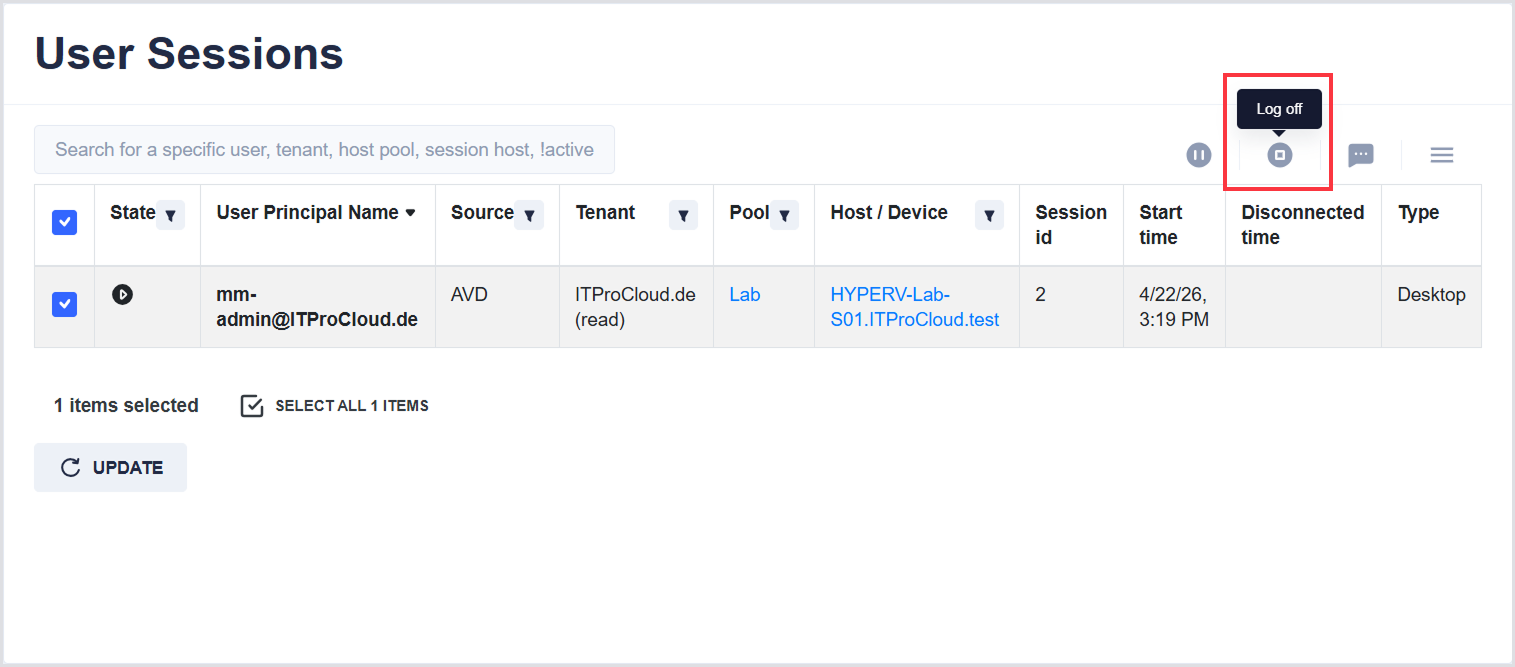
Once the user account is shown in the User Sessions table, select it by clicking the check box.
-
Click the Logoff icon.
-
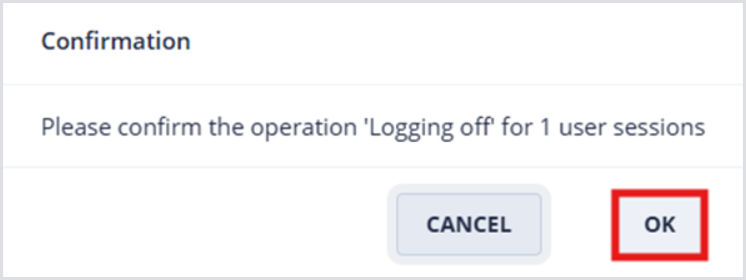
Click OK to confirm the user logoff.
Sending Message to Users
Hydra can send messages to active user sessions through the Hydra portal. From the User Sessions page:
-
Enter username(s) (UPN format, e.g., username@loginvsi.com) into the User Sessions search bar.
-
Once the user account is shown in the User Sessions table, select it by clicking the check box.
-
Click the Message button to open the Message details.
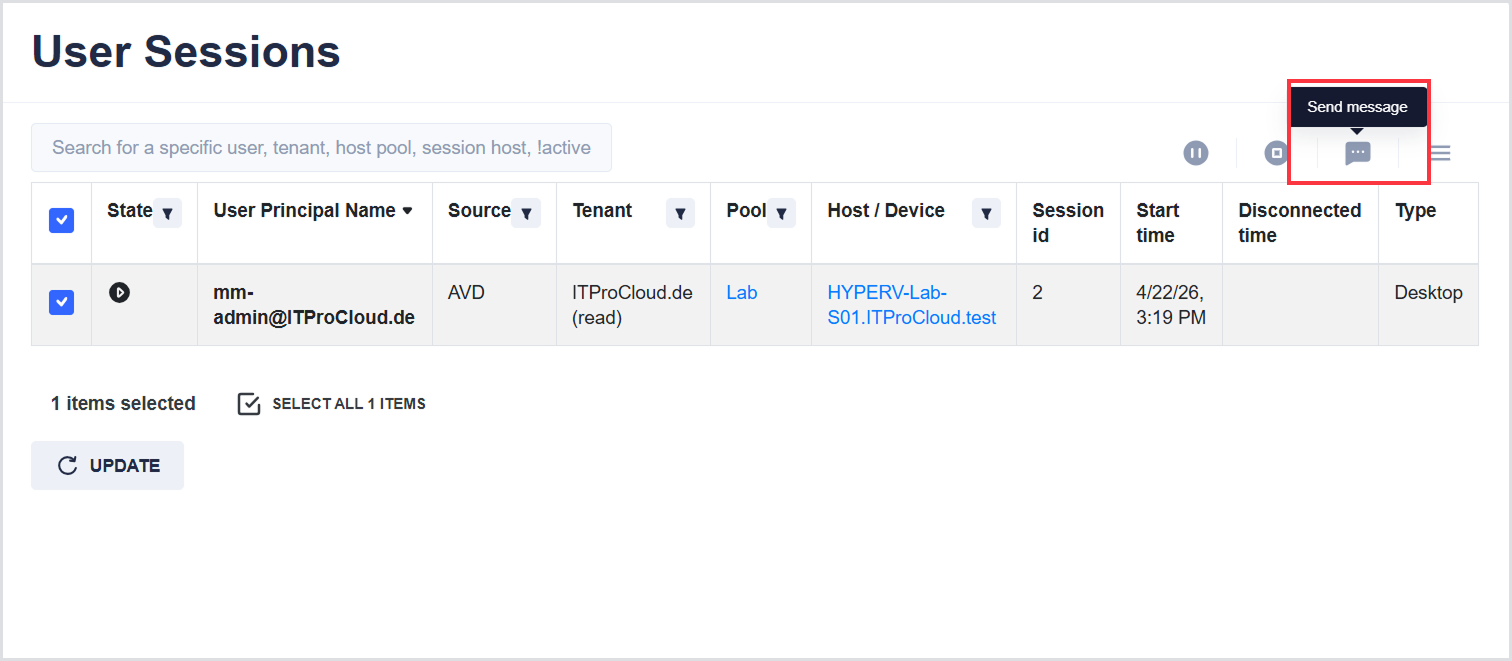
-
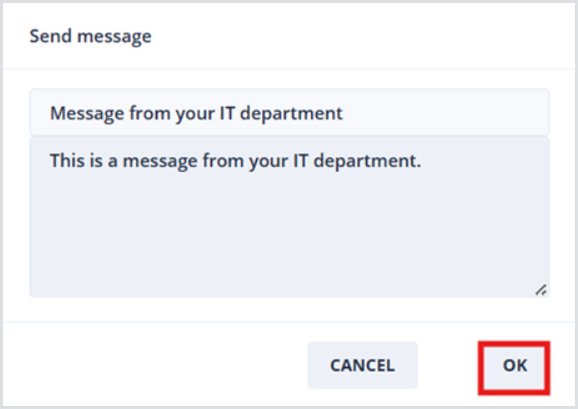
In the Send message window, optionally change the subject line, and enter the desired message, e.g., “This is a message from your IT department.” Click OK to send the message.