
Overview
Hydra can manage and monitor Azure File Shares and Azure NetApp Files, which are typically used to store FSLogix profiles. Hydra can auto-expand/shrink Azure File Shares. For Azure File Shares, it can even release file handles (locks) on FSLogix virtual disks if a user’s session was not properly logged out.
Azure File Permissions
For Hydra to properly interact with the Azure File Share, Contributor permissions, or the Custom Resource Access role are required by the Service Principal or Managed Identity in the target tenant.
Azure NetApp File Permissions
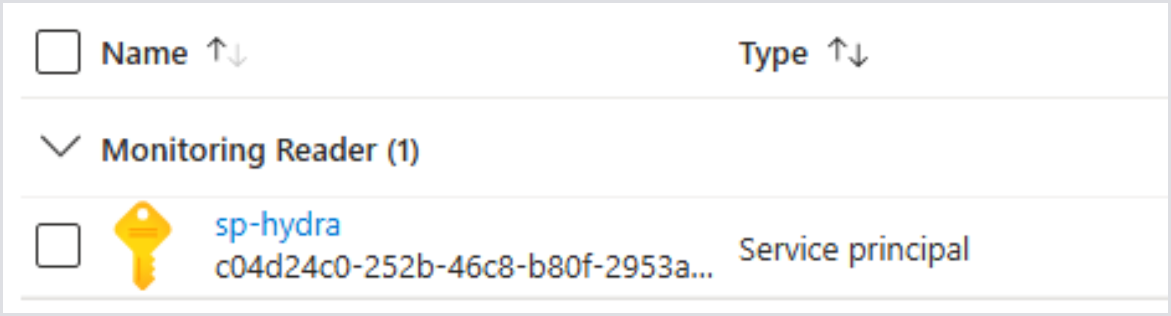
For Hydra to properly interact with Azure NetApp Files, the Service Principal or Managed Identity in the target tenant must have Contributor permissions or the Custom Resource Access role. The “Monitoring Reader” must also be assigned at the Subscription level.
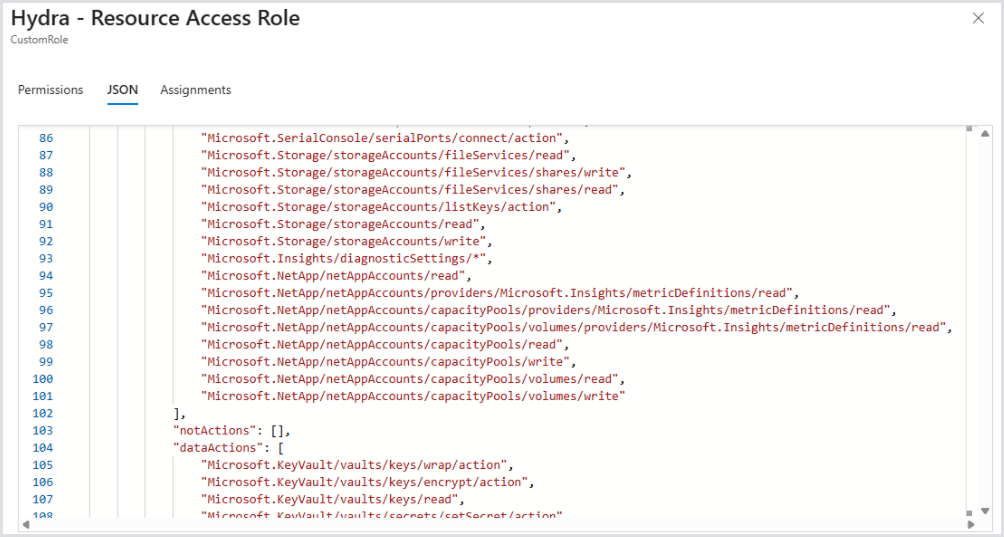
If you created the Custom Resource Access role before Hydra 2.1.0, you must add new permissions to this role. These permissions are:
-
"Microsoft.NetApp/netAppAccounts/read",
-
"Microsoft.NetApp/netAppAccounts/providers/Microsoft.Insights/metricDefinitions/read",
-
"Microsoft.NetApp/netAppAccounts/capacityPools/providers/Microsoft.Insights/metricDefinitions/read",
-
"Microsoft.NetApp/netAppAccounts/capacityPools/volumes/providers/Microsoft.Insights/metricDefinitions/read",
-
"Microsoft.NetApp/netAppAccounts/capacityPools/read",
-
"Microsoft.NetApp/netAppAccounts/capacityPools/write",
-
"Microsoft.NetApp/netAppAccounts/capacityPools/volumes/read",
-
"Microsoft.NetApp/netAppAccounts/capacityPools/volumes/write"
See an example of a JSON-formatted view of a Custom Access Role, including Azure NetApp Files permissions:
Adding a File Share Configuration
File Share Configurations allow Hydra to know when to trigger alerts and auto-expand/shrink file shares to ensure both zero downtime and decreased storage costs.
To add a File Share Configuration:
-
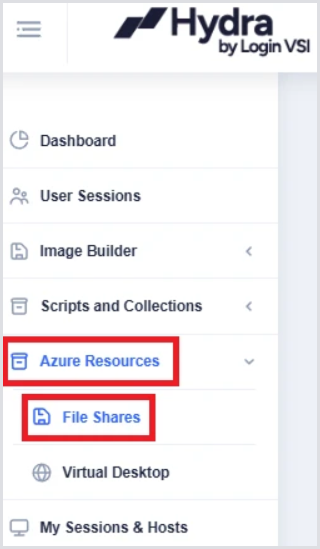
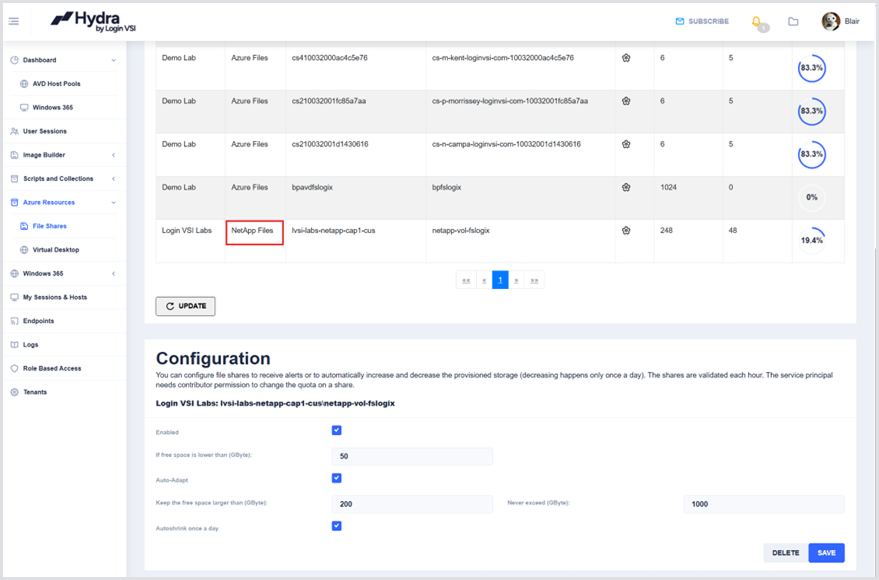
Navigate to Azure Resources > File Shares on the left-hand navigation bar.
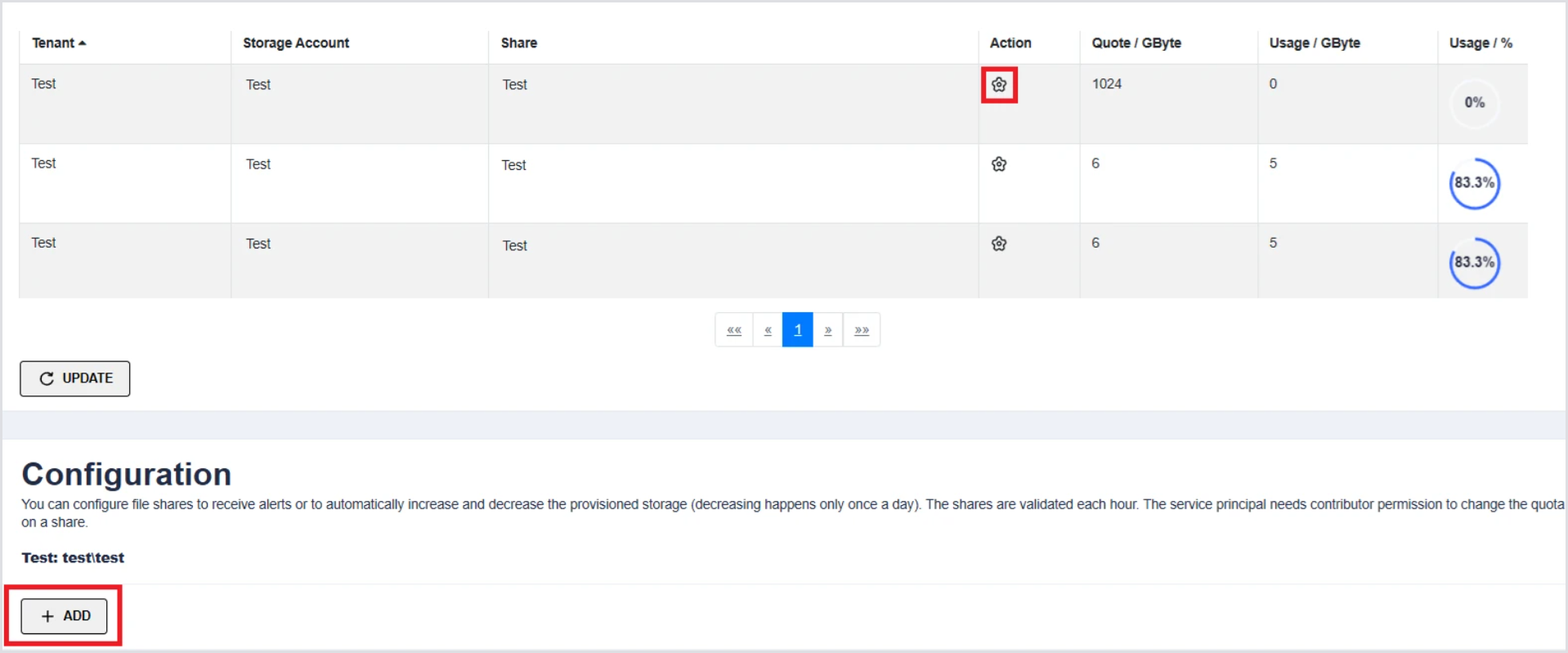
You should see all of the File Shares that the identity has access to.
-
Click the Settings icon and scroll down if needed.
-
Click + Add to add the configuration.
-
Input the parameters below as required:
-
Enabled - Enables the configuration.
-
Free space threshold (GB) - Triggers an alert in the top-right notifications section in Hydra if the free space is less than the configured value. Also triggers resizing when the free space falls below this value.
-
Auto-Adapt - Enable auto-adapt for this share. Auto-adapt can resize the share if needed. It starts when free space drops below the configured trigger value.
-
Add enough capacity to reach this amount of free space when threshold is triggered (GB) - If an alert is triggered, auto-adapt resizes the share to maintain the configured free space.
-
Auto-shrink once a day - When enabled, Hydra shrinks the share once a day if free space exceeds the configured auto-adapt free space capacity above. The operation occurs 24 hours after the last resize.
-
Maximum share size (GB) - Auto-adapt never increases the share above the configured value.
Managing File Handles
Hydra can also release file handles, or locks, on the file share. This only applies to Azure File Shares. This can be handy for releasing locks on VHDs if a session host has not properly released the lock after logoff, potentially causing the user’s subsequent login to hang.
To show the File Handles table:
-
Click on the Usage Percentage graph in the Usage column of the targeted file share:
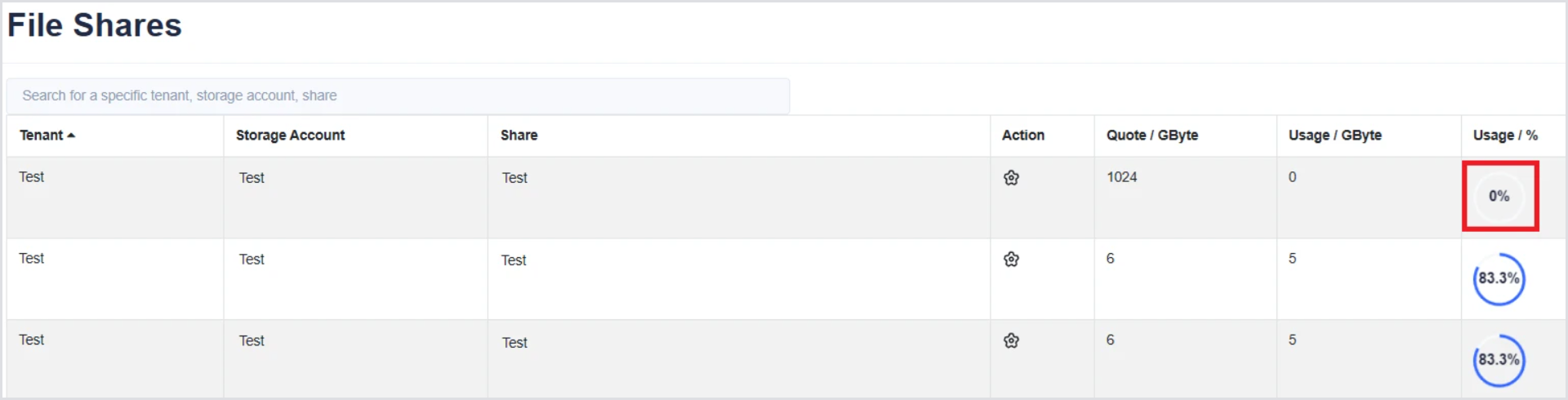
This will display the File Handles table at the bottom of the page.
-
Scroll down if necessary, select the file in scope, and click Release handle to force the release.
Ensure the user is completely logged off before doing this.
