
Logging in
Login Enterprise web-based user interface is compatible with Google Chrome, Microsoft Edge, and Mozilla Firefox browsers, but not with Internet Explorer.
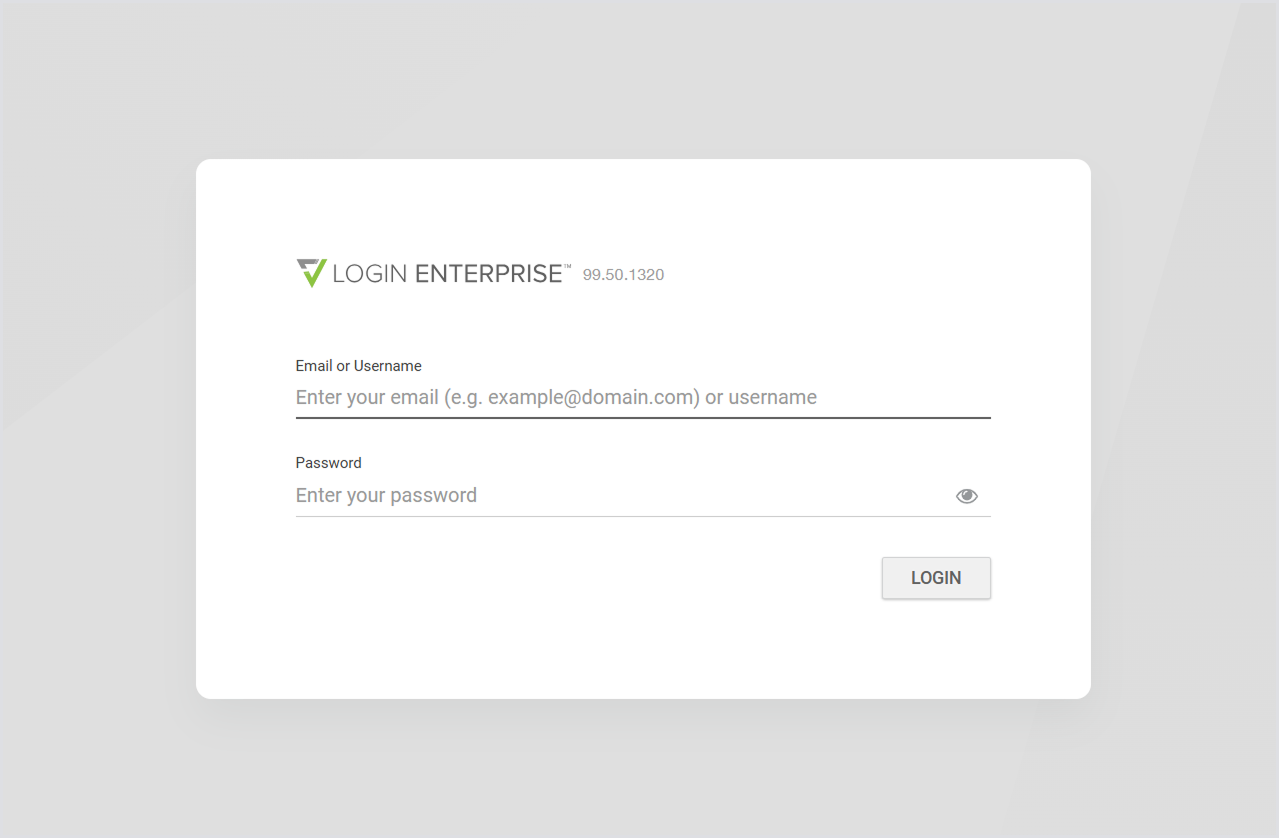
When you access the Virtual Appliance web interface, the login page appears.
Enter your login credentials based on your account type:
-
LDAP users must log in using the User Principal Name (UPN) format, typically an email address such as
username@domain.-
As of v6.0, the previously accepted
domain\usernameformat (UNC) is no longer supported for LDAP users.
-
-
Appliance admin users should continue using their regular username (not in email format).
Accepting the End User License Agreement (EULA)
After you log in, the End User License Agreement (EULA) will appear.
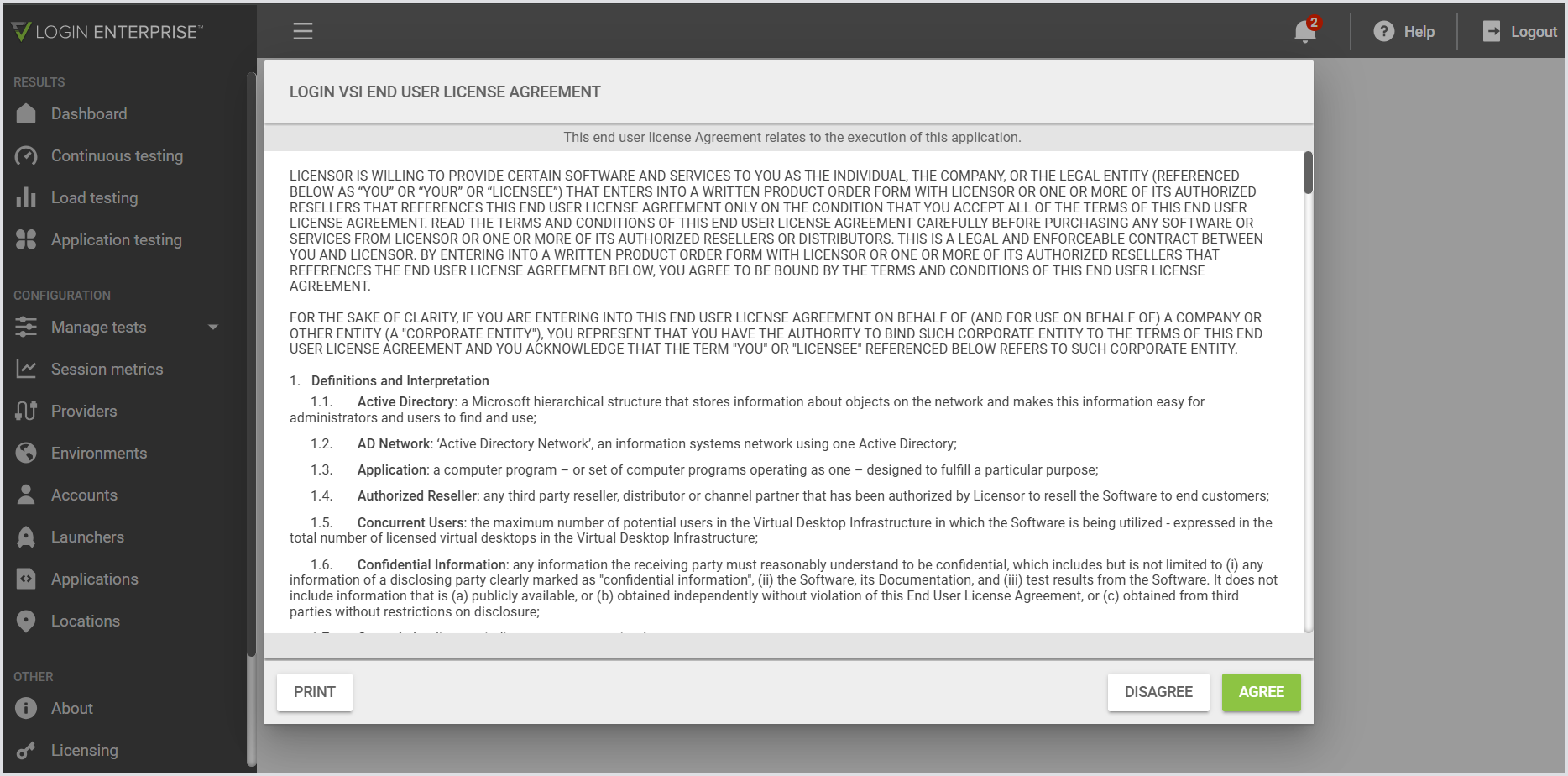
When you accept the EULA, the pop-up will no longer display.
Viewing Release Notes
When you update your Appliance, release notes will appear the next time you access the Web UI.
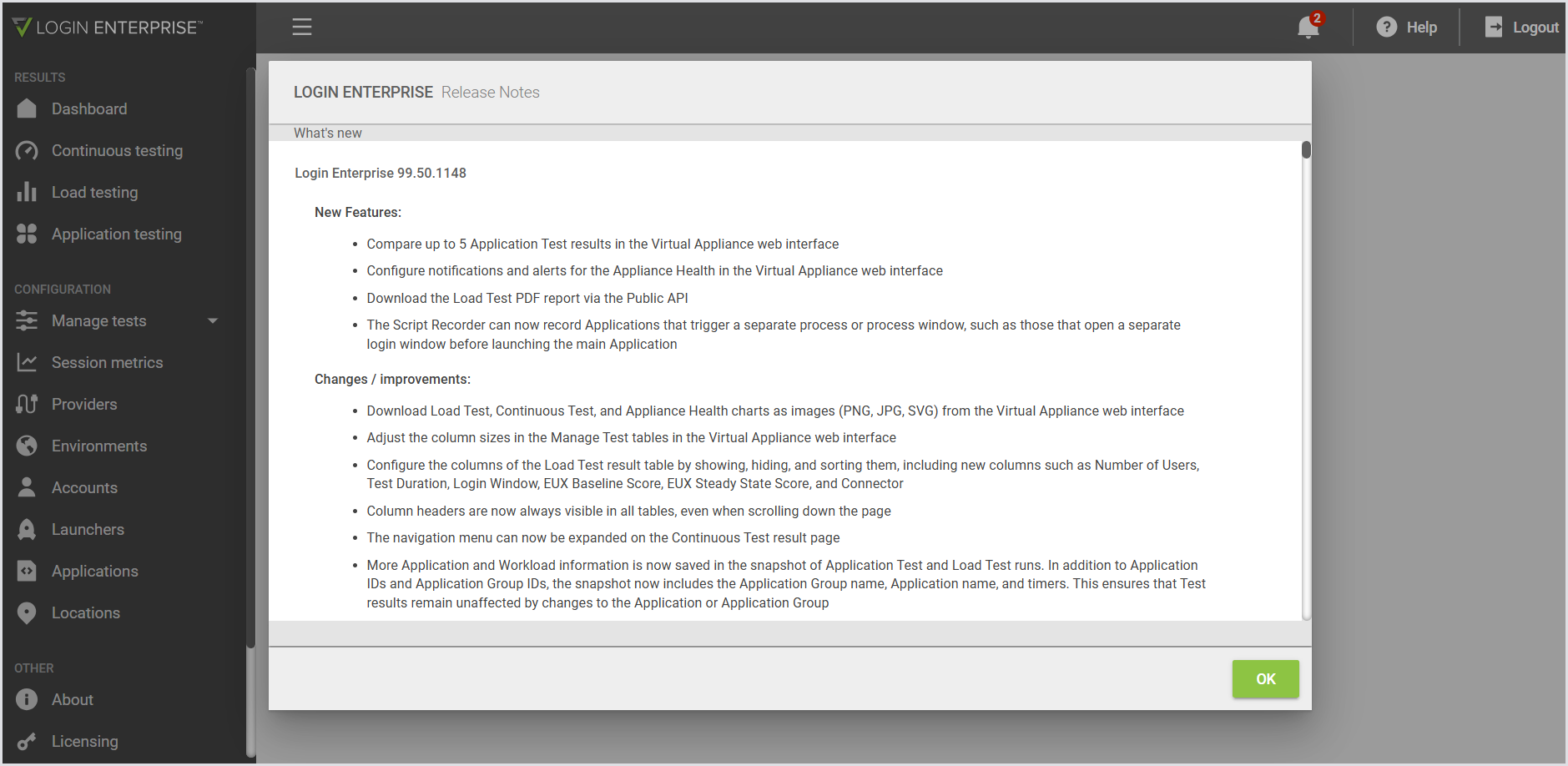
Click OK to dismiss the release notes until the next upgrade.
Introduction and Guided Tour
When you log in for the first time, the web interface will show an introduction and guided tour.
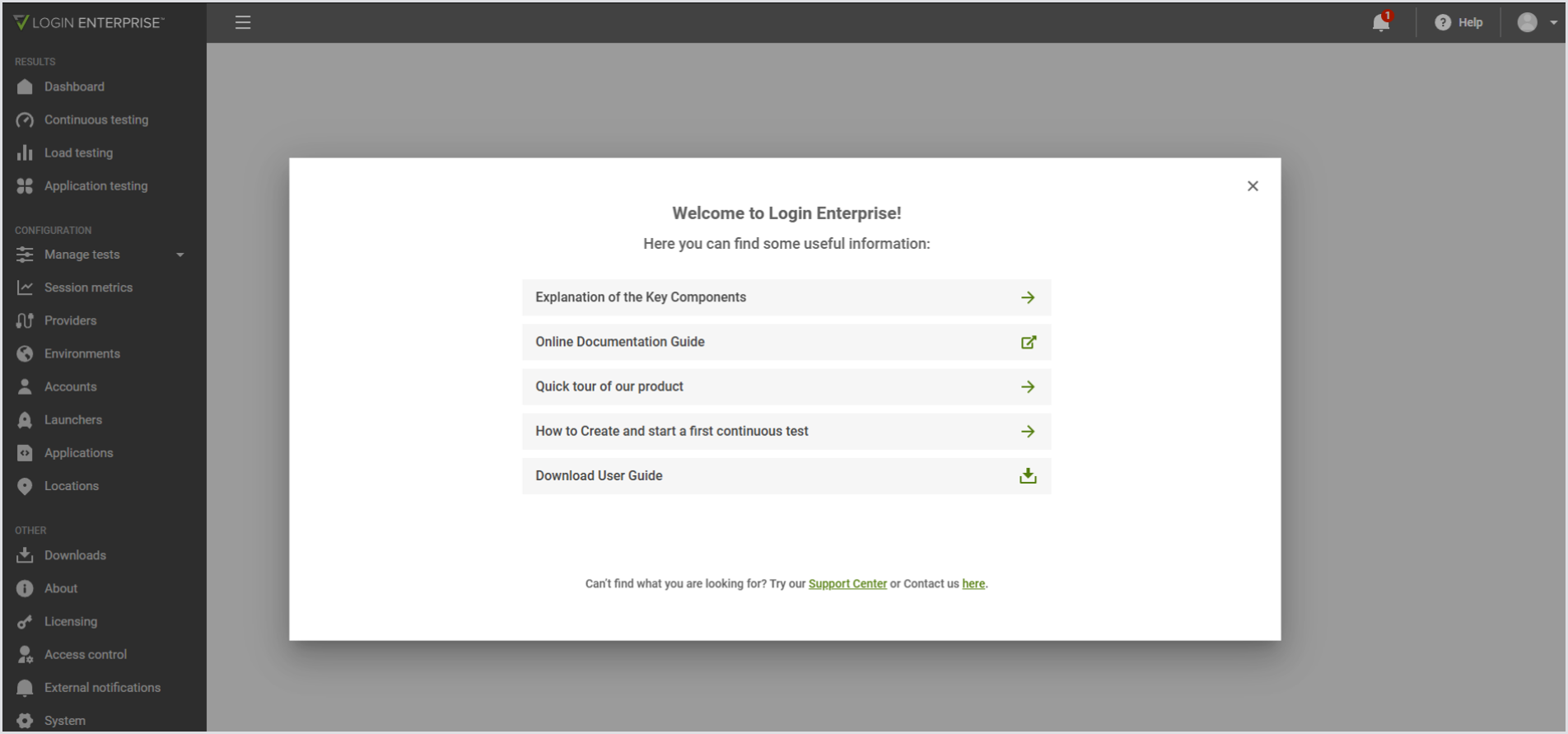
Use the guided tour to learn about the Login Enterprise key components and architecture, explore the online documentation, take a quick tour of the product, find out how to create and start your first test, for example, a Continuous Test, and download the user guide.
Updating your License
Once you’ve taken the guided tour, the system will show a notification asking you to update your license.

For more information on Licensing and how to update your License, see Managing Licenses.